
A blurry camera on your Samsung Galaxy Tab S11 Ultra makes every photo look terrible. The blur might affect only one lens, show up only in certain modes, or make everything look foggy. Before assuming the hardware is broken, try these fixes.
A dirty lens is the usual suspect
This is the most common cause of blurry photos and the easiest fix. Use a soft, lint-free microfiber cloth to gently wipe the camera lens. Fingerprints, smudges, and dust on the lens cause haze and blur in photos.
Avoid using your shirt or paper towels, which can scratch the lens coating. For stubborn grime, add a tiny drop of water to the cloth, not directly on the lens.
Check if the case is blocking the lens
Some tablet cases, especially cheap ones, don't align perfectly with the camera cutout. They can partially cover or fog the lens. Remove your case and take a test photo.
If it's clearer, your case is the problem. Also check that no screen protector or camera protector film is covering the lens.
Make sure the camera is focusing where you want
Open the Camera app and tap on the subject you want to focus on. A yellow square appears showing where the camera is focusing. If you're shooting something close up, the camera may be focusing on the background instead.
Tap directly on your subject to force focus. You can press and hold to lock the focus (AE/AF Lock).
Try a different camera lens
If one camera lens is blurry but another is clear, the problem is specific to that lens. In the Camera app, try switching between 0.6x (ultrawide), 1x (wide), and 3x (telephoto). If only one is blurry, that lens may need cleaning or repair.
A quick app restart fixes software glitches
Swipe up from the bottom and swipe the Camera app away to close it. Reopen it and try again. The camera software can occasionally glitch, causing the autofocus to malfunction or the image processing to produce blurry results.
Force restart if the tablet is acting up
If the camera app is frozen or the autofocus seems stuck, a force restart can help. Press and hold the Power button and Volume Down button simultaneously for 10-15 seconds until the device restarts.
This resets the camera software stack and clears any stuck processes affecting image quality. It's a good step to try before diving into settings.
Turn off Scene Optimizer
Samsung's Scene Optimizer can sometimes over-process images, making them look soft or blurry. Go to Settings > Camera > Scene Optimizer and toggle it off. Take a test photo to see if the blur disappears.
Condensation can cause foggy photos
Condensation inside the camera lens or on the sensor causes foggy, blurry images. This happens when moving from cold to warm environments, or in humid conditions. Let the tablet acclimate to room temperature for 15-20 minutes.
Don't blow on the lens as this adds more moisture. If the fog doesn't clear after a few hours, the seal may be compromised.
Is your software up to date?
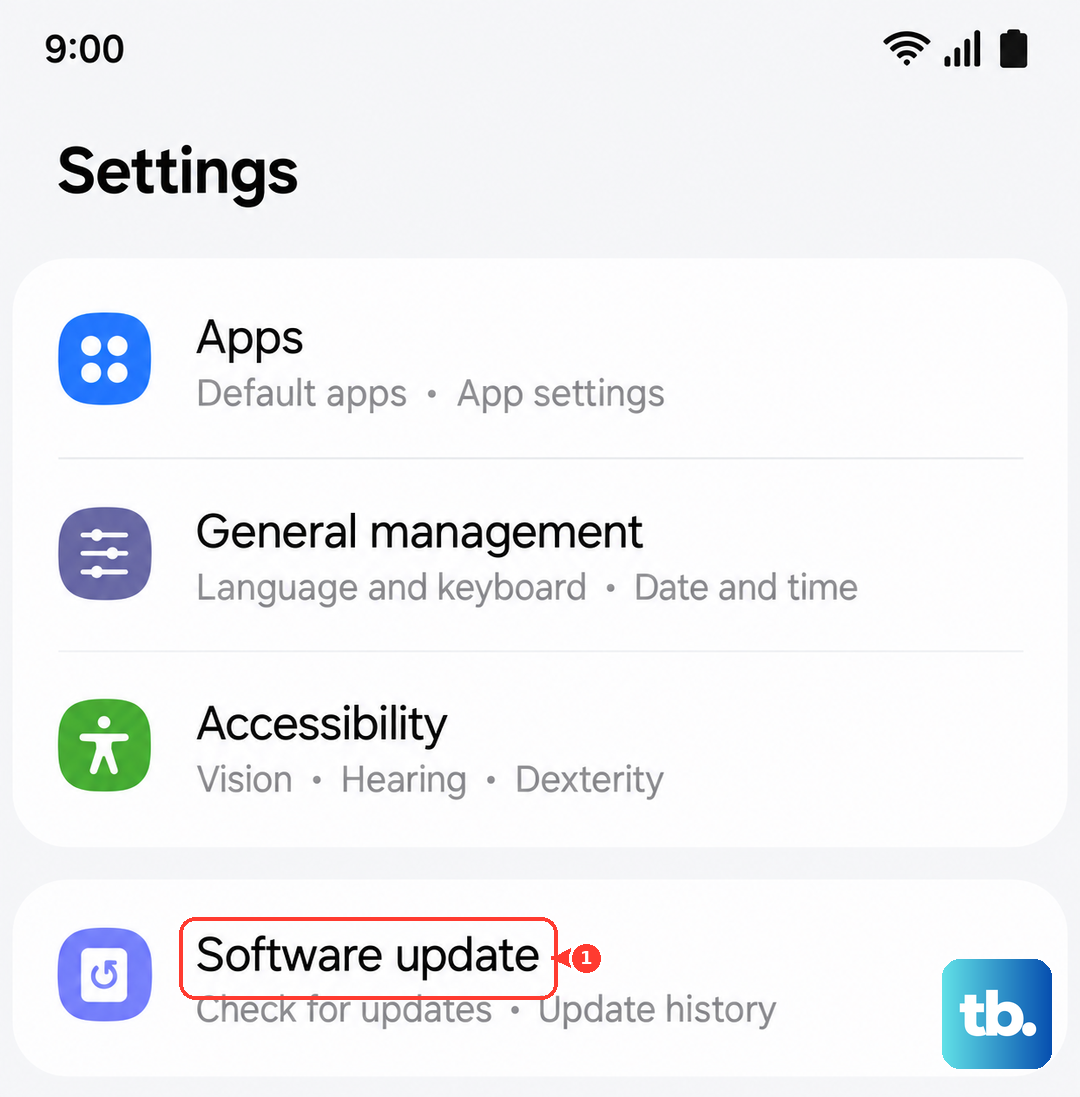
Go to Settings > Software Update > Download and Install. Camera processing and autofocus improvements are included in regular Android updates. A known camera bug might already have a fix available.
Reset the camera to factory defaults
Go to Settings > Apps > Camera > Storage > Clear Data. This resets the camera to its default state. You won't lose any photos, but you will lose any custom camera settings you've saved.
If you're still getting blurry photos after all this, the camera module itself might have an issue.