Your Samsung Galaxy Tab S10+ should pull down new One UI releases on its own, yet here you are watching a download that refuses to budge, a Check for software updates screen that swears the tablet is already current, or an install that hangs partway and reboots straight back to the old version. On a 12.4-inch tablet you lean on for note-taking with the included S Pen, streaming, and real work, falling behind on security patches and new features is worth sorting out today rather than living with.
The reassuring part is that this model is fully update-capable, so a stalled update is almost always a fixable hiccup rather than a dead end. The Tab S10+ shipped in 2024 on Android 14 with One UI 6.1, has already moved on to One UI 7, and sits on Samsung's official list of devices eligible for One UI 8.0. Work through the steps below in order, starting with the quickest and safest, and leave the reset and support options for last.
Get on stable Wi-Fi and check for the update by hand
Software updates need a steady connection to download cleanly, so a weak or dropping signal is one of the most common reasons an install never starts. Connect the tablet to a reliable Wi-Fi network first, then trigger the check yourself instead of waiting for the tablet to find it on its own.
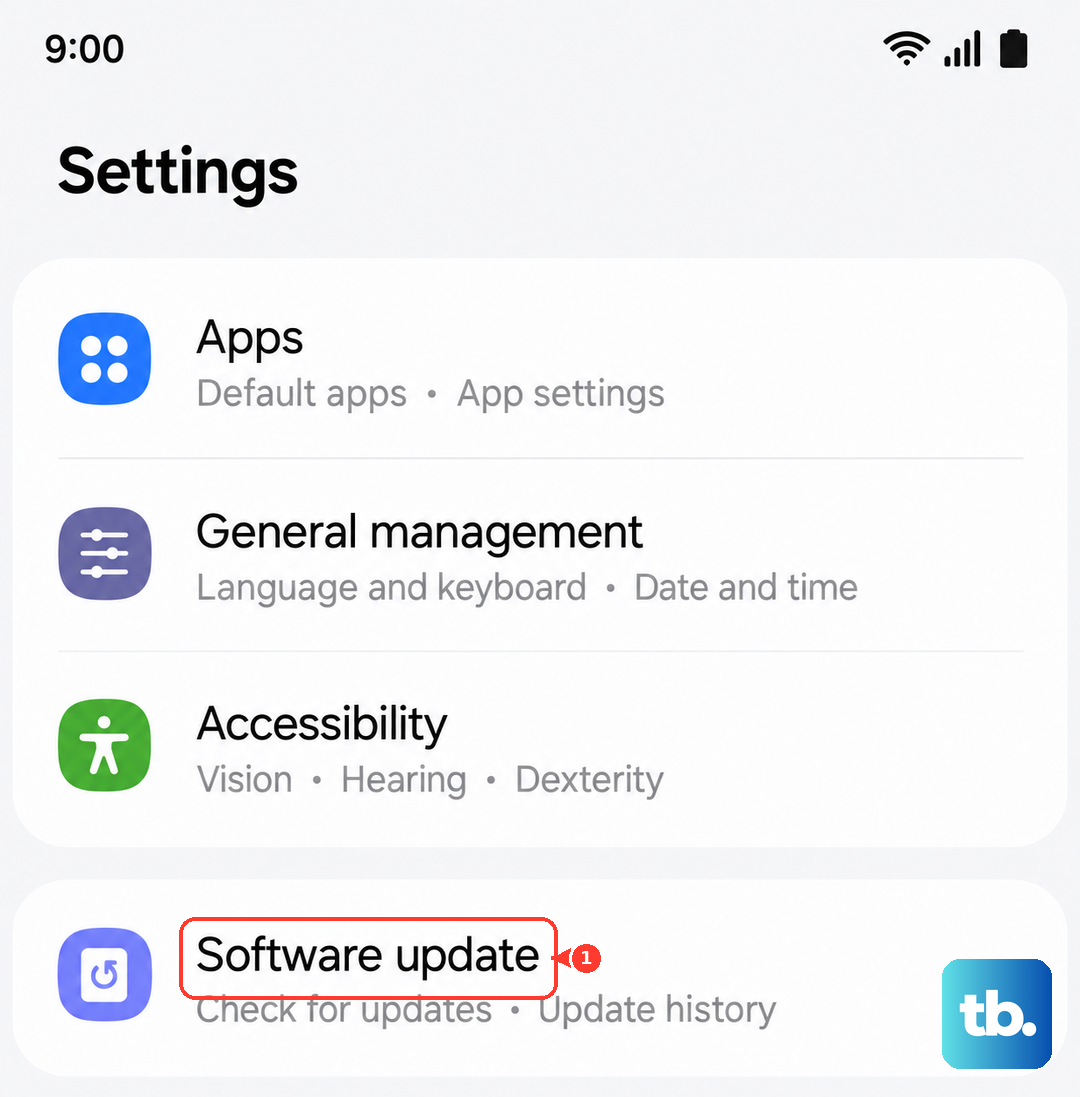
- 1.Open Settings > Software update > Download and install.
- 2.Tap Check for system updates (or Check for software updates).
- 3.If an update appears, follow the prompts to download and install it.
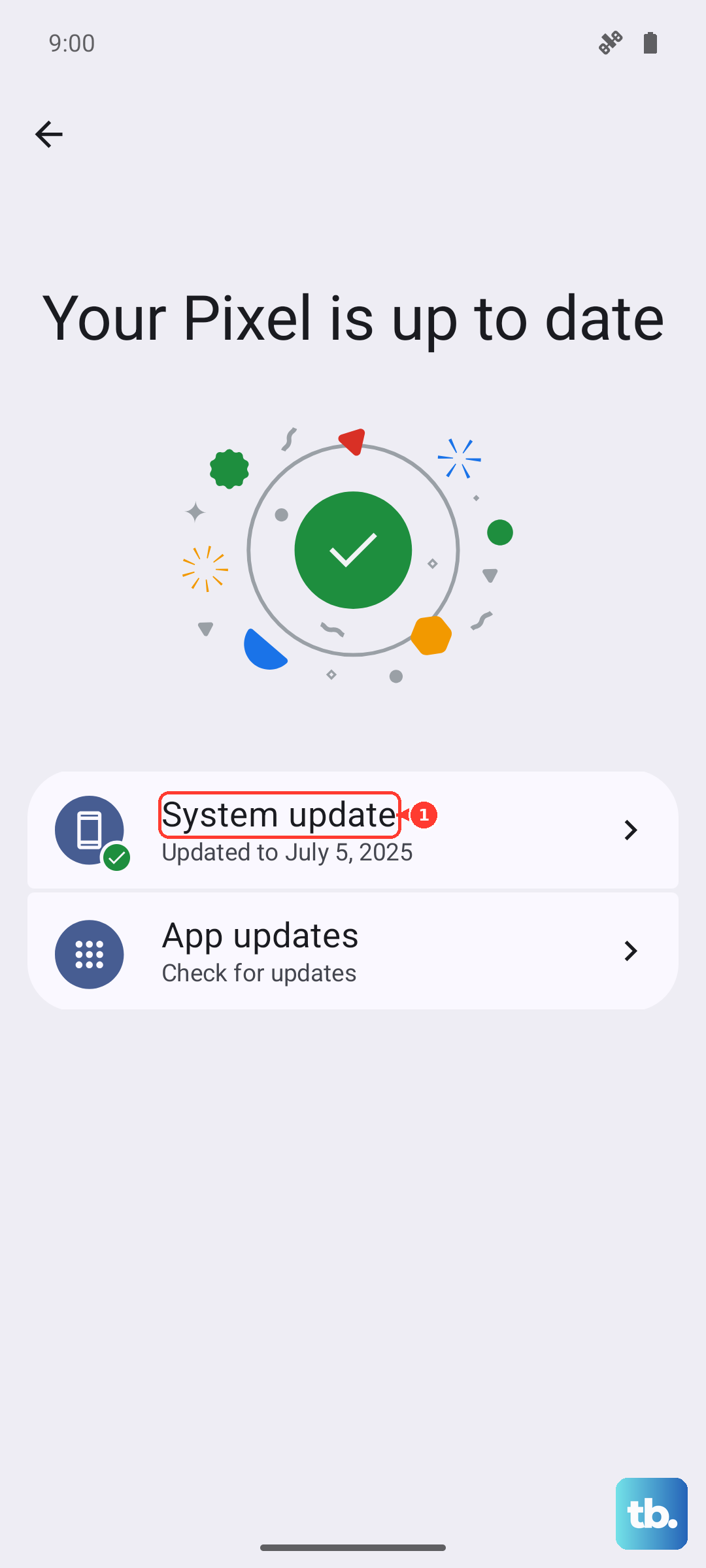
Updates download more reliably over a strong Wi-Fi connection than over mobile data. While you are on this screen, turn on Auto download over Wi-Fi under Settings > Software update so future releases arrive automatically. If the tablet reports that no update is available, it is simply on the latest version offered to it for now.
Top up the battery before you install
A low battery will stop an update from installing, because the tablet guards against running flat in the middle of writing new firmware. Samsung's guidance for a device that will not update is to charge the battery before you start, and then try the update again.
Worth knowing for this model: the Tab S10+ does not include a charger in the box, and fast charging requires a 45W adapter that is sold separately. Any working USB-C charger will still bring the battery up; just give it enough time to charge up before you retry.
Free up internal storage
An update package needs somewhere to land, and it will not install if internal storage is too full. Clearing room is often all it takes to get a stuck download moving again.
Uninstall apps you no longer use, then delete large files, duplicate photos, or videos you have already backed up. Once you have freed up space, return to Settings > Software update > Download and install and check again.
Force restart a frozen or stuck update
If the screen is frozen or the update has clearly stalled, a force restart clears that temporary state without touching your data. For the Galaxy Tab S10 series, press and hold the Side button and the Volume Down button simultaneously for more than 7 seconds until the device restarts automatically.
Samsung's general wording for the same action is to press and hold the Volume down button and the Side button together until the device turns off and turns back on. If you only want a normal restart, press and hold Volume down and the Side button, then tap Restart twice when the power options appear. Once the tablet comes back up, re-check for the update.
Boot into Safe mode to rule out a rogue app
A misbehaving app you installed can interfere with the update process, and Safe mode loads the tablet with only its built-in software so you can test that theory cleanly.
- 1.Completely power off the tablet.
- 2.Turn it on, and when the Samsung logo appears, press and hold the Volume down button.
- 3.Keep holding until Safe mode shows in the bottom-left corner.
If the tablet updates normally in Safe mode, a third-party app is the cause; remove anything you installed recently, paying special attention to apps added just before the trouble began. Restart the tablet to exit Safe mode and return to normal operation.
Update through a computer with Samsung Smart Switch
When over-the-air updating keeps failing, you can push the firmware from a computer instead. Samsung Smart Switch is the official desktop tool for this, and it is a free download for both Windows PC and Mac.
- 1.Install Samsung Smart Switch on your Windows PC or Mac.
- 2.Connect the tablet to the computer with the USB cable.
- 3.Open Smart Switch and let it detect the device.
- 4.If an update is available, select Update and follow the on-screen prompts.
This route often succeeds when the on-device updater cannot, because the computer handles the download and verification for you over a wired connection.
Back up your data, then factory reset as a last resort
If nothing above works, a factory data reset gives the tablet a clean slate, but it erases everything, so treat it as the final option and back up first. Samsung's warning is explicit, so take it at face value: "Please save any information you need prior to the factory reset because your personal information may not be recovered."
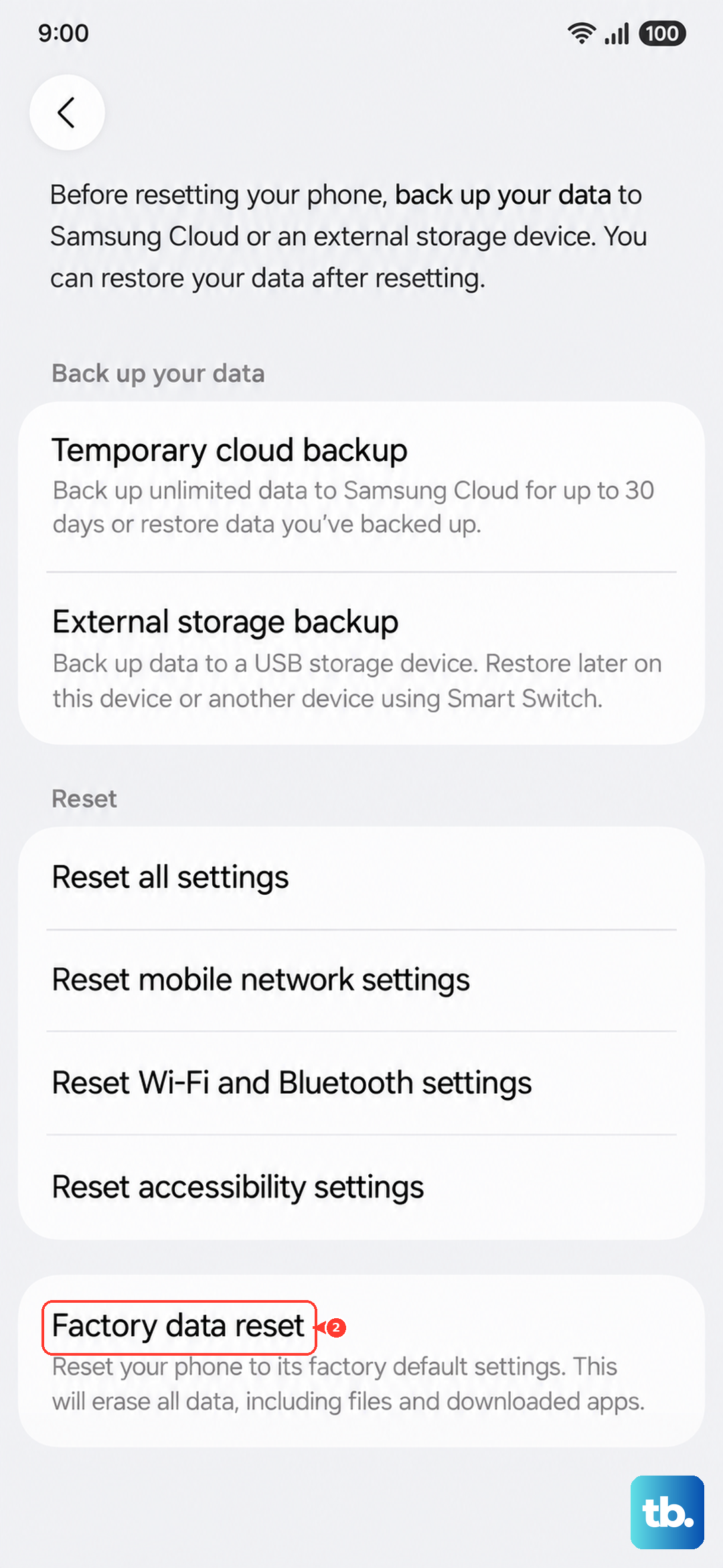
Once your photos, files, and accounts are safely backed up, go to Settings > General management > Reset > Factory data reset > Reset > Delete all. After the tablet wipes and restarts, set it up again and run the update check one more time from Settings > Software update > Download and install.
Reach a Samsung expert when the update still will not take
If the update continues to fail even after a reset, the problem may need a closer look than self-service can provide. Open the Samsung Members app on the tablet to use the built-in support tools and chat with a Samsung expert, or use Samsung's online support to arrange service.
Describe exactly what happens, note the One UI version you are currently on, and list the steps you have already tried, so the agent can move straight to the likely fix or a repair option without retreading ground.
Frequently Asked Questions
Why does my Galaxy Tab S10+ say it is up to date when I know there is a newer version?
Samsung rolls out major releases in stages, so a newer version may not have reached your tablet yet. If the manual check finds nothing, the device is on the latest version available to it for now; keep Auto download over Wi-Fi turned on and check again in a few days.
Will updating my Tab S10+ delete my files?
No. A normal software update keeps your apps and data intact. Only a factory data reset erases the tablet, which is exactly why the official guidance is to back up before doing one.
Which software versions can the Tab S10+ run?
It shipped on Android 14 with One UI 6.1, has since received One UI 7, and is on Samsung's official list of devices eligible for One UI 8.0.
Do I need a special charger to update the tablet?
No special charger is required to install an update, though you should charge the battery beforehand. Note that the Tab S10+ does not include a charger in the box, and fast charging requires a 45W adapter sold separately.