Your Galaxy Tab S10+ has a gorgeous 12.4-inch Dynamic AMOLED 2X panel, so the moment it starts flickering, strobing, or glitching in and out, it is impossible to ignore. The encouraging news is that most flickering on this tablet traces back to a display setting or a software hiccup you can fix yourself, and only a smaller share signals an actual panel fault. Work through the steps below in order, beginning with the safest display tweaks and saving the reset and service options for last.
Start with a free online monitor test to check the panel with fullscreen test patterns. What you see there tells you whether to blame the display, the cable, or the source.
These fixes are drawn from the official Samsung support guidance for screen flickering or glitching on a Galaxy tablet, plus the manufacturer's Tab S10 freezing and critical-issues page. Because the Tab S10+ is a standalone Android tablet running One UI, every path below lives on the tablet itself, so there is no separate phone app to open.
Start With the Display Settings Behind Most Flicker
Samsung lists a handful of display options as the first remedies for a flickering or glitching screen, and they are the safest place to begin because none of them touch your data. The idea is to take pressure off the adaptive features that change brightness and refresh rate on the fly, since those transitions are a common source of visible flicker.
- 1.Open Settings > Display.
- 2.Turn off Dark mode.
- 3.Disable Adaptive brightness, then manually raise the brightness with the slider.
- 4.Set Motion smoothness to Standard. If the flicker only appears while the tablet is charging, choose Adaptive here instead.
- 5.Try a different Screen resolution option to see whether one setting holds steady.
After each change, give the screen a minute on a normal mix of apps to see if the flicker returns. If turning off Adaptive brightness and raising the level by hand stops it, you have found your culprit and can leave it there.
Clear a Temporary Glitch With a Restart
A simple restart clears the temporary software state that can throw the display off, and it is the next thing Samsung recommends after the display settings. Use the normal restart when the screen still responds to touch.
Press and hold the Power button until the Power menu appears.
Then tap Restart, then tap Restart again to confirm.
If the flickering has left the screen frozen or unresponsive to taps, you will need the hardware-button force restart instead. This does not erase anything; it just forces the tablet to power-cycle.
Press and hold the Side button and the Volume Down button at the same time.
Keep holding for more than 7 seconds, until the device restarts automatically.
Make sure the battery has some charge before you attempt a force restart, since a flat tablet may simply look frozen. Once it reboots, watch the screen again to confirm whether the flicker has cleared.
Rule Out Software Bugs and Resource Strain
Flicker is sometimes caused by a software bug that a firmware update has already addressed, so it is worth checking for an update before you go further. The Tab S10+ shipped on One UI 6.1.1 and remains a supported device, with Samsung continuing to push newer One UI releases, so an outstanding update is entirely possible.
Swipe down from the top right of the screen with two fingers, then tap the Settings icon.
Next, tap Software update (or System updates).
After that, tap Download and install (or Check for system updates).
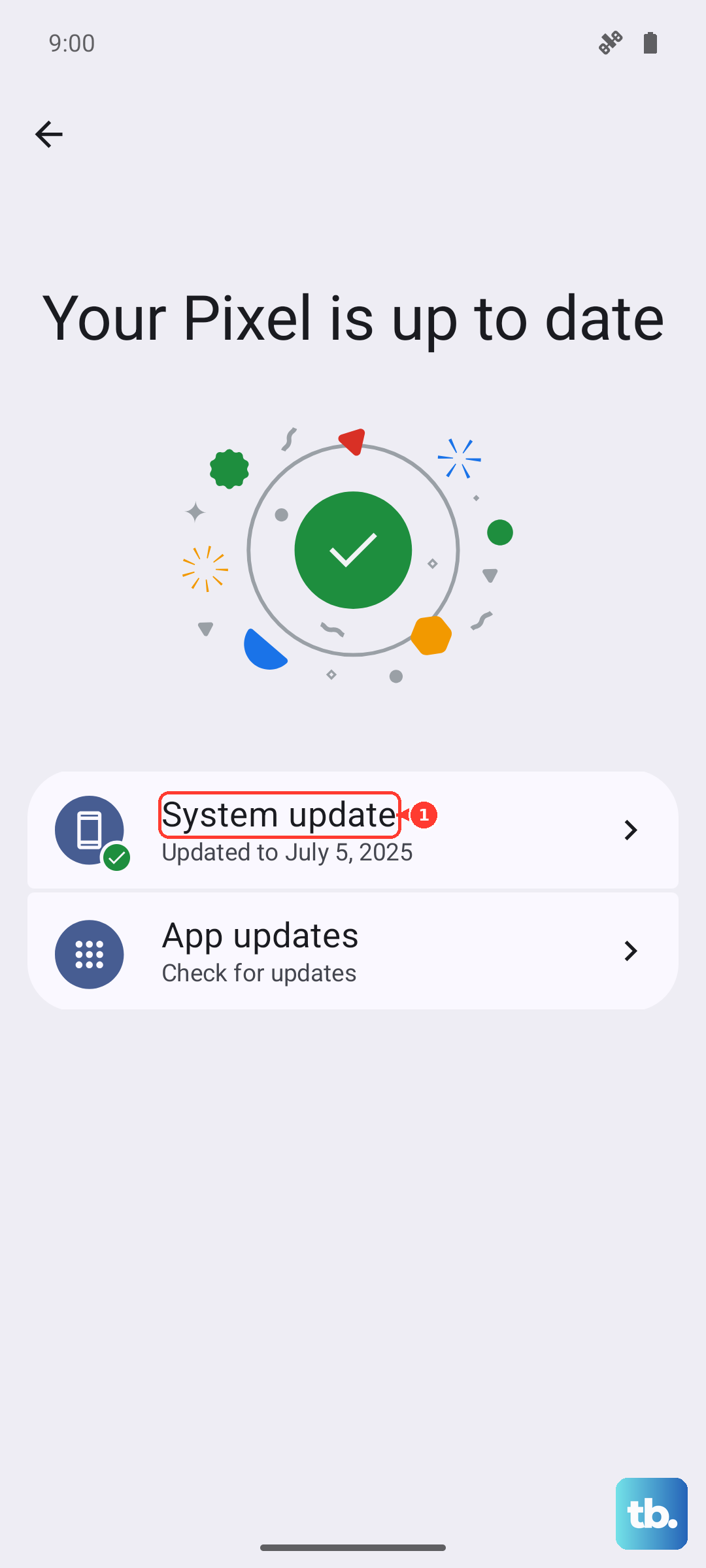
If you want to confirm what build you are currently on, go to Settings > About tablet > Software information. Installing any pending update and restarting afterward is one of the fixes Samsung names specifically for flickering tied to software bugs.
A tablet that is low on free resources can also misbehave visually, so the official guidance includes a quick cleanup pass. Go to Settings > Device care and tap Optimize now, then open Storage and Memory and tap Clean now to free up space and memory. This is a low-risk step that often smooths out sluggish, glitchy behavior.
Test Whether an App Is Causing the Flicker
If only certain apps make the screen flicker, a third-party app may be the real source rather than the display itself. Safe mode loads the tablet with only its built-in software, so it is the cleanest way to test that theory without uninstalling anything yet.
Power the tablet completely off.
Once it is off, turn it on, and as the Samsung logo appears, press and hold the Volume down button.
Then confirm that Safe mode shows in the bottom left corner of the screen.
While in Safe mode, no third-party apps run, so if the flickering disappears, an installed app is almost certainly to blame. Restart the tablet normally to leave Safe mode, then uninstall recently installed or updated apps one at a time, checking after each removal until the flicker is gone.
Save Your Data Before You Reset Anything
If the flicker is software-related and survives everything above, a factory data reset is the last software step before service. Because a reset erases everything on the tablet, you should back up first using one of Samsung's supported methods.
Go to Settings > Accounts and backup and back up through Samsung Cloud, your Google account, or Smart Switch on a computer. Smart Switch is Samsung's official desktop tool for backing up data to a Windows or Mac computer, and it doubles as a way to update software through that computer if needed.
With your backup confirmed, you can perform the reset.
Go to Settings > General management > Reset.
Then tap Factory data reset.
Finally, tap Reset, then tap Delete all.
Samsung's own warning for this step is worth taking at face value: "Please save any information you need prior to the factory reset because your personal information may not be recovered." Once the tablet reboots clean, set it up and watch the display before restoring all of your apps, so you can tell whether the reset actually solved it.
When the Flicker Points to a Hardware Fault
If you can see physical damage on the screen, or the flickering continues even after a full factory reset, the problem most likely lies in the display hardware rather than the software. At that point, there is no setting left to change, and continuing to troubleshoot will not help.
Samsung's guidance here is to visit a Samsung walk-in service center or to schedule a repair service online. Have your model number ready (SM-X820 for the Wi-Fi version or SM-X826 for the 5G version) so the service team can match the right parts and check warranty status.
Frequently Asked Questions
Why does my Galaxy Tab S10+ flicker only while it is charging?
Flicker that appears specifically during charging is addressed in Samsung's display guidance. Open Settings > Display and set Motion smoothness to Adaptive rather than Standard, which is the option Samsung suggests when the flickering happens while the tablet is plugged in.
Does turning off Dark mode really reduce flickering?
Yes. Turning off Dark mode under Settings > Display is one of the first remedies Samsung lists for a flickering or glitching screen, alongside disabling Adaptive brightness, setting Motion smoothness to Standard, and trying a different Screen resolution.
Will a factory reset stop the flickering?
A factory reset can resolve flicker only if the cause is software-related, and it erases everything on the tablet, so back up first through Settings > Accounts and backup. Samsung warns that personal information may not be recovered after a reset, so treat it as a last software step rather than an early one.
How do I know whether the flicker is a hardware problem?
If the screen shows visible damage, or the flickering persists after you have updated the software and completed a factory data reset, it likely indicates a hardware or display fault. In that case Samsung advises visiting a walk-in service center or scheduling a repair service online.
Do I need a companion app to fix this?
No. The Galaxy Tab S10+ is the primary Android device, not an accessory paired to a phone, so there is no phone companion app involved. Every fix happens in the tablet's own Settings, with Samsung Smart Switch on a computer used only for backing up data or updating software through a PC or Mac.