
If your Samsung Galaxy Tab S10+ is getting uncomfortably warm, it's usually a sign that the powerful hardware inside is working hard. The Dimensity 9300+ chip is a powerhouse, but it can generate significant heat during demanding tasks. A little warmth is normal, but if the back is hot to the touch or you notice performance slowing down, a few simple adjustments can help.
The quickest fix is often to close any apps you aren't using, especially games or video editors running in the background. Swipe up from the bottom of the screen and hold, then swipe away any apps you don't need. Next, pull down the quick settings panel twice and tap the Power Saving mode icon. This immediately reduces CPU speed and background activity, which should cool things down within a minute or two.
Check What's Running and Close Demanding Apps
Android's background processes are efficient, but some apps can get stuck or demand more than they should. Start by checking for any apps you recently installed that might be the culprit. Go to Settings > Battery. Here, you'll see a breakdown of which apps have been using the most power since your last full charge.
If a specific game or social media app is at the top of the list, that's likely the source of the heat. You can force stop it from this menu by tapping on the app name and selecting Force stop. For a broader cleanup, use the Device Care feature. Tap Optimize now on the main Device Care screen to let One UI close unnecessary background processes automatically.
Adjust Your Display and Performance Settings
The Tab S10+'s stunning, large screen is a major source of heat and battery drain. Lowering the brightness is one of the most effective ways to reduce temperature. You can also change the screen refresh rate. Go to Settings > Display and look for "Motion smoothness." Switching from the adaptive 120Hz or 90Hz option down to a standard 60Hz reduces the workload on the graphics processor significantly.
For a more comprehensive approach, try the built-in performance profiles. Navigate to Settings > Battery > More battery settings. Look for "Performance profile." You can choose between Light, Standard, and High. Selecting Light mode will limit the peak performance of the CPU, which is perfect for reading or browsing and will keep the tablet much cooler. I'd switch to High mode only when you need maximum power for gaming or video editing.
Be Smart About Charging and Your Environment
Charging, especially fast charging, naturally generates heat. Since the Tab S10+ doesn't come with a charger in the box, make sure you're using a good quality USB-C charger. For the fastest 45W speeds, you need a charger that supports USB Power Delivery (USB-PD) PPS. If your tablet is getting very hot while charging, try using a lower-wattage charger for a while, or take it out of its case to improve ventilation.
Never use your tablet on a soft surface like a bed or pillow while it's working hard or charging. This traps heat against the back panel. Always place it on a hard, flat surface. Also, avoid leaving it in direct sunlight, like on a car dashboard, as the ambient heat will cause the internal temperature to skyrocket very quickly.
Update Software and Consider a Factory Reset
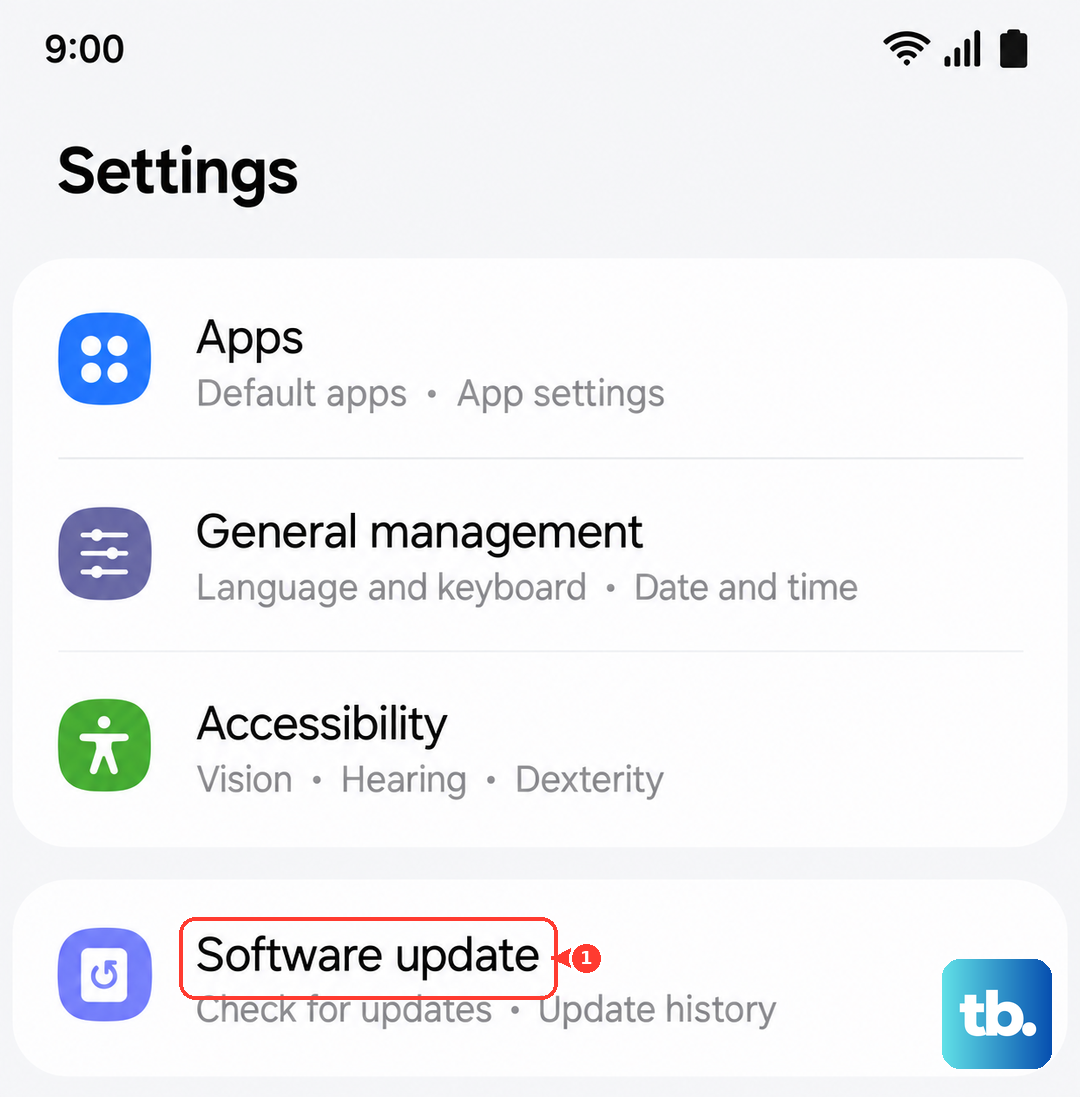
Software bugs can sometimes cause a processor to work overtime. Make sure your tablet is running the latest version of Android and One UI. Go to Settings > Software update > Download and install. Samsung frequently releases updates that optimize performance and improve thermal management.
If the overheating started suddenly after a major update or seems constant, a more thorough reset can help. First, try wiping the cache partition, which won't delete any personal data. Turn off the tablet, then press and hold the Volume Up and Power buttons together. When the Samsung logo appears, release only the Power button. Use the volume keys to navigate to "Wipe cache partition" and select it with the power button.
As a last resort, if the problem is persistent and unrelated to any specific app, a factory reset may be necessary. Before you do this, ensure all your data is backed up to Samsung Cloud or your Google account. You can initiate the reset from Settings > General management > Reset > Factory data reset. This will return the tablet to its original state and often clears up deep-seated software glitches causing thermal issues.