
Missing notifications on your Galaxy Tab S10+ can mean missing important messages, emails, or alerts. The issue often stems from a simple setting or a temporary software hiccup. Let's start with the quickest fix that works for most people.
First, perform a force restart. Press and hold the Volume Down button and the Power button together for about 10 seconds. Keep holding until you see the Samsung logo appear, then let go. This clears the device's memory and can instantly resolve many notification glitches without deleting any of your data.
Check Do Not Disturb and Focus Modes
It's easy to accidentally enable a mode that silences everything. Swipe down from the top of your screen twice to open the full Quick Settings panel. Look for icons labeled "Do Not Disturb" or "Focus mode." If they're highlighted, tap them to turn them off.
You should also check the schedules. Go to Settings > Notifications > Do Not Disturb. Review any active schedules or rules that might be blocking alerts during certain times or for specific apps.
Review App-Specific Notification Settings
Android and One UI give you granular control over each app. If one app, like Gmail or Messages, isn't alerting you, its notifications might be turned off individually.
Open Settings > Notifications > App notifications. Here, you'll see a list of all your apps. Tap on the problematic app and make sure the toggle at the top is set to "On." Also, check that the specific notification types within the app, like "New messages" or "Primary inbox," are enabled.
Ensure Background Data and Battery Optimization
To save battery, Android can restrict what apps do in the background. If an app is put to sleep or restricted, it can't check for new messages to notify you about.
Go to Settings > Apps, select the app, then tap Battery. Make sure the background restriction is set to "Unrestricted." For a broader check, go to Settings > Battery > Background usage limits. Ensure the app isn't in the "Sleeping" or "Deep sleeping" lists.
Clear the App's Cache and Data
Corrupted temporary files can break an app's notification function. Clearing the cache is safe and won't delete your login or personal data within the app.
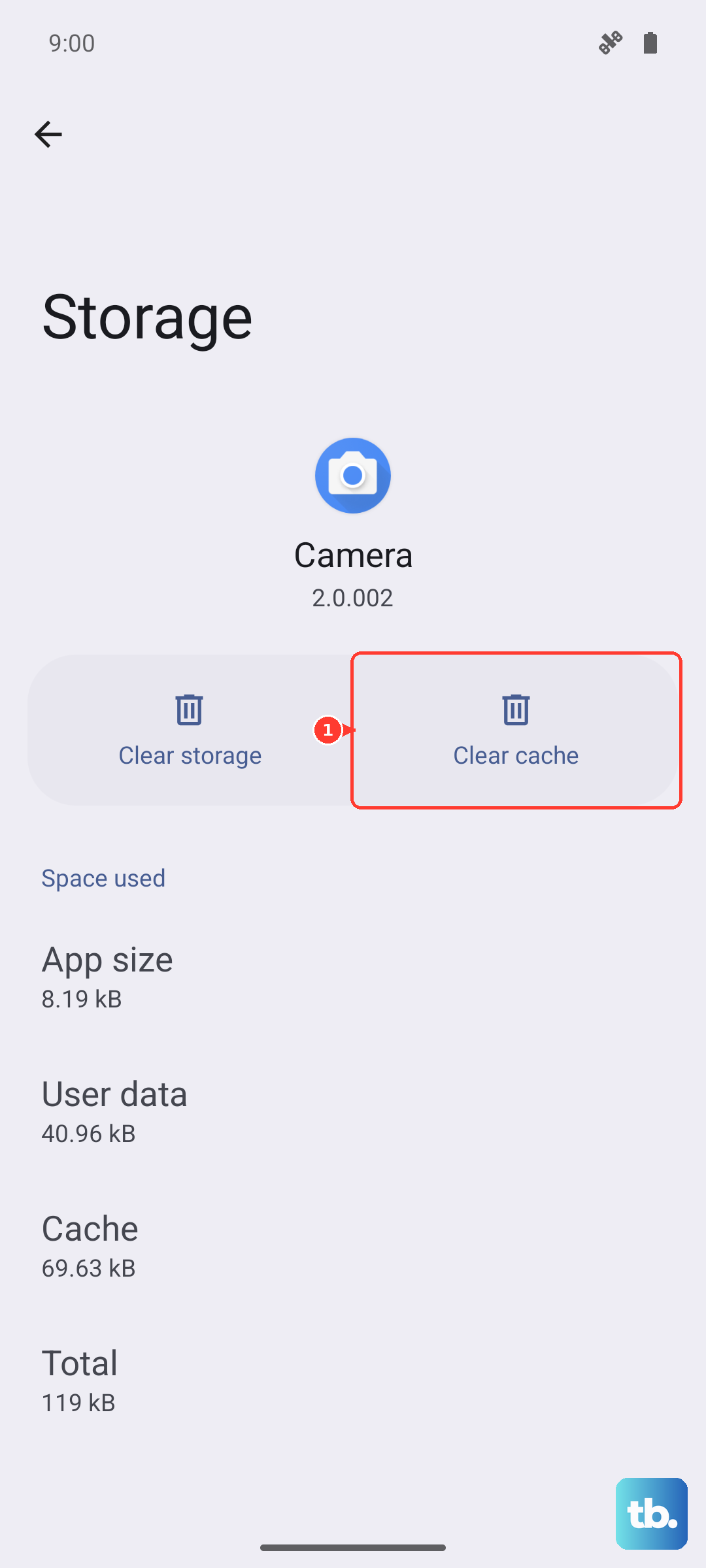
Go to Settings > Apps, find the app, and tap on it. Select Storage, then tap "Clear cache." If the problem persists, you can try "Clear data," but be aware this will reset the app to its freshly installed state, so you'll need to log back in.
Update the App and Your Tablet's Software
An outdated app might have a known bug that breaks notifications. Open the Google Play Store, tap your profile icon, and go to "Manage apps & device" to check for updates.
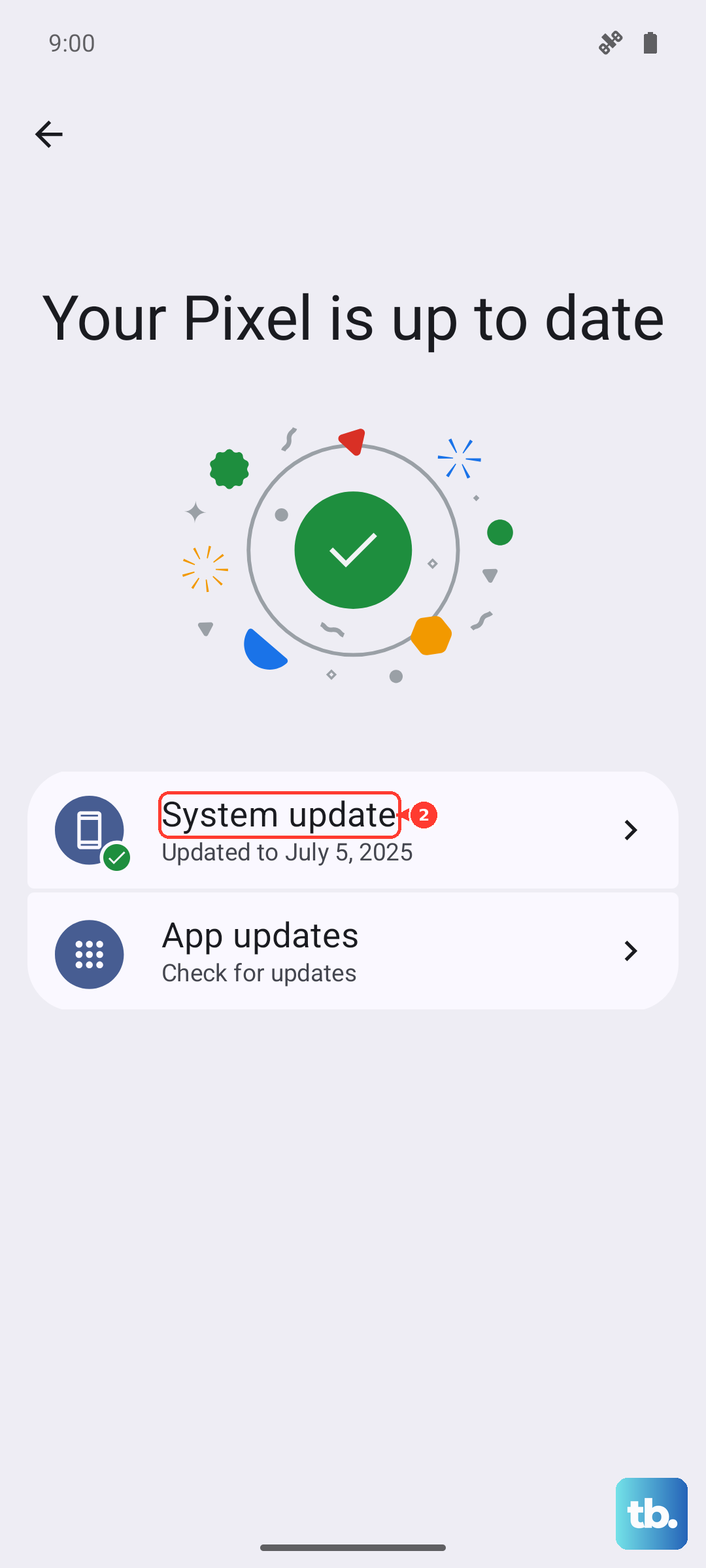
More importantly, check for a system update. Samsung regularly releases fixes for issues like these. Go to Settings > Software update > Download and install. I've seen a pending update resolve notification problems on several Galaxy Tabs.
Reset App Preferences
This is a useful nuclear option for app-related settings. It resets all your permissions, notification settings, and background restrictions for every app back to their defaults, but it doesn't touch your personal files or accounts.
You can find it at Settings > Apps > Menu (three dots) > Reset app preferences. After doing this, you'll need to re-allow notification permissions for your key apps when they first ask.
Check Notification Channels and Importance
For each app, you can control how "loud" its notifications are. A notification channel set to "Low" importance won't make a sound or pop up on your screen.
In Settings > Notifications > App notifications, tap the app and look at each notification category (or "channel"). Tap into one, like "Messages," and ensure "Importance" is set to "High" or "Medium" if you want sound and pop-ups.
Disable Adaptive Notifications
One UI has features that try to intelligently prioritize alerts. Sometimes, they can be a little too aggressive. You can turn them off to see if they're the culprit.
Navigate to Settings > Notifications > Advanced settings. Look for options like "Adaptive notifications" or "Hide silent notifications in status bar" and toggle them off temporarily to test.
Clear the System UI Cache
The system component that handles notifications can get bogged down. You can clear its cache through the Settings app. Go to Settings > Apps, tap the three-dot menu, and select "Show system apps."
In the list, find and select "Notification" or "Android System Intelligence." Tap Storage and then "Clear cache." This is a safe operation that won't delete your notifications history.
Boot into Safe Mode
If notifications only stop working after you've installed certain apps, a third-party app might be causing a conflict. Booting into Safe Mode temporarily disables all downloaded apps.
Press and hold the Power button until the power menu appears. Then, tap and hold the "Power off" option on your screen. You'll get a prompt to reboot into Safe Mode. Tap "OK." If notifications work normally in Safe Mode, you know a downloaded app is the problem. You'll need to uninstall recent apps one by one to find the culprit.