You type out a message on your Samsung Galaxy Tab S10+, hit send, and the text just sits there with a spinning icon or a red exclamation mark. It is frustrating, especially when the same tablet handles email, video, and the web without a hitch. The good news is that texting problems on this tablet almost always trace back to how the messaging is set up rather than a hardware fault.
Before you start, it helps to know that the Tab S10+ sends texts in one of two ways, and the right fix depends on which one you rely on. The steps below move from the quickest, safest checks to the official reset and support options, so work through them in order and stop as soon as your messages start going through.
How the Galaxy Tab S10+ actually sends a text
The Galaxy Tab S10+ can send text messages, but the method depends on your variant. The 5G model has a Nano-SIM and eSIM, so it can text over its own LTE or 5G line whenever it has an active, text-capable plan; Samsung notes that LTE tablets with active service can use Samsung Messages.
Every variant, including the Wi-Fi-only model, can also text through Samsung's Call & text on other devices feature. That feature relays your SMS through a paired Galaxy phone signed into the same Samsung account, so the phone has to be powered on and have active service. Samsung also points out that the feature currently does not work with Verizon and AT&T phones, which is worth keeping in mind as you troubleshoot.
Confirm your paired Galaxy phone is on and has service
If you send texts from the tablet using Call & text on other devices, the connected Galaxy phone is doing the actual sending. The tablet simply hands the message to that phone, so if the phone is switched off or has no cellular service, nothing will go out.
Pick up the paired phone, make sure it is powered on, and confirm it shows signal and can send a normal text on its own. Once the phone is online with active service, try your tablet message again.
Put both devices on one Samsung account
Call & text on other devices only works when your tablet and your phone are signed into the very same Samsung account. A mismatched or second account is one of the most common reasons the relay quietly fails.
On both the tablet and the phone, open Settings and tap Samsung account, then confirm the same account is listed on each. If one device is signed into a different account, sign out and sign back in with the matching one.
Switch on Call & text on other devices
With the account sorted, make sure the feature itself is actually turned on. On the tablet, swipe down using two fingers to open the Quick settings panel, then tap the Call & text on other devices icon.
You can also reach it through Settings > Connected devices > Call & text on other devices. Enable the feature on the phone too, using the same path, so both ends of the relay are switched on.
Flip the Google Messages texting switch
If your phone uses Google Messages rather than Samsung Messages, there is an extra switch that has to be on. On the phone, open Google Messages, tap your profile icon, then go to Messages settings > Advanced > Text on Galaxy devices and turn on Allow Bixby and text on Galaxy devices.
Next, on the phone, go to Settings > Connected devices > Call & text on other devices > Text on other devices and enable the switch next to your tablet's name. If texting still fails, repeat these steps and double-check that every texting option is enabled.
Get the tablet onto Wi-Fi
For Call & text on other devices, the tablet should be connected to Wi-Fi while the phone supplies the active cellular service. Calling between the two requires both devices on the same Wi-Fi network, while messaging works whether or not both devices are on the same network.
Open the Quick settings panel, confirm Wi-Fi is on and connected to a working network, then try sending your text again.
Rule out the Verizon and AT&T limitation
Samsung states that Call & text on other devices currently does not work with Verizon and AT&T phones, and may not be available on all models from other carriers. If your paired phone runs on one of these carriers, the relay method may simply not be supported.
In that case, your options are to text from a 5G or LTE tablet line that has its own active service, or to contact your carrier about what is available on your account.
Check the SIM line on a 5G Tab S10+
If you have the cellular Tab S10+ and want to text over the tablet's own number, Samsung notes that LTE tablets with active service can do this. Make sure a Nano-SIM or eSIM with an active, text-capable plan is installed, and that you are sending from the Samsung Messages or Google Messages app.
If the line still cannot send texts, reset the network configuration without erasing your data by going to Settings > General management > Reset > Reset mobile network settings. This restores the cellular settings that a tablet line needs to send messages.
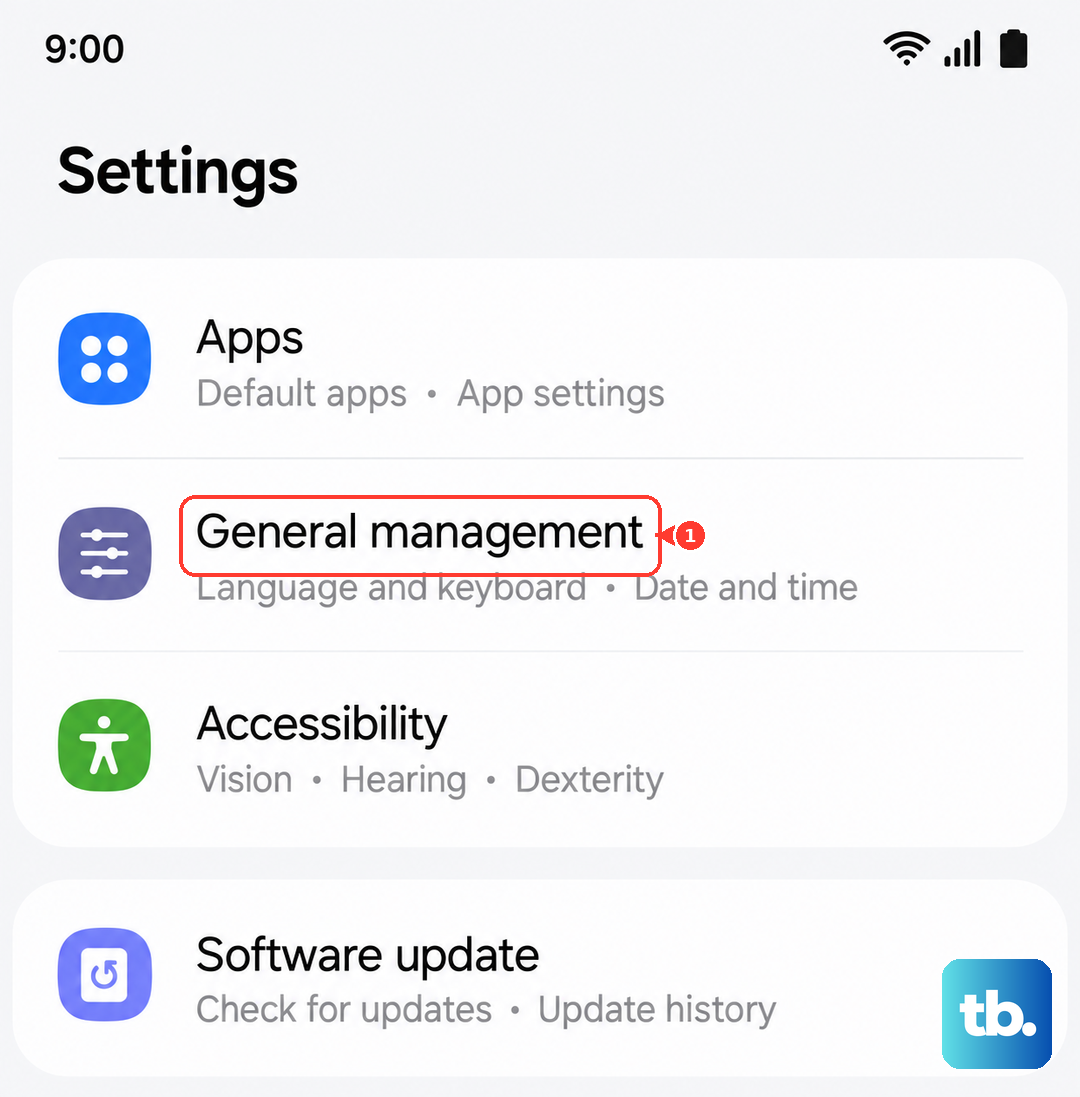
Restart, or force a restart if it is frozen
A normal restart clears the temporary glitches that can quietly block messaging. Press and hold the Volume down button and the Side button (or Power button) at the same time, then tap Restart, and then tap Restart again.
If the tablet is frozen and will not respond, use a forced restart instead. For the Galaxy Tab S10 series, press and hold the Side button and the Volume Down button simultaneously for more than 7 seconds until the device restarts automatically.
Install the latest software update
An outdated build can leave messaging features misbehaving, so check for an update. Open Settings, tap Software update, tap Download and install, then follow the on-screen instructions to install.
Keep the tablet on Wi-Fi during the process; the device cannot be used until the update finishes. If the on-device update will not complete, Samsung Smart Switch on a PC or Mac can check for and install software updates instead.
Reset to factory settings as a last resort, then reach Samsung
If nothing above restores texting, a factory data reset is the final on-device step. Back up everything first, because Samsung warns that you should save any information you need prior to the factory reset, since your personal information may not be recovered.
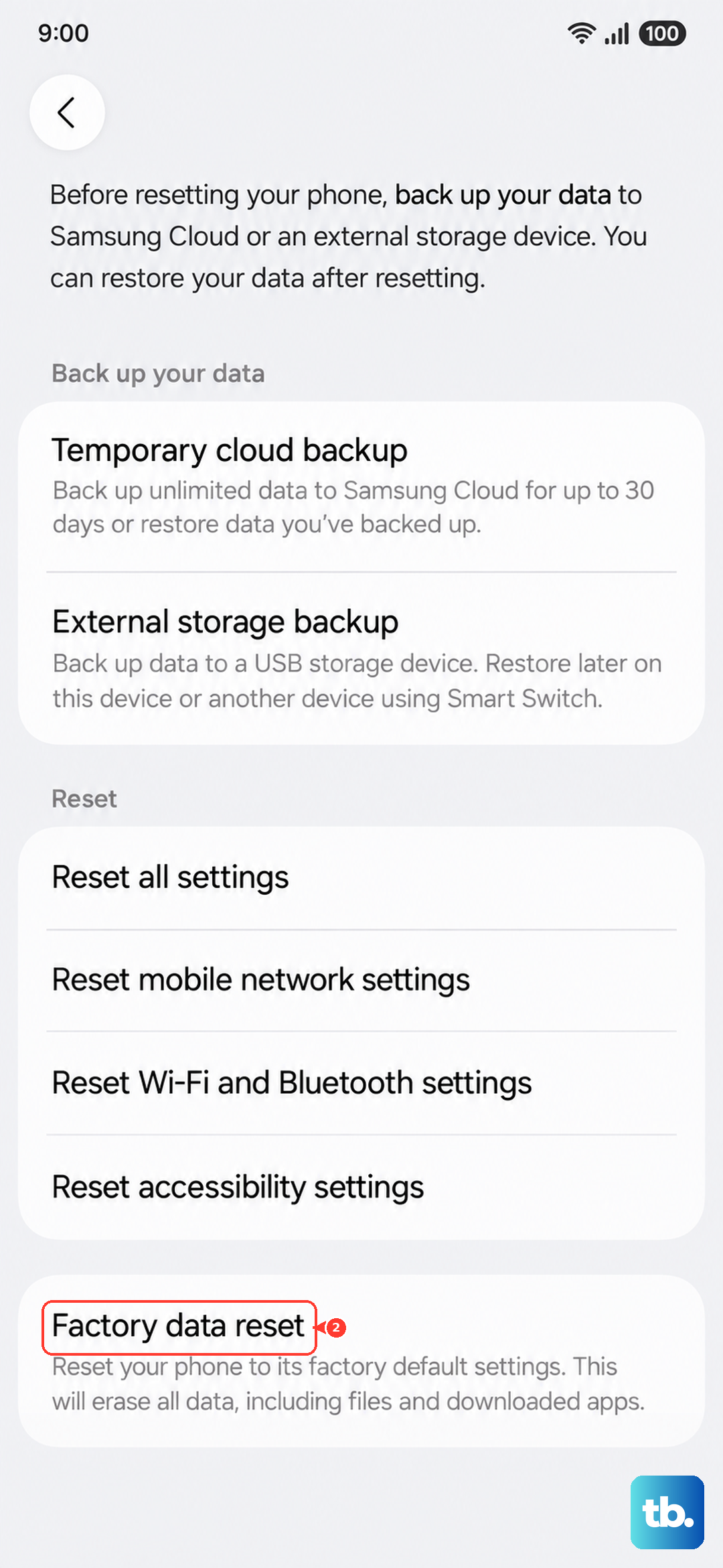
When you are ready, go to Settings > General management > Reset > Factory data reset > Reset > Delete all and let the tablet reset. If texting still fails after that, contact Samsung Support for further help.
Frequently Asked Questions
Can the Wi-Fi-only Galaxy Tab S10+ send text messages?
Yes. The Wi-Fi-only model texts through Samsung's Call & text on other devices feature, which relays your messages through a paired Galaxy phone signed into the same Samsung account. That phone must be powered on and have active cellular service.
Why will my Verizon or AT&T phone not relay texts to the tablet?
Samsung states that Call & text on other devices currently does not work with Verizon and AT&T phones, and may not be available on all models from other carriers. If you are on one of those carriers, use a 5G or LTE tablet line with active service, or contact your carrier.
Does resetting mobile network settings delete my files?
No. Resetting mobile network settings restores your network configuration without erasing your data. Only a factory data reset wipes personal information, which is why it is the last step.
Do the tablet and phone need to be on the same Wi-Fi network to text?
For messaging, the two devices can be on different networks; only calling requires both on the same Wi-Fi network. The tablet should be on Wi-Fi and the paired phone must have active service.