
Seeing "No Service" or a missing signal icon on your Samsung Galaxy Tab S10+ can be a real headache, especially if you rely on it for calls or mobile data on the go. This usually means your tablet can't connect to your cellular carrier's network. The good news is that most of the time, this is a temporary glitch you can fix yourself.
I'd start with the simplest solutions first. They often do the trick and only take a minute.
Restart Your Tablet and Check the Basics
First, give your Galaxy Tab S10+ a fresh start. Press and hold the Volume Down and Power button together for about ten seconds until you see the Samsung logo appear. This force restart can clear out any minor software hiccups that might be blocking the signal.
While you're at it, swipe down from the top of the screen twice to open the Quick Settings panel. Make sure the Airplane Mode icon isn't highlighted. If it is, tap it to turn it off. Also, tap the mobile data icon to turn it off, wait a few seconds, and then turn it back on.
Reinsert Your SIM Card
A loose or dirty SIM card is a common culprit. You'll need the SIM ejector tool that came with your tablet (a small paperclip works in a pinch). Find the SIM tray on the frame of your Tab S10+ and gently push the tool into the pinhole to pop it out.
Carefully remove the SIM card, give the gold contacts a gentle wipe with a soft, dry cloth, and then reseat it firmly in the tray. Push the tray back into the tablet until it clicks. Wait a minute for the tablet to search for the network again.
Verify Your Network and Roaming Settings
Open the Settings app and go to Connections > Mobile networks. First, ensure your line is turned on if you have a dual-SIM model. Then, tap on Network operators.
Tap Select automatically and let it search. If your carrier appears, select it. If you're in an area with spotty coverage from your main provider, you might also need to enable Data roaming from the Mobile networks menu, but be aware this can sometimes lead to extra charges.
Reset Your Network Settings
This is a very effective step for persistent connection problems. It will wipe all your saved Wi-Fi passwords, Bluetooth pairings, and cellular network preferences, but it won't touch your personal files or apps.
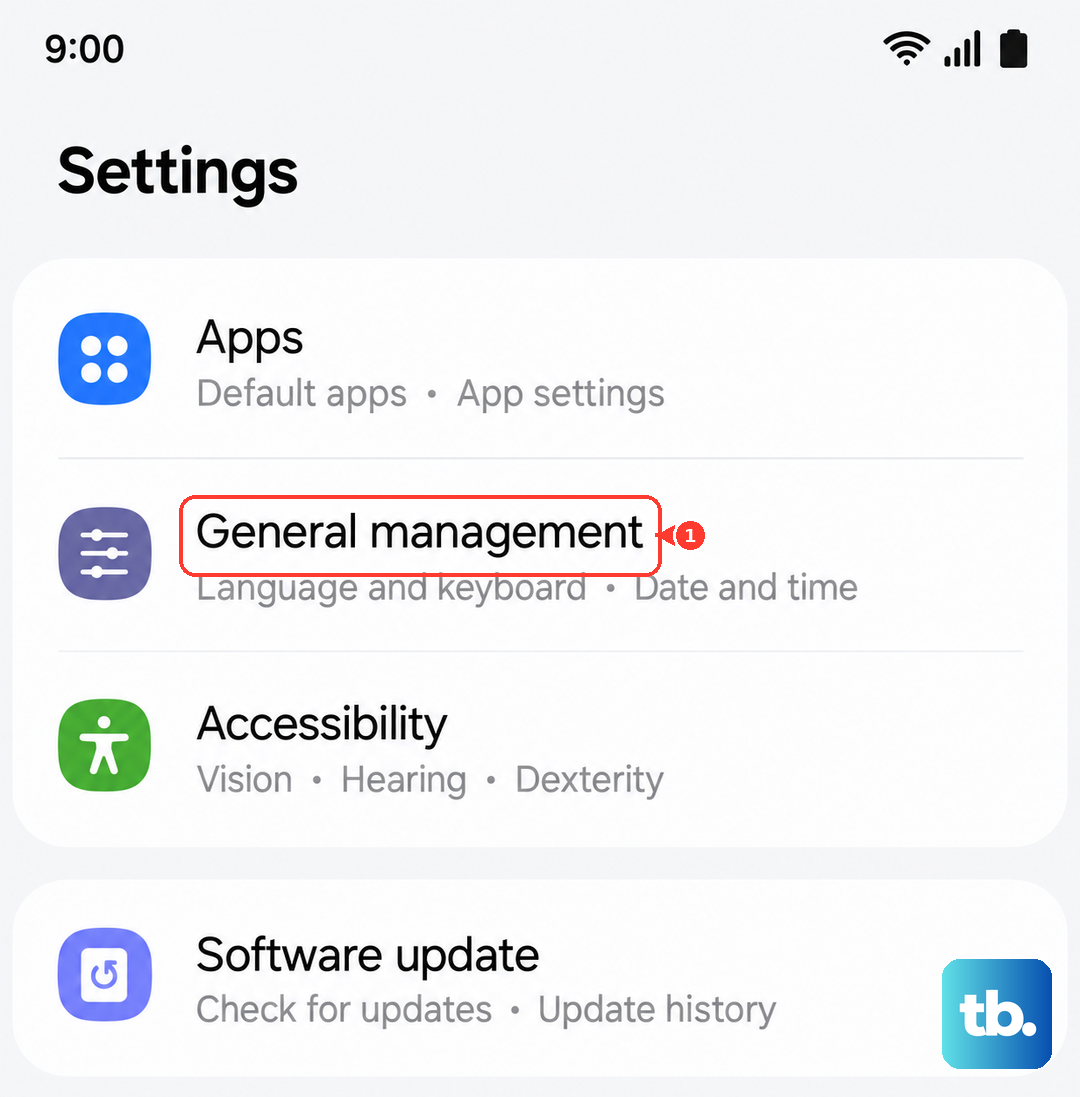
To do it, go to Settings > General management > Reset. Tap on Reset network settings and confirm. Your tablet will reboot, and you'll need to reconnect to Wi-Fi and re-pair Bluetooth devices, but it often clears up obscure network errors.
Check and Update Your APN
The Access Point Name (APN) is like the address your tablet uses to find your carrier's data network. If these settings are wrong, you won't get service. Go back to Settings > Connections > Mobile networks > Access Point Names.
You should see a list of APNs. If your carrier's APN is missing or looks incorrect, tap the three-dot menu and select Reset to default. If that doesn't populate the right settings, you'll need to get the exact APN details from your carrier's website or customer service and enter them manually by tapping the '+' icon.
Use the Hidden Testing Menu
Android has a built-in diagnostics menu that can give you more control. Open your tablet's Phone app (if you have the cellular model) and dial *#*#4636#*#*. This should open the Testing menu.
Tap on Phone information. Here, you can see detailed info about your signal. Try tapping the three-dot menu and selecting Run Ping Test. You can also try toggling the Enable Data Connection switch off and on, or using the dropdown menu to set the preferred network type to NR/LTE/GSM/WCDMA for the broadest compatibility.
Look for Software Updates
Samsung regularly releases updates that fix bugs, including ones related to network connectivity. Since the Tab S10+ runs on Android 14 with One UI 6.1.1, it's important to stay current.
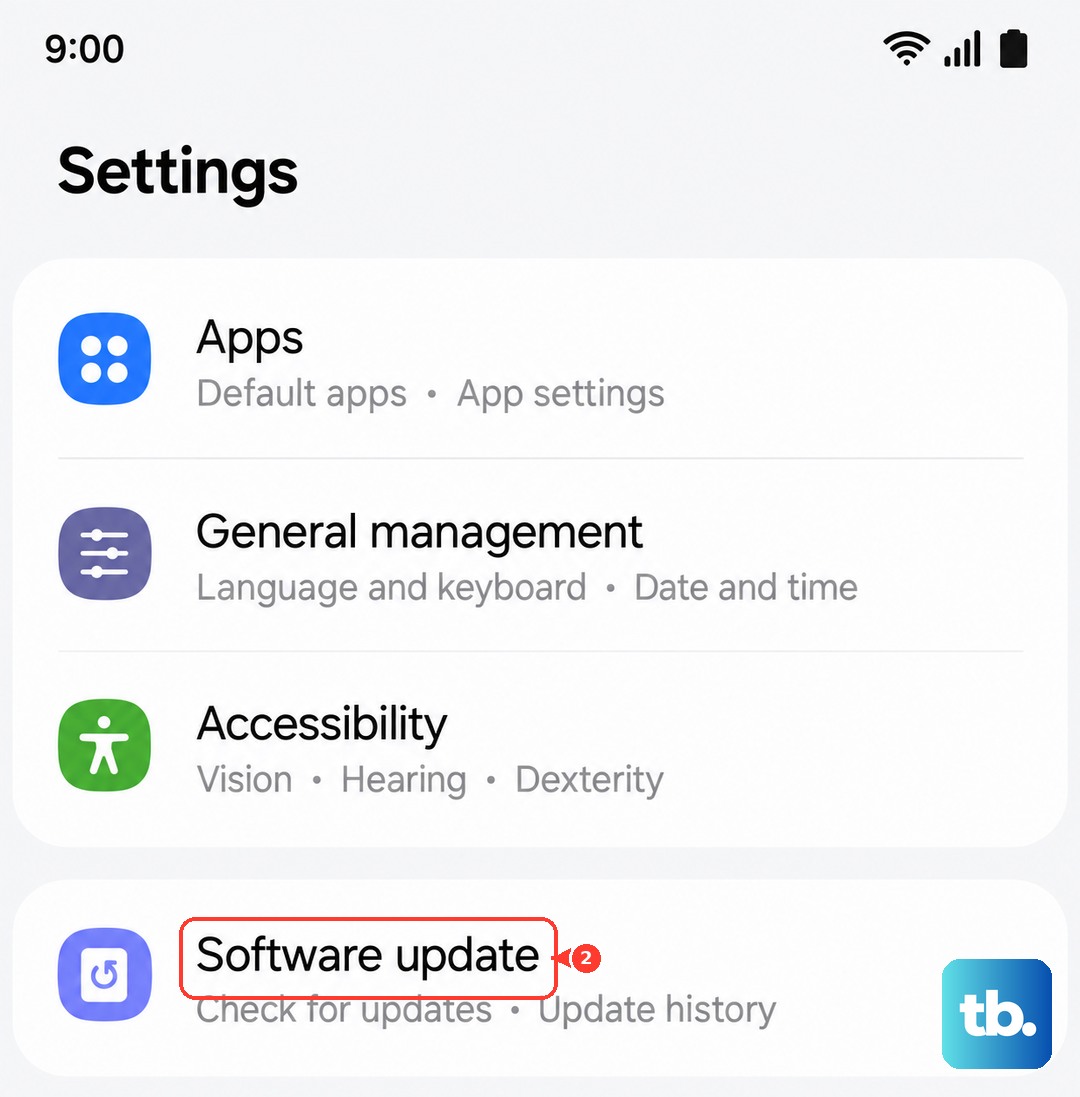
Go to Settings > Software update and tap Download and install. If an update is available, install it. Make sure your tablet is connected to Wi-Fi and has a good charge, as this can take a while.
Disable Any VPN or Ad-Blocking Apps
Third-party apps that manage your connection, like VPNs or certain ad blockers, can sometimes interfere with cellular service. Try temporarily disabling or uninstalling any apps like this to see if your signal returns.
You can check for active VPNs by going to Settings > Connections > More connection settings > VPN. If you see a VPN profile here that you're not actively using, you can select it and choose Delete.
Test Your SIM Card in Another Device
This step helps you figure out if the problem is with your tablet or the SIM card itself. If you have another phone or tablet that uses the same size SIM, power that device off, insert your Tab S10+'s SIM, and turn it back on.
If the other device also shows no service, the issue is likely with the SIM card or your carrier account. You should contact your carrier's support. They can check for outages, verify your account is active, and send you a replacement SIM if needed.
Consider a Factory Reset
If you've tried everything else and you're still stuck with no signal, a factory reset is the last software step. This will erase everything on your tablet, so it's absolutely crucial to back up all your important data to Samsung Cloud or a computer first.
Once backed up, go to Settings > General management > Reset > Factory data reset. Follow the prompts to reset the device. After it restarts, set it up as new without restoring a backup immediately to see if the cellular connection works on a clean system.