You reach for your headphones to watch a movie or jump on a call with your Galaxy Tab S10+, and nothing comes through, or only one side plays, or the tablet flat out refuses to see your earbuds. It is an annoying gap on an otherwise capable Android tablet, and the cause is usually something small, like a muted volume, a connector that needs reseating, or a Bluetooth pairing that has gone stale. One detail trips up a lot of owners first, though. The Tab S10+ (model SM-X820 Wi-Fi or SM-X826B 5G) has no 3.5mm headphone jack, so any wired pair has to go through the USB-C port, either with USB-C headphones or a USB-C to 3.5mm adapter. Work through the fixes below in order, starting with the quickest and safest, and leave the factory reset for last.
Start with a free headphone test that checks left and right channels, stereo order, bass, and treble. Two minutes there tells you whether the hardware needs attention at all.
Rule out the volume and test the headphones somewhere else
Before assuming the tablet is broken, make sure the audio simply is not turned down. Raise the level with the Volume up and Volume down buttons, then open the media volume slider in Settings and nudge it up while you play something in a music or video app.
If you still hear nothing, swap the gear to find out where the fault lives. Test a different set of headphones on the Tab S10+, and try your current headphones on another device. If a different pair works on the tablet, the original headphones are the problem; if your headphones work elsewhere but not here, the tablet or its port is the suspect.
Keep one quirk in mind while you test. Mono audio plays from one side only, so if a podcast or a call comes through a single earpiece, that can be normal, while stereo content should play from both sides.
Strip off the case and adapter, then inspect the USB-C port
A bulky case, a charm, or a skin can stop a plug from seating fully, and a tired adapter can pass no signal at all. Samsung's guidance is to "Remove the headphones and connected accessories such as cases, charms, or skins." If you are using a USB-C adapter, "remove the adapter, and then connect the headphones directly to the phone or tablet."
Next, look closely at the hardware. Check that the connector "is not bent or broken" and that the cable shows no visible damage, then inspect the port "with a flashlight" and confirm there is no debris and no bent pins. Because this model has no 3.5mm jack, the port you are checking is the USB-C connector, not a separate audio socket.
Use a connection method this jack-free tablet actually supports
Since the Tab S10+ has no 3.5mm headphone jack, wired sound has to travel through USB-C in one of two ways. As Samsung puts it, "Simply plug in a USB-C to 3.5mm Adapter to your device, then your headphones into the adapter," or you can use USB-C wired headphones plugged straight into the USB-C port.
You can also skip the cable entirely and use wireless Galaxy Buds or other Bluetooth headphones. A failed cheap adapter or a non-compliant USB-C headset is one of the most common reasons for no sound on a jack-free tablet, so try a known-good adapter or a direct USB-C connection before going further.
Restart, or force restart a frozen tablet
A simple restart clears the temporary audio glitches that can mute output after an update or a long session. Power the tablet off and back on the usual way first.
If the screen is frozen or unresponsive, force a restart instead. Samsung's instruction is to "Press and hold the Volume down button and the Side button (or Power button) simultaneously until the device turns off and turns back on." Samsung's Bluetooth guidance describes holding those buttons for approximately 10 seconds until the Samsung logo appears, then letting go.
Pair your Bluetooth headphones and clear other connections
For wireless headphones, the tablet can only find them while they are actively broadcasting, so set the earbuds or headset into pairing mode first (check the maker's instructions for the exact button hold). Then connect from the tablet.
- 1.Open the Quick settings panel.
- 2."Touch and hold the Bluetooth icon to open the Bluetooth settings menu."
- 3.Make sure Bluetooth is on.
- 4.Under "Available devices," select your headphones.
- 5.Tap "OK" if prompted.
You can reach the same place through Settings > Connections > Bluetooth. If you are using Samsung Galaxy Buds, they connect and are managed through the Galaxy Wearable app, so install that app and follow its on-screen pairing flow.
Bluetooth headphones can only hold so many active links, so if they are already paired to a phone or laptop nearby, that device may be holding the connection. Disconnect the headphones from any other gadget first, keep them close to the tablet, and then select them again from the list of available devices.
Unpair the Bluetooth headphones and pair them from scratch
A corrupted pairing can leave headphones showing as connected while no audio flows. Removing and re-adding the device often clears it.
- 1.Go to Settings > Connections > Bluetooth.
- 2."Tap the Settings icon next to the device you wish to unpair, and then tap Unpair."
- 3.Pair the headphones again from the start, as in the pairing steps above.
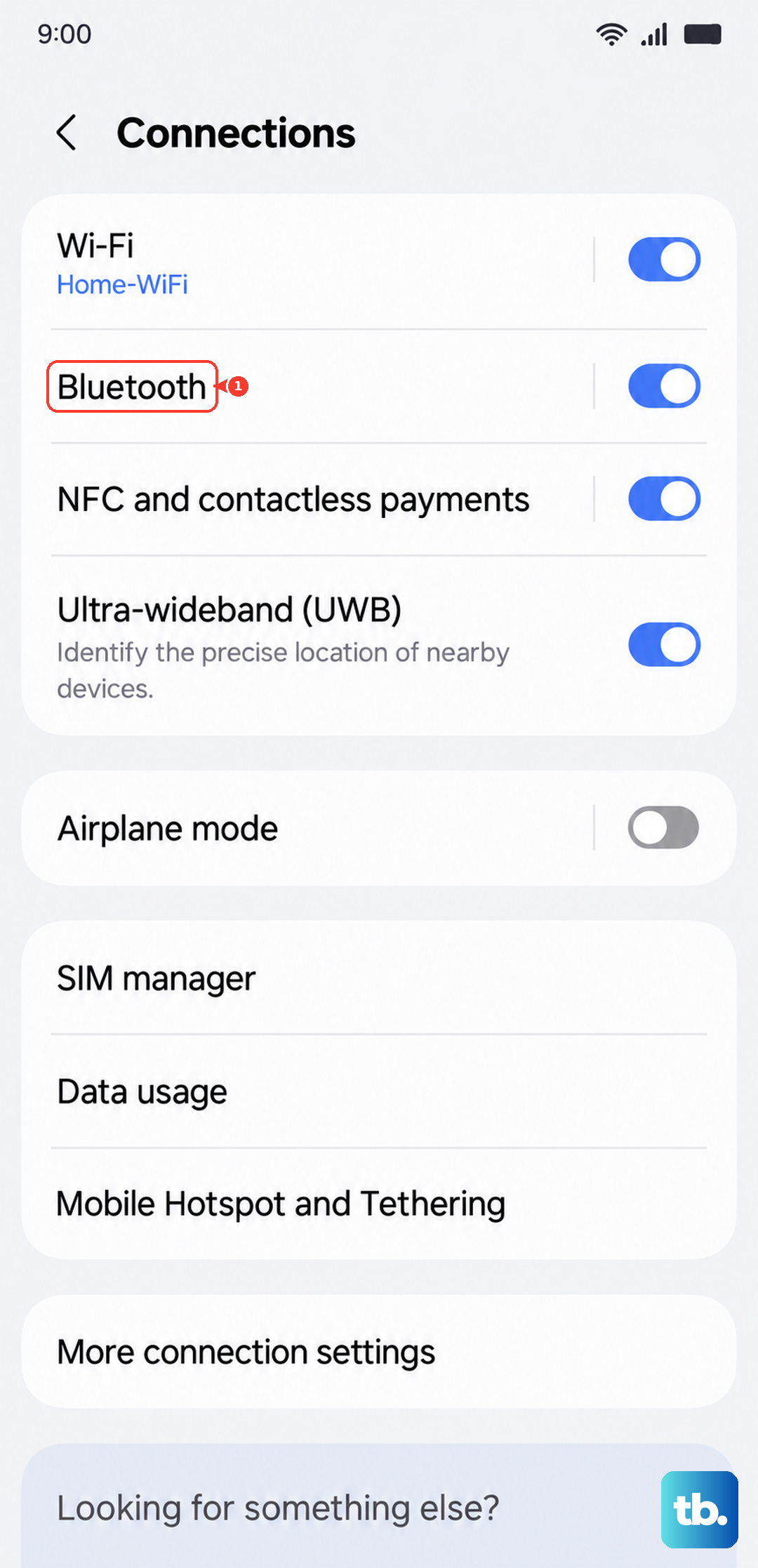
Samsung points out that unpairing "may also help with connectivity problems," so this is worth doing even if the headphones appear to connect normally.
Reset the tablet's Wi-Fi and Bluetooth settings
When wireless headphones still refuse to connect or keep dropping, clearing the tablet's network and Bluetooth configuration gives them a clean slate. Tap "Reset Wi-Fi and Bluetooth settings," then tap "Reset settings."
This removes saved Bluetooth pairings and Wi-Fi networks but does not erase your personal files, photos, or apps. After it finishes, pair the headphones again as a fresh device.
Check for and install the latest software update
An out-of-date build can carry audio and Bluetooth bugs that a newer release fixes, and the Tab S10+ is listed by Samsung as eligible for, and has received, the One UI 8.0 update. To check, swipe down and open Settings, tap "Software update" or "System updates" (it varies by model), then tap "Download and install," "Check for system updates," or "Check for software updates," depending on your carrier.
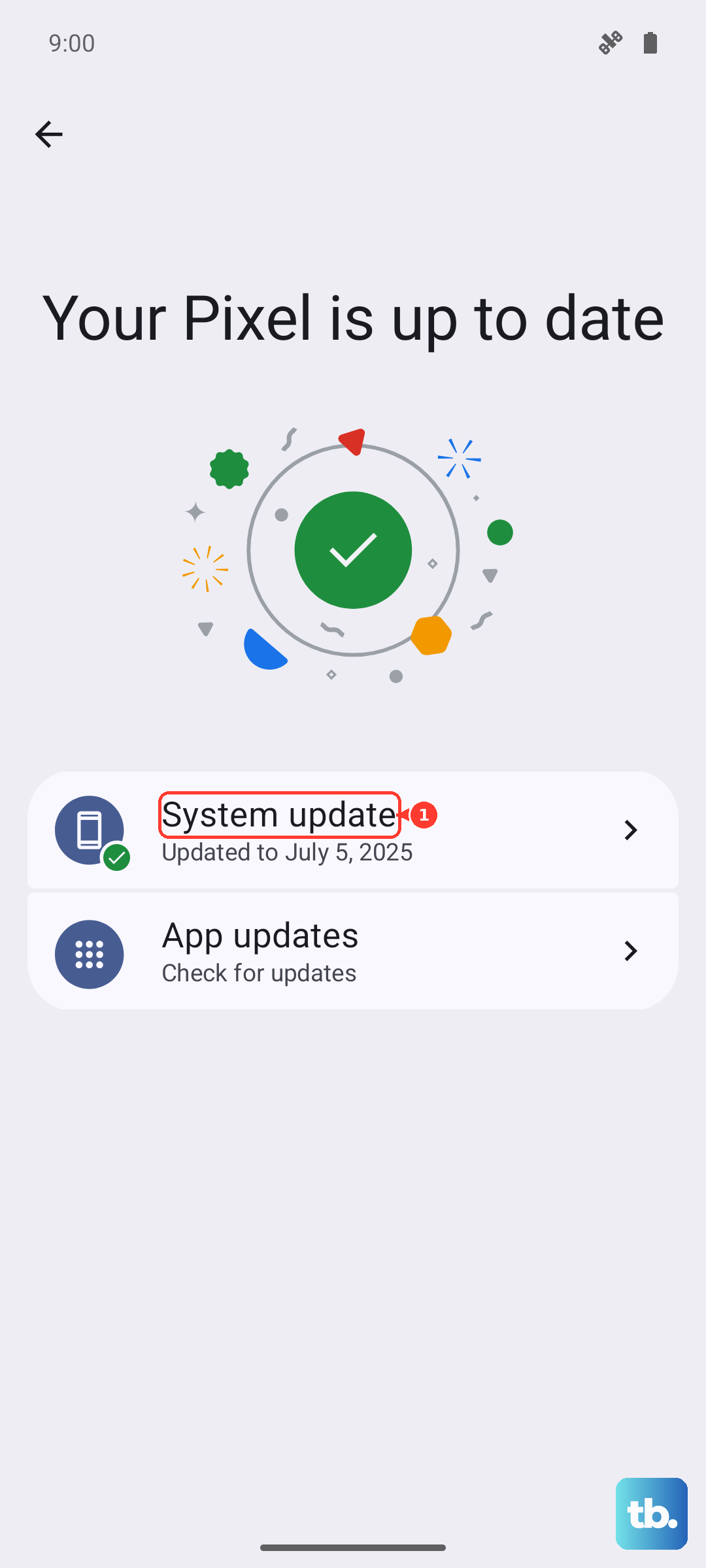
Install anything that is offered and let the tablet reboot to finish. If no update appears, your device may already be on the latest available build, so move on to the next step.
Boot into Safe mode to expose a misbehaving app
A third-party app, often a volume booster, an equalizer, or a Bluetooth utility, can hijack or block audio output. Safe mode loads the tablet with only its built-in apps so you can tell whether something you installed is the cause.
- 1.Power off the tablet completely.
- 2.Turn the device on, and "when the Samsung logo appears, press and hold the Volume down button."
- 3.Keep holding until "Safe mode" shows in the bottom-left corner.
With third-party apps disabled, test your headphones again. If they work in Safe mode, an app is to blame, so uninstall recently added audio or Bluetooth apps one at a time. Restart the tablet normally to exit Safe mode.
When a factory reset and Samsung service are the next step
If none of the above restores sound, a factory data reset clears deeper software faults, but it wipes the tablet, so back up everything important first. Samsung warns plainly, "Please save any information you need prior to the factory reset because your personal information may not be recovered."
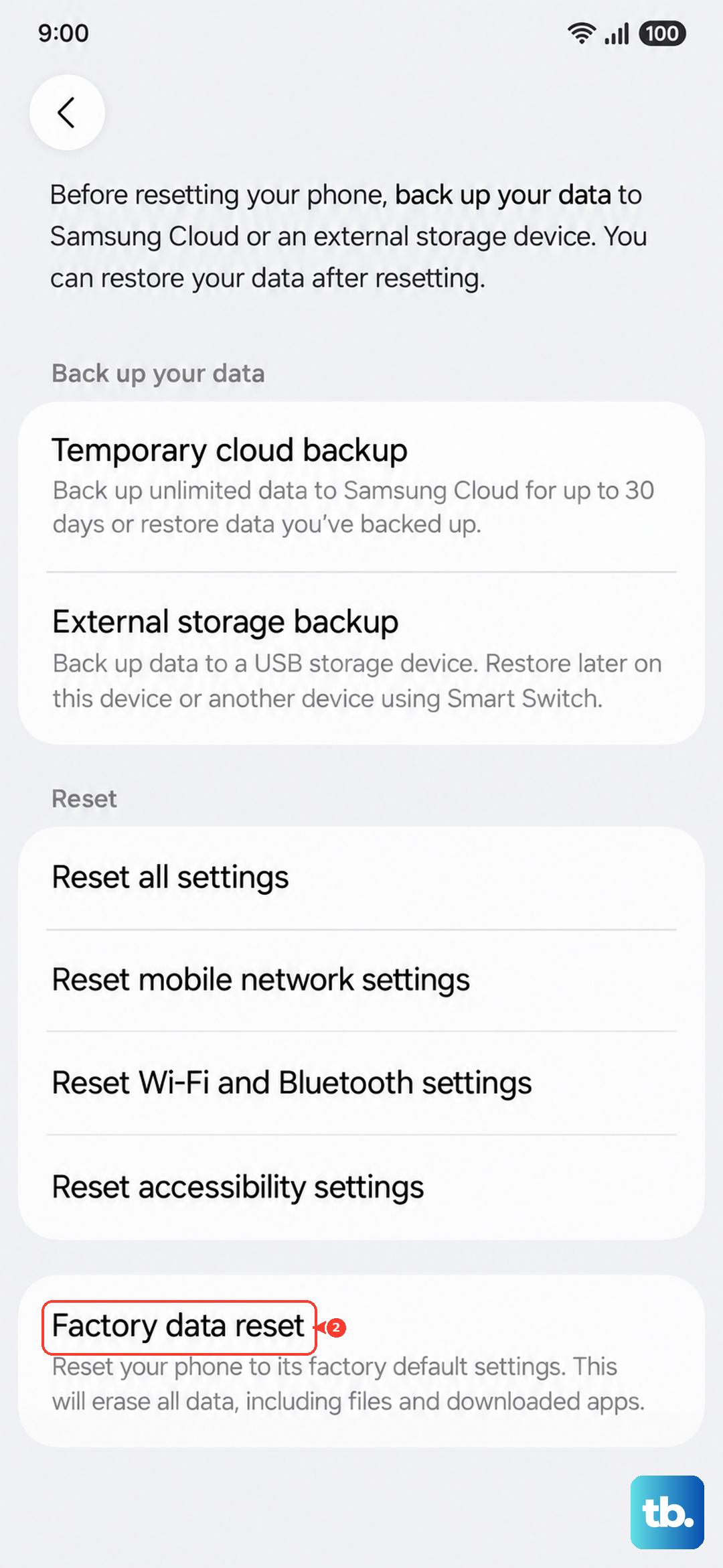
When your backup is done, go to Settings > General management > Reset > Factory data reset, review the information shown, tap Reset, then tap "Delete all." If headphones still fail to work after the reset, the trouble is almost certainly hardware. At that point, visit a Samsung service center or schedule a repair online.
Frequently Asked Questions
Does the Galaxy Tab S10+ have a headphone jack?
No. The Tab S10+ has no dedicated 3.5mm headphone jack, so wired headphones connect through the USB-C port, either as USB-C headphones plugged in directly or as 3.5mm headphones used with a USB-C to 3.5mm adapter. You can also use wireless Bluetooth headphones such as Galaxy Buds.
Why do my wired headphones only play sound from one side?
Mono audio plays from one side only, which can be normal for some calls and content, while stereo should come from both sides. If stereo content still plays from a single side, remove any adapter and connect the headphones directly to the USB-C port, then check that the connector is not bent or broken and that the cable is not damaged.
How do I connect Galaxy Buds to the Tab S10+?
Samsung Galaxy Buds connect and are managed through the Galaxy Wearable app. Install the app, put the Buds in pairing mode, and follow the on-screen steps; you can also confirm the connection under Settings > Connections > Bluetooth.
Will resetting Wi-Fi and Bluetooth delete my files?
No. Choosing "Reset Wi-Fi and Bluetooth settings" only clears saved network connections and Bluetooth pairings. Your personal files, photos, and apps stay in place, so you will simply need to pair your headphones again afterward.
What should I do if headphones still fail after a factory reset?
If the problem continues once the tablet has been reset and set up again, the fault is likely hardware rather than software. Visit a Samsung service center or schedule a repair online to have the USB-C port and audio components checked.