Your Galaxy Tab S10+ was running fine, and now the screen just sits there ignoring every tap, apps won't open, and even the swipe-down gesture does nothing. A frozen tablet is unsettling, especially on a screen this large that you lean on for work, reading, and streaming, but a locked display almost always points to a software hiccup rather than a broken panel. The reassuring part is that Samsung publishes a dedicated guide for troubleshooting freezing and critical issues on the Galaxy Tab S10 series, and the recovery steps below follow that official flow. Most freezes clear without losing a single file, so work through these fixes in order, starting with the safest.
Force a restart when the screen ignores you
When the display is completely unresponsive, you cannot tap a software restart button, so you need the hardware button combination instead. This forced restart is safe and does not erase any data, which makes it the first thing to try. The Tab S10+ has both a physical Side (Power) button and a Volume Down button, and Samsung documents the exact sequence for this model.
- 1.Press and hold the Side (Power) button and the Volume Down button at the same time.
- 2.Keep holding for more than 7 seconds, until the tablet restarts on its own.
- 3.Release both buttons once it begins to restart.
If the screen flashes the logo and boots back to the lock screen, the freeze is cleared. If nothing happens on the first attempt, make sure you are holding both buttons firmly and try once more, since a loose grip on one button is the most common reason this fails.
Free up memory with Device care optimization
Once the tablet responds again, a backlog of apps running in the background can choke available memory and trigger another freeze. Samsung builds a one-tap cleanup into One UI that closes running apps and clears unused memory for you. Running it after a freeze is a quick way to give the system breathing room.
Go to Settings, then Device care (this is called Battery and device care on some devices), then tap "Optimize now."
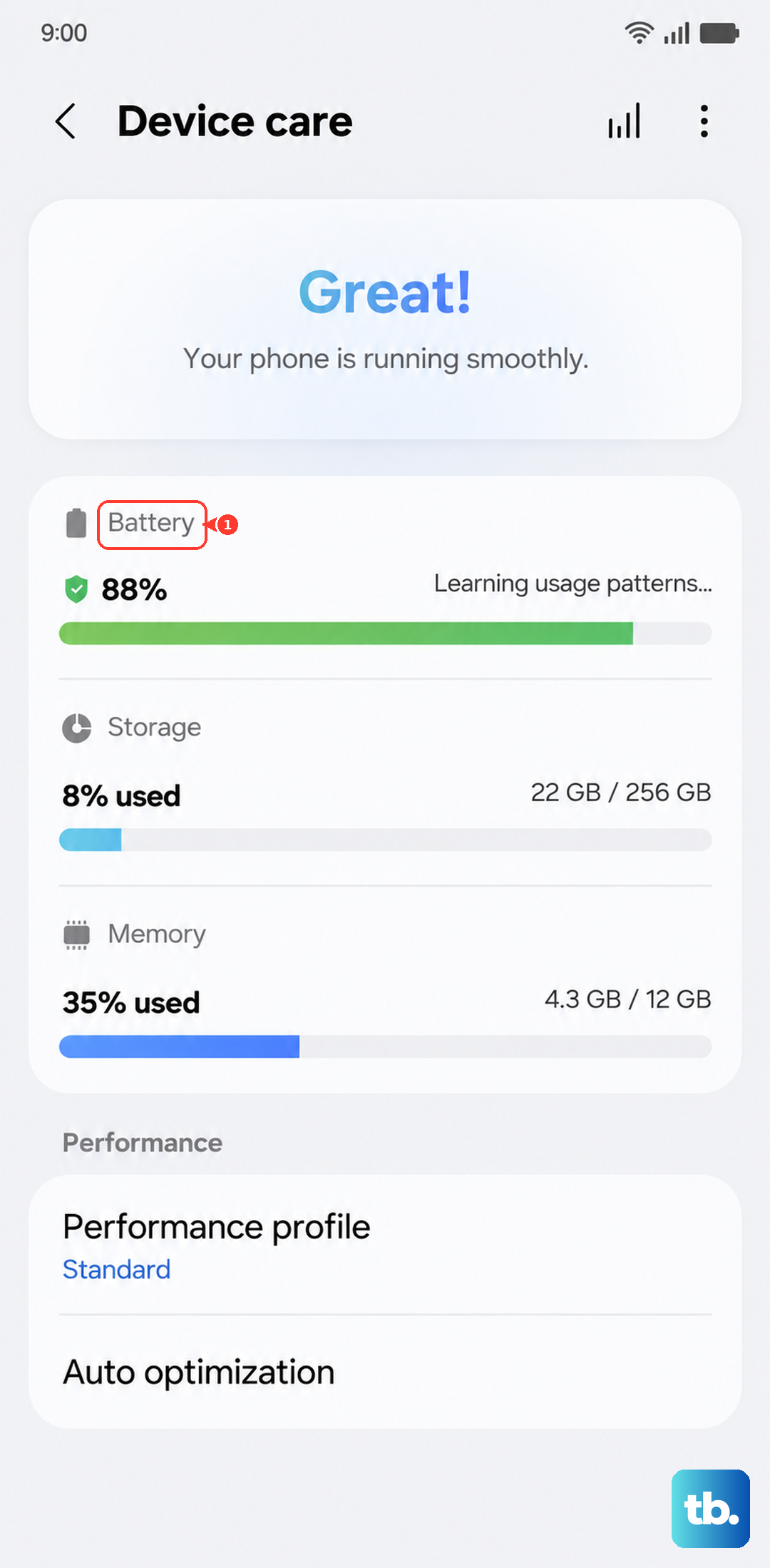
The tablet will close background apps and free up memory automatically, which often stops the stutter that leads to a lockup.
Sharpen a sluggish touchscreen
Sometimes the Tab S10+ is not truly frozen; the touchscreen is just responding so slowly that it feels stuck. This is especially common after you fit a screen protector, which adds a thin layer between your finger and the panel. Samsung includes a setting that boosts how sensitively the display reads your touches.
Open Settings, then Display, and turn on "Touch sensitivity."
With this enabled, taps and swipes register more readily, so a slow-feeling screen starts behaving like a live one again.
Install the latest software
Samsung regularly ships updates that fix freezing and stability bugs, and the Tab S10+ is officially eligible for the One UI 8.0 update after already receiving One UI 7 (Android 15). If your tablet has fallen behind, an outstanding update may contain the exact fix you need.
Using two fingers, swipe down from the top right corner of the screen, and then tap the Settings icon.
Tap "Software update" or "System updates."
Tap "Download and install" (or "Check for software updates").
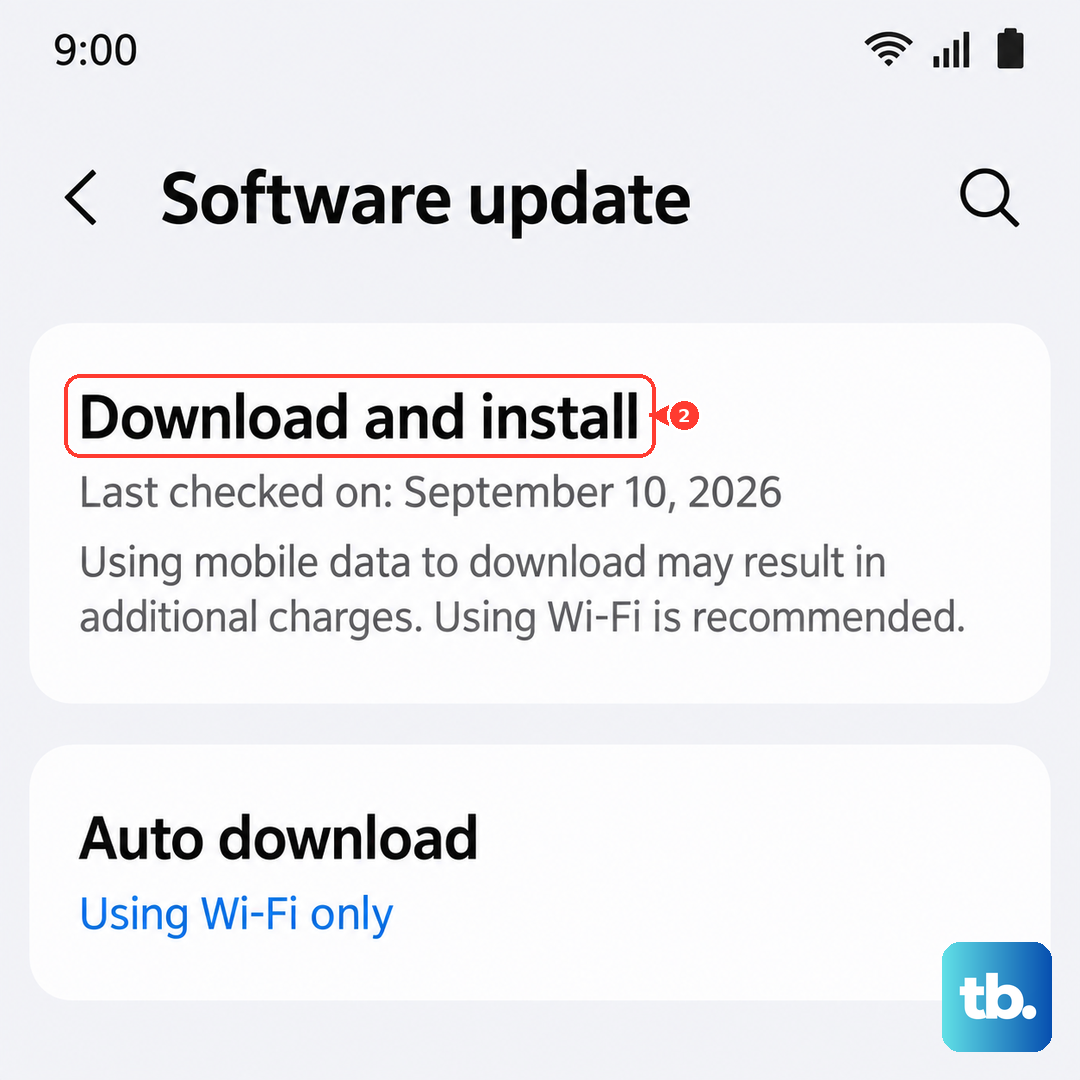
Follow the on-screen prompts to complete the installation.
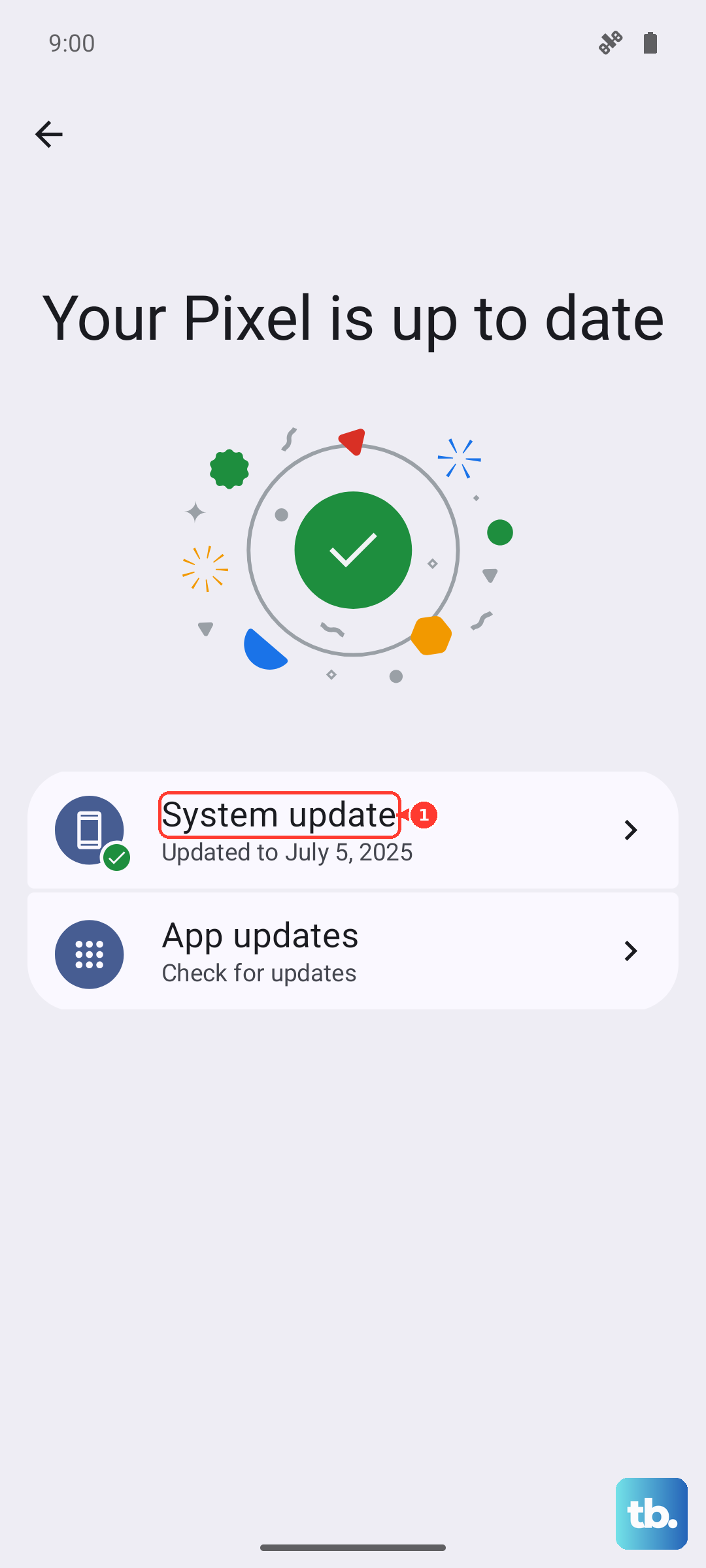
Keep the tablet charged and connected to Wi-Fi while it updates, and let it finish the restart it performs at the end rather than interrupting it.
Test for a rogue app in Safe mode
If the freezing keeps coming back, a single misbehaving app is a likely culprit, and Safe mode is how you prove it. Safe mode starts the tablet with only its built-in software running, so any app you downloaded yourself is temporarily disabled. If the Tab S10+ behaves normally in Safe mode, you have your answer.
Open the Power menu, then touch and hold "Power off" until the Safe mode icon is displayed, and select Safe mode.
Use the tablet for a while in this state; if the freezing stops, a downloaded app is causing the problem and you can move on to removing it.
Remove the app that's causing trouble
Once Safe mode points the finger at a downloaded app, the fix is to uninstall the offender. Focus on apps you installed or updated right before the freezing started, since a recent change is the most likely trigger. You can remove apps directly from the App drawer.
Open the App drawer and find the suspect app.
Touch and hold the app's icon until a popup menu appears.
Tap "Uninstall," and then tap "OK."
Remove recently downloaded or updated apps one at a time, then return to normal mode and watch whether the freezing returns. Clearing out the bad app often resolves the issue without anything more drastic.
Back up before you wipe anything
If freezing persists after everything above, the next steps involve erasing the tablet, so protect your data first. A factory reset cannot be undone, and Samsung's own warning is blunt about it, stating that the process "will erase all data from your device" and that "your personal information may not be recovered." Take a backup before you go any further.
Samsung Smart Switch is the official tool for this.
Install it on a computer from Samsung's official website, connect the Tab S10+ with a USB cable, and use it to back up your data.
You can also use cloud backup so your important files are saved somewhere safe before the wipe.
Reset the tablet to factory settings as a last resort
A factory data reset returns the Tab S10+ to the state it was in out of the box, clearing the software conflicts that resist every gentler fix. Treat this as a genuine last resort, and only run it after you have confirmed your backup is complete, because it erases everything on the tablet. You may be asked for your security lock and Samsung account password during the process.
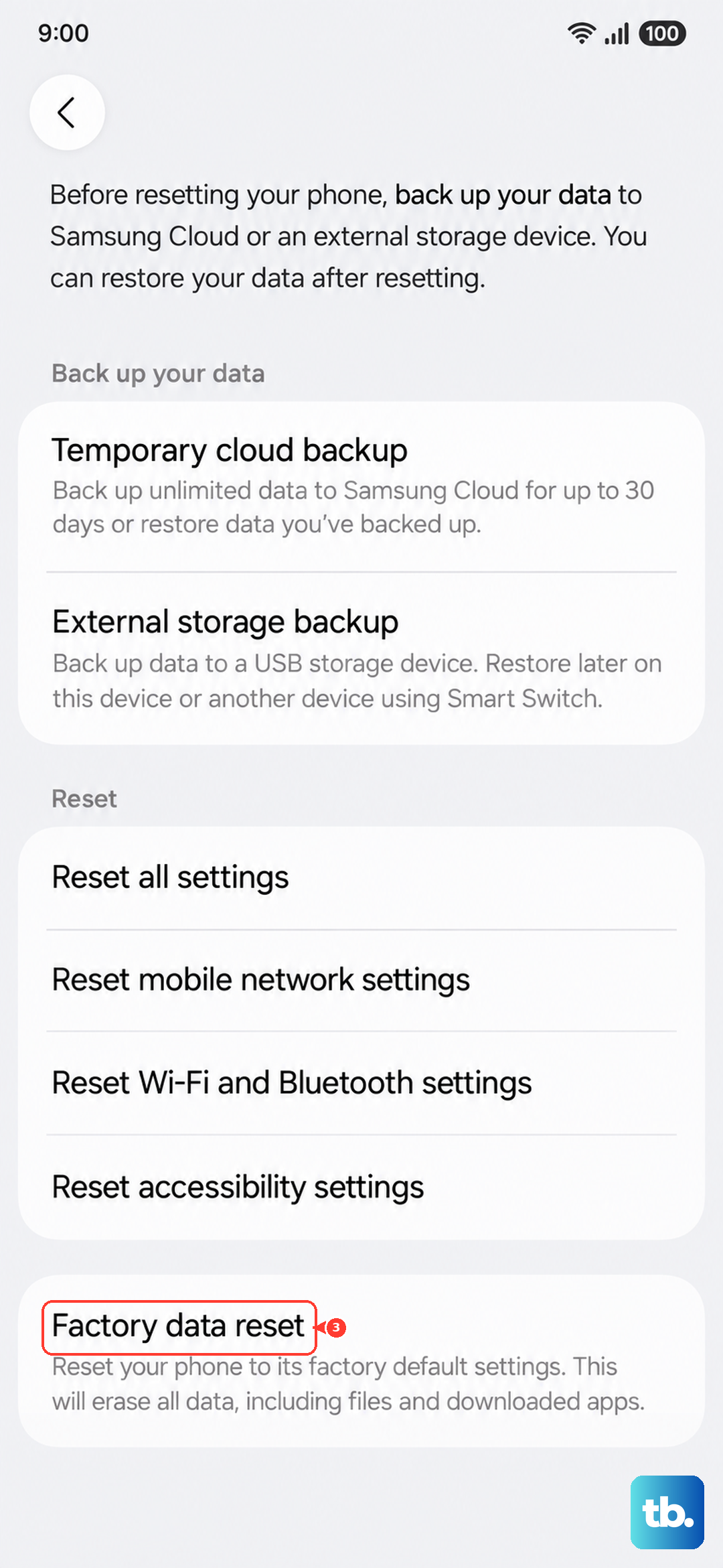
Open Settings, then General management, then Reset.
Tap "Factory data reset."
Tap "Reset."
Tap "Delete all" and enter your security lock and Samsung account password if prompted.
The tablet will erase itself and restart fresh.
Sign back in, restore your backup through Smart Switch or the cloud, and reinstall apps gradually so you can spot any one that reintroduces the freezing.
When to hand it to Samsung
If the Tab S10+ still freezes after a full factory reset, the trouble may run deeper than software and point to a hardware fault. At that stage there is no safe at-home fix left to try. Samsung directs owners with unresolved freezing to its official service channels.
Use Samsung's official support to request service, or contact a Samsung service centre directly.
Describe exactly what you have already tried, including the forced restart and the factory reset, so the team can move straight to diagnosing the hardware.
Frequently Asked Questions
Will a forced restart erase my files?
No. Holding the Side (Power) button and Volume Down button to force a restart is safe and does not erase any data. It simply reboots the tablet, which clears the temporary glitch causing the freeze. Only a factory data reset erases your data, and the tablet warns you before that happens.
Why does my Galaxy Tab S10+ keep freezing?
Repeated freezing usually traces back to one of three things, namely too many apps running in the background and using up memory, a single downloaded app that is misbehaving, or pending software bugs. Run Device care optimization, test the tablet in Safe mode to isolate a bad app, and install any available software update before considering a reset.
Does the Galaxy Tab S10+ come with a charger in the box?
No. Samsung's US page states the Tab S10+ "Requires 45W wall charger (sold separately)," so there is no charger included. If you need to keep the tablet powered while it updates or resets, use a compatible 45W wall charger that you supply yourself.
How do I back up my tablet before a factory reset?
Use Samsung Smart Switch, the official backup tool, which you can install on a computer from Samsung's official website. Connect the Tab S10+ with a USB cable and use Smart Switch to back up your data, or save your files with cloud backup. A factory reset cannot be undone, so confirm the backup is complete before you reset.