Your Galaxy Tab S10+ should refill its large 10,090 mAh battery in a hurry, so it is genuinely frustrating when the percentage crawls up in single digits or the lock screen never shows the fast-charging indicator at all. On a 12.4-inch tablet this stings even more, because a sluggish charge can leave you waiting through what should have been a quick top-up before a movie or a work session. The encouraging part is that most fast-charging complaints on this model trace back to the charger, a single setting, or a temporary software hiccup rather than a dead battery. Work through the fixes below in order, starting with the simplest and safest, and stop as soon as your tablet starts pulling power at full speed again.
1. Confirm you are using a genuine 45W Samsung adapter and a compatible cable
This is the single most common reason a Tab S10+ refuses to fast charge, because Samsung does not include a charger in the box. The official spec page states the device "Requires 45W adapter (sold separately)" to reach its 45W Super Fast Charging speed, so whatever you have been plugging in may simply not be up to the job.
Use a genuine Samsung 45W travel adapter together with a Samsung-approved USB-C cable. A standard or low-watt charger cannot fast charge this tablet, since Samsung notes "You can't use the fast charging feature if you're using a standard charger." If you have only been using an old phone brick or a laptop USB port, that alone will explain the slow charge.
2. Put the tablet down and keep it at room temperature
Charging speed is throttled when the tablet is busy or hot, which is easy to overlook if you keep using it while it is plugged in. Running high-performance apps such as games, video streaming, or heavy browsing while charging raises the device temperature and slows charging.
Temperature matters on both ends of the scale, since charging may be limited when the device or the surrounding environment is too hot or too cold. Set the tablet down, close heavy apps, take it out of any thick case if it feels warm, and let it charge in a normal-temperature room rather than in direct sun or a cold car.
3. Switch on Fast charging in the battery settings
The fast-charging toggle can be turned off, which quietly limits the tablet to ordinary charging speeds even with the correct adapter attached. Check it before you assume there is a hardware fault.
- 1.Open Settings.
- 2.Go to Battery > Charging settings.
- 3.Tap the switch next to Fast charging.
Keep in mind that "Fast charging is not supported when using a normal charger," so this setting only takes effect once a genuine fast charger is connected. With a standard brick the toggle will make no difference.
4. Turn off Battery protection if the charge stalls near 80 percent
If your tablet seems to charge fine but then refuses to go past around 80 percent, that is usually a feature working as designed rather than a fault. Samsung's Battery protection setting can deliberately cap the charge to extend long-term battery health.
Open Settings > Battery > Battery protection. The Maximum option stops charging at 80 percent to protect the battery over time. If you want a full charge again, turn Battery protection off. On Samsung's not-charging guidance the path is Settings > Battery, then disable the Protect Battery or Battery Protection switch.
5. Clean the charging port and inspect the cable and adapter
Pocket lint, dust, and debris pack into the USB-C port over time and physically block a solid connection, which is one of the most common causes of slow or failed charging. A damaged cable or a worn adapter will do the same.
Gently clear any dust or debris from the port with a soft brush and check that there is no moisture inside. Then inspect the cable, adapter, and port for physical damage, corrosion, or bent pins. The cable should seat firmly in the port with very little wobble; if it feels loose or only charges at a certain angle, the connector or cable is likely the problem.
6. Force restart to clear a charging glitch
A frozen background process can interfere with charging, and a force restart clears those temporary software glitches without touching your data. Use the exact sequence for the Galaxy Tab S10 series.
Press and hold the Side button and the Volume Down button at the same time for more than 7 seconds until the device restarts automatically. (The Side button is the power button.) Once it powers back up, plug the charger in again and watch whether the fast-charging indicator appears.
7. Swap the charger, cable, and outlet, then give it an hour
Testing with different equipment is how you isolate whether the fault is the charger, the cable, the wall outlet, or the tablet itself. Borrow or substitute one part at a time so you know which component is at fault.
Plug another authentic Samsung travel charger into a known-good outlet and let the tablet charge for at least one hour before you judge the result. If the battery was completely drained, the charging indicator may take several minutes to even appear, so do not panic if the screen stays dark at first.
8. Install any pending One UI software updates
Firmware updates frequently fix charging-related bugs, and the Tab S10+ is eligible for the latest One UI, so it is worth confirming you are current. Updating is quick and keeps the charging logic in good shape.
- 1.Swipe down with two fingers and tap Settings.
- 2.Tap Software update > Download and install.
- 3.Follow the on-screen prompts to finish.
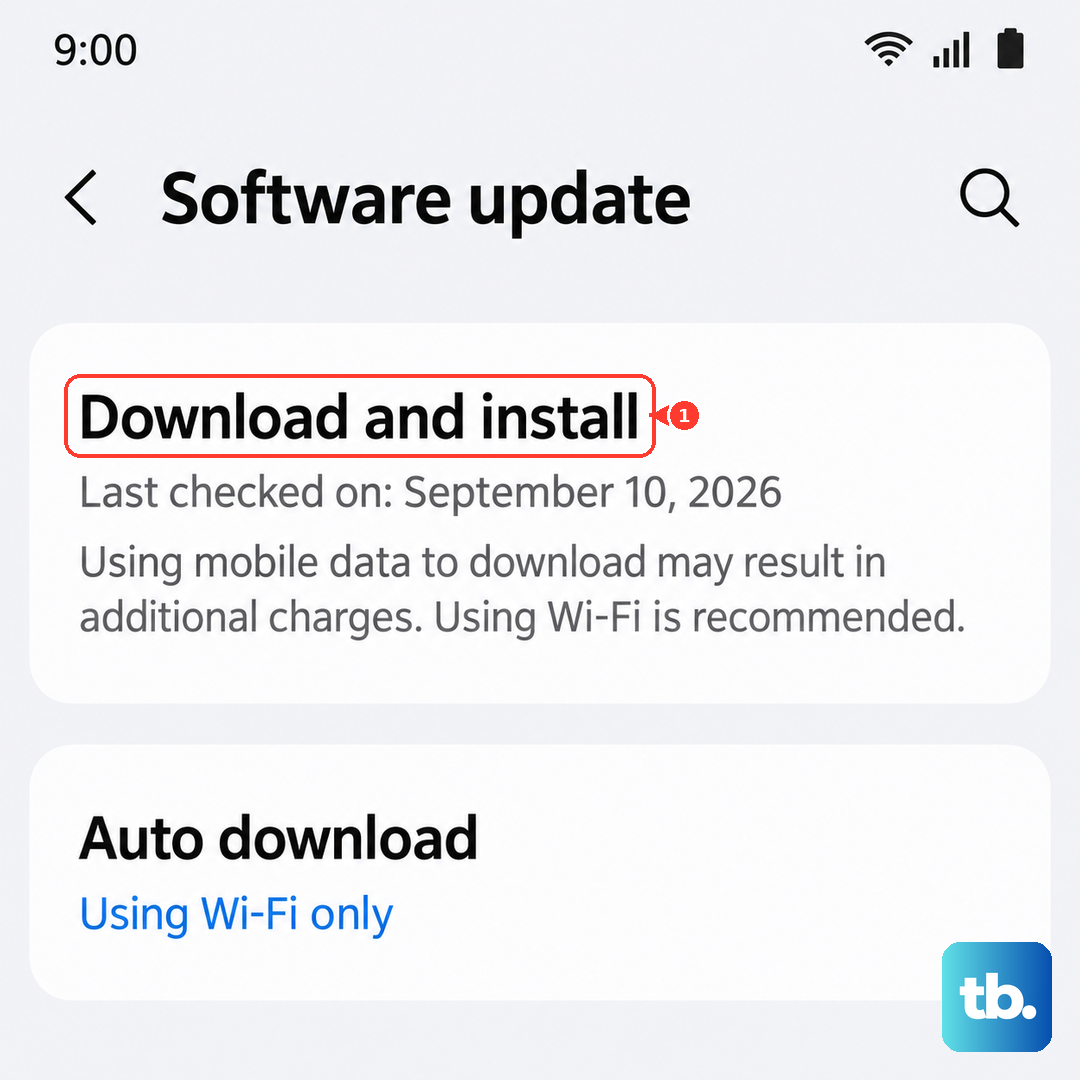
You can confirm what you are running under Settings > About tablet > Software information. Charge above a safe level before starting a large update.
9. Run the built-in battery and cable diagnostics
Samsung ships a diagnostics tool that tests the charging hardware directly, so you do not have to guess whether the cable, the port, or the battery is the weak link. It lives inside the Samsung Members app that comes preinstalled on the tablet.
Open Samsung Members, tap Diagnostics on the Discover tab, then Phone diagnostics (shown as Tablet diagnostics), and run Battery status and Cable charging, or choose Test all. The results tell you whether the cable, the battery, or the port itself is the problem, which is exactly what a service technician would want to know.
10. Back up your data and factory reset as a last software step
If charging still behaves abnormally after every check above, a factory reset rules out a deeper software fault before you assume the hardware has failed. This step erases the tablet, so treat it as a last resort and prepare first.
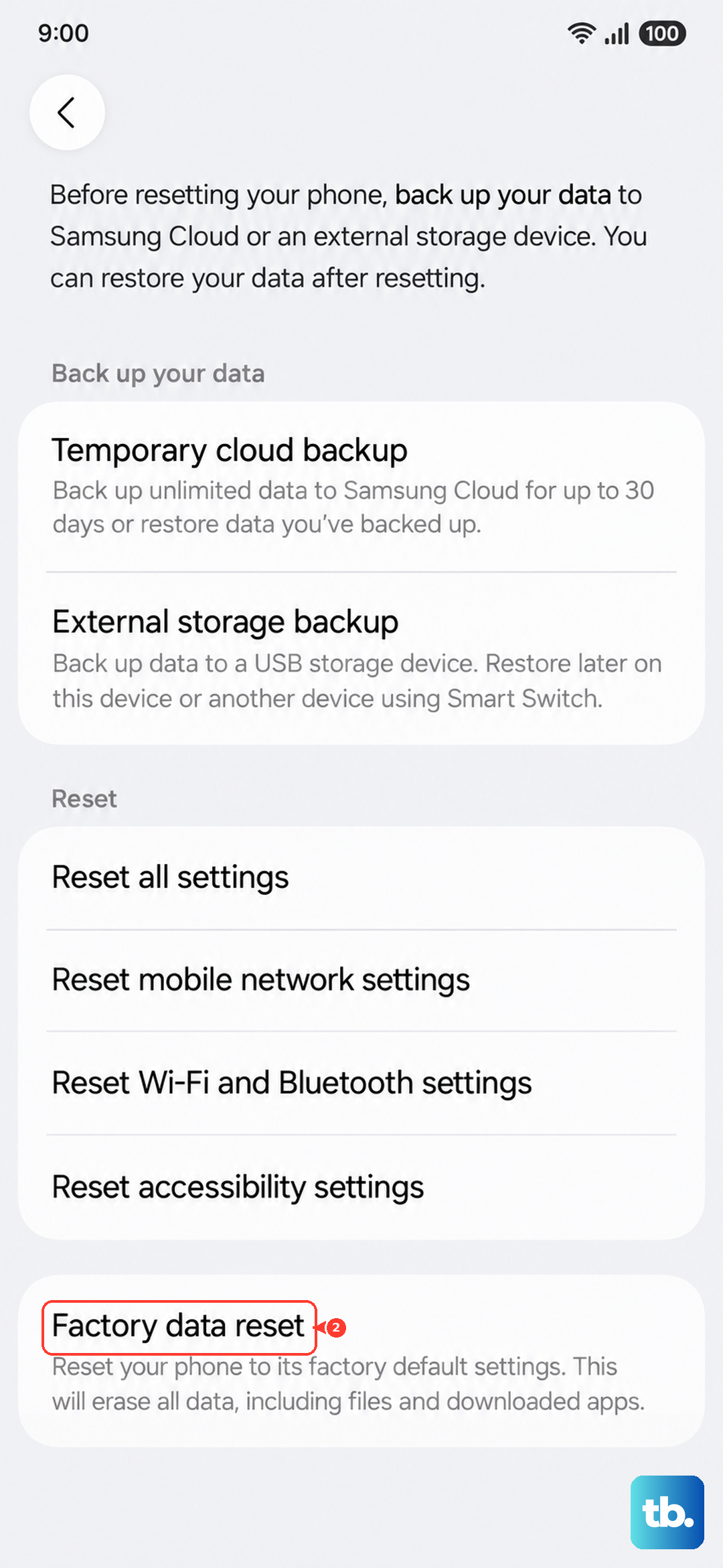
Back up your files and photos, then go to Settings > General management > Reset > Factory data reset > Reset > Delete all. Samsung's warning is clear: "Please save any information you need prior to the factory reset because your personal data may not be recovered." Remove your accounts beforehand as well, so you do not trip Factory Reset Protection and lock yourself out afterward.
When to contact Samsung or book a repair
If the tablet still will not fast charge after you have tried a genuine 45W charger, cleaned the port, restarted, updated, and run the diagnostics, the charging port or the battery itself may need service. At that point the problem is most likely physical and not something more troubleshooting will fix.
Samsung directs owners to visit a Samsung walk-in service center or to schedule a repair service online. Bring the results from the Samsung Members diagnostics if you have them, since they help the technician confirm the fault quickly.
Frequently Asked Questions
Does the Galaxy Tab S10+ come with a charger in the box?
No. Samsung's spec page states the device "Requires 45W adapter (sold separately)," so you need to buy a genuine Samsung 45W travel adapter and a compatible USB-C cable separately to reach full charging speed.
How fast can the Galaxy Tab S10+ charge?
The Tab S10+ supports 45W Super Fast Charging on its 10,090 mAh battery, but only with a genuine 45W adapter and the Fast charging option enabled. A standard or low-watt charger cannot trigger fast charging.
Why does my Tab S10+ stop charging at around 80 percent?
That is almost always the Battery protection feature. Under Settings > Battery > Battery protection, the Maximum setting deliberately stops charging at 80 percent to preserve battery health; turn it off if you want a full charge.
I plugged in a fully dead tablet and nothing happens. Is it broken?
Not necessarily. If the battery was completely depleted, the charging indicator may take several minutes to appear. Leave it connected to a genuine Samsung charger in a good outlet for at least an hour before assuming a fault.
Can I use any USB-C charger to fast charge the tablet?
No. Samsung notes "You can't use the fast charging feature if you're using a standard charger," so use a Samsung-approved 45W adapter and cable for reliable fast charging.