
Seeing a call fail on your Samsung Galaxy Tab S10+ can stop you in your tracks, especially if you're using it for work or an important video chat. This usually happens when the tablet has trouble connecting to your cellular network or the other person's device. A weak signal, a minor software hiccup, or a single incorrect setting is often the culprit.
Let's run through the most effective fixes, starting with the quickest ones you can try right now.
Toggle Airplane Mode On and Off
The fastest way to clear a temporary network glitch is to reset your connection. Swipe down twice from the top of your screen to open the full Quick Settings panel. Tap the Airplane Mode icon to turn it on, wait about 15 seconds, and then tap it again to turn it off. This forces your tablet to re-register with the cellular network.
Check Your Cellular Signal Strength
Weak signal is the most common reason for call failures. Look at the signal bars in the top-right corner of your screen. If you only have one or two bars, try moving closer to a window or to a different room. The large screen is great for media, but it doesn't help pull in a faint signal from a distance.
Perform a Force Restart
If an app or a background process is frozen, it can interfere with calling. A force restart clears this up without deleting any data. Simply press and hold the Volume Down button and the Power button together for about 10 seconds. Release when you see the Samsung logo appear, and your tablet will reboot.
Verify Do Not Disturb and Focus Modes
Check that an active mode isn't silently blocking your calls. Swipe down to see your Quick Settings and look for the Do Not Disturb or a Focus mode icon (like Work or Sleep). If one is highlighted, tap it to turn it off. You can also go into Settings > Sounds and vibration > Do Not Disturb to see what's allowed.
Ensure Your Date and Time Are Correct
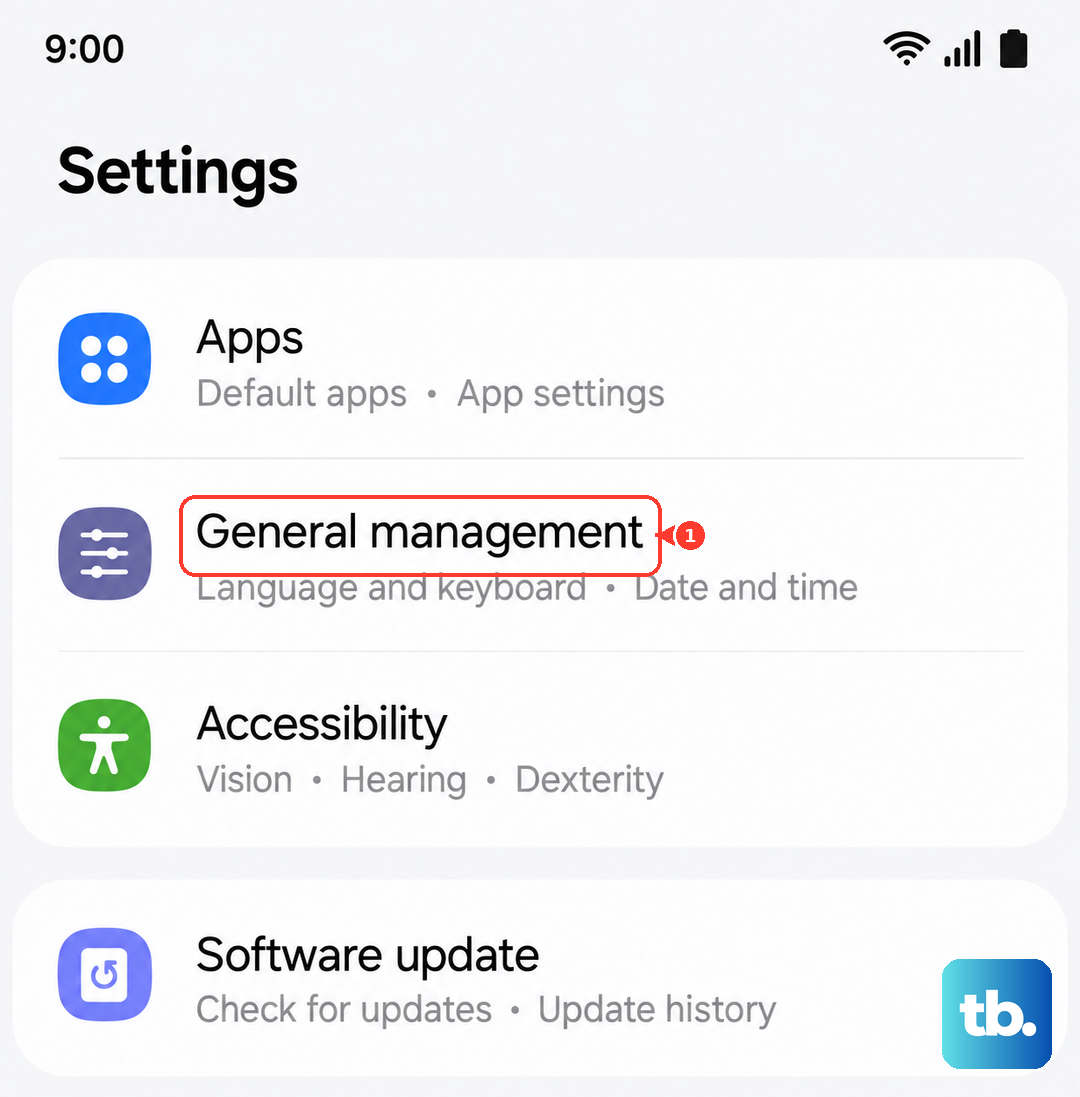
Incorrect time settings can cause conflicts with network authentication. It's an easy thing to overlook. Open Settings > General management > Date and time. Make sure the "Automatic date and time" switch is turned on. This lets your network set the time correctly.
Review Your Blocked Numbers List
It's worth a quick check to make sure you haven't accidentally blocked the number you're trying to reach. Head to the Phone app, tap the three-dot menu in the top-right, and select Settings > Block numbers. If you see the number there, tap the minus (-) icon next to it to remove it from the list.
Check Mobile Data and Roaming Settings
For calls over data (VoLTE or Wi-Fi Calling), you need mobile data enabled. Go to Settings > Connections > Mobile networks and make sure "Mobile data" is on. If you're traveling, you might also need to enable "Data roaming" in that same menu, but be aware of potential charges from your carrier.
Update Your Carrier Settings
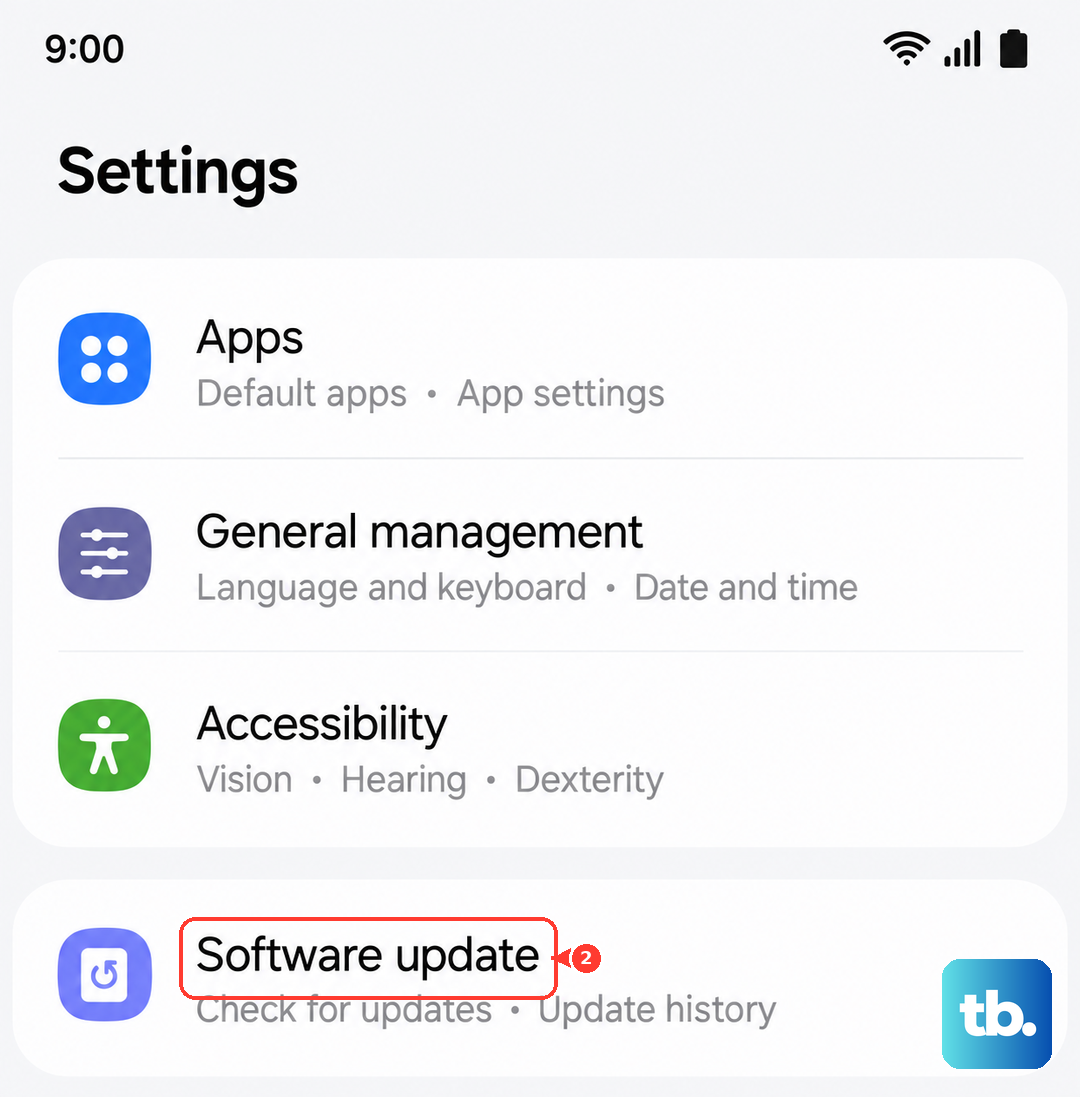
Carrier updates are small files that improve network connectivity. They often install automatically, but you can check. Connect to Wi-Fi, then go to Settings > Software update and tap "Download and install." While this is mainly for Android OS updates, it can sometimes include carrier improvements.
Switch Between Network Modes
Sometimes the 5G or LTE connection in your area might be unstable for voice calls. You can temporarily switch to an older, more reliable network type. Go to Settings > Connections > Mobile networks > Network mode. Try selecting "4G/3G/2G (auto connect)" instead of the 5G option. Test your call, then switch back later.
Inspect and Reinsert Your SIM Card
A loose, dirty, or faulty SIM card is a classic cause of call failures. You'll need the SIM ejector tool that came with your tablet. Gently push it into the small hole on the SIM tray, pop it out, and remove the SIM card. Give the gold contacts a light wipe with a dry cloth and reinsert it firmly. If problems continue, your carrier can provide a replacement SIM.
Install the Latest Software Update
Software updates routinely patch bugs that can affect calling stability. Since the Tab S10+ runs on Android 14 with One UI 6.1.1, Samsung is still refining it. Plug in your 45W charger to ensure enough battery, connect to Wi-Fi, and go to Settings > Software update. Download and install any available update.
Reset Your Network Settings
This is a deeper fix that clears all saved Wi-Fi networks, Bluetooth pairings, and cellular settings back to default. It won't erase your personal files. Go to Settings > General management > Reset > Reset network settings. Tap "Reset settings" and enter your PIN if prompted. You'll need to reconnect to Wi-Fi and re-pair Bluetooth devices afterward.
Contact Your Mobile Carrier
If you've tried everything here, the issue might be on your carrier's end. There could be a local network outage, a problem with your account, or a need to reprovision your line for your tablet. Give their customer service a call from another phone. They can check for outages, test your line, and advise if a new SIM card is needed.