
When your Samsung Galaxy Tab S10+ refuses to download apps, it can bring your productivity to a screeching halt. Whether you're trying to install a new app for work in DeX mode or just grab a game, a stuck download is incredibly frustrating. The good news is that most of these issues have straightforward fixes you can handle yourself.
Let's go through the troubleshooting steps that work for the Tab S10+, starting with the quickest solutions first.
Check Your Connection and Restart
This might seem obvious, but it's always the best place to start. A weak or unstable Wi-Fi connection is the most common reason downloads get stuck. Pull down the notification shade twice to see your full Quick Settings panel and make sure your Wi-Fi is connected and strong.
If your Wi-Fi seems fine, try a simple restart. Press and hold the Volume Down and Power button together for about ten seconds until you see the Samsung logo. This force restart can clear out temporary glitches that might be blocking the Google Play Store.
I've found that on the Tab S10+, a quick restart after a failed download often gets things moving again right away.
Verify Your Date and Time
Google's servers use your device's time to authenticate downloads. If your tablet's clock is off, it can silently block app installs. To check this, open Settings and go to General Management > Date and time.
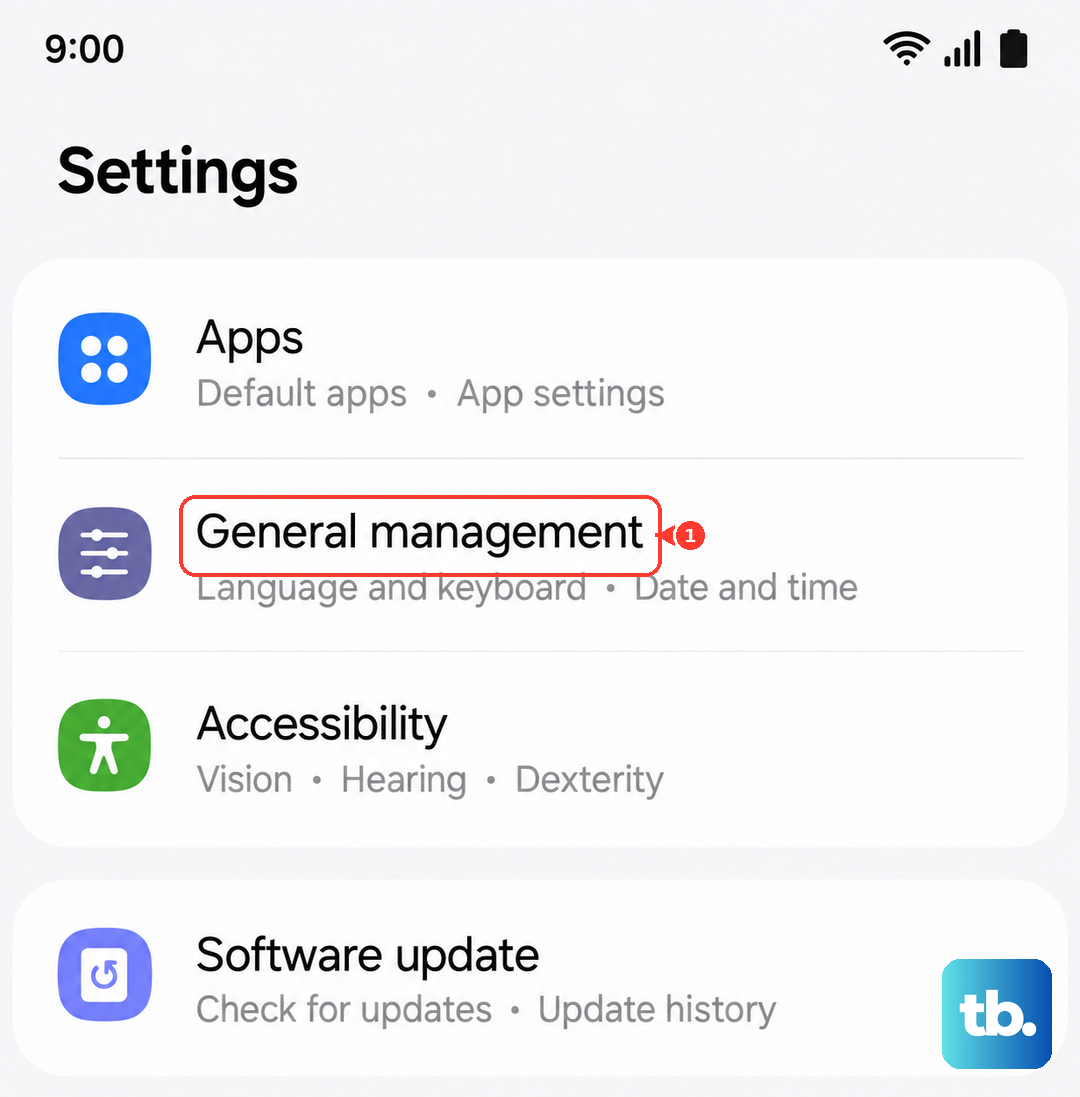
Make sure "Automatic date and time" is switched on. If it's already on and you're still having trouble, try turning it off and back on again. This forces the tablet to re-sync with the network time.
Clear the Google Play Store Cache
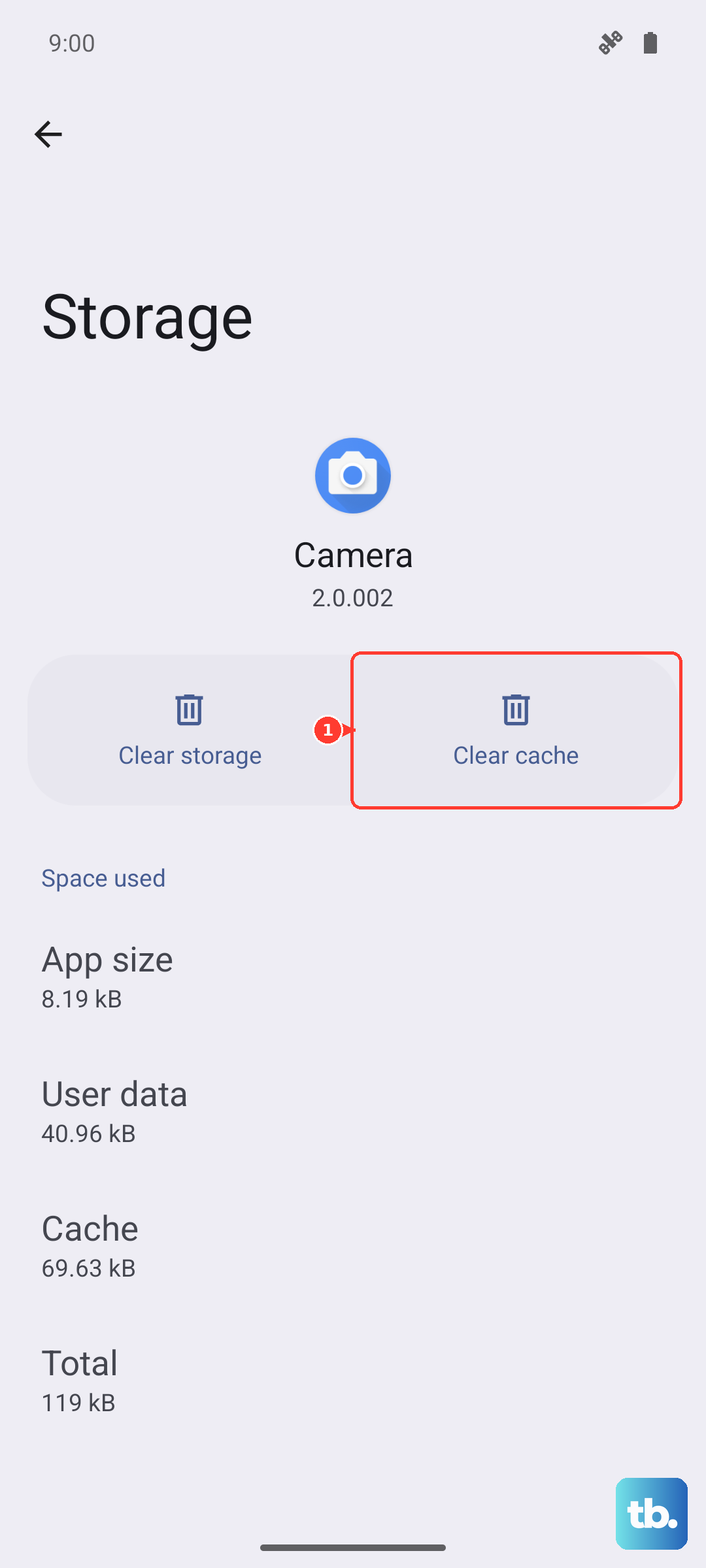
Corrupted temporary files in the Play Store app itself are a frequent culprit. Clearing this cache is safe and won't delete your apps or account info. Go to Settings > Apps, then find and tap on "Google Play Store".
Tap on Storage, then tap Clear Cache. After doing this, open the Play Store again and try your download. If that doesn't work, you can go a step further and tap Clear Data. This will reset the Play Store to its default state, so you may need to re-accept its terms.
Manage Google Play Services
This background service is crucial for everything related to Google apps, including downloads. If it's acting up, your downloads will fail. Head back to Settings > Apps and find "Google Play Services".
Tap on it, then go to Storage. Tap Clear Cache first. If the problem persists, tap Manage Storage and then Clear All Data. Don't worry, this won't delete your personal information.
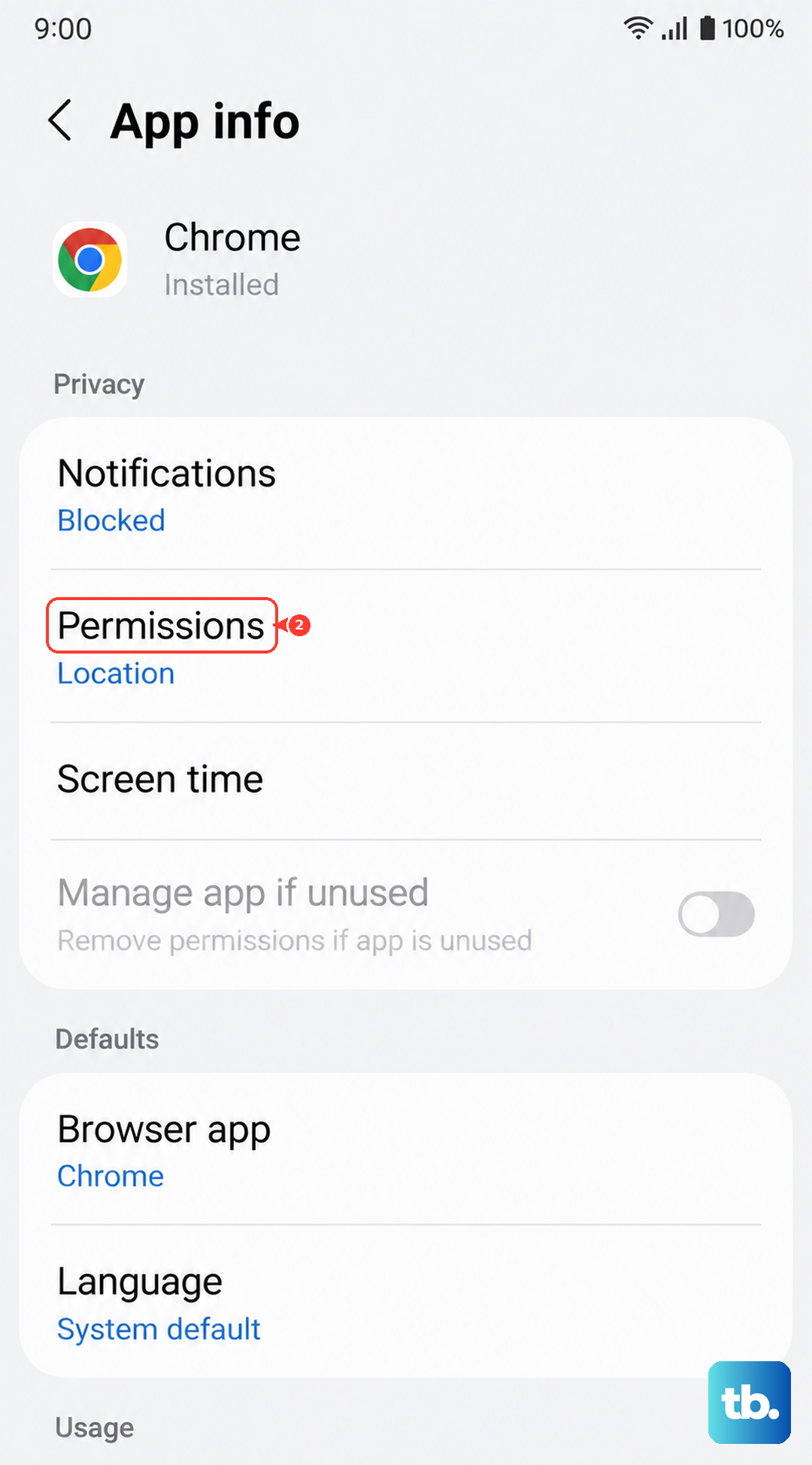
While you're in the Google Play Services app info, also check its permissions. Tap on Permissions and ensure that Storage is allowed. This permission is essential for downloading and installing app files.
Check for Software Updates
An outdated version of Android or One UI can sometimes cause conflicts with the Play Store. Samsung regularly releases updates that fix bugs. To check, go to Settings > Software update and tap Download and install.
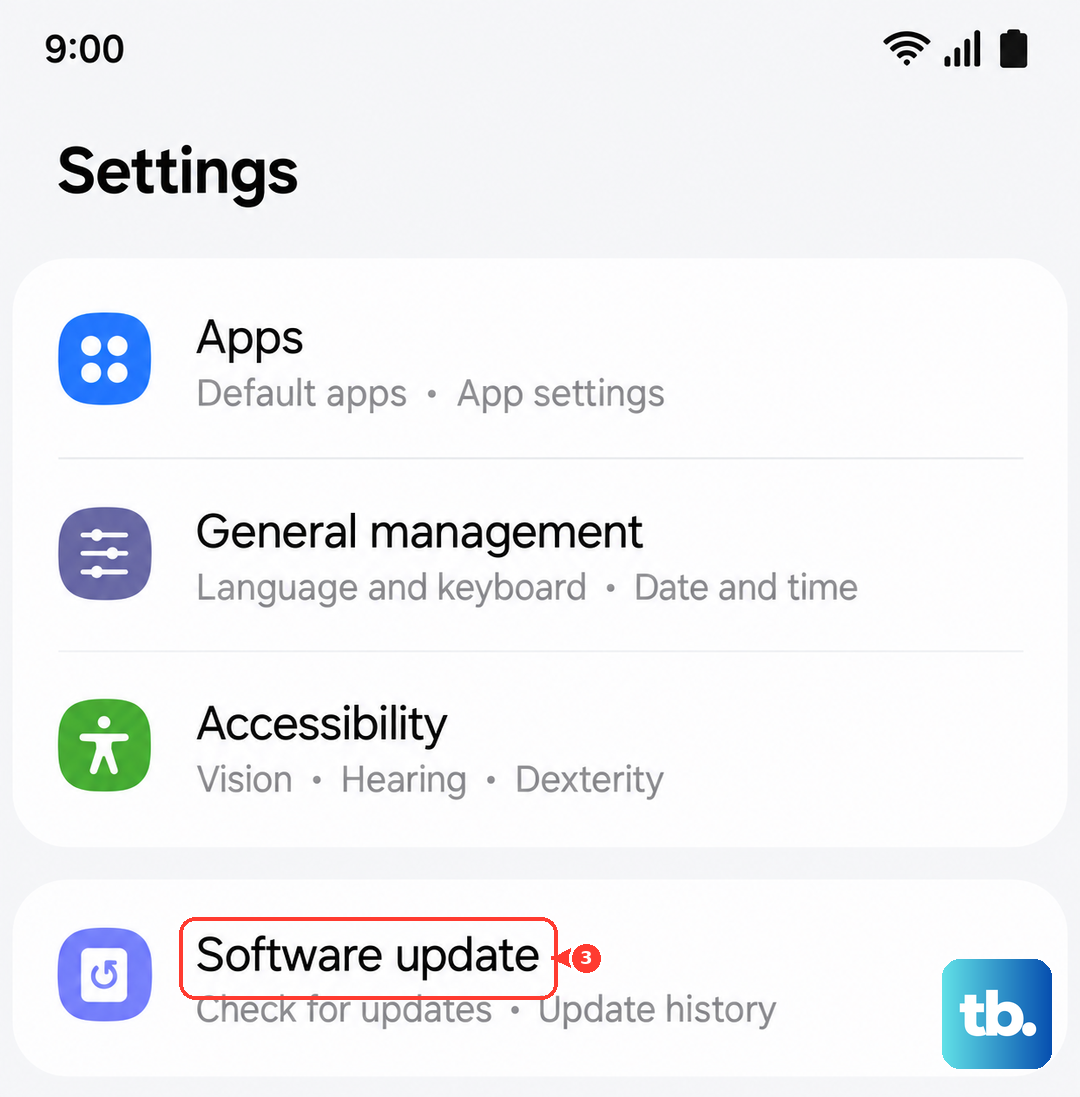
If an update is available, it's a good idea to install it. Make sure your tablet is connected to Wi-Fi and has at least a 50% charge, or better yet, plug it into a 45W USB-PD charger. The Dimensity 9300+ chip can get warm during updates, so doing this on a cool, flat surface is best.
Review Your Storage Space
The Tab S10+ has a gorgeous, large screen, but high-quality apps and games can take up significant space. If you're getting an "Insufficient storage" error, you need to free some up. Go to Settings > Device care > Storage.
This screen shows you exactly what's using your space. You can tap on categories like "Apps" or "Files" to clean them out. Uninstalling a single large game or clearing cached data from streaming apps can often free up enough room.
Switch Your Network
Sometimes the issue is with your specific Wi-Fi network. Certain networks, like public hotspots or corporate Wi-Fi, might block the ports the Play Store uses. A quick test is to turn off Wi-Fi and try downloading using mobile data instead.
Pull down your Quick Settings panel and tap the Wi-Fi icon to turn it off. If your tablet has a cellular model, ensure mobile data is on. Try the download again. If it works on mobile data, the problem is likely with your Wi-Fi router or network settings.
Remove and Re-add Your Google Account
This step refreshes the connection between your tablet and Google's servers. Go to Settings > Accounts and backup > Manage accounts. Select your Google account.
Tap Remove account at the bottom. Confirm, then go back and tap Add account to sign back in. You'll need your password handy. This process can resolve sync errors that are preventing downloads.
Reset App Preferences
This is a broader fix that resets all your app-related settings, like permissions, default apps, and background data restrictions, back to their defaults. It won't delete any app data. Go to Settings > Apps.
Tap the three-dot menu in the top right and select Reset app preferences. Confirm the action. After this, you may need to re-grant permissions for some apps, but it can clear up conflicts affecting the Play Store.
Check for Problematic Apps
In rare cases, another app on your tablet can interfere with the Play Store. This is often a VPN, ad blocker, or "cleaner" app. Think about any apps you installed just before the download problems started.
Try putting your device in Safe Mode. Press and hold the Power button until the power menu appears, then press and hold the "Power off" option on the screen. Tap "Safe Mode" when prompted. If downloads work in Safe Mode, a third-party app is the cause. You'll need to uninstall apps one by one to find the culprit.