You open Settings on your Galaxy Tab A9+, head into Software update, and the download either never appears, stalls partway through, or fails with an error every time you try. That stuck-update feeling is annoying on a tablet you lean on for streaming, browsing, and the family's apps, especially when a new One UI build is meant to bring security patches and bug fixes. Most update problems on the Tab A9+ trace back to a short list of fixable causes: not enough free storage, an unstable connection, a low battery, or a temporary software glitch. Work through the fixes below in order, starting with the quickest and safest, and leave the factory reset for the very end.
Run the software update check the proper way
Before assuming something is broken, make sure you are checking for the update correctly and from a solid connection. Connect the Tab A9+ to a stable Wi-Fi network first, since the update will not download reliably on a flaky signal. The exact menu labels can vary slightly depending on the build your tablet is running.
- 1.Using two fingers, swipe down from the top right corner of the screen, and then tap the Settings icon.
- 2.Tap 'Software update' (or 'System updates', as it varies between models).
- 3.Tap 'Download and install' (or 'Check for system updates', or 'Check for software updates').
- 4.If an update is available, follow the on-screen installation instructions.
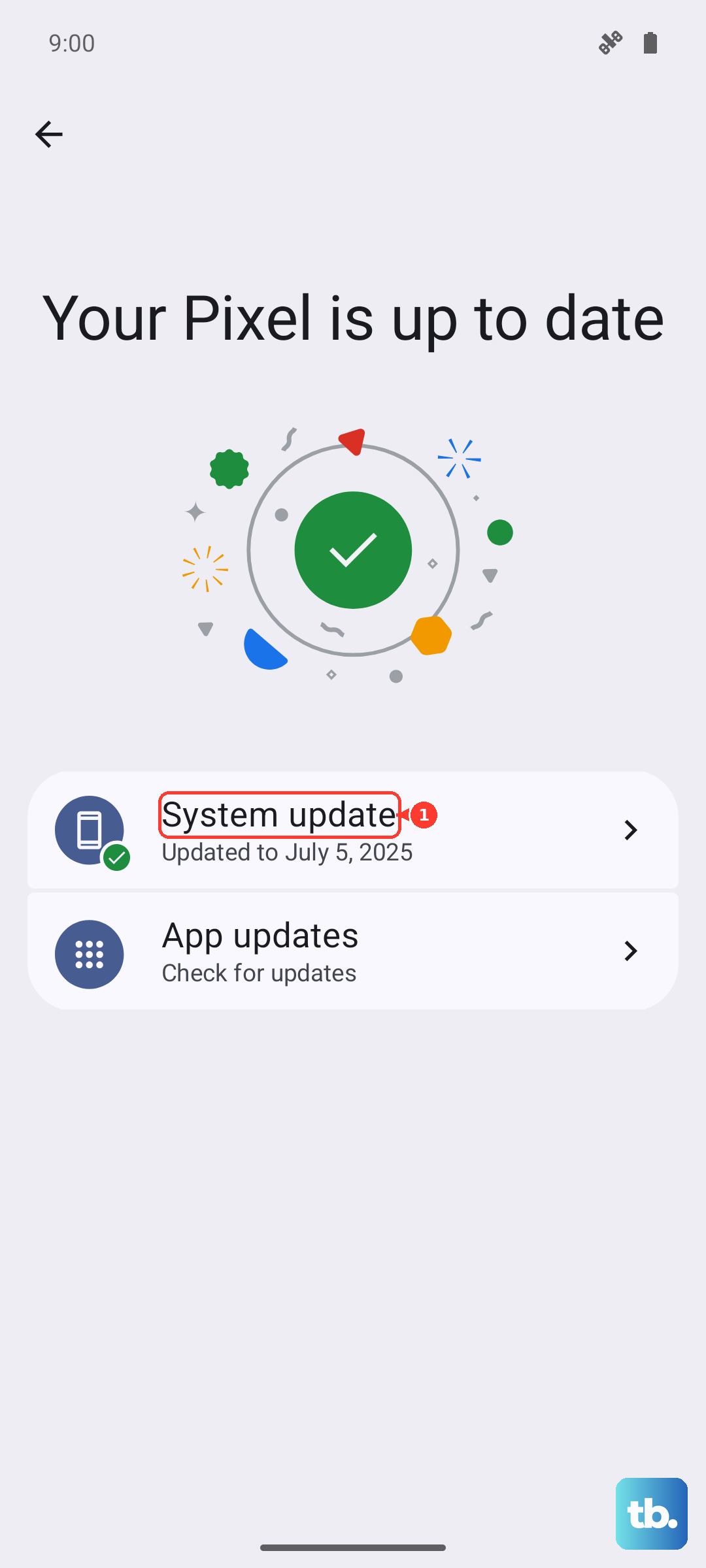
If nothing appears, it does not always mean a fault. Like every Galaxy device, the Tab A9+ only receives updates for a limited support period tied to its release date, so "no update available" can simply mean your tablet is already current or has reached the end of its update window.
Top up the battery and lock onto stable Wi-Fi
Samsung blocks an update from installing when the battery is too low to finish the process safely, which is a common reason a download seems to refuse to start. Plug the tablet in and let it charge to a comfortably high level before you try again. Staying on a charger during the install removes any risk of the battery dipping too low midway.
The connection matters just as much as the charge. Updates need a stable Wi-Fi or mobile data connection to download and install properly, so move closer to your router or switch to a more reliable network if the first attempt stalls.
Clear out internal storage so the update fits
The Tab A9+ may refuse to install a software update if there is not enough free internal storage to unpack and apply it. Freeing up space is one of the most effective fixes and costs you nothing. There are three official ways to reclaim room.
- 1.Uninstall apps you no longer use: press and hold the app icon and select 'Uninstall'.
- 2.Clear cached files: Settings > Apps > select app > Storage > 'Clear cache'. Do not select 'Clear data', as that wipes your settings and saved content for that app.
- 3.Run the built-in cleanup: Settings > Battery and device care > 'Optimize now'.
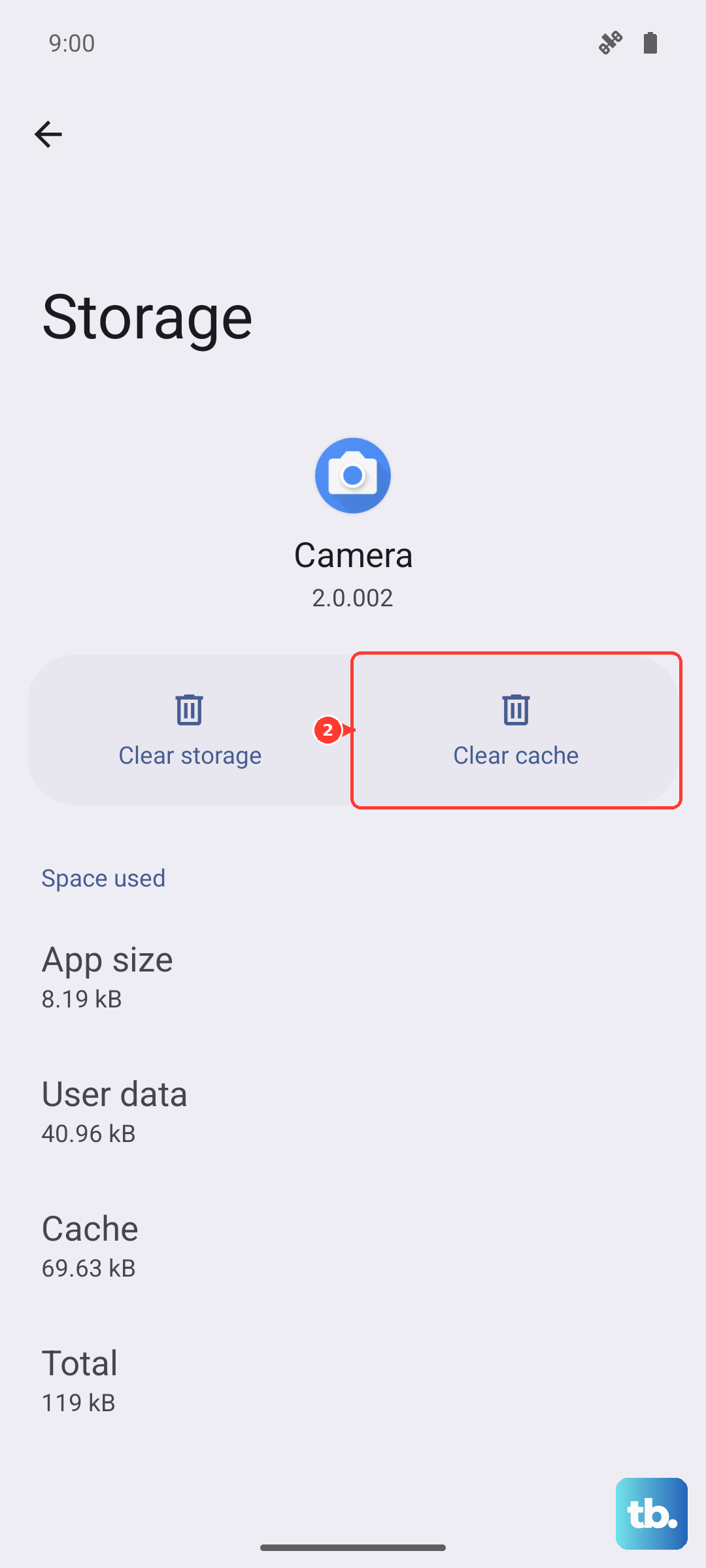
After you have freed up space, return to Settings > Software update and check again.
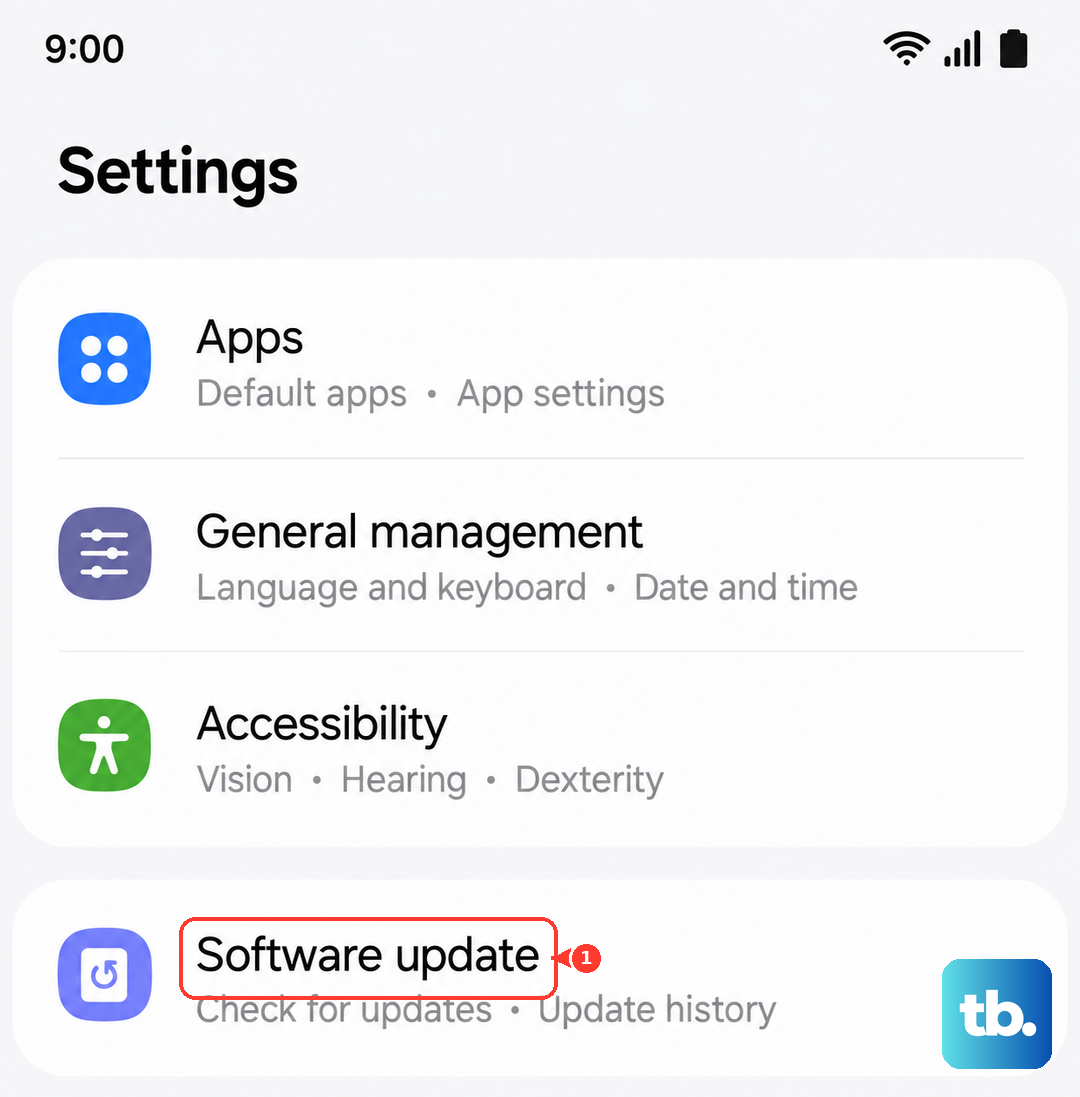
Reboot the tablet and try the download again
A simple restart clears the temporary conflicts and half-finished downloads that can quietly stall an update. It is the least disruptive step here and often the one that gets things moving. Restart the Tab A9+, wait for it to come back to the home screen, and reconnect to Wi-Fi.
Once it is back online, open Settings > Software update and run the check one more time. If a previous download had jammed, a clean reboot frequently lets it restart cleanly.
Force a restart when the screen freezes mid-update
If the screen locks up or stops responding while the update is applying, you may need to force a restart rather than wait. This is safe and does not erase your data; it simply reboots a frozen device.
Press and hold the Volume down button and the Side (Power) button simultaneously for more than 7 seconds until the device turns off and turns back on. The screen will go black, then the Samsung logo will appear. If the buttons do not respond at all, press and hold the Power button for up to two minutes to shut down, leave it off for one minute, then press Power to switch it back on.
Let the tablet fetch updates automatically over Wi-Fi
If your manual checks keep coming up empty even though you expect an update, switching on automatic delivery can catch it for you. With this enabled, the Tab A9+ downloads available updates on its own whenever it is connected to Wi-Fi, so you do not have to keep checking by hand.
Go to Settings > Software update, then tap the switch to enable 'Auto download over Wi-Fi'. Leave the tablet connected to Wi-Fi, ideally while charging overnight, and it will pull the update down automatically when one is released for your device.
Boot into Safe mode to rule out a rogue app
If you have plenty of free storage but the update still fails, a third-party app may be interfering with the install. Safe mode starts the tablet with only its built-in software running, which lets you test whether one of your downloaded apps is the culprit.
- 1.Press and hold the Volume down key and the Side key.
- 2.Select 'Power off'.
- 3.After the screen turns off, press and hold both keys again.
- 4.When the Samsung logo appears, release the Side key while continuing to hold Volume down.
- 5.Release Volume down when 'Safe mode' appears in the lower-left corner.
With the tablet in Safe mode, try the update again from Settings > Software update. If it installs cleanly here, a downloaded app was blocking it, and you can restart normally to leave Safe mode and then remove recently added apps one at a time.
Push the firmware from a computer with Smart Switch
When on-device updates keep failing no matter what you try, you can update the Tab A9+ from a computer instead. Samsung Smart Switch is the official desktop tool for this, and it can update or recover a Galaxy tablet over USB when the over-the-air method will not cooperate.
Install Samsung Smart Switch on a PC or Mac, then connect the tablet using a USB cable. The app will show update options if one is available for your device, and you can follow its prompts to apply the firmware. Do not disconnect the cable or use the tablet until the update finishes, as interrupting the process can leave the software in a broken state.
Back up, factory reset, and reach Samsung Support
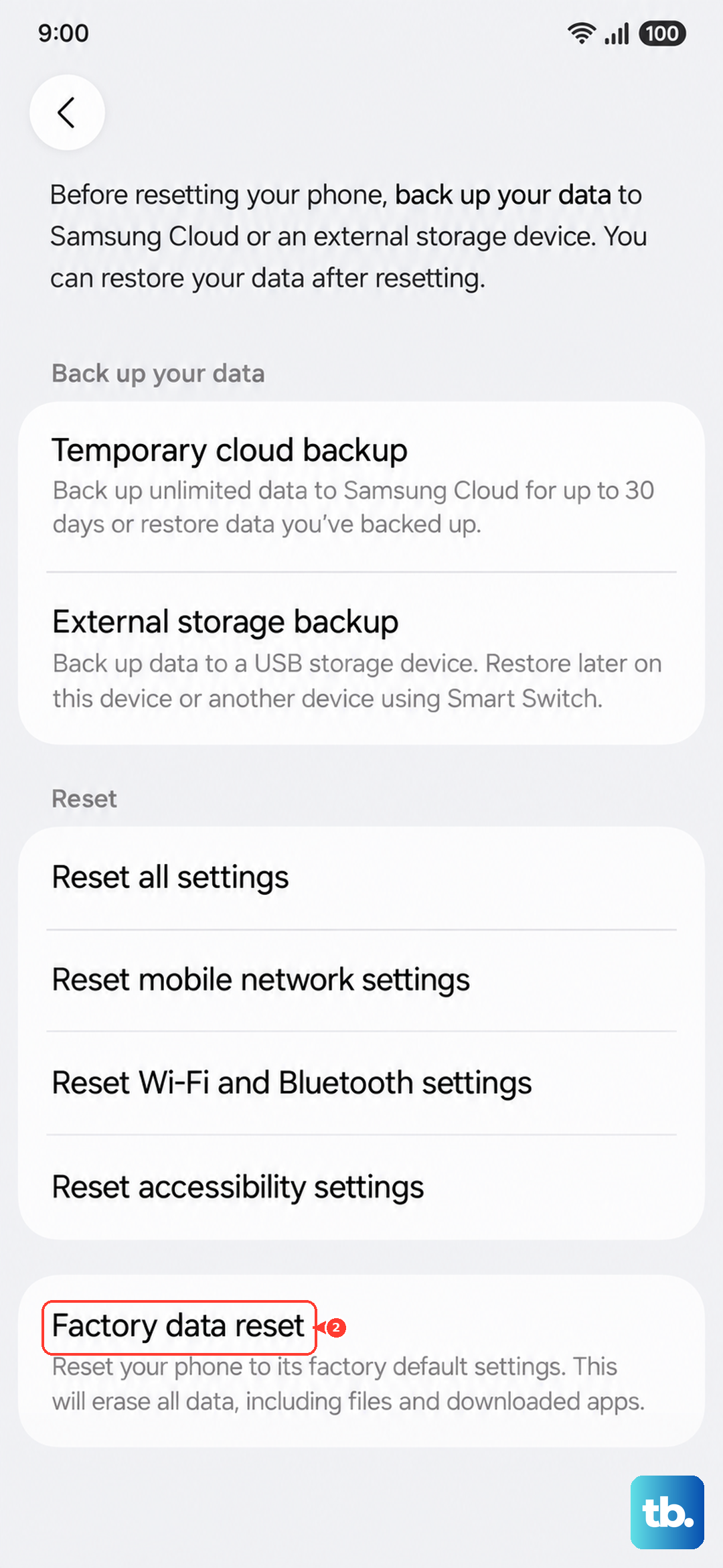
If none of the above works, a factory reset is the last resort, and it should only be done after you have backed up everything important. A reset erases the tablet, so this step is deliberately last. Save anything you need first, because Samsung warns that 'Please save any information you need prior to the factory reset because your personal information may not be recovered,' and 'Before you perform a factory reset, be sure to back up your personal data, so you don't lose it all.'
Once your data is safely backed up, go to Settings > General management > Reset > Factory data reset and follow the prompts. After the tablet restarts and you sign back in, open Settings > Software update and try the install again. If the update still will not install even on a freshly reset device, contact Samsung Support so they can check whether there is a hardware or account issue, or confirm whether your model is still within its update support window.
Frequently Asked Questions
Why does my Galaxy Tab A9+ say no update available?
It is not always a problem. The Tab A9+ only receives software updates for a limited support period tied to its release date, so "no update available" can mean your tablet is already on the latest build for its model or has reached the end of that update window. To confirm what you are running, check Settings > Software update on the device itself.
Will installing a software update delete my files?
No. A standard software update keeps your apps, photos, and settings in place. The only step here that erases your data is the factory reset in the final fix, which is why you should back up before doing it.
How much battery do I need before I can update?
Samsung blocks updates when the battery is too low to install safely and recommends charging it up before you start. The simplest approach is to keep the tablet plugged in while it downloads and installs, so the charge never becomes an issue.
Does force restarting the tablet erase anything?
No. Holding the Volume down button and the Side (Power) button for more than 7 seconds simply reboots a frozen device and does not erase your data. It is safe to use if the screen locks up during an update.
What can I do if updates keep failing from the tablet itself?
Update from a computer instead. Install Samsung Smart Switch on a PC or Mac, connect the Tab A9+ over USB, and let the app apply any available firmware while you avoid touching the cable or the tablet until it finishes.