
When your Samsung Galaxy Tab A9+ volume buttons stop responding, it can be pretty annoying. You press them and nothing happens, whether you're trying to turn up a video or silence a notification. The good news is this is often a software hiccup that you can fix yourself without needing a trip to a repair shop.
I'd start with the simplest solutions first, as they resolve the majority of these glitches. Let's get those buttons working again.
Remove Your Tablet Case
First, take off any case or cover you have on your Tab A9+. Sometimes, especially with bulkier or ill-fitting cases, the material can press against the buttons or block their full range of motion. With the case off, test the volume rocker to see if it clicks properly and responds.
Perform a Force Restart
A force restart is the go-to fix for many unresponsive button issues on Android tablets. It clears out temporary software glitches without touching your personal data. For your Galaxy Tab A9+, press and hold the Volume Down button and the Power button at the same time.
Keep holding them both for about 10 to 15 seconds. You'll see the screen go black and then the Samsung logo will appear as it boots back up. Once it's on, try the volume buttons immediately.
Check for Software Updates
Outdated software can sometimes cause conflicts with hardware controls like buttons. Samsung regularly releases updates that fix these kinds of bugs. To check, swipe down from the top of your screen to open the Quick Settings panel and tap the gear icon to go into Settings.
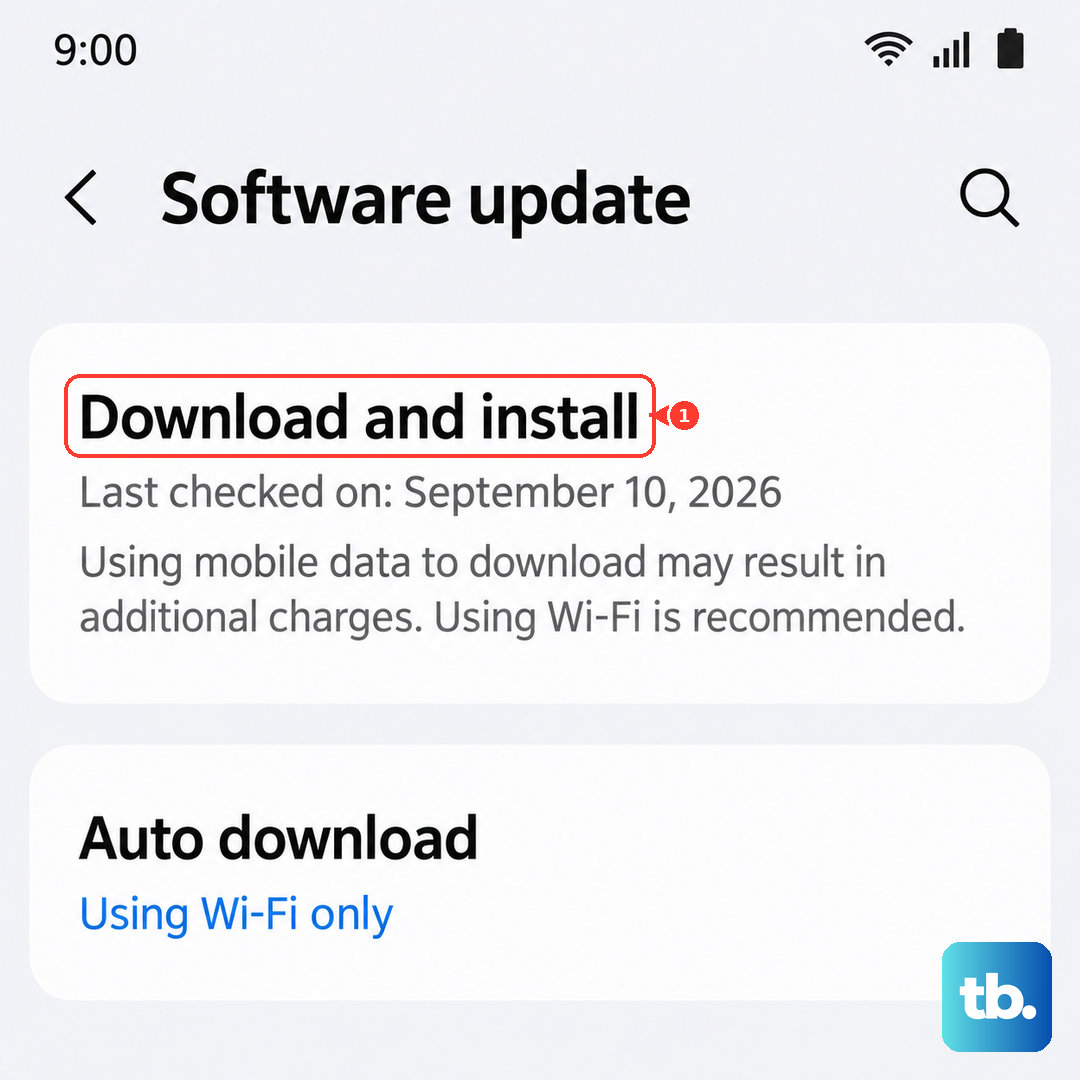
From there, scroll down and tap Software update, then tap Download and install. Make sure your tablet is connected to Wi-Fi and has at least 50% battery before proceeding. Installing an update can often resolve the problem completely.
Clean Around the Buttons
Dust, lint, or pocket debris can easily get packed into the small gap around the volume rocker. This physical blockage can stop the button from being pressed all the way in. Grab a can of compressed air and give the area around the buttons a few short bursts to dislodge any particles.
If you suspect something sticky is the culprit, you can dampen the corner of a microfiber cloth with a tiny amount of isopropyl alcohol. Gently wipe around the button's edges, being careful not to let any liquid seep inside the tablet. Let it dry completely before testing.
Test the Buttons in Safe Mode
Safe Mode temporarily disables all third-party apps you've downloaded. If the volume buttons work perfectly in Safe Mode, you know a recently installed app is causing the conflict. To boot into Safe Mode on your Tab A9+, first press and hold the Power button until the power menu appears on screen.
Then, tap and hold the Power off option. A prompt will ask if you want to reboot to Safe Mode. Tap OK. Your tablet will restart, and you'll see "Safe Mode" in the bottom corner. Test your volume buttons here. To exit, just restart your tablet normally.
Use On-Screen Volume Controls
While you're figuring this out, you can still control your volume. The quickest way is to press either volume button once to bring up the on-screen volume slider, then simply tap and drag the slider with your finger. You can also adjust it through Settings by going to Sounds and vibration, then Volume.
Try using these on-screen controls a few times. Sometimes, activating the software volume interface can help "wake up" the connection to the physical buttons.
Inspect for Physical Damage
Take a close look at the volume rocker itself. Has your tablet been dropped recently? Look for any cracks in the casing near the button, or see if the button feels loose, wobbly, or stuck in one position compared to the firm click of the power button.
Even a small drop can damage the internal ribbon cable or switch that the button presses against. If you see physical damage, the issue is likely hardware-related.
Reset All Settings
If the buttons are still unresponsive, a settings reset can help. This will revert all your system settings (like Wi-Fi passwords, wallpaper, and app permissions) back to default without deleting your photos, messages, or apps. It can clear out any incorrect configuration causing the problem.
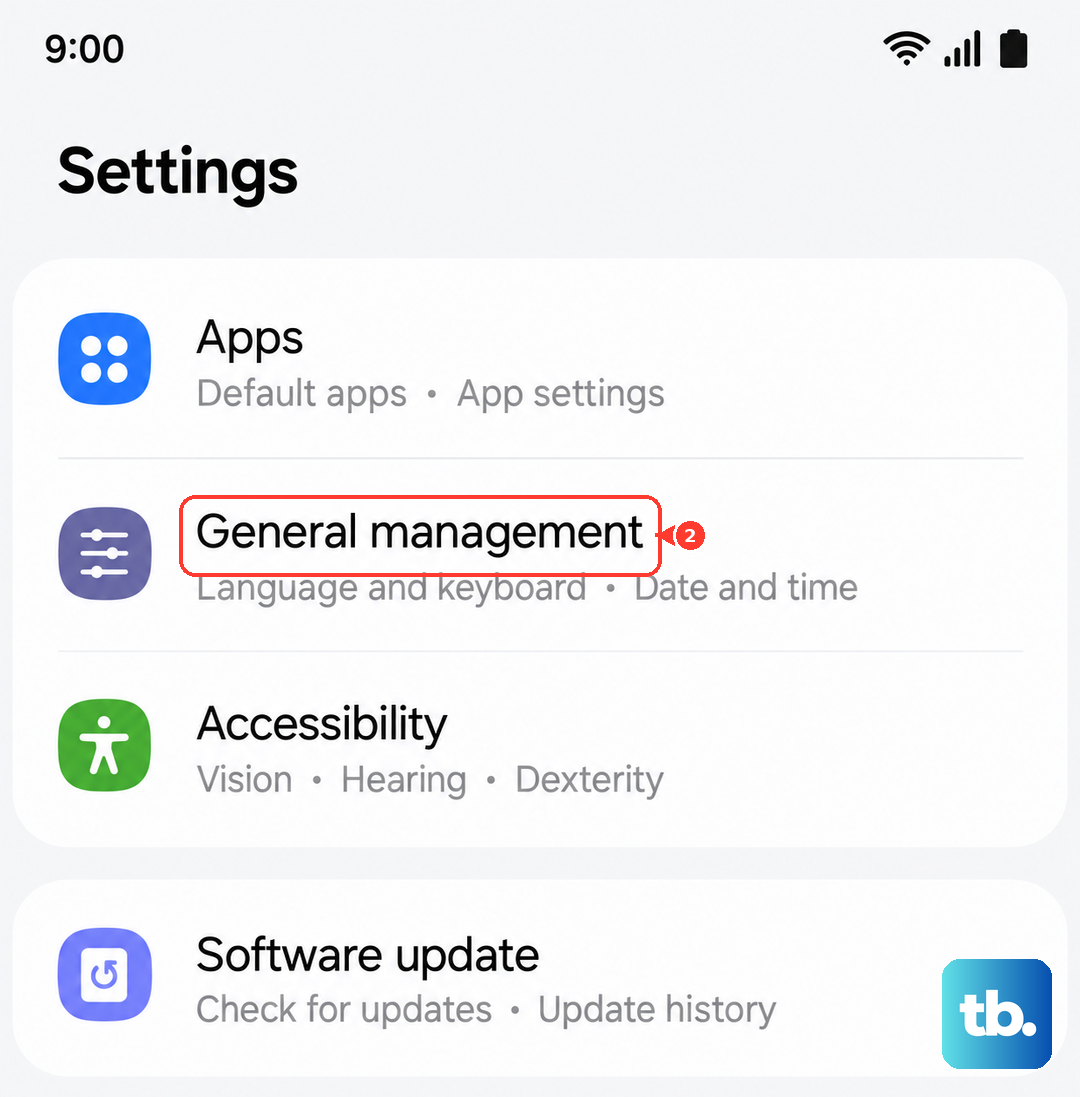
Go to Settings, then General management. Tap Reset, and select Reset all settings. You'll need to enter your PIN or password. After the tablet reboots, you'll have to reconfigure your preferences, but it's worth testing the buttons immediately afterward.
Check Accessibility Settings
Some accessibility features can remap or change how buttons behave. It's worth a quick look to make sure nothing is accidentally enabled. Open Settings and go to Accessibility. Look at features like Interaction controls or any installed accessibility services.
If you see anything turned on that you don't actively use, try turning it off temporarily to see if it restores normal button function. The Samsung SoundAssistant app, available in the Galaxy Store, also offers advanced volume controls that could potentially interfere.
Consider a Factory Reset
This is your last resort before assuming it's a hardware fault. A factory reset will erase everything on your tablet and return it to its original out-of-the-box state. You must back up any important data to Samsung Cloud, Google Drive, or a computer before proceeding.
To do it, go to Settings > General management > Reset > Factory data reset. Tap Reset, then follow the prompts. If the volume buttons still don't work on a completely fresh version of the operating system, the issue is almost certainly with the physical button or its internal connection.