
If your Samsung Galaxy Tab A9+ is showing a "Not registered on network" error, it means your tablet can't connect to your mobile carrier. You won't be able to make calls, send SMS, or use mobile data. This is a frustrating but often fixable problem, usually caused by a temporary software glitch, a SIM card issue, or a network setting that's gotten out of sync.
Before we get into the steps, it's a good idea to check your IMEI number. Open your tablet's dialer app and type *#06#. You should see a 15-digit number. If it shows "null" or all zeros, that points to a deeper issue. Most of the time, though, a simpler fix will get you back online.
Start With a Force Restart
This is the quickest thing to try and it clears out temporary software bugs that can block network registration. Press and hold the Volume Down button and the Power button at the same time. Keep holding them for about 10 seconds until you see the Samsung logo appear, then let go. Wait for your tablet to fully boot up and check your signal.
Toggle Airplane Mode
Switching Airplane Mode on and off forces your tablet's cellular radio to reconnect from scratch. Swipe down from the top of the screen twice to open your Quick Settings panel. Tap the Airplane Mode icon to turn it on, wait for 15 seconds, then tap it again to turn it off. You should see it searching for a network again.
Remove and Re-seat Your SIM Card
A SIM card that's come slightly loose in its tray is a common culprit. You'll need the SIM ejector tool that came with your tablet. Power the tablet off completely first. Insert the tool into the small hole on the SIM tray to pop it out. Carefully remove the SIM, inspect it for any visible damage or dirt, and then firmly place it back in the tray. Push the tray all the way back in until it clicks, then power your tablet on.
Check Your Mobile Account Status
Sometimes the problem isn't your tablet at all. If your prepaid plan has run out of credit or your postpaid bill is overdue, your carrier will suspend service. This shows up as a network registration error. Try logging into your carrier's account portal from another device or give them a quick call from a different phone to confirm your line is active.
Reset Your Network Settings
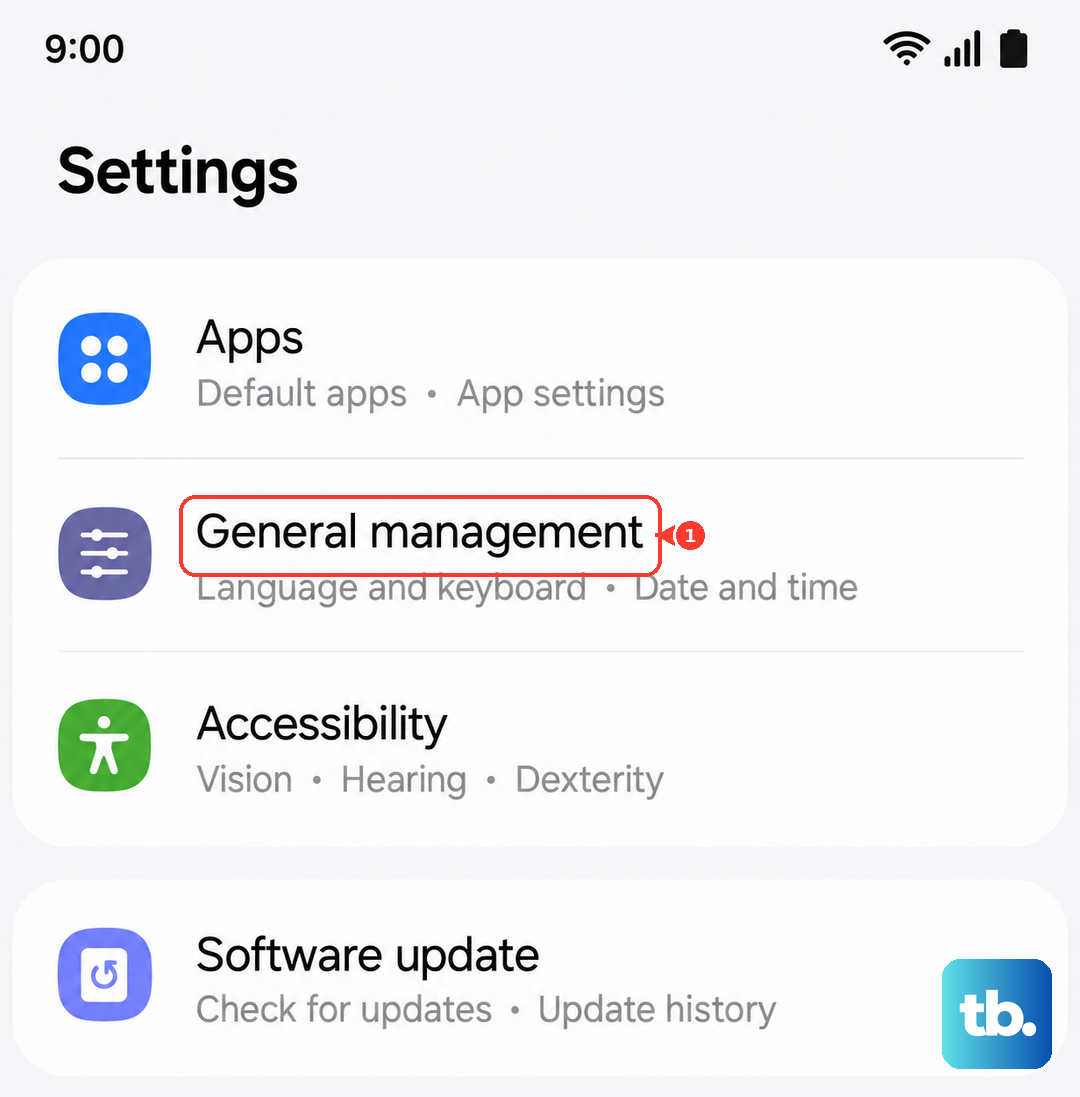
This clears all your saved network configurations, including Wi-Fi passwords, Bluetooth pairings, and APN settings for mobile data. It's a very effective reset for connectivity issues. Go to Settings > General management > Reset > Reset network settings. Tap to confirm. Your tablet will restart, and you'll need to reconnect to Wi-Fi networks afterward, but it often resolves the cellular problem.
Manually Select Your Network Operator
Your tablet might be trying to latch onto a weak or unavailable network band automatically. You can tell it which carrier to use. Go to Settings > Connections > Mobile networks > Network operators. Tap "Search networks," wait for the list to populate, and then manually select your own carrier from the list. This can establish a more stable connection.
Update Your Tablet's Software
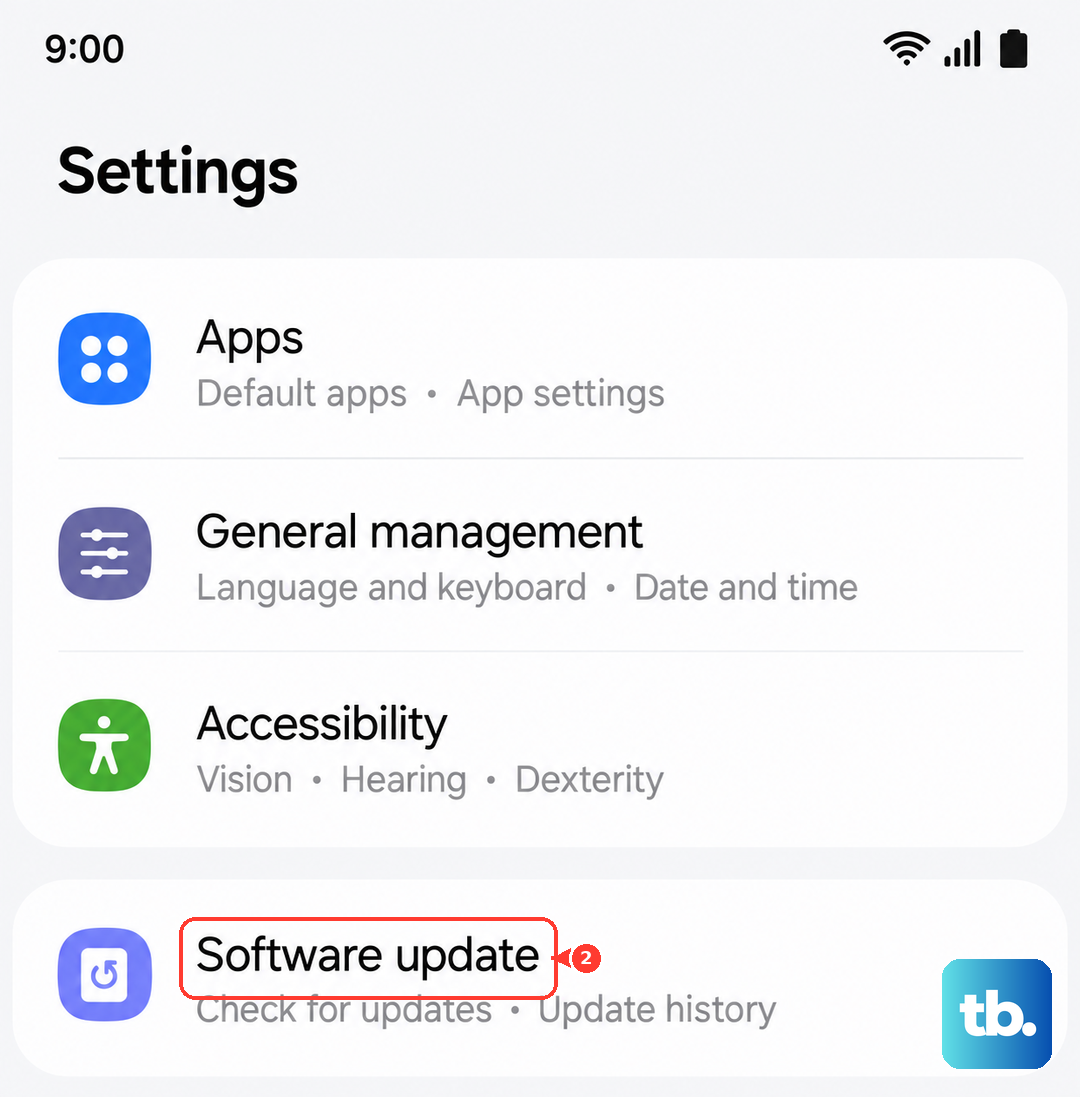
Samsung releases updates that fix known bugs, including ones related to network connectivity. Running outdated software can cause these errors. Connect to a Wi-Fi network, then go to Settings > Software update > Download and install. If an update is available, install it. The tablet will restart, and the update may include a patch specifically for your network issue.
Since the Snapdragon 695 chipset can sometimes struggle if overloaded, I'd also recommend keeping background apps to a minimum after the update. This helps the system run smoothly and can prevent software conflicts that affect the modem.
Change the Network Mode
If you're in an area with spotty 5G, forcing your tablet to use LTE can sometimes provide a more reliable connection. Head to Settings > Connections > Mobile networks > Network mode. Try changing it from "5G/LTE/3G/2G (auto connect)" to "LTE/3G/2G (auto connect)". This tells your tablet not to search for a 5G signal, which can help it register on the network faster on a more stable band.
Try a Different SIM Card
This test determines if the problem is with your SIM card or the tablet itself. If you can borrow a friend's or family member's SIM card (from the same carrier, ideally), pop it into your Galaxy Tab A9+. If their SIM connects to the network without any error, then your original SIM card is likely faulty or deactivated. You'll need to contact your carrier for a replacement.
Perform a Factory Reset
This is your last resort before looking at hardware. A factory reset wipes your tablet back to its original out-of-the-box state, removing any deep-seated software corruption. Make absolutely sure you back up all your important data first. Go to Settings > General management > Reset > Factory data reset. Tap "Reset" and follow the prompts. After the reset, set up the tablet as new and immediately test the cellular connection before restoring your apps.
If you've tried every step here, including a factory reset, and the "Not registered on network" error persists, the issue is likely a hardware fault with the tablet's internal modem or antenna. At that point, contacting Samsung support or a reputable repair shop for diagnosis is the next step.