Seeing "No Service" or a missing signal icon on your Samsung Galaxy Tab A9+ can be frustrating, especially if you rely on it for calls or mobile data on the go. This usually means the tablet can't connect to your cellular carrier's network. The good news is that most of the time, this is a temporary glitch you can fix yourself in a few minutes.
I'd start with the simplest fix first, which is to restart your tablet. A quick reboot clears out temporary software bugs that can interfere with the modem. Just press and hold the Volume Down and Power button together for about ten seconds until you see the Samsung logo appear. This force restart is often all it takes.
Check Your Physical Location and SIM Card
Before diving into settings, consider your environment. Are you in a basement, a large building, or a rural area? The Tab A9+ uses the same cellular bands as phones, but its larger form factor can sometimes make the antenna more susceptible to weak signals. Try moving near a window or to a different area.
Next, power off your tablet and pop open the SIM tray on the side. Carefully remove the SIM card and inspect it for any visible damage or dirt on the gold contacts. Give it a gentle wipe with a soft, dry cloth and reinsert it firmly until it clicks into place. A loose or dirty SIM is a very common culprit for sudden signal loss.
Toggle Airplane Mode and Mobile Data
Sometimes the radio just needs a nudge. Swipe down from the top of your screen twice to open the Quick Settings panel. Look for the Airplane Mode icon and tap it to turn it on. Wait about 15 seconds, then tap it again to turn it off. This cycle forces the cellular modem to reconnect to the network from scratch.
While you're in the Quick Settings, also find the Mobile Data icon (it usually looks like two arrows) and make sure it's turned on. If it's already on, try turning it off, waiting a moment, and turning it back on. This can resolve minor data session errors that block connectivity.
Verify Your Network Operator Settings
Your tablet might have lost its automatic connection to your carrier. To check this, go to Settings > Connections > Mobile networks. Tap on Network operators. Your Tab A9+ will search for available networks. Once the list appears, select your specific carrier from the list instead of "Choose automatically."
If your carrier doesn't appear in the list, there might be a broader service outage in your area. It's worth checking your carrier's website or social media for any announced maintenance or issues. You can also try selecting "Choose automatically" again after the manual search to reset the preference.
Review and Update APN Settings
The Access Point Name (APN) is like the address your tablet uses to find your carrier's data network. If these settings are wrong or got corrupted, you won't get service. In the same Settings > Connections > Mobile networks menu, tap on Access Point Names.
You should see a list, likely with one entry for your carrier. Tap on it to view the details. Don't change anything unless you're sure. Instead, tap the three-dot menu in the top right and select Reset to default. This often fixes misconfigured settings. If the list is empty, you'll need to get the correct APN details directly from your carrier's support site and enter them manually.
Reset Your Network Settings
This is a more thorough step that clears all network-related configurations without touching your personal files. It will erase saved Wi-Fi passwords, Bluetooth pairings, and your custom APN settings. To do it, navigate to Settings > General management > Reset.
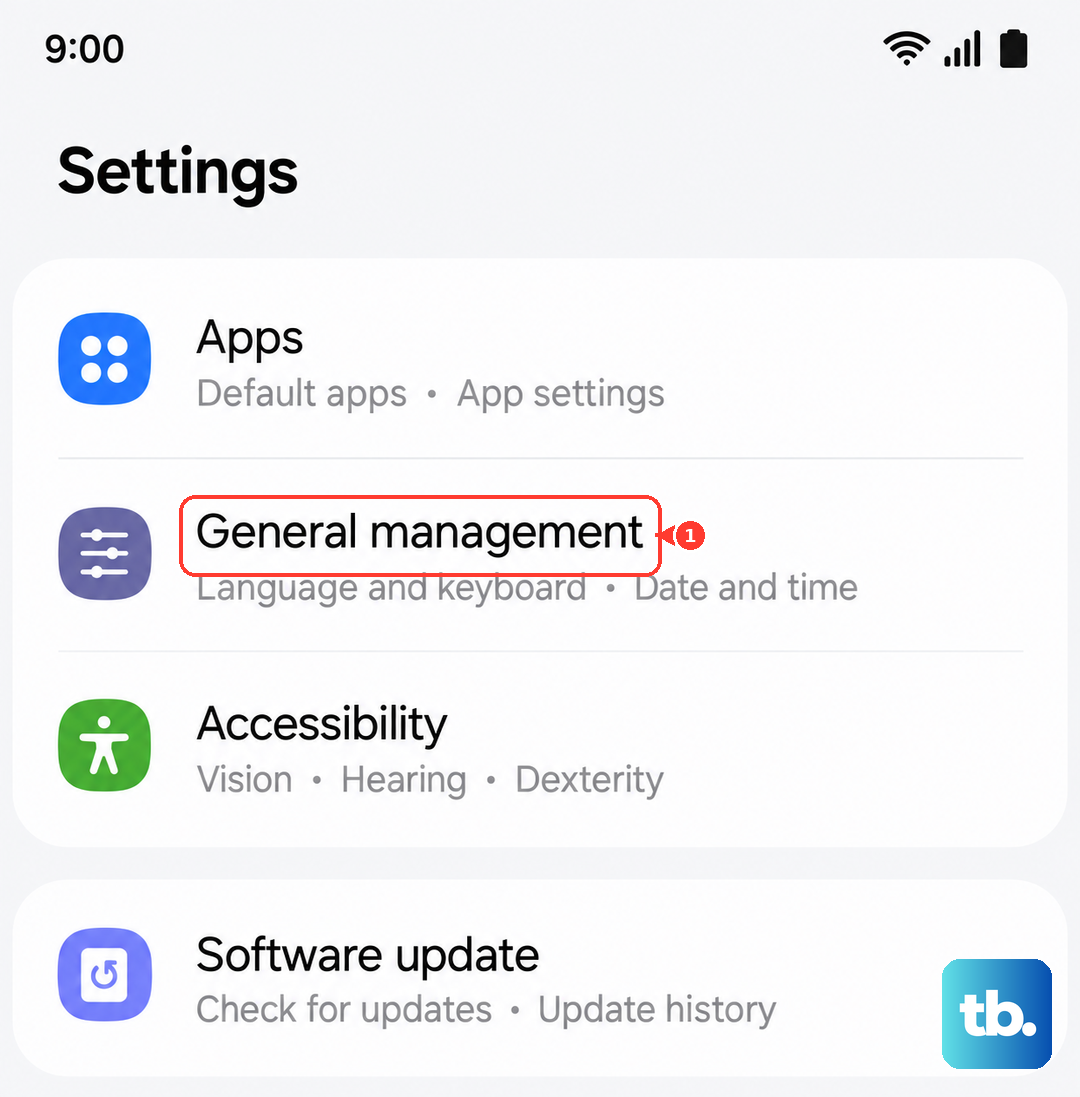
Tap on Reset network settings. You'll need to enter your PIN or password to confirm. After the reset, your tablet will reboot. You'll then have to reconnect to your Wi-Fi and re-pair Bluetooth devices, but it frequently resolves persistent cellular connection bugs.
Check for Software Updates
Samsung regularly releases updates that can include fixes for modem and connectivity issues. Keeping your Tab A9+ updated is important. Go to Settings > Software update and tap Download and install.
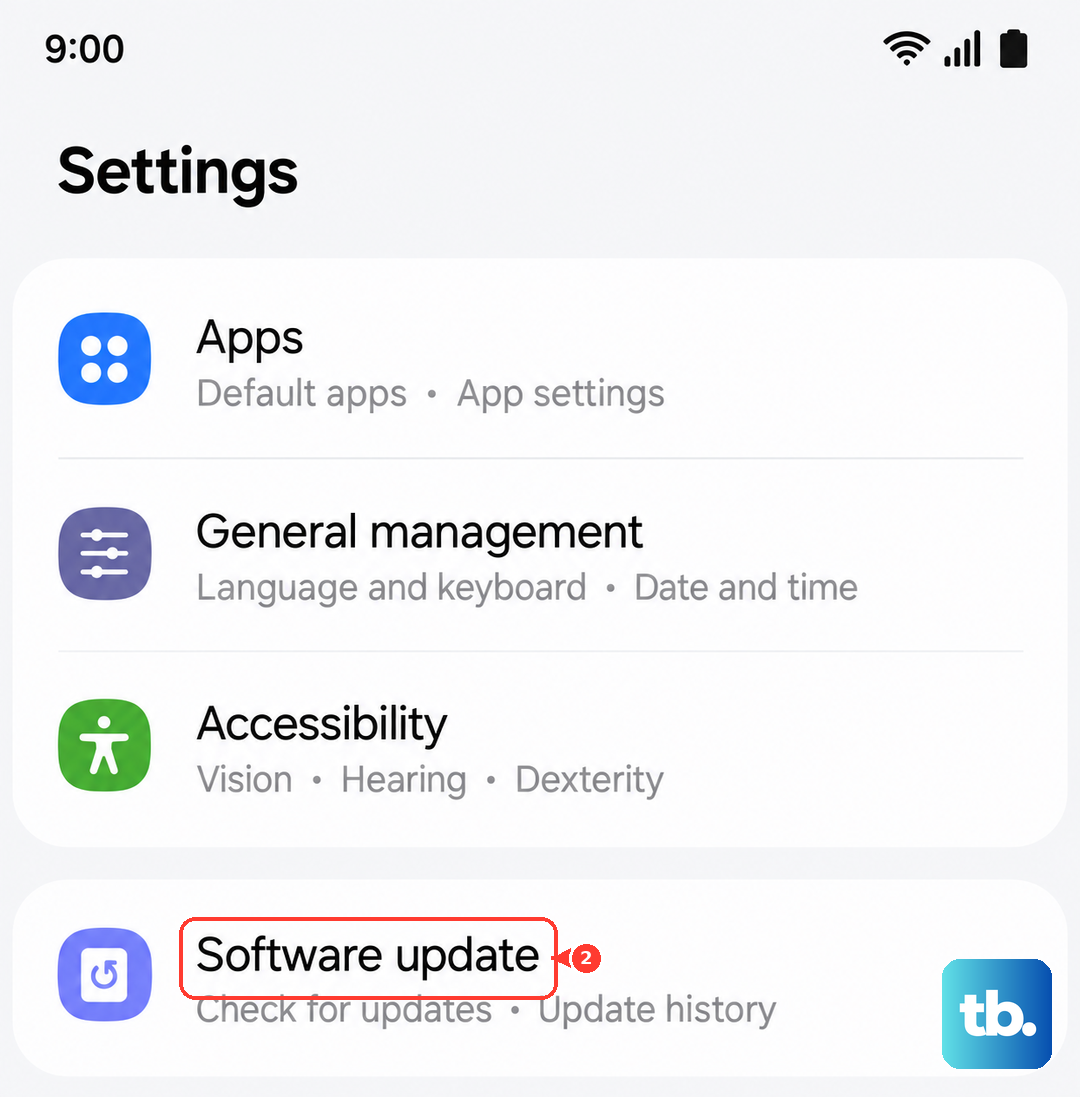
If an update is available, make sure your tablet is connected to Wi-Fi and has at least a 50% charge, or better yet, is plugged into its 15W USB-C charger. The Snapdragon 695 chipset handles updates well, but a stable power source is always good practice during the process.
Use the Hidden Testing Menu
Android has a built-in diagnostics menu that can give you more control. Open your tablet's Phone app (if you have the cellular model) and dial *#*#4636#*#*. This should open the "Testing" menu. Tap on Phone information.
Here, you can see detailed info about your signal strength. Look for a dropdown menu labeled "Set preferred network type." Try changing it to a different mode, like "LTE only," then back to "LTE/WCDMA/GSM auto." You can also try tapping the "Turn off radio" button, then "Turn on radio" to force a hard reset of the cellular modem.
Disable Any VPN or Data-Saving Apps
Third-party apps that manage your connection, like VPNs or aggressive data savers, can block the tablet's normal access to the mobile network. Go to Settings > Connections > More connection settings > VPN. If any VPN profile is active, disconnect from it.
Also, check Settings > Connections > Data usage > Data saver. Make sure Data saver is turned off, as it can sometimes restrict background network services that are essential for maintaining a stable signal.
Consider a Factory Reset
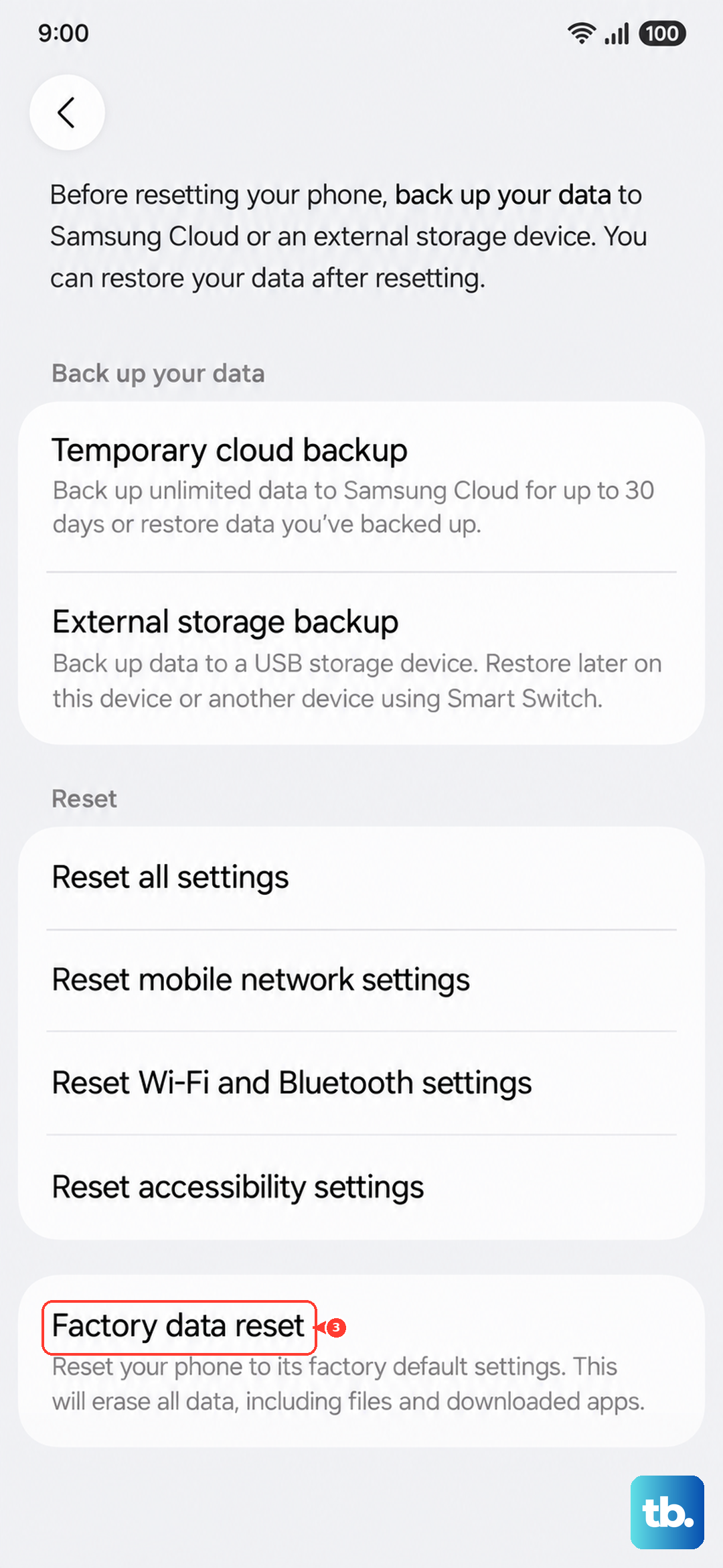
If you've tried everything else and still have no service, a software conflict might be the cause. A factory reset will wipe your tablet back to its original state. This is a last resort. Before you begin, ensure every important photo, document, and app data is backed up to your Samsung account or Google Drive.
To proceed, go to Settings > General management > Reset > Factory data reset. Follow the prompts. After the reset, set up the tablet as new initially and test the SIM card before restoring your backup, just to rule out any corrupted data from the old setup.