
If your Samsung Galaxy Tab A9+ is refusing to send pictures or videos, it's a frustrating roadblock. MMS issues on Android tablets can be tricky, often tied to your data connection or a setting buried in the software. Let's walk through the fixes that usually get things moving again.
Start With a Quick Restart
Before diving into settings, give your tablet a fresh start. Press and hold the Volume Down and Power button together for about ten seconds until you see the Samsung logo. This force restart can clear out any temporary glitch that's hanging up the messaging service.
Verify Your Mobile Data is On and Strong
MMS doesn't travel over Wi-Fi by default, it needs mobile data. Swipe down twice from the top of your screen to open the quick panel and make sure the Mobile Data icon is lit up. You can also go into Settings > Connections > Mobile networks to enable it there.
Since the Tab A9+ can sometimes struggle with demanding tasks, check your signal strength in the status bar. A weak signal might be the culprit, especially if you're trying to send a large file.
Check the MMS Settings in Your App
Open your Samsung Messages app and tap the three-dot menu in the top right, then go to Settings. Look for a section called "Multimedia messages" or something similar. Inside, make sure "Auto download" is turned on.
This setting tells your tablet to automatically retrieve MMS when you're on mobile data. If it's off, messages might get stuck trying to send. I'd also enable "Roaming auto download" here if you're traveling, just to be safe.
Clear the Cache for Your Messages App
Corrupted temporary files can cause all sorts of app misbehavior. Go to Settings > Apps, find and select "Messages" from the list. Tap on Storage and then hit Clear cache.
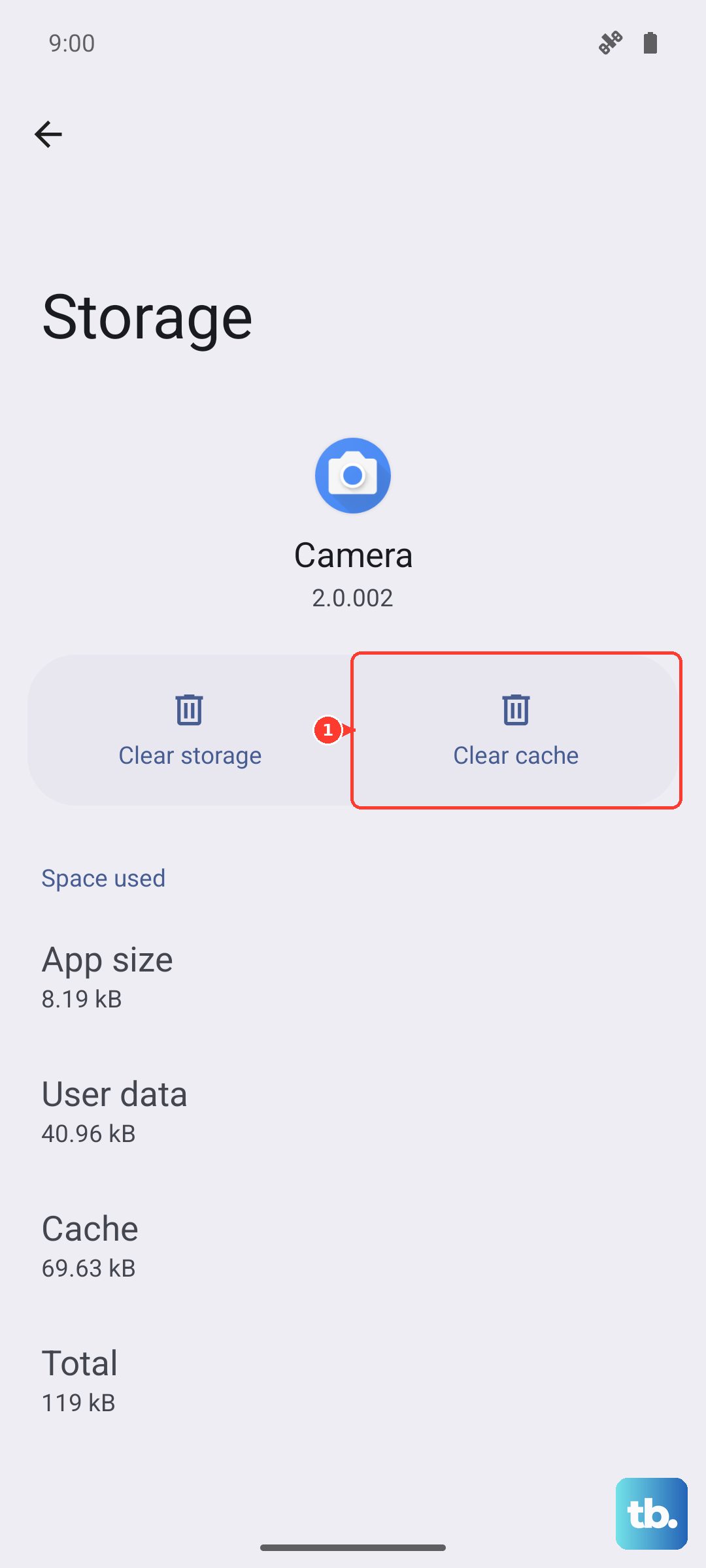
This won't delete any of your actual conversations. If the problem persists, you can try Clear data, but be warned: this will erase your entire message history, so only do this if you're okay starting fresh.
Review Your APN Configuration
Incorrect Access Point Name settings are a classic cause of MMS failures. These settings tell your tablet how to connect to your carrier's multimedia service. Head to Settings > Connections > Mobile networks > Access Point Names.
You should see a list of APNs. Select the one that's currently active (it will have a filled-in dot next to it). The exact values here need to match what your carrier provides. If anything looks off, your best bet is to contact your carrier's support and ask for the correct MMS APN settings for your Galaxy Tab A9+.
Update Your Tablet's Software
Running an old version of Android or One UI can lead to compatibility hiccups. Samsung regularly pushes updates that fix bugs like these. Check for one by going to Settings > Software update > Download and install.
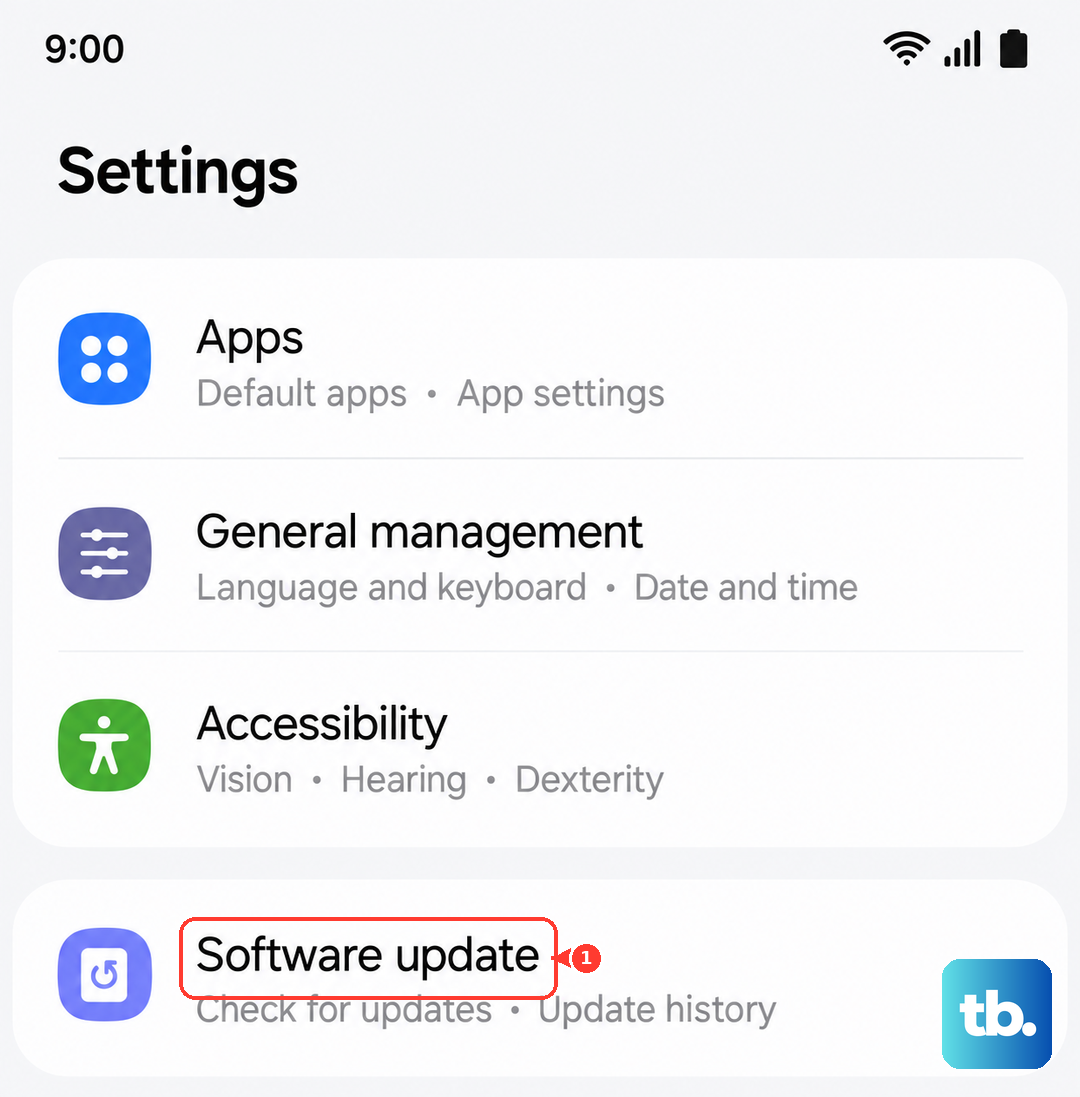
If an update is available, let it install and then do a quick restart afterward. Keeping background apps to a minimum during the update process can help ensure it goes smoothly on the Snapdragon 695 chipset.
Reset Your Network Settings
This is a more thorough step that resets all your connectivity profiles back to factory defaults. Go to Settings > General management > Reset > Reset network settings. Tap to confirm.
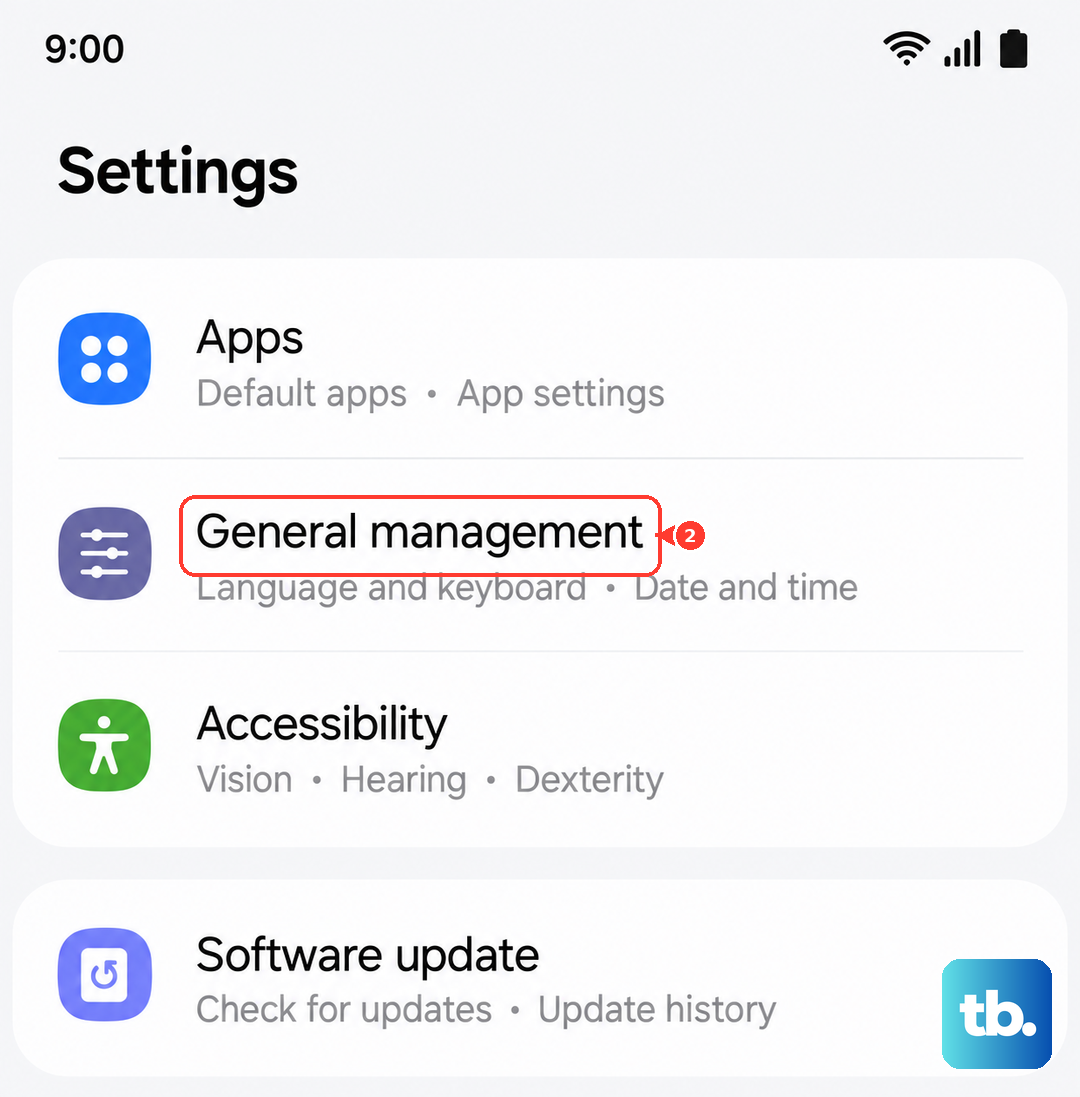
Your tablet will reboot. Afterward, you'll need to reconnect to any Wi-Fi networks and re-pair Bluetooth devices, but your mobile network and MMS configurations will be freshly applied, which often clears up stubborn issues.
Ensure You Have Enough Storage Space
The Tab A9+ needs free space to process and send multimedia files. If your storage is nearly full, MMS can fail. Open Settings > Battery and device care > Storage to see how much space you have left.
Try to keep at least a few hundred megabytes free. You can clear space by deleting old message threads full of photos or uninstalling apps you no longer use.
Try Google Messages as an Alternative
Sometimes the issue is with the Samsung Messages app itself. Installing Google Messages from the Play Store can be a great workaround. Once it's installed, open it and it will usually prompt you to set it as the default messaging app.
After you agree, try sending an MMS. Many users find Google Messages handles multimedia more reliably, especially across different carriers and phone types.
Contact Your Mobile Carrier
If you've tried everything else, the problem might be on your carrier's end. Give their support line a call. Ask them to verify that MMS services are active on your tablet's line and that there are no outages or account restrictions in place.
They can also reprovision your connection or confirm the exact APN settings you should be using, which is the final piece of the puzzle for getting your photos and videos to send.