
When your Samsung Galaxy Tab A9+ starts restarting on its own, it can be incredibly disruptive, especially if you're in the middle of something. This is often a software hiccup, but it can sometimes point to a deeper issue. The good news is you can usually fix it yourself with a few steps.
Before you start, it's a good idea to make sure your important stuff is backed up. You can use Samsung Cloud or Google Drive to save your photos, documents, and app data. This keeps everything safe just in case you need to do a more involved reset later.
Perform a Force Restart
This is almost always the first thing to try. A force restart clears out temporary glitches in the tablet's memory that can cause it to freeze and reboot. It doesn't delete any of your personal data.
To force restart your Galaxy Tab A9+, press and hold the Volume Down button and the Power button at the same time. Keep holding them for about 10 to 15 seconds. You'll see the screen go black and then the Samsung logo will appear as it boots up normally.
Check for Problematic Apps
A misbehaving app is one of the most common reasons for random restarts on Android. If the reboots started after you installed a new app, that's a big clue. Start by closing all your open apps. Swipe up from the bottom of the screen and hold to see your recent apps, then swipe each one away to close it.
Next, try booting into Safe Mode. This temporarily disables all third-party apps. If the tablet stops restarting in Safe Mode, you know an app you installed is the culprit. To enter Safe Mode, press and hold the Power button until the power menu appears. Then, tap and hold the "Power off" option on the screen until you see a prompt to reboot to Safe Mode.
Update Your Apps and Software
Outdated apps can conflict with newer versions of Android or One UI, causing instability. Open the Google Play Store, tap your profile icon, and go to Manage apps & device. Look for any pending updates and install them all.
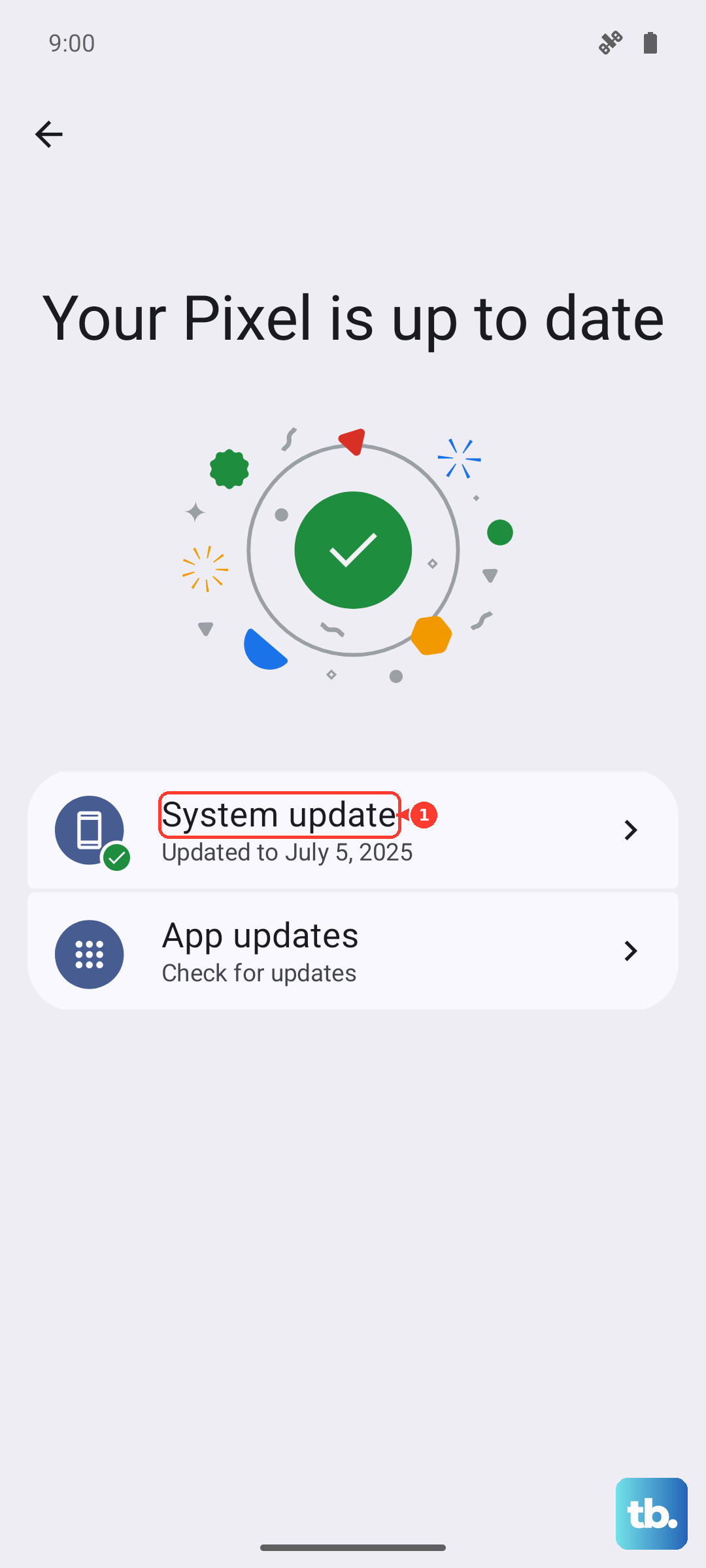
More importantly, check for a system update. Samsung regularly releases updates that fix bugs and improve stability. Go to Settings > Software update > Download and install. If an update is available, make sure your tablet is plugged into its charger and connected to Wi-Fi before you start the download.
Free Up Storage Space
When your tablet's storage is nearly full, the system doesn't have enough room to operate smoothly, which can lead to crashes and reboots. The Tab A9+ doesn't have the most powerful chipset, so keeping it lean helps.
Go to Settings > Battery and device care > Storage. Here, you can see what's taking up space. I'd focus on clearing app caches first. You can also offload large videos or files to a cloud service or SD card to free up crucial space.
Check for Overheating
The Snapdragon 695 chip in the Tab A9+ can get warm under load. If the tablet feels hot to the touch and then restarts, it might be a thermal protection feature kicking in. Avoid using it on soft surfaces like beds or couches that can block the vents.
Also, try to keep background apps to a minimum. Having too many apps running, especially demanding ones like games, can push the processor and cause heat buildup. Close apps you're not using.
Reset App Preferences
This is a useful middle step that resets all your app permissions, default apps, and background restrictions without deleting any app data. It can fix issues caused by a corrupted app setting. Go to Settings > Apps. Tap the three-dot menu in the top right and select Reset app preferences. Confirm the action.
Wipe the Cache Partition
The cache partition stores temporary system files that help your tablet run faster. Sometimes this data gets corrupted. Clearing it can resolve boot loops and random restarts. First, power off your tablet completely.
Then, press and hold the Volume Up button and the Power button together. When you feel a vibration, release the Power button but keep holding Volume Up until you see the Android Recovery screen. Use the volume buttons to highlight "Wipe cache partition" and press the Power button to select it. Confirm, then select "Reboot system now."
Perform a Factory Reset
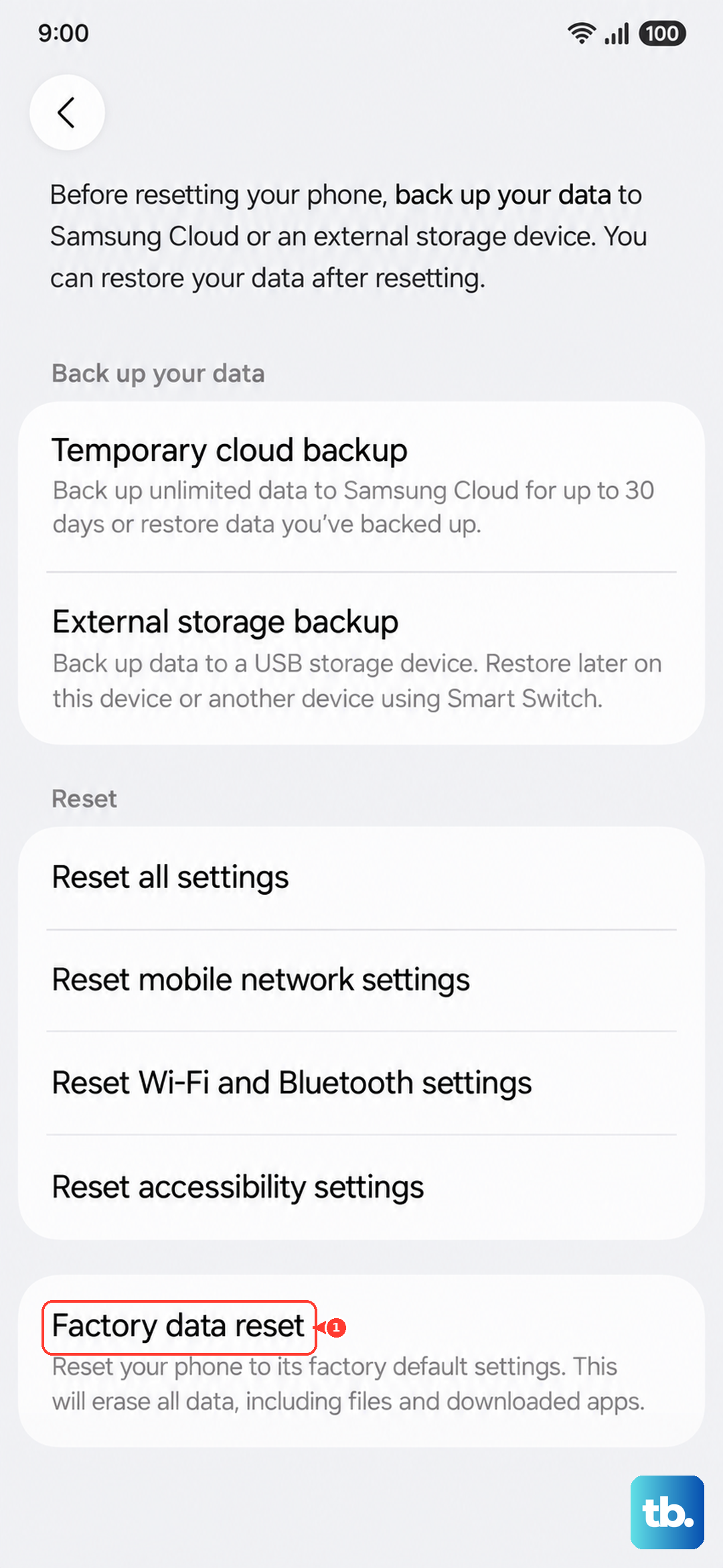
If nothing else has worked, a factory reset will return your tablet to its original out-of-the-box state. This will erase all your data, so ensure your backup is complete. You can do this through the settings menu if the tablet is still somewhat usable.
Go to Settings > General management > Reset > Factory data reset. Read the information carefully, then tap "Reset" and follow the prompts. After the reset, set up the tablet as new to see if the restarting issue is gone.
Consider Hardware and Charging
While less common, a faulty battery or charging system can cause instability. Try using the official Samsung 15W charger and cable that came with your tablet. A damaged or low-quality USB-C cable can cause power delivery issues that might make the tablet act erratically.
If the tablet only restarts when it's plugged in, that's a strong sign the issue is with the charger, cable, or charging port. Inspect the USB-C port for any lint or debris and gently clean it out with a toothpick or compressed air.