You plugged your Galaxy Tab A9+ into the charger, came back expecting a healthy jump in battery, and instead the percentage is creeping up one point at a time with no Fast charging label anywhere on screen. On an 11-inch tablet carrying a 7,040 mAh battery, that slow crawl is more than an annoyance; it can leave you waiting hours before the tablet is usable again. The reassuring part is that most fast-charging complaints on this model trace back to the charger, the cable, or a single setting rather than a broken tablet, and you can rule those out in a few minutes.
What fast charging looks like on the Tab A9+
Before you chase a fault, it helps to know exactly what this tablet can and cannot do. The Galaxy Tab A9+ (Wi-Fi model SM-X210, and 5G models SM-X216 and SM-X218) supports wired fast charging at 15W, which Samsung describes as compatible with Quick Charge 2.0 and Adaptive Fast Charging (AFC).
It does not offer 25W Super Fast Charging, and it does not support wireless charging at all, so there are no wireless or super-fast settings to enable. Just as important, no charger ships in the box; Samsung sells the 15W Power Adapter separately and advises using only Samsung-approved chargers and cables. You may spot a marketing footnote elsewhere mentioning a 45W wall charger, but the documented charging capability for this model is 15W (AFC and QC2.0), so that is the realistic target.
Start with a Samsung-approved 15W adapter plugged into the wall
Because nothing comes in the box, the most common reason fast charging seems broken is an underpowered or non-Samsung charger or cable. Use a Samsung 15W Power Adapter together with a Samsung-approved USB-C cable.
Plug the adapter directly into a wall outlet rather than a laptop, monitor, or USB hub. Charging from a computer or USB port delivers less voltage and will charge the tablet slowly no matter how healthy the battery is.
Check the port, cable, and adapter for damage or debris
Give the hardware a close look before blaming the software. Inspect the cable, charger, and tablet for damage such as cracks, exposed wires, or bent and corroded pins, since a worn connector cannot pass full power.
With the tablet powered off, shine a flashlight into the charging port and check for dust or lint, then gently blow it out, because debris can stop the cable from seating fully. If you see a moisture or debris alert, wipe the tablet with a soft, clean cloth or leave it in a well-ventilated area to dry before you try charging again.
Make sure Fast charging is actually turned on
The Tab A9+ keeps fast charging behind a toggle, and it is easy to leave off. Open Settings > Battery > Charging settings and turn on the switch next to Fast charging.
On an older One UI build the path may instead read Settings > Device care > Battery > Charging settings > Enable Fast charging. Only the charging speeds your tablet supports will appear, and the exact names and availability can vary by software version.
Charge at room temperature and put the tablet down
Heat and heavy use both slow charging on purpose. If the tablet or the surrounding environment is too hot or too cold, a built-in safeguard reduces the charging speed to protect the battery.
Using the tablet while it charges, such as browsing, watching video, or gaming, also lowers the charging rate to limit heat. Set the tablet down, charge it at room temperature, and let it rest for a faster, more stable fill.
Force a restart to clear a frozen charge state
Sometimes the system locks up and simply stops registering that a charger is attached. A force restart clears that state without touching your data.
Press and hold the Power button and the Volume down button simultaneously for more than 7 seconds until the device reboots and the Samsung logo appears. Once it is back on, reconnect the charger and watch for the charging indicator.
Rule out Battery Protection capping the charge
If the battery seems to stall around 80 to 85 percent and refuses to fill any higher, a charge-limit feature may be doing exactly what it was designed to do. This is not a fault, just a setting working in the background.
Go to Settings > Battery and turn off Battery Protection, then plug the tablet in again to confirm it climbs past the cap.
Install the latest software update
Charging behavior is partly controlled by firmware, and updates regularly fix charging-related bugs. Go to Settings > Software update > Download and install and apply anything that is available.
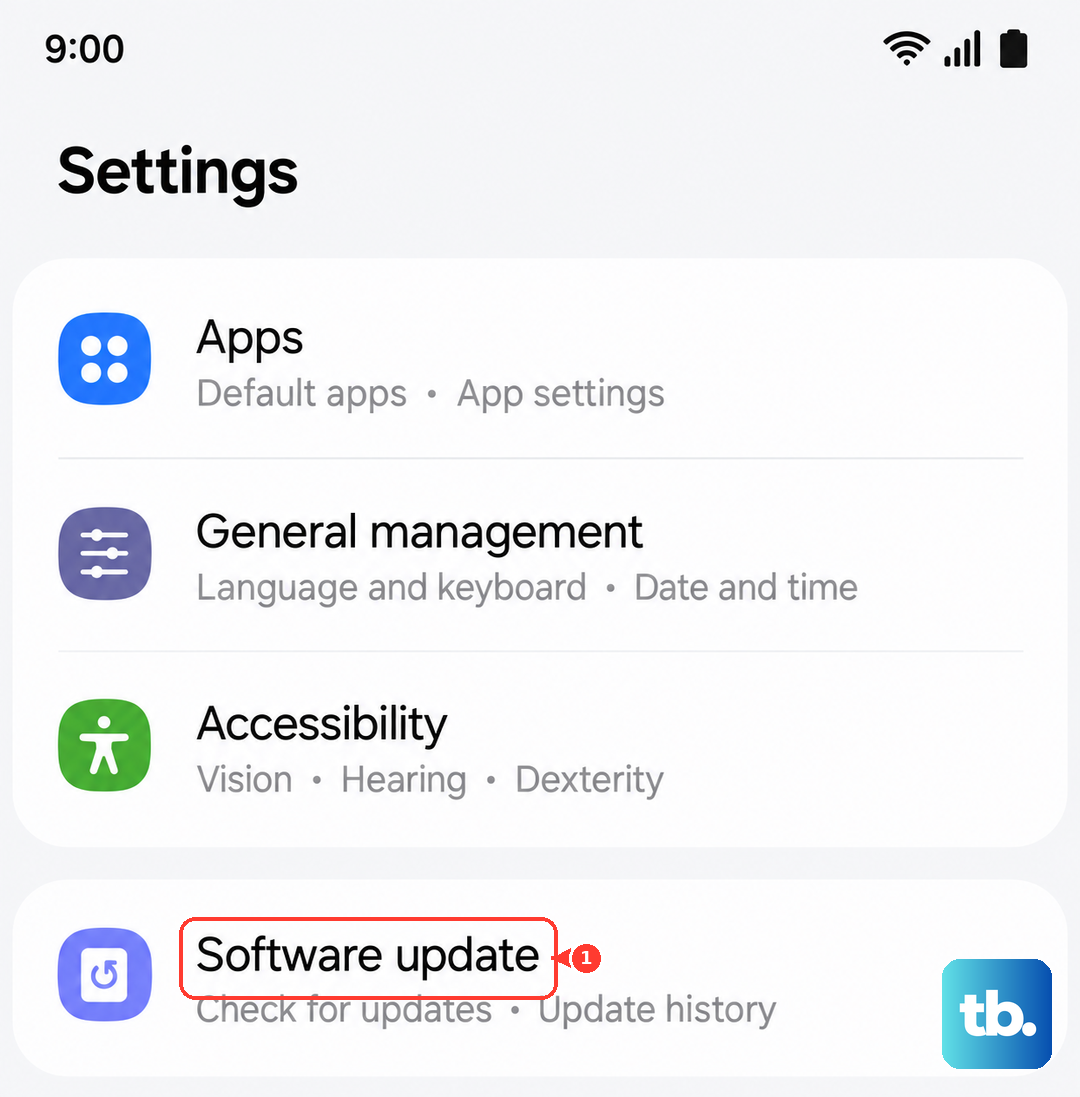
You can also turn on Auto download over Wi-Fi so future fixes arrive on their own. Keep in mind the tablet cannot be used while the update is installing, so start it when you do not need the device. This model launched on Android 13 with One UI 5.1 and is updatable to later versions, so check even if you have not updated in a while.
Let the Samsung Members app test the battery
Samsung builds a free diagnostic tool right into the tablet so you do not have to guess whether the battery itself is the problem. Install or open the Samsung Members app, go to the Support tab, then the Diagnostics section, tap View tests, and run the Battery test (or tap Test all).
The Diagnostics tool checks the battery along with other hardware functions, and the result helps confirm whether you are dealing with a hardware fault or something a setting can fix.
Boot into Safe mode to expose a problem app
A misbehaving downloaded app can interfere with charging, and Safe mode loads the tablet with only its built-in software so you can test that theory. Open the Quick settings panel, tap the Power off icon, touch and hold the Power off button, then tap Safe mode.
If the tablet charges normally in Safe mode, a downloaded app is the culprit. Restart back into normal mode and uninstall recently added apps one at a time until charging behaves.
Back up and factory reset as a last software step
If charging still fails after everything above, a clean reset rules out deeper software corruption, but it erases the tablet, so treat it as a last resort. Back up your files first, then go to Settings > General management > Reset > Factory data reset > Reset > Delete all.
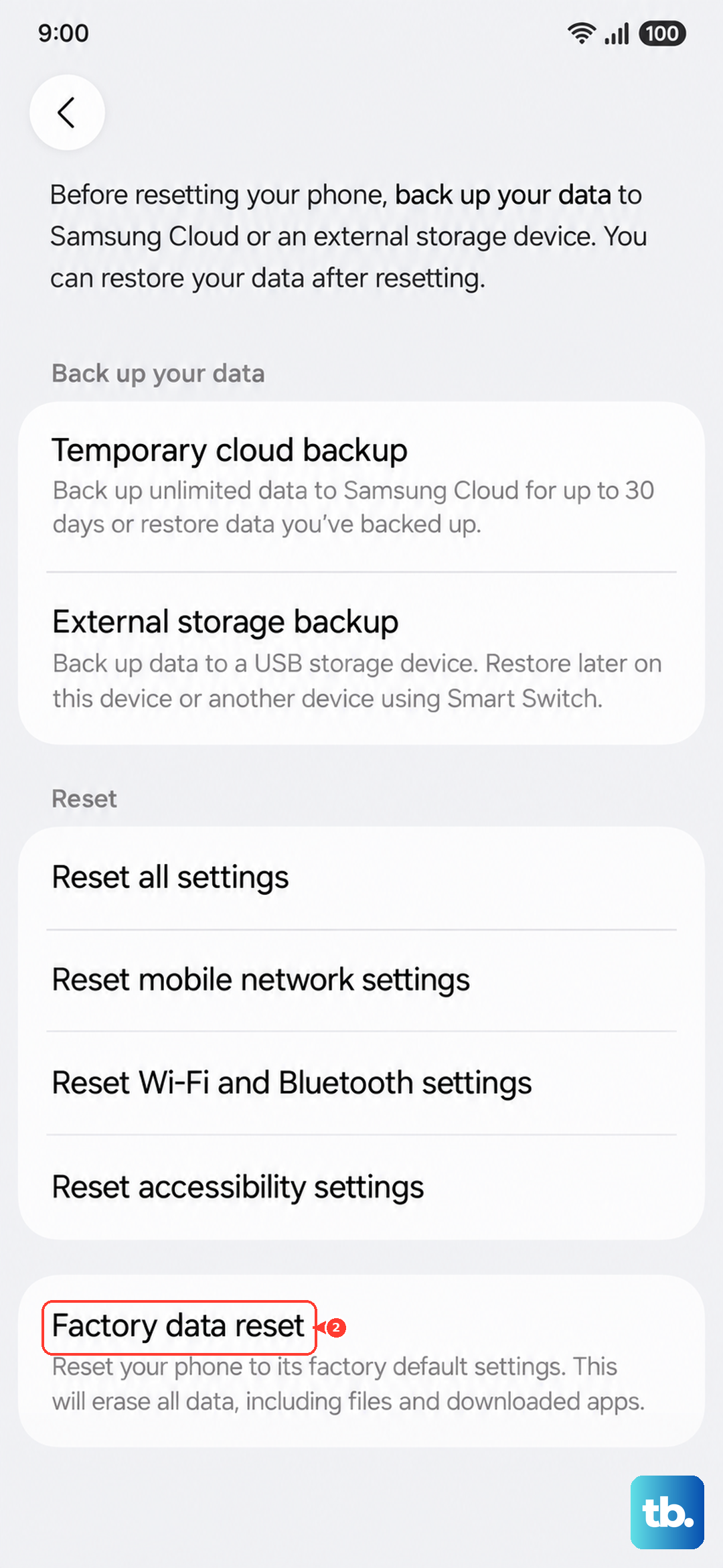
This removes all data, apps, settings, and personal files, and Samsung warns that personal information may not be recoverable afterward. Save anything important and have your Samsung and Google account credentials ready before you start.
When to hand it to a Samsung technician
If none of these steps restores fast charging, the charging port, the battery, or the charger itself may need professional service. Use Samsung Support to book a repair, or take the tablet to your closest Samsung Service Center so a technician can inspect the hardware directly.
Frequently Asked Questions
Does the Galaxy Tab A9+ support 25W Super Fast Charging?
No. The documented charging capability for this model is 15W wired charging, described by Samsung as compatible with Quick Charge 2.0 and Adaptive Fast Charging. There is no 25W Super Fast Charging mode to enable.
Can the Tab A9+ charge wirelessly?
No. Samsung confirms this tablet does not support wireless charging, so any wireless pad or stand will not charge it. You will need the wired 15W adapter and a Samsung-approved USB-C cable.
Why did no charger come in the box?
Samsung ships the Tab A9+ without a charger, and lists the 15W Power Adapter as sold separately. That is why a missing or mismatched charger is the most common cause of slow charging, and why Samsung recommends using only Samsung-approved chargers and cables.
Why does my tablet charge so slowly from a laptop or USB port?
Charging from a computer or USB port delivers less voltage than a wall adapter, so the tablet charges slowly. Plug your Samsung 15W adapter straight into a wall outlet for the fastest supported charging.