Your Galaxy Tab A9+ should pair with your earbuds, keyboard, or speaker the instant you tap a device, yet instead the accessory never shows up in the list, drops out partway through a song, or connects and then goes stubbornly silent. Bluetooth problems on an 11-inch tablet are almost always a temporary software hiccup or a small pairing detail you can fix yourself in a couple of minutes. The fixes below run from the quickest, safest taps to the official reset and repair paths, so start at the top and stop as soon as your accessory reconnects.
Quick toggles that clear most pairing hiccups
Before changing any deeper settings, give Bluetooth a clean restart on the tablet itself. A simple off-and-on cycle clears the temporary glitches that cause an accessory to stall during pairing or refuse to reconnect.
Swipe down from the top of the screen with two fingers to open Quick settings.
Touch and hold the Bluetooth icon to open Bluetooth settings.
Make sure the switch is turned on, then toggle it off and back on.
If that alone does not help, power both pieces of hardware down. Turn off your Galaxy Tab A9+ and the Bluetooth accessory, then turn them both back on so each device starts its connection fresh. Samsung also recommends making sure both devices have enough battery power, because a low charge on either side can affect connectivity.
Check the basics before you blame the tablet
A surprising number of "Bluetooth not working" cases come down to distance, pairing mode, or the accessory quietly talking to something else. Keep the accessory close to the tablet with no major obstructions between them, and confirm the accessory is actually in pairing mode (check its own manual for the button or light pattern that signals this).
Also remember that a Bluetooth accessory may refuse to connect if it is already connected to another device in range. If your earbuds or speaker are paired to a phone or laptop nearby, disconnect them from that device first, then try the tablet again. Reducing the number of nearby devices competing for the same accessory often lets the pairing go through.
Forget the accessory and pair it from scratch
When a device used to work and suddenly stopped, the saved pairing record may be corrupted. Removing it and pairing again rebuilds that connection cleanly.
- 1.Open Settings > Connections > Bluetooth.
- 2.Tap the Settings icon next to the problem device, then tap Forget device.
- 3.Make sure Bluetooth is turned on, then tap Scan.
- 4.Tap the device in the list and follow the prompts (tap OK, or enter a PIN such as 0000 if requested).
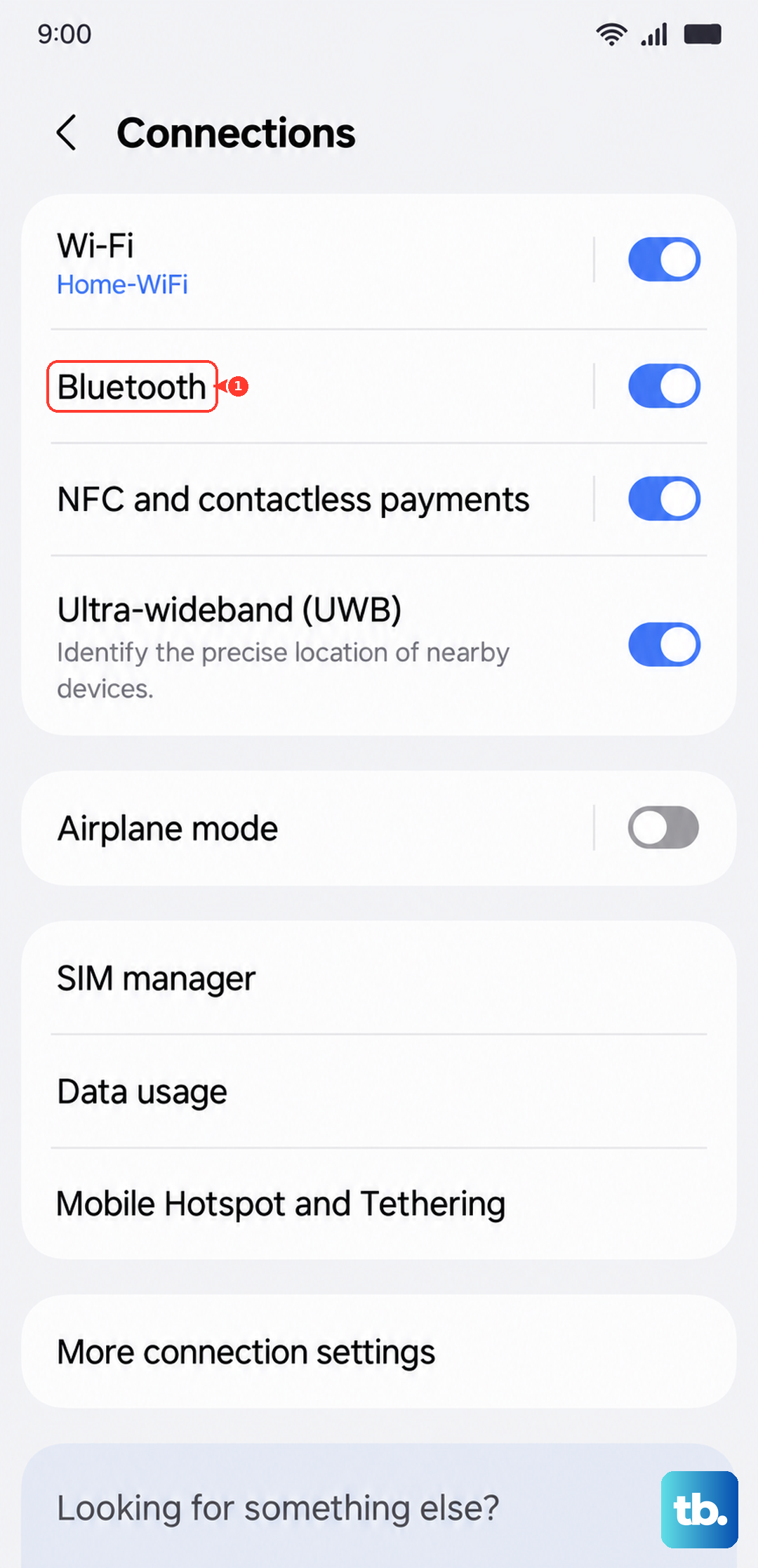
This wipes the old pairing and treats the accessory as brand new, which often resolves devices that pair but then will not send audio or input.
Give the accessory its app and the latest software
Some Bluetooth accessories need a companion app to connect or stay connected. Samsung earbuds and watches, such as Galaxy Buds and Galaxy Watch, connect through the Galaxy Wearable app, and the Tab A9+ itself acts as the controller, so no separate phone is required. Open the Galaxy Wearable app on the tablet, installing it first if it is not already there, and complete the pairing through the app rather than the standard Bluetooth menu.
Outdated software on the tablet can also break Bluetooth, so check for a system update next.
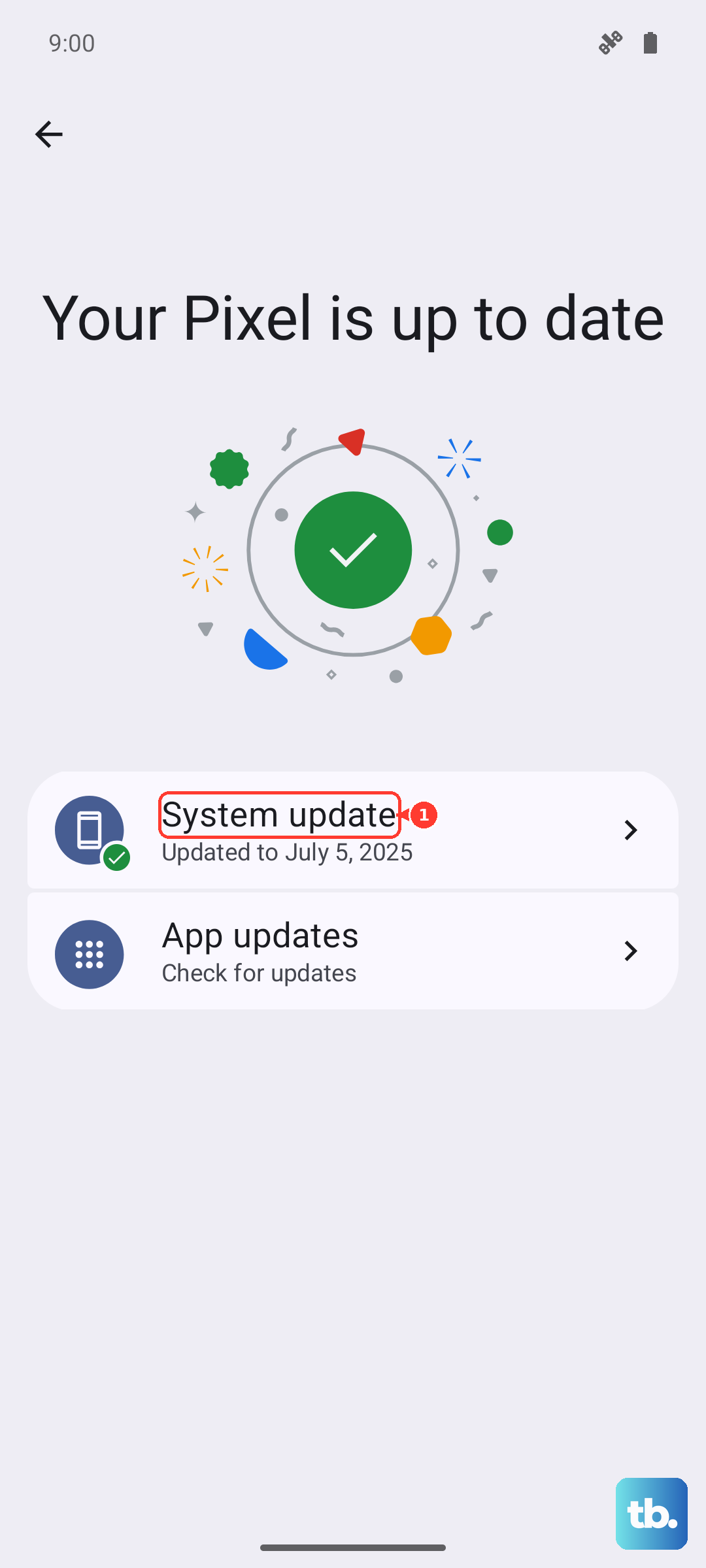
Open Settings > Software update > Download and install.
Tap Install now if an update is available (on some carrier versions the menu may read "System updates" or "Check for system updates").
While you are at it, check whether your Bluetooth accessory has its own firmware update available through its manufacturer, since a stale accessory can be just as much the cause as the tablet. Many earbuds, speakers, and watches receive firmware fixes that directly improve how reliably they pair and hold a connection.
Force a deeper restart of the Tab A9+
A normal restart does not always clear a stuck system process that is holding Bluetooth hostage. A force restart goes deeper without erasing any of your data.
Press and hold the Volume down button and the Side button (or Power button) at the same time.
Keep holding (roughly 10 seconds) until the device turns off and turns back on; the screen goes black, then the Samsung logo appears.
Make sure the battery is above 5% before you try this. Once the tablet reboots, open Bluetooth settings and attempt the connection again.
Rule out a rogue app with Safe mode
If Bluetooth started failing after you installed something new, a downloaded app may be interfering. Samsung recommends booting into Safe mode to test this, because Safe mode loads the tablet with only its built-in software and temporarily disables third-party apps.
If Bluetooth works normally in Safe mode, a downloaded app is the culprit. Restart back into normal mode and uninstall recently added apps one at a time, testing Bluetooth after each removal, until the connection stays stable.
Rebuild your wireless settings
When pairings keep failing across multiple accessories, resetting the network side of the tablet clears every saved connection at once and lets you start over. This is broader than forgetting a single device, but it still leaves your photos, apps, and files untouched.
Open Settings > General management > Reset.
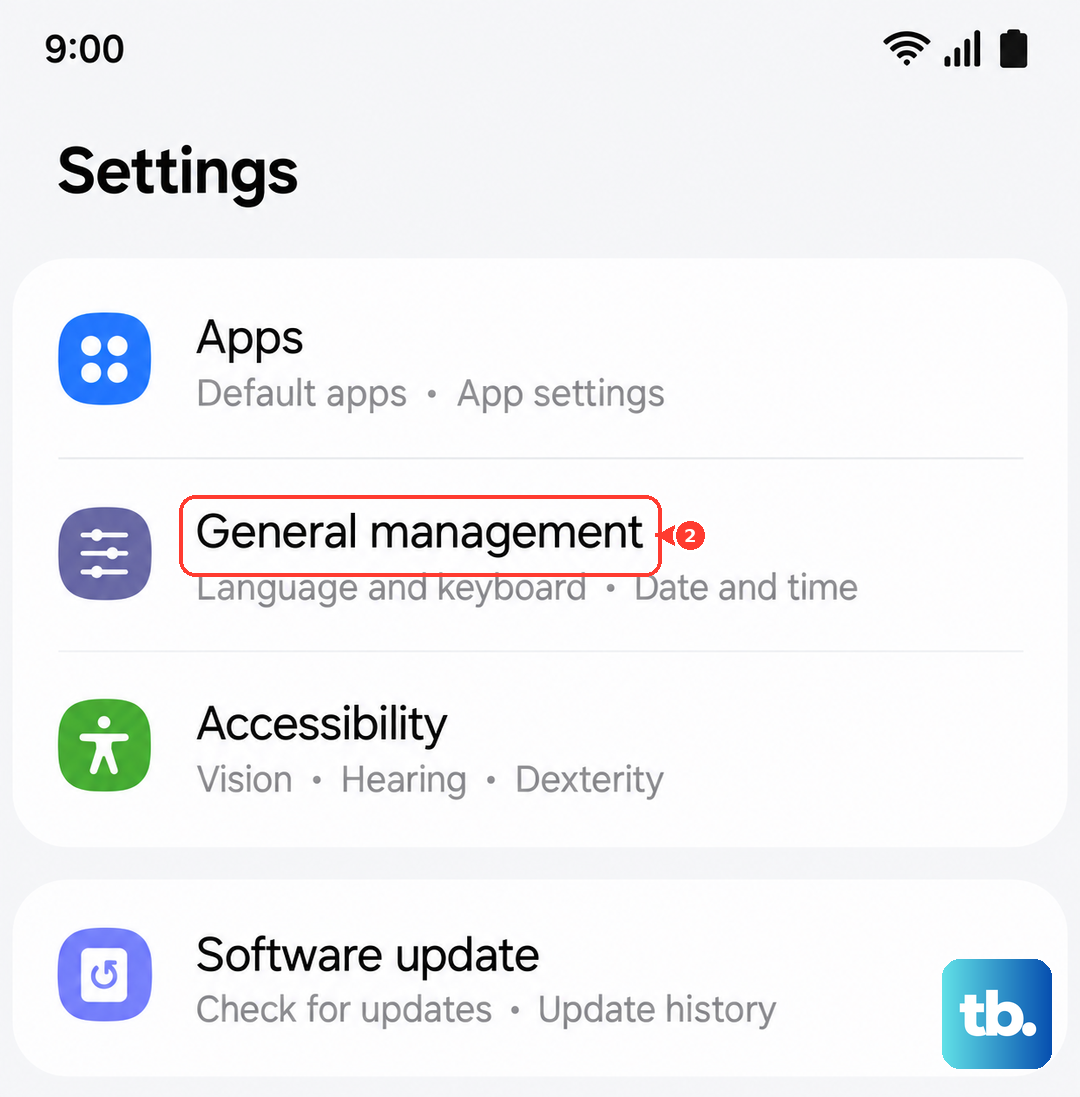
Tap Reset Wi-Fi and Bluetooth settings.
Tap Reset settings.
This removes all saved Wi-Fi networks and all Bluetooth pairings, so you will need to reconnect your wireless networks and pair your accessories again from scratch afterward.
When to reset everything and call in Samsung
A factory data reset is a last resort because it erases everything on the tablet, so only reach for it once the earlier fixes have failed. Back up your data first. Samsung warns: "Please save any information you need prior to the factory reset because your personal information may not be recovered."
Open Settings > General management > Reset > Factory data reset.
Review the information on screen.
Tap Reset, then tap Delete all.
Enter your lock credentials and Samsung account password if prompted.
If Bluetooth still will not work after a full reset, the problem points to hardware rather than software. At that stage, contact Samsung support through their website or live chat, use the Samsung Members app to run a support check and reach a Samsung expert, or book a repair at a Samsung service center.
Frequently Asked Questions
Why won't my Galaxy Tab A9+ find my Bluetooth device at all?
Usually the accessory is not in pairing mode, is out of range, or is already connected to another nearby device. Put the accessory into pairing mode, keep it close to the tablet with no major obstructions, disconnect it from any other device it is paired with, then open Settings > Connections > Bluetooth and tap Scan.
Does resetting Wi-Fi and Bluetooth settings delete my files?
No. Reset Wi-Fi and Bluetooth settings only clears your saved wireless networks and Bluetooth pairings; your photos, apps, and personal files stay in place. You will simply need to reconnect to Wi-Fi and pair your accessories again afterward.
How do I connect Galaxy Buds or a Galaxy Watch to the Tab A9+?
Samsung earbuds and watches connect through the Galaxy Wearable app rather than the standard Bluetooth menu. Open Galaxy Wearable on the tablet, installing it first if needed, since the Tab A9+ acts as the controller, and pair the accessory from inside the app.
What Bluetooth version does the Galaxy Tab A9+ use?
The official Samsung UK specifications page for the Wi-Fi model (SM-X210) lists Bluetooth v5.1. That covers everyday accessories like earbuds, speakers, keyboards, and the Galaxy Watch.
Will a factory reset fix Bluetooth?
A factory data reset can clear a deep software problem, but it erases everything on the tablet, so back up first and treat it as a last resort. If Bluetooth still fails after the reset, the issue is likely hardware, and you should contact Samsung support chat, the Samsung Members app, or a Samsung service center.