
Is your Samsung Galaxy Tab A9+ stuck in one orientation and refusing to flip when you turn it sideways? It's a common hiccup where the auto-rotate feature just stops responding. The good news is it's usually a quick software setting, not a broken tablet.
Let's start with the most likely fix. Pull down the notification panel from the top of your screen. Look for the icon that says "Portrait" or has a little phone with arrows around it. Tap it once. The icon should change color, often to blue, and the text should switch to "Auto rotate." Give your tablet a twist to see if it works now.
Enable Home Screen and App Rotation
Your Galaxy Tab A9+ has a separate setting for the home screen. Even with auto-rotate on, your app drawer and wallpaper might stay locked in portrait. To change this, pull down the notification panel again and tap the words "Portrait" or "Auto rotate" (not just the icon).
A small menu will pop up. Look for the option labeled "Rotate to landscape mode" or "Home screen." Make sure the switch next to it is turned on. This tells your tablet's One UI 6 interface that it's okay for the main screens to rotate too.
Force Restart Your Tablet
If the settings look correct but nothing happens, a simple restart can clear out a temporary glitch. For the Galaxy Tab A9+, press and hold the Volume Down button and the Power button at the same time.
Keep holding them for about 10 seconds, or until you see the Samsung logo appear on the screen. This forces a reboot without deleting any of your data or files. Once it's back on, test the rotation again in an app like YouTube or Chrome.
Check for Problematic Apps
Sometimes, the issue isn't with your tablet but with a specific app. Not all apps support landscape mode, and a buggy one can sometimes interfere with the system-wide sensor. Try opening a few different apps you know should rotate, like your gallery or a video player.
If rotation works everywhere except one app, that app is likely the culprit. Check for updates in the Google Play Store. If the problem started after installing a new app, try uninstalling it to see if that resolves the sensor issue.
Update Your Software
Software bugs in Android or Samsung's One UI can occasionally cause sensor features to act up. Samsung regularly releases updates that fix these kinds of problems. To check, go to Settings > Software update > Download and install.
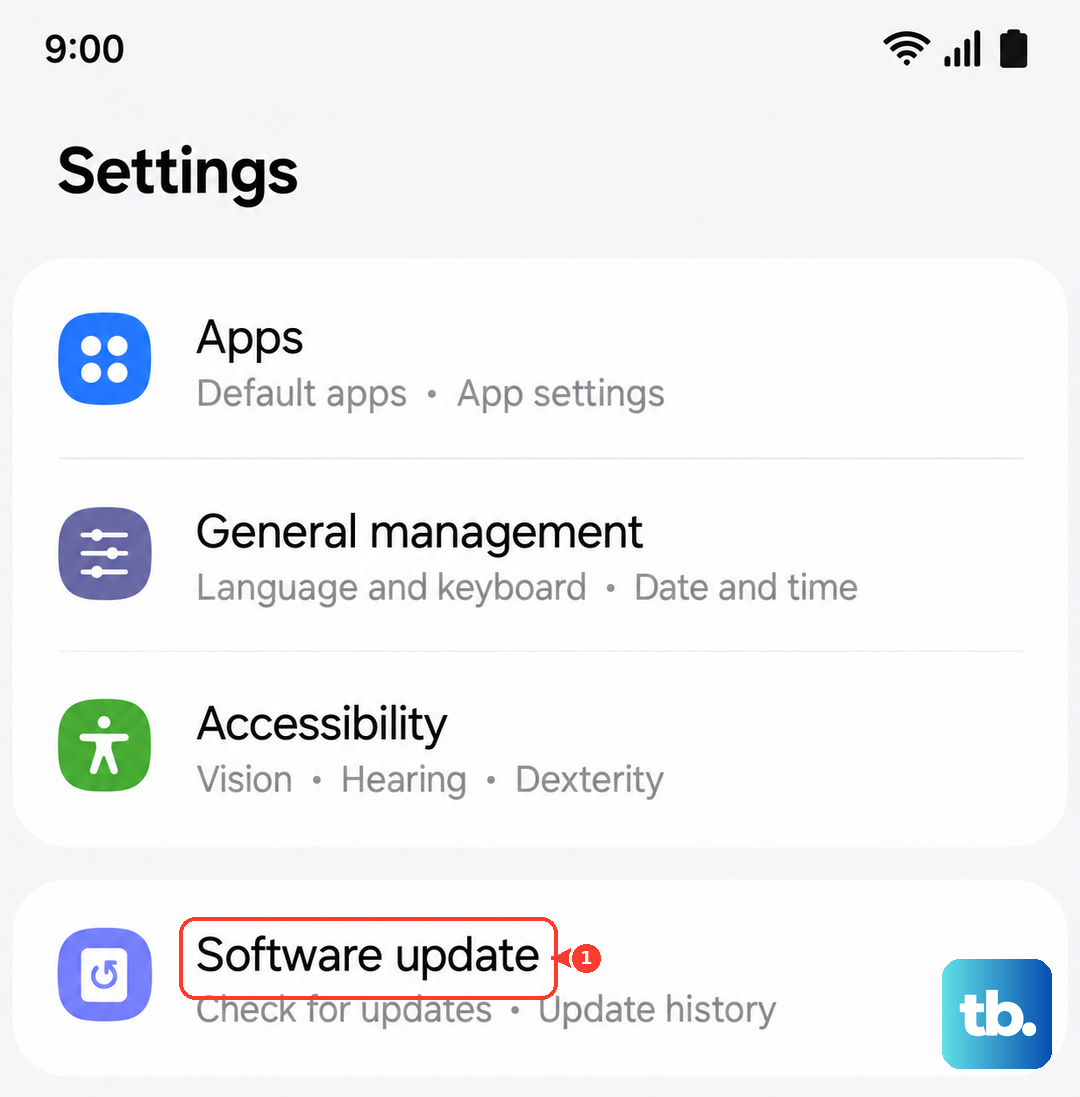
Let the tablet check for updates. If one is available, I'd recommend installing it while your tablet is plugged into its 15W charger and connected to Wi-Fi. Keeping the software current helps with general smoothness on the Snapdragon 695 chipset too.
Test the Tablet's Sensors
Your Tab A9+ uses an accelerometer and gyroscope to detect movement. You can check if these are functioning with a hidden diagnostic menu. Open your tablet's Phone app (if you have a cellular model) or dialer and enter *#0*#.
This will open a secret test menu. Tap on "Sensor." You'll see a screen with various readings. Place your tablet on a flat surface, then slowly lift and rotate it. The numbers for "X-axis," "Y-axis," and "Z-axis" should change rapidly as you move. If they're stuck at zero, there could be a deeper sensor issue.
Clear the System Cache
A corrupted system cache can cause all sorts of odd behavior, including unresponsive sensors. Clearing it is safe and won't delete your personal data. First, power off your tablet completely.
Now, press and hold the Volume Up button and the Power button together. Release them when you see the Samsung logo, and you'll boot into Recovery Mode. Use the volume buttons to navigate to "Wipe cache partition" and select it with the power button. Confirm, then select "Reboot system now."
Consider a Factory Reset
This is a last resort, but if all else fails, a factory reset can eliminate any deep-seated software corruption. Warning: This will erase all data from your tablet. Make sure everything is backed up to your Samsung account or Google Drive first.
To do it, go to Settings > General management > Reset > Factory data reset. Follow the prompts. After the reset and setup, test the rotation before restoring all your apps, as sometimes a third-party app is the root cause.