When your Samsung Galaxy S26's volume buttons stop responding, it can leave you stuck on silent or at full blast. You press them but get no feedback, no volume bar on the screen, nothing. Since this is a brand new device running One UI 8.5, there's a decent chance a software glitch is to blame, and a simple reset might sort it out.
Before you consider a trip to a service center, work through these fixes. I'd start with the force restart, as it's the quickest way to clear up any temporary software hiccups.
Remove Your Phone Case
Begin with the most obvious check. Take your S26 out of its case. Some cases, especially rugged or ill-fitting ones, can press against the buttons or block their travel just enough to make them feel unresponsive.
Perform a Force Restart
A force restart is different from a regular power cycle and can clear out system-level bugs that might be freezing the button inputs. This won't delete any of your personal data or settings.
For the Galaxy S26, press and hold the Volume Down button and the Side/Power button at the same time. Keep holding them for about 10 seconds until you see the Samsung logo appear on the screen, then let go.
Check for Software Updates
Given that the S26 is new with One UI 8.5, early software bugs are a real possibility. Samsung is likely pushing out updates to address these kinds of issues.
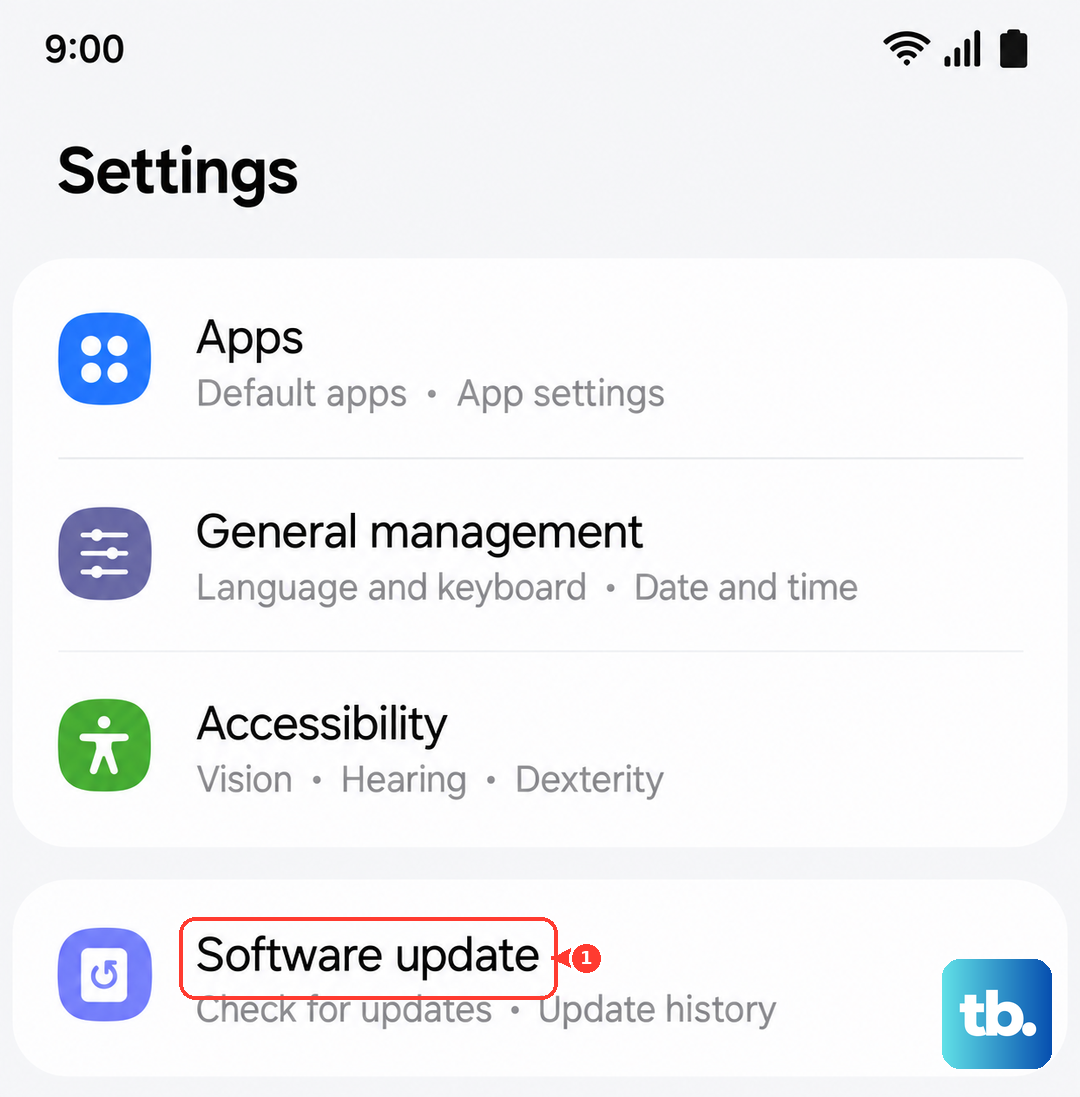
Go to Settings > Software update and tap Download and install. Make sure you're connected to Wi-Fi and it's a good idea to plug in your charger, as the update might require a decent amount of battery.
Clean the Volume Buttons
Dust and pocket lint are classic culprits for sticky buttons. The small gap around the S26's buttons can easily trap debris over time.
You can try gently blowing compressed air around the buttons. For more stubborn gunk, a cotton swab dipped in a tiny amount of isopropyl alcohol (90% or higher) can help. Just be careful not to get any liquid inside the phone, and let it dry completely before testing the buttons again.
Test the Buttons in Safe Mode
Booting into Safe Mode temporarily disables all third-party apps. If your volume buttons work perfectly in Safe Mode, then a recently installed app is likely interfering with them.
To enter Safe Mode, press and hold the Side/Power button until the power menu appears. Then, tap and hold the "Power off" option on your screen. You'll get a prompt to reboot into Safe Mode. Tap it to confirm.
Test the volume buttons here. To exit, just restart your phone normally.
Check Accessibility Settings
Some accessibility features can remap or alter how the physical buttons function. It's worth a quick look to make sure nothing is accidentally enabled.
Head to Settings > Accessibility > Advanced settings. Look for any options related to button shortcuts or dexterity interactions. Also, check under Settings > Sounds and vibration to ensure the system volume isn't locked or controlled by another setting.
Use the On-Screen Volume Slider
While you're figuring out the physical buttons, remember you can always adjust volume from the screen. Pull down the Quick Settings panel twice to expand it, and you'll see a volume slider there.
You can also go to Settings > Sounds and vibration and adjust the sliders for ringtone, media, and notifications directly.
Try the Buttons in Different Apps
Open a few different apps like YouTube, Spotify, or Samsung Music and try the volume buttons. If they work in your music app but not during phone calls, the issue might be app-specific or related to a particular audio channel.
This can help narrow down whether it's a system-wide problem or something more isolated.
Reset All Settings
This is a more thorough step than a restart but less drastic than a full factory reset. It will revert all your system settings (like Wi-Fi passwords, Bluetooth pairings, and display preferences) back to default, but it won't touch your personal photos, messages, or apps.
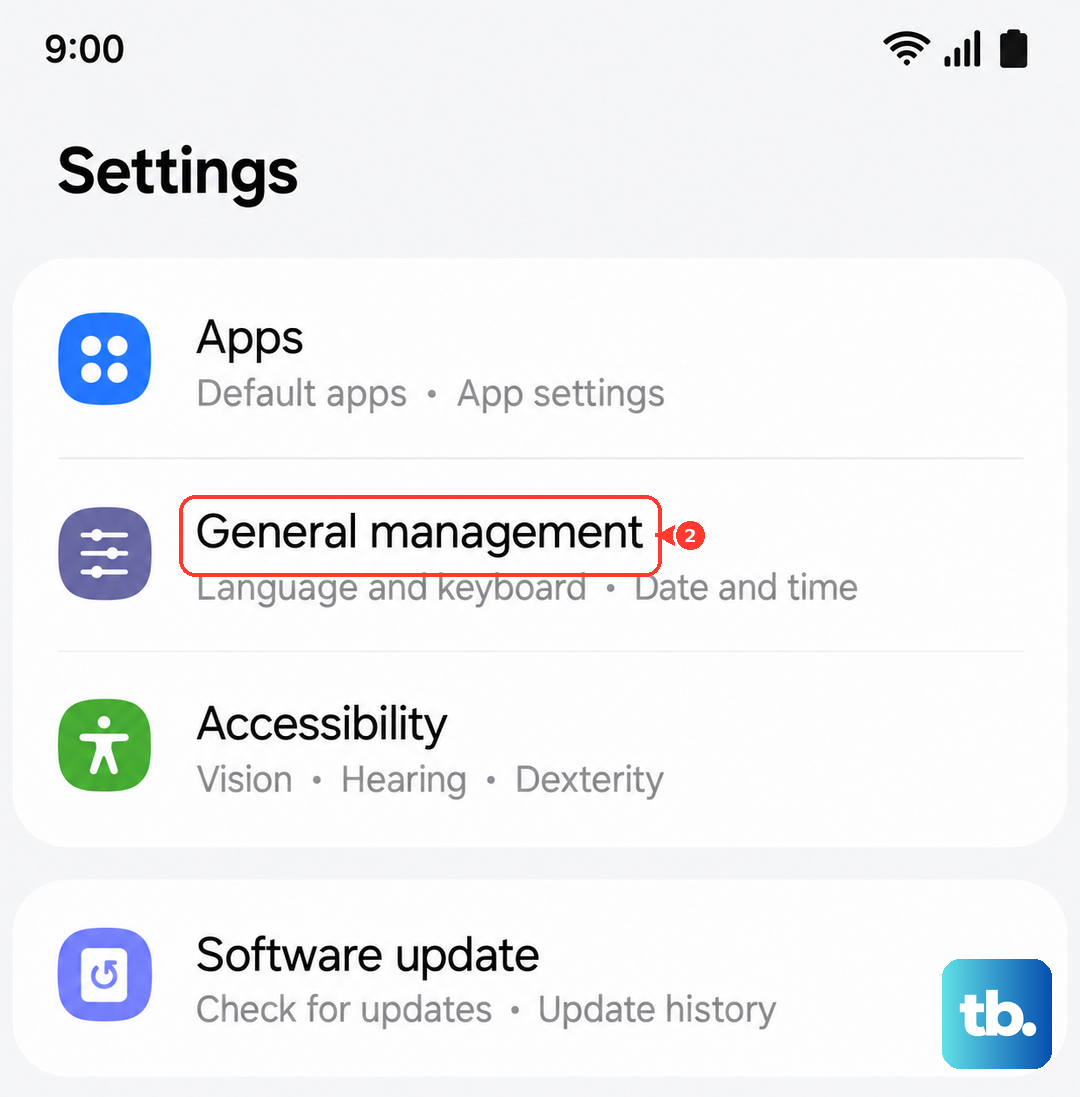
Go to Settings > General management > Reset > Reset all settings. Enter your PIN if prompted and confirm. After your phone reboots, test the volume buttons immediately.
Factory Reset (Last Resort)
If every other step has failed, a factory reset can eliminate any deep-seated software corruption. This will erase everything on your phone and return it to its out-of-the-box state.
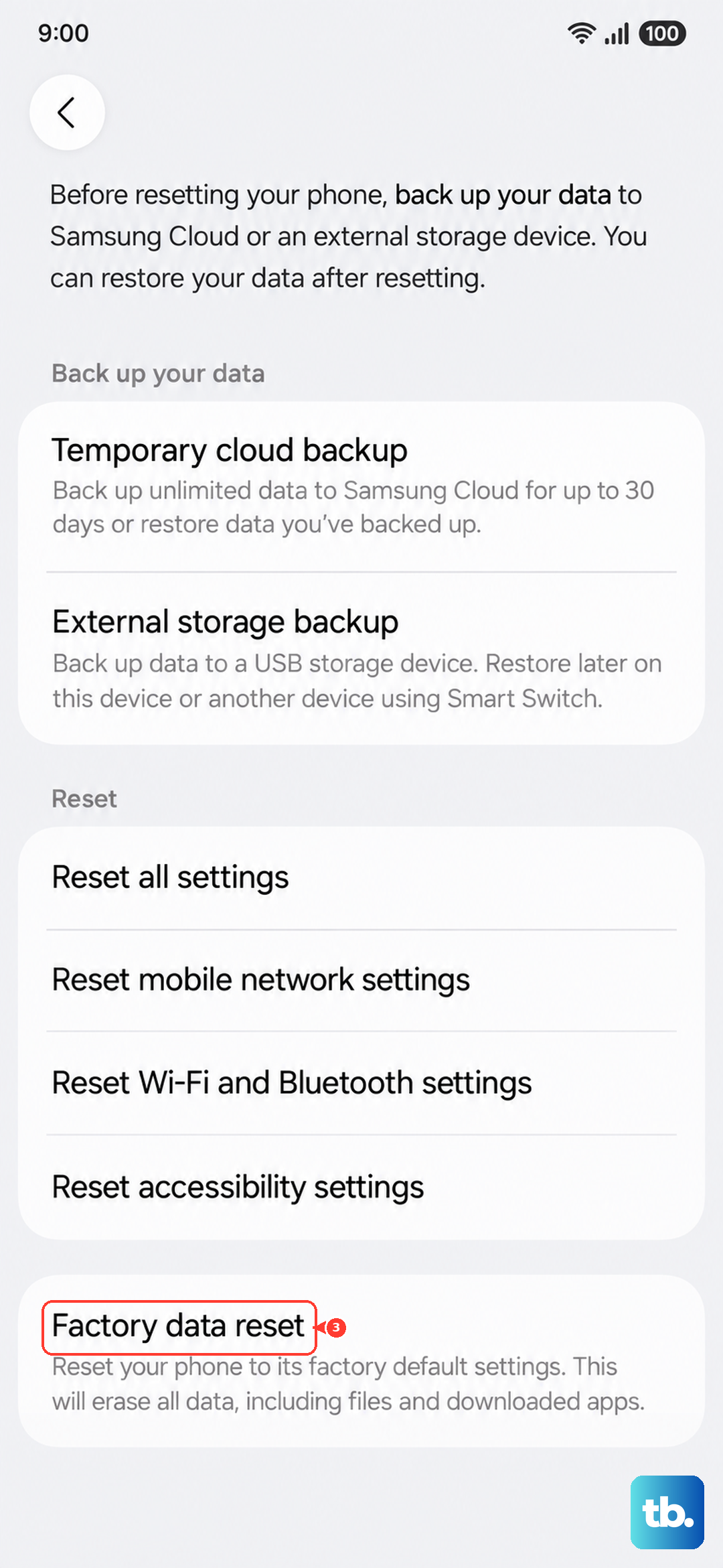
Crucially, back up your data first. Use Samsung Cloud or Smart Switch to save your photos, contacts, and app data. Once backed up, go to Settings > General management > Reset > Factory data reset. Follow the prompts to complete the process.