
When the autocorrect on your Galaxy S26 Ultra starts suggesting bizarre words or refusing to learn your style, it can turn a simple text into a frustrating puzzle. Keyboard settings or temporary software issues may be the cause, and there are several fixes you can try yourself. Let's walk through the steps to tame your keyboard.
Start With a Quick Restart
Before diving into settings, give your phone a fresh start. Press and hold the Volume down button and the Side button together for more than 7 seconds until the device restarts. This force restart can clear out any temporary glitches that might be messing with the keyboard's brain.
Temporary software issues can affect keyboard behavior. A restart is the fastest way to see if it's just a temporary snag.
Clear the Keyboard's Cache and Data
If a restart didn't help, the next move is to clear out the keyboard's temporary files. Go to Settings > Apps. Tap the three-dot menu in the top right and select Show system apps.
Find and select Samsung Keyboard. Tap on Storage, then hit Clear cache. This wipes temporary data without touching your personal dictionary. If the problem persists, go back to the same Storage menu and tap Clear data, then Delete to confirm.
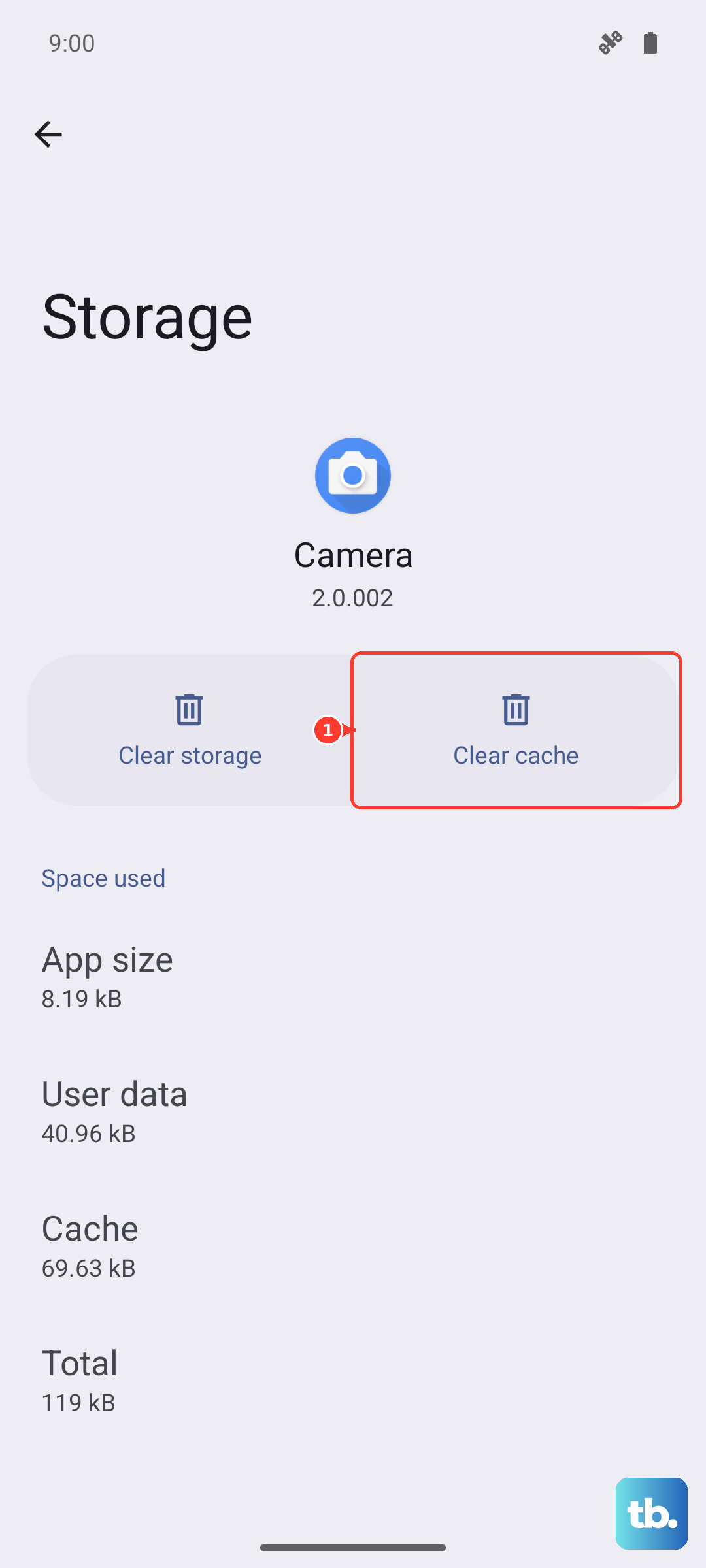
Just know that clearing data will reset your keyboard to its factory settings. You may lose custom words you've added and have to reconfigure your preferences, but resetting the app can help with persistent problems.
Check Your Smart Typing Settings
Sometimes the fix is just a toggle away. Open Settings, search for Samsung Keyboard, and select it.
Tap on Smart typing. Here, make sure Predictive text is turned on. I'd also recommend toggling Auto replace (that's the autocorrect function) off and then back on.
While you're here, glance at the other options. If Auto punctuate or Auto capitalization are acting up, you can adjust them here too.
Update Your Keyboard and Language Files
Samsung Keyboard is updated through the Galaxy Store, so check there for a keyboard update. Then check for phone software updates. Open Settings > Software update > Check for updates, then follow the on-screen instructions. Depending on your carrier, the option may instead be called Download and install, Check for system updates, or Check for software updates.
You should also update the language files themselves. Open Settings, search for and select Samsung Keyboard, then tap Languages and types.
Tap Manage input languages. Tap the three-dot menu and select Check for an update. Also check that your preferred language is enabled.
Reset the Keyboard to Default
If autocorrect is still wildly off-base, resetting the keyboard is another option. Navigate to the main Samsung Keyboard settings page again by opening Settings, searching for Samsung Keyboard, and selecting it.
Scroll down and tap Reset to default settings to review the available reset options. Check what the selected option will remove before confirming a reset. After the reset, give the keyboard time to learn your typing habits again as you use it.
Consider a Third-Party Keyboard
If you've tried everything and the native Samsung keyboard is still causing headaches, remember you have options. Apps like Gboard or SwiftKey are available on the Play Store and often have very robust autocorrect and prediction engines.
Installing one is a straightforward temporary or permanent solution. You can always switch back to the Samsung keyboard later if a future software update improves its performance.