
When your Samsung Galaxy S26 Ultra won't send texts, it's incredibly frustrating. Messages might get stuck on "Sending," fail with an error, or just disappear into the void. Since this is a brand new device, early software bugs are a possibility, but the fixes are usually straightforward.
Start With a Force Restart
This is the quickest fix for most temporary glitches on the S26 Ultra. Press and hold the Volume Down button and the Side/Power button together for about 10 seconds. Let go when you see the Samsung logo appear on the screen. This refreshes the phone's software and can clear up messaging issues instantly.
Check Your Mobile Data and Signal
Texts (SMS) need a cellular signal, while picture messages (MMS) and chats like RCS require mobile data. Look at your signal bars. If they're low or you see an "X," move to a different location. You can also pull down the Quick Settings panel and tap the Airplane Mode icon to turn it on, wait 10 seconds, and then tap it again to turn it off. This forces your phone to reconnect to the network.
Verify Your Message Settings
Open the Samsung Messages app and tap the three-dot menu in the top right. Go to Settings. Here, make sure Send messages as is set to "SIM 1" if that's your primary line. Also, ensure that Multimedia messages (MMS) is toggled on. If you're using Google Messages, you'll find similar options in its settings under Chat features and Advanced.
Toggle RCS Chat Features Off and On
If you use Google Messages and have RCS (Chat features) enabled, a server hiccup can block all messages. Open Google Messages, tap your profile picture, then go to Messages settings > RCS chats. Tap Turn off RCS chats. Wait a full minute, then go back and tap Turn on RCS chats. This re-registers your number with the service.
Clear the Messages App Cache
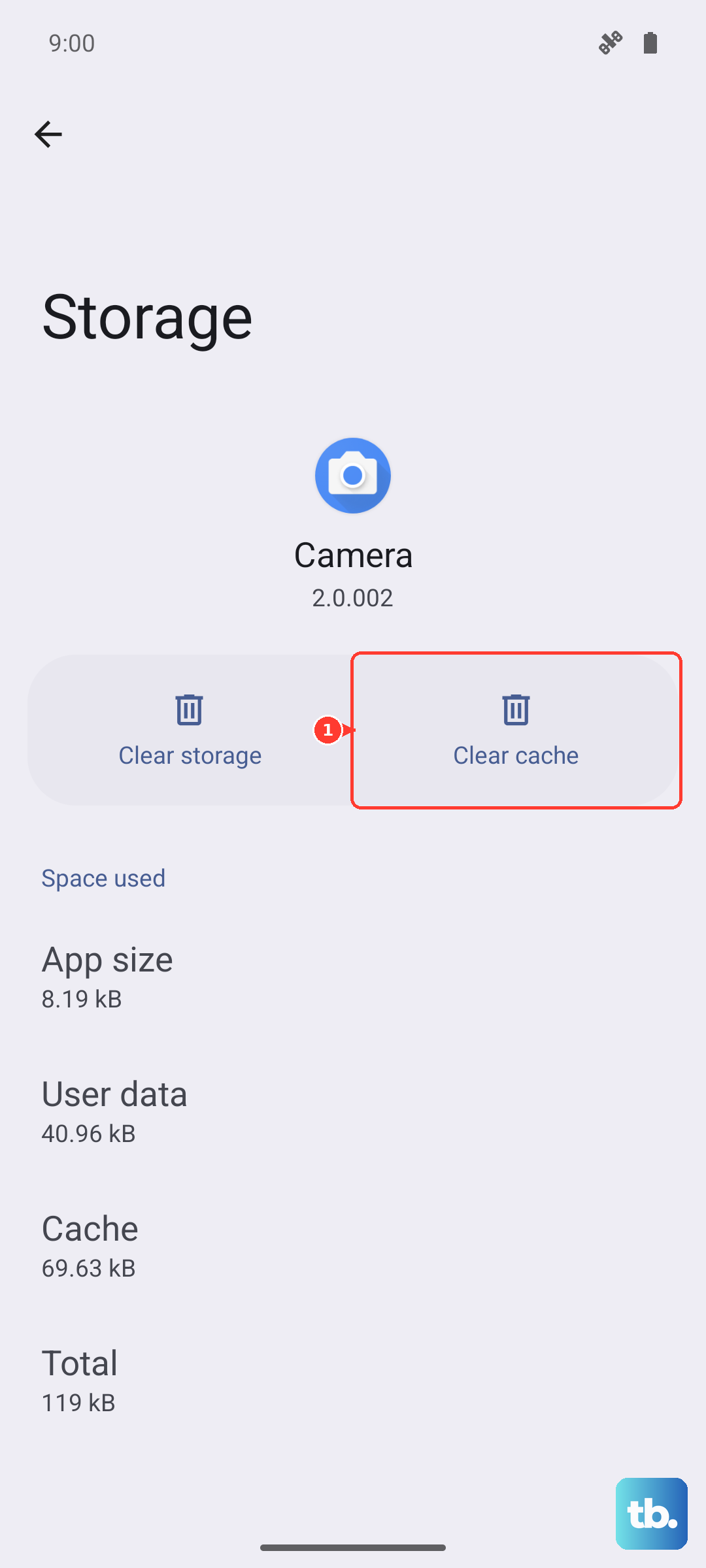
A corrupted cache in your messaging app can cause sending failures. Go to Settings > Apps, then find and tap on either Samsung Messages or Google Messages. Tap Storage, then tap Clear cache. This won't delete your messages. After doing this, force close the app and reopen it to see if texts send.
Check for Software Updates
Given this phone is new, Samsung is likely pushing out updates to fix bugs. Go to Settings > Software update and tap Download and install. If an update is available, install it. These updates often include patches for connectivity and messaging issues specific to the S26 Ultra.
Reset Your Network Settings
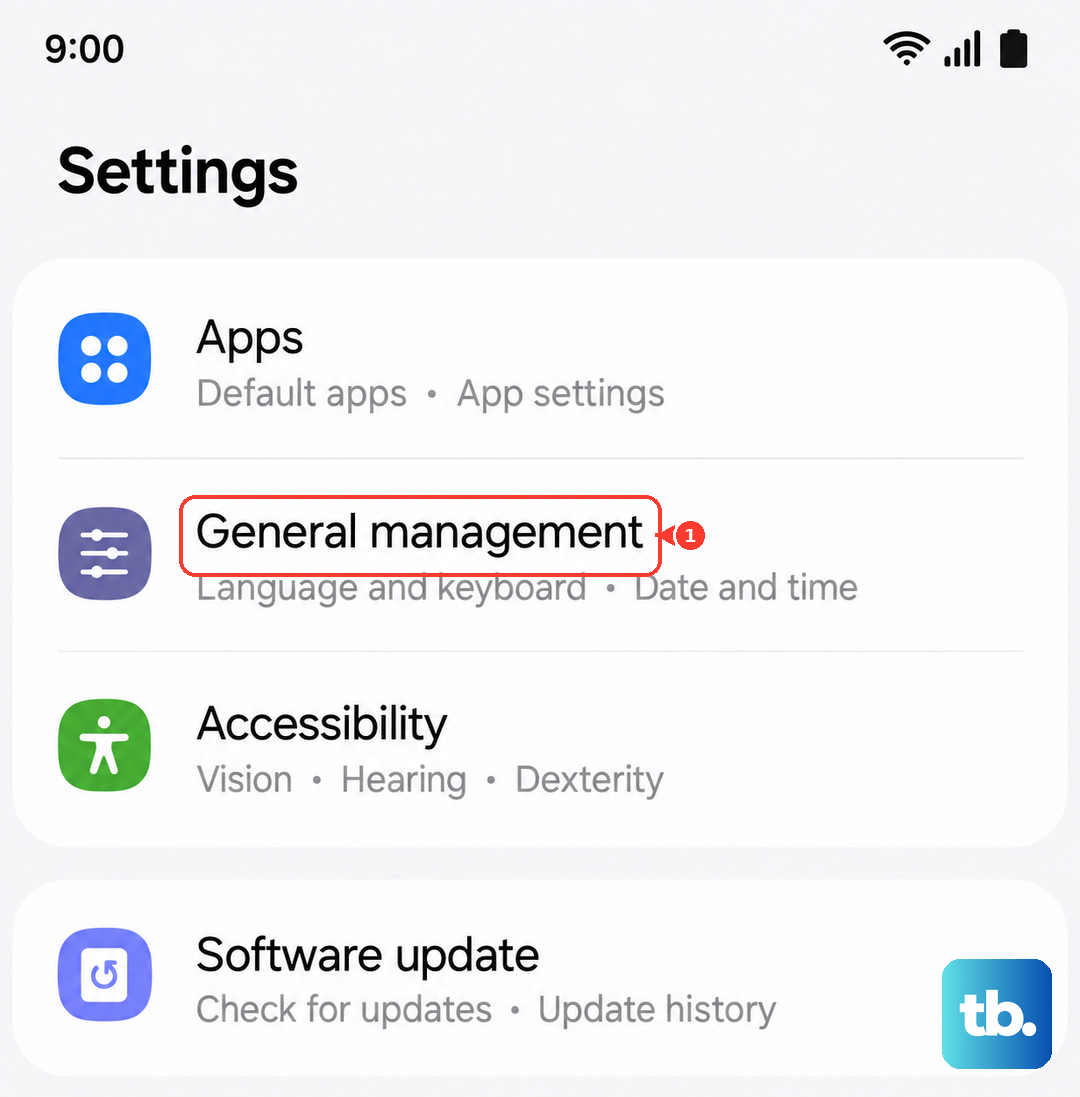
This clears all your Wi-Fi, Bluetooth, and cellular network configurations and rebuilds them. Go to Settings > General management > Reset. Tap Reset network settings and confirm. You'll need to reconnect to Wi-Fi networks and re-pair Bluetooth devices afterward, but it's a powerful fix for persistent messaging problems.
Review Your Blocked Numbers
If you can't send texts to one specific person, you might have blocked them by accident. Open your Phone app, tap the three-dot menu, and go to Settings > Block numbers. Check the list and remove any number that shouldn't be there.
Reinsert Your SIM Card
Power your S26 Ultra off completely. Locate the SIM tray on the bottom edge and use the ejector tool to pop it out. Remove the SIM card, wait 30 seconds, and then carefully reinsert it. Push the tray back in and power your phone on. This re-establishes a clean connection with your carrier's network.
Contact Your Mobile Carrier
If texts still won't send, the issue might be on your carrier's end. There could be a problem with your account provisioning, a service outage in your area, or a block on SMS/MMS. Give them a call or use their support app. They can check your line and often reset your messaging service from their side, which usually solves the problem.