
When your Samsung Galaxy S26 Ultra starts sending calls straight to voicemail, it feels like you've got a very expensive paperweight. Call settings, a SIM issue, or a carrier problem may be the cause. I've found that checking the settings or trying a network reset can help.
Let's jump straight into the most common fix. Pull down the Quick Settings panel from the top of your screen and look for the Do Not Disturb icon. If it's highlighted, tap it to turn it off. Also, check for the Airplane Mode icon and make sure that's disabled too. A restart can help with a temporary software issue, so press and hold the Side and Volume down buttons together for more than 7 seconds until the device restarts.
Check Your Do Not Disturb and Focus Modes
One UI has several settings that can silence calls and be easy to miss. Open Settings, then search for and select Do not disturb. Make sure the main switch is off. Then, check whether any schedules are active and turn off any you don't want.
Also, check your Focus Modes. Swipe down with two fingers to open the full Quick Settings panel and look for the 'Modes' widget. Tap it to see if you're in a mode that might be silencing calls.
Review Call Blocking and Spam Protection
Samsung's built-in spam protection is great, but it can sometimes be a little too aggressive. Open your Phone app, tap the three-dot menu in the top right, and go to Settings > Block numbers. Look through the list to make sure no important contacts are accidentally blocked.
Next, go back and look for Caller ID and spam protection. You can temporarily turn this off to see if it's the culprit. If calls start coming through, you can turn it back on and, under Block spam and scam calls, choose Only block high-risk scam calls instead of Block all spam and scam calls.
Disable Any Active Call Forwarding
Call forwarding may be sending incoming calls elsewhere. Contact your carrier to check which forwarding settings should be active on your line. As an optional extra, use ##002# only if your carrier confirms what it does and tells you to dial it in the Phone app.
You can also check manually. In the Phone app settings, look for Supplementary services or Call settings > Call forwarding. Ask your carrier which options to change so that incoming calls reach your phone while keeping your voicemail service working.
Reset Your Network Settings
A mobile network reset can help with cellular connection issues without erasing your apps or data. Go to Settings > General management > Reset > Reset mobile network settings. The separate Reset Wi-Fi and Bluetooth settings option requires reconnecting to Wi-Fi and re-pairing Bluetooth accessories afterwards.
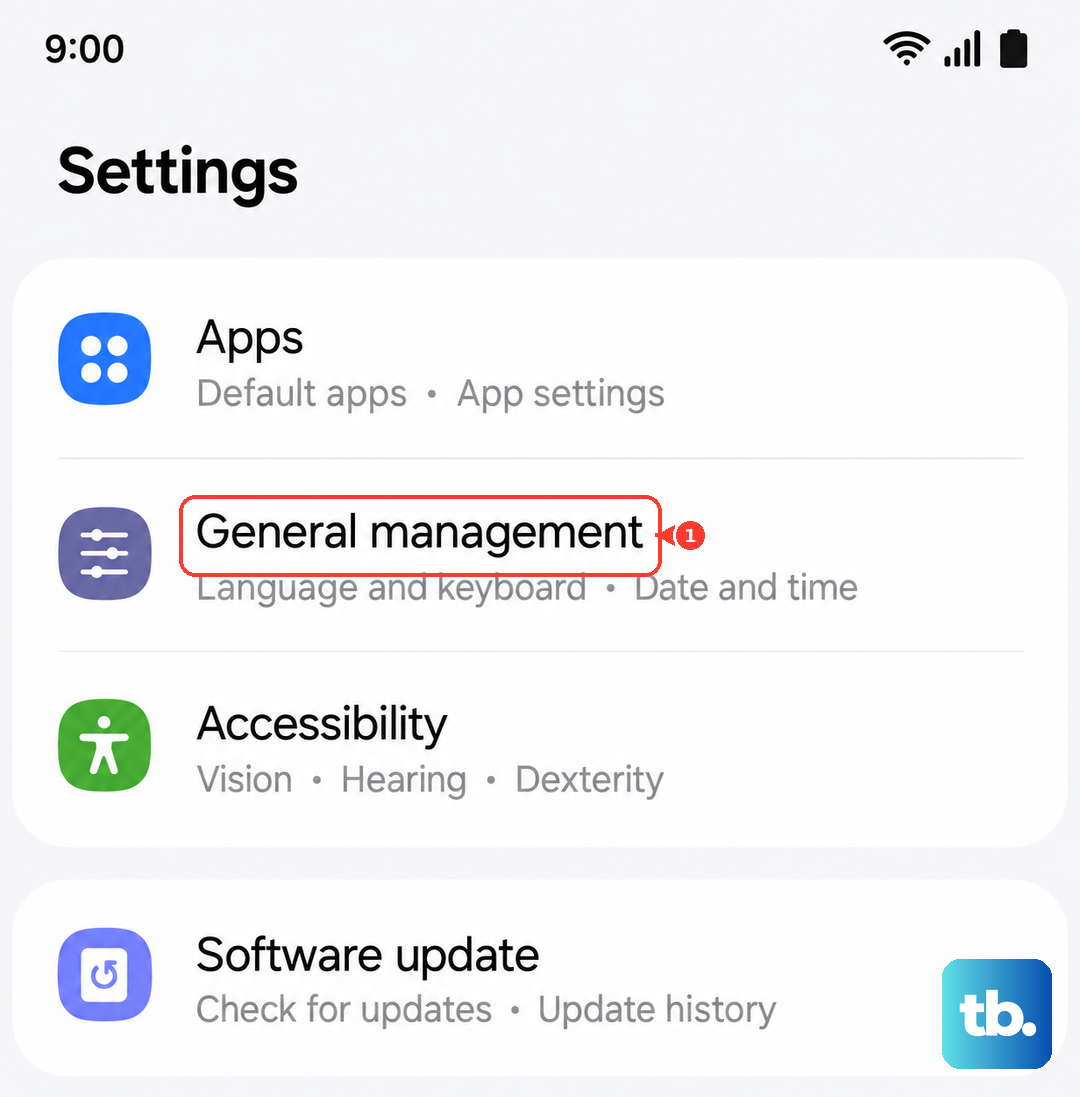
Tap Reset settings, enter your security credentials if prompted, and tap Reset to confirm. Then, try making a test call and ask someone to call you. If calls still aren't working, continue with the SIM checks below or contact your carrier to check your account and service.
Reinsert and Clean Your SIM Card
Even on a new phone, a SIM card can work its way slightly loose. If you use a physical Nano-SIM, grab the SIM ejector tool that came in the box and pop out the tray on the bottom right side of the phone. Take out the SIM card, give the gold contacts a gentle wipe with a soft, dry cloth, and carefully reseat it.
Check that the SIM card is correctly installed and isn't damaged before sliding the tray back in. If you have another active phone on the same network, you may be able to test the SIM in it. Contact your carrier for help testing the SIM or getting a replacement.
Update Your Phone's Software
Check for available software updates. Connect to Wi-Fi, then go to Settings > Software update > Check for updates. Depending on your software and carrier, the option may instead be Download and install, Check for system updates, or Check for software updates.
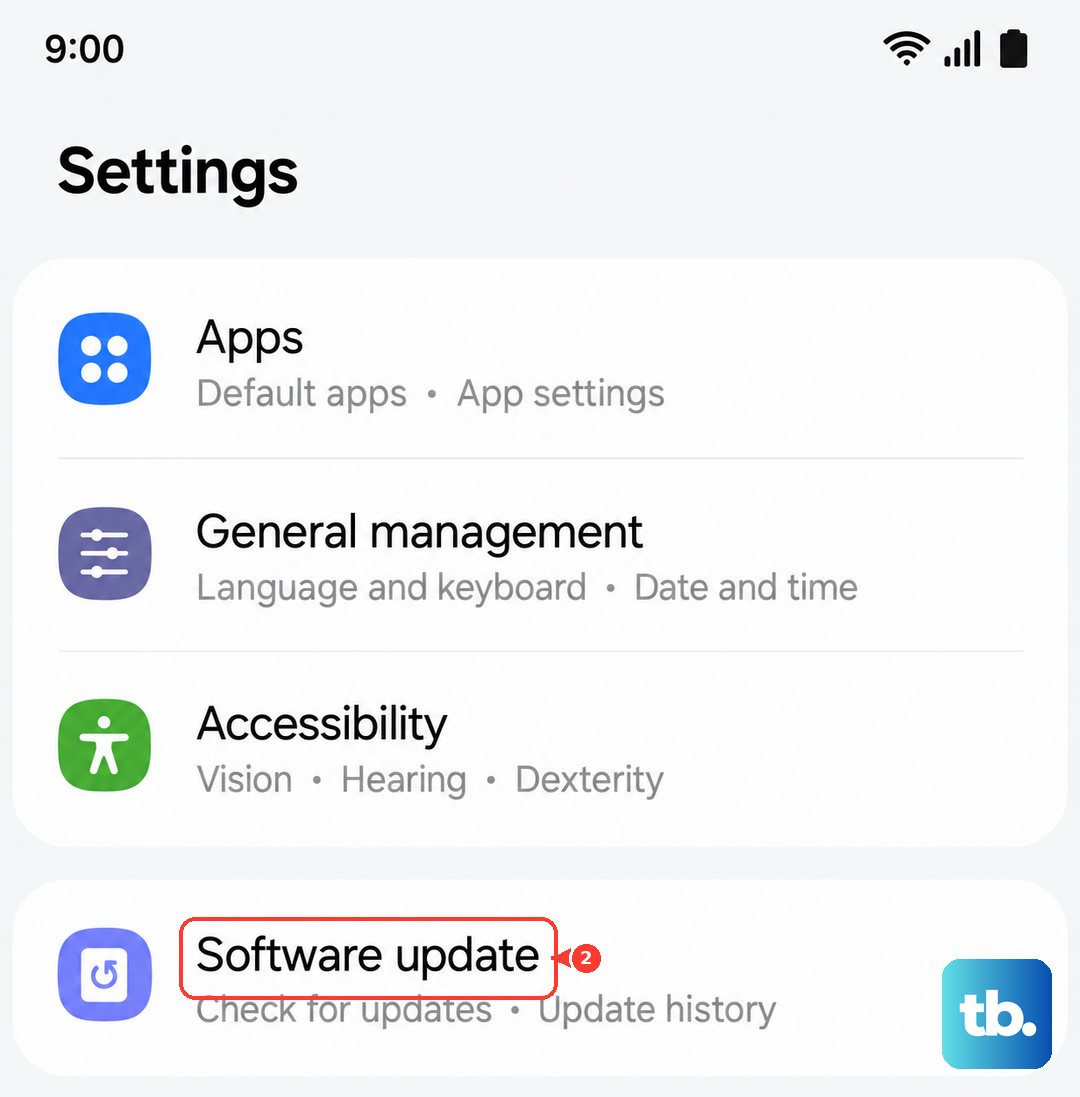
If an update is available, install it by following the on-screen instructions. You may need to tap Download now to begin. Once the update is finished, try making a call and ask someone to call you again to check whether the problem has cleared.
Clear the Cache and Data for the Phone App
Corrupted app data can cause the Phone app to malfunction. Go to Settings > Apps, then find and tap on 'Phone' in the list. Select Storage, then tap Clear cache first.
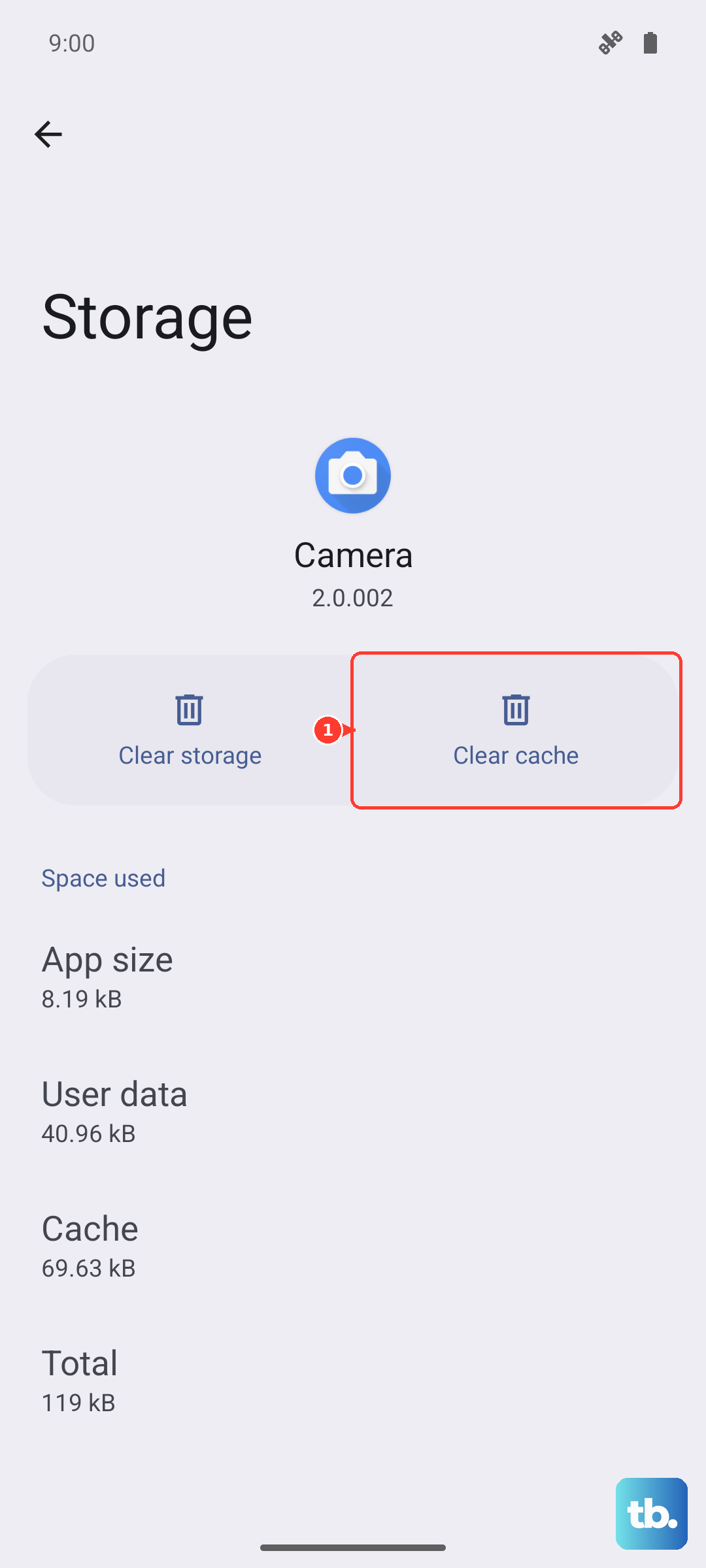
If the problem persists, go back and tap Clear data, then Delete to confirm. This resets the app, so review your call-blocking preferences afterwards. Open the Phone app, tap More options > Settings > Block numbers, and check whether Block calls from unknown numbers should be on or off.
Check for Carrier Services Updates
If you have a carrier app installed, check whether an update is available for it. Open the Galaxy Store and tap the menu icon, then go to Updates. Look through the available updates for any app supplied by your carrier, and install an update if one is listed.
Also, check the Google Play Store for updates. Go to your profile icon, tap Manage apps and device > Updates available. Install any updates for system-related apps.
Contact Your Mobile Carrier
If you've tried everything on the phone itself, the issue might be on your account. Call your carrier's support from another phone. Ask them to check for any outages in your area and to verify your line's provisioning.
Specifically, ask them to verify that your account is in good standing and your service is active, and to check your call-forwarding settings. If you recently changed carriers but kept the same phone, ask whether it needs to be reprogrammed for their service. They can also help test or replace your SIM.
Perform a Factory Reset
This is your last resort before considering a hardware issue. A factory reset will wipe your phone back to its out-of-the-box state. First, make absolutely sure everything is backed up to your Samsung Cloud or Google account.
Go to Settings > General management > Reset > Factory data reset. Review the information, tap Reset, enter your screen lock or Samsung account password if prompted, and tap Delete all. A network connection is needed to sign out of your Samsung account. After setup, test with a call before restoring your apps and data. If calls work, an app or setting may have been the cause.