
If your brand new Samsung Galaxy S26 Ultra is struggling with GPS, you're not the only one. Early software bugs on a fresh device like this can sometimes throw the location services out of whack. The good news is, it's almost always something you can fix yourself without needing a trip to a repair shop.
I'd start with the simplest trick in the book. Pull down the Quick Settings panel from the top of your screen and tap the Location icon to turn it off. Wait about ten seconds, then tap it again to turn it back on. This quick refresh of the GPS radio can clear up a temporary glitch instantly.
Force Restart Your S26 Ultra
When a simple toggle doesn't cut it, a force restart is your next best move. This is different from a standard restart and can clear deeper system caches that might be interfering. On the S26 Ultra, you press and hold the Volume Down button and the Side/Power button together for about ten seconds.
Keep holding until you see the Samsung logo appear on the screen, then let go. Your phone will boot up normally. This takes about 30 seconds total and often resolves quirky behavior in new devices.
Check Your Location Mode and Permissions
One UI 8.5 has several location modes, and if yours is set to save battery, your GPS accuracy will suffer. Open Settings and go to Location. At the top, make sure the master switch is on.
Then, tap on Location services and open Improve accuracy. For the best possible GPS performance, especially for navigation, turn on both Wi-Fi scanning and Bluetooth scanning. Combined with GPS satellites and mobile networks, these help pin down your location as accurately as possible.
While you're in Settings, it's also worth checking app permissions. Go to Settings > Apps, select your navigation app (like Google Maps or Waze), then tap Permissions. Ensure Location is set to "Allow all the time" or "Allow only while using the app" for it to work properly in the background.
Disable Any Power Saving Modes
All battery saving features, including the standard Power saving mode and the more aggressive Adaptive battery, can limit background processes like GPS. To rule this out, go to Settings > Battery and device care > Battery.
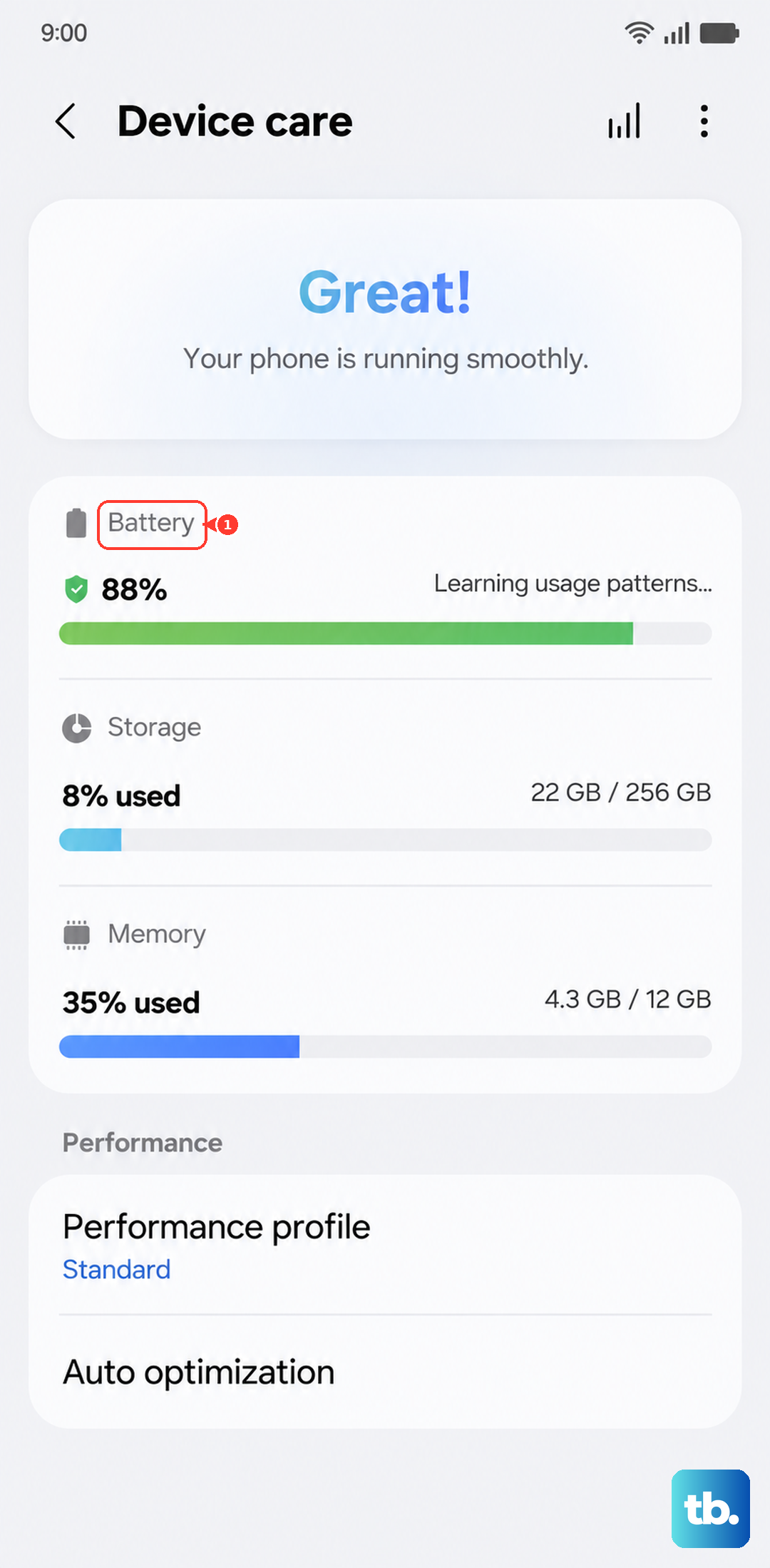
Make sure Power saving is turned off. You might also want to temporarily disable Adaptive battery from this menu to see if it makes a difference. Remember, the S26 Ultra's Battery Protection feature is turned off by default, and even in its Maximum mode it caps charging at 80% rather than 85%, but that doesn't affect GPS performance, only charging.
Update Your Apps and Software
Since the S26 Ultra is a 2026 model, early software updates are crucial. Samsung is likely pushing out patches to fix these initial bugs. Go to Settings > Software update and tap Download and install.
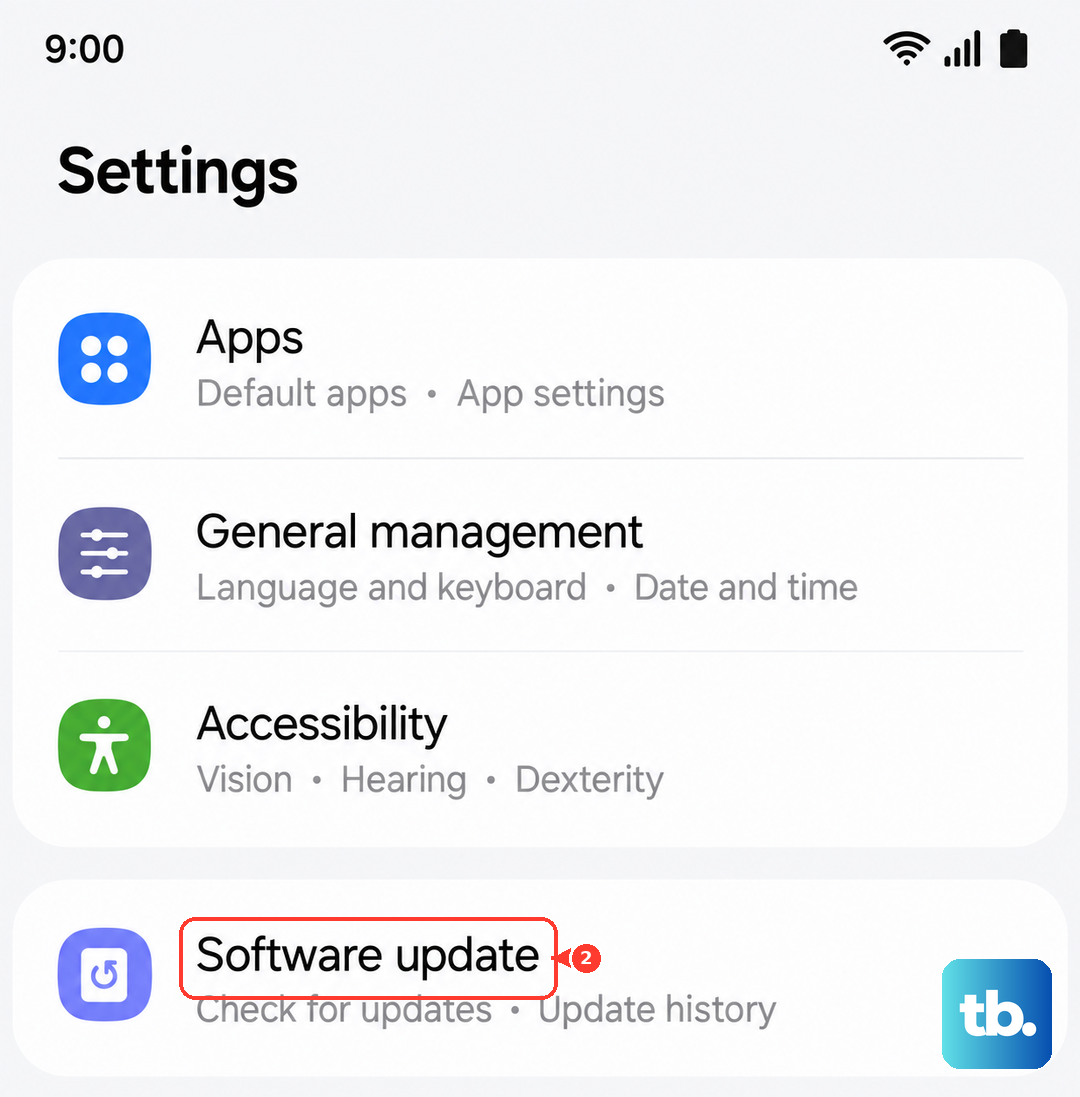
Also, head to the Galaxy Store and the Google Play Store to make sure all your apps, particularly Google Maps, Google Play Services, and Samsung's own apps, are updated. An outdated app can lose compatibility with the new Android 16 system.
Clear the App Cache and Data
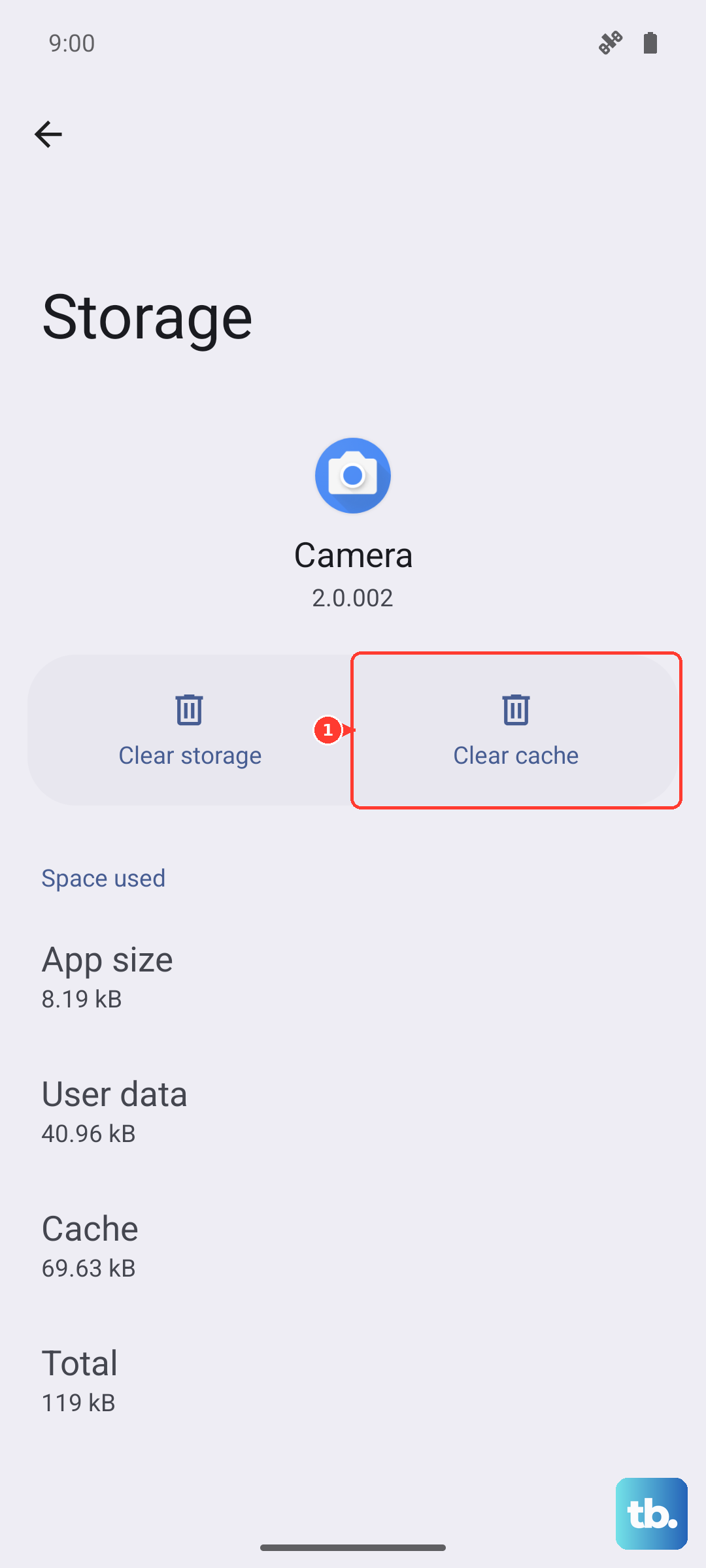
If a specific app is acting up, its stored data might be corrupted. Don't worry, clearing the cache is safe and won't delete your saved places. Go to Settings > Apps, find your navigation app, and select it.
Tap on Storage, then hit Clear cache. Try the app again. If the GPS is still broken, you can go back and tap Clear data. Just be aware this will reset the app to its default state, so you'll need to log back in and set preferences again.
Reset Your Network and Location Settings
This is a stronger step that resets all your Bluetooth, Wi-Fi, and mobile network connections along with location preferences. It won't delete your personal files or apps. Go to Settings > General management > Reset.
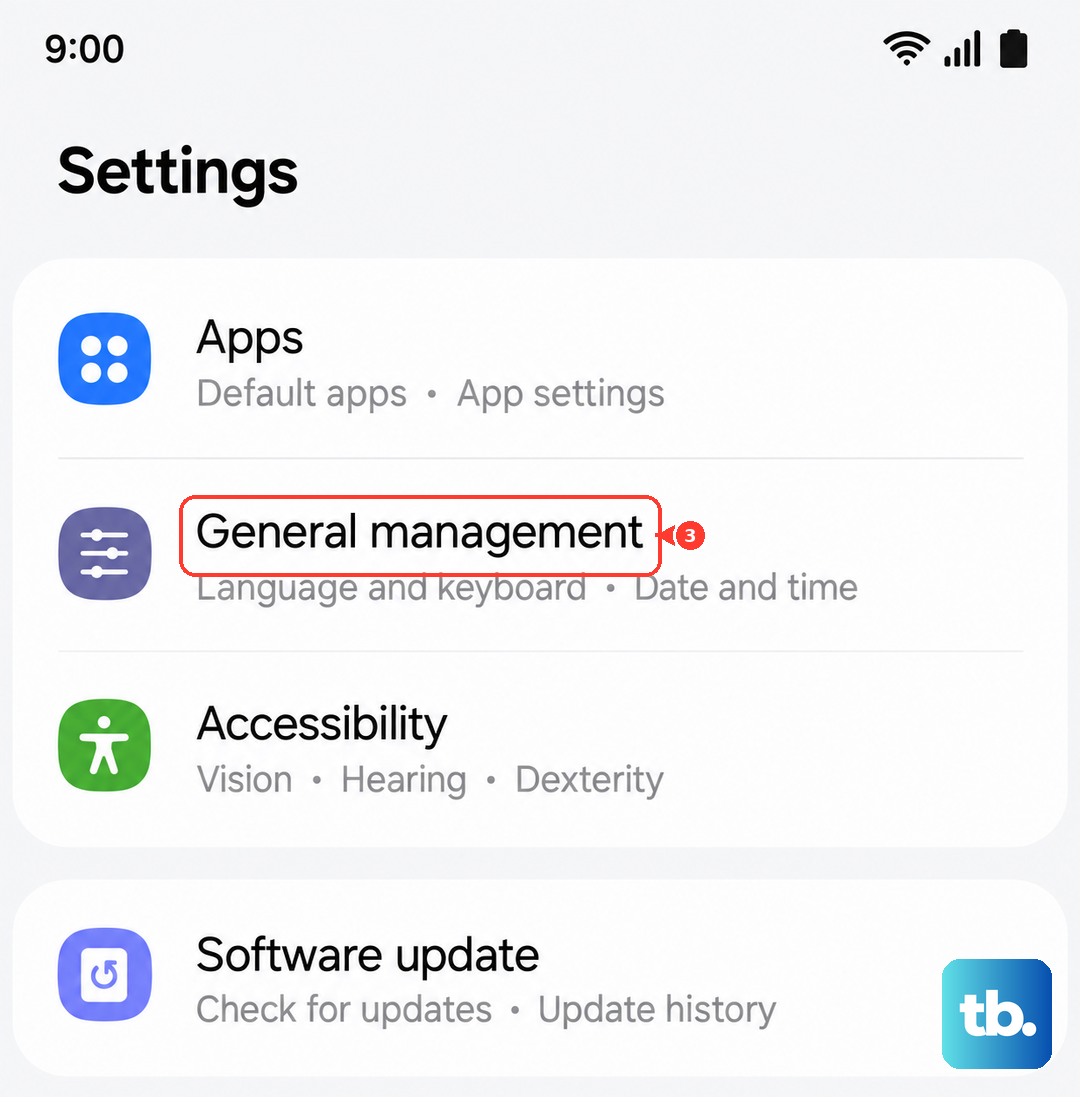
Select Reset network settings. You'll need to re-enter Wi-Fi passwords and re-pair Bluetooth devices afterward, but it can clear deep-seated configuration errors that affect GPS.
Test in Safe Mode
Safe Mode boots your phone with all third-party apps disabled. If GPS works perfectly here, you know a recently downloaded app is the culprit. To enter Safe Mode on the S26 Ultra, press and hold the Side/Power button until the power menu appears.
Then, tap and hold the Power off icon on the screen. After a moment, you'll see a prompt to reboot to Safe Mode. Tap it. Test your GPS with Google Maps. To exit, just restart your phone normally.
Check for Physical and Environmental Issues
GPS signals are line-of-sight to satellites. Using your phone inside a car with a metallic tint, in a dense urban canyon, or under heavy tree cover can block or weaken the signal. Try stepping outside to an open area.
Also, consider your phone case. Some rugged, metal, or very thick cases can interfere with the antenna. Try removing the case temporarily to see if your location lock improves. Keep the area around the S Pen slot clean too, as debris there can sometimes affect nearby antennas.
Use a GPS Diagnostic Tool
If you've tried everything and the GPS is still dead, it's time to check the hardware directly. Download a free app like "GPS Test" or "GPS Status & Toolbox" from the Play Store.
Open the app and go to its satellite view. Take the phone outside with a clear view of the sky. If the app shows your phone connecting to multiple satellites (you'll see signal strength bars) but your maps app still fails, it's likely a software or configuration issue. If the app shows zero satellites, even after several minutes outdoors, there could be a hardware problem with the antenna.