You tap and swipe, but your Galaxy S26 Ultra just sits there with a stuck image on the screen, ignoring every touch. A frozen flagship is unnerving, especially on a brand-new phone, but in most cases the cause is a software hiccup, a screen accessory, or even a charging warning rather than a broken device. The good news is that this is a standard Android phone running One UI 8.5 (based on Android 16), so the same recovery tools apply here as on any current Galaxy.
Below are the fixes worth trying, ordered from the quickest and safest to the more involved options. Start at the top and stop as soon as your screen comes back to life. The last steps, including a full reset, are there only if nothing earlier works.
Start by Clearing Whatever Is Touching the Display
Before you assume the phone itself is broken, check what is sitting on top of the screen. Samsung's guidance is to "Remove all non-Samsung certified screen protectors, cases, or any other accessory that may be touching the screen," since these can make the S26 Ultra's touchscreen feel unresponsive or laggy.
A poorly fitted protector or a thick case lip can press against the glass and confuse touch input. Peel off any non-certified screen protector and pop the phone out of its case, then try again. Also make sure your hands and the display are clean and dry, because moisture and grime can interfere with how the screen reads your taps.
Force a Reboot When the Screen Is Completely Stuck
If the display is frozen and will not respond to anything, a forced restart is the single most effective move. It clears whatever software state has locked up, and it does not erase any of your data.
- 1.Press and hold the Volume down and Power buttons for 7 to 10 seconds to perform a forced reboot or soft reset.
- 2.On models without a dedicated Power button, press and hold the Volume down button and the Side button for 7 to 10 seconds instead.
- 3.Keep holding both buttons until the screen goes black and the Samsung logo appears, then let go.
The phone will restart on its own from there. Wait for it to finish booting before you start using it again.
Improve Responsiveness With Touch Sensitivity
Sometimes the screen is not truly frozen, just slow to register your touches, which often happens when a screen protector sits between your finger and the glass. There is a setting designed exactly for this situation.
Go to Settings > Display and turn on the Touch sensitivity switch. This increases screen responsiveness on the Galaxy S26 Ultra, helping your taps and swipes register even through a protector. If you removed your protector earlier and want to put it back on, this is the toggle to enable afterward.
Free Up Memory and Run a Quick Optimization
A phone that is running low on storage or juggling too many background tasks can stutter, lag, or briefly lock up. Clearing that load often restores smooth behavior.
Open Settings > Device care (on some devices this reads "Battery and device care") and tap Optimize now. This closes background tasks and tidies up performance in one step. If your storage is nearly full, delete apps you no longer use and clear out old files, since a near-full phone is far more likely to freeze.
Update One UI to Patch Software Bugs
Outdated software can be behind repeated freezes, and Samsung delivers fixes over the air. Keeping the phone current is one of the most reliable long-term solutions.
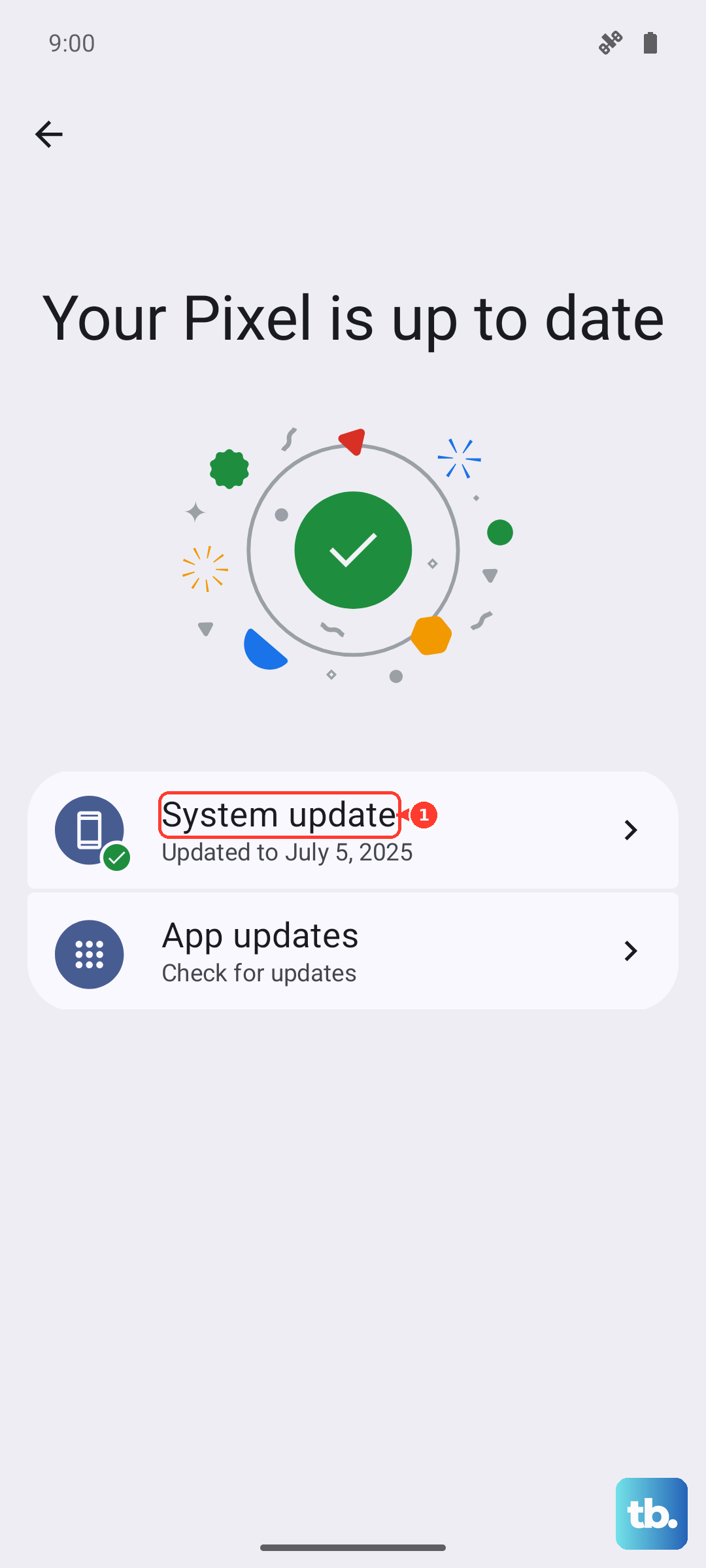
Go to Settings > Software update (it may appear as System update), then tap Check for updates or Download and install to get the newest One UI and Android update for your S26 Ultra. Charge the phone and keep it on Wi-Fi while the update downloads and installs, so it does not interrupt partway through.
Use Safe Mode to Catch a Misbehaving App
If the freezing started recently, a third-party app you installed or updated is a likely culprit. Safe mode temporarily disables all downloaded apps so you can confirm whether one of them is the problem.
- 1.Power the phone off completely.
- 2.Turn it on, and when the Samsung logo appears, press and hold the Volume down button.
- 3.If done correctly, "Safe mode" will display in the bottom-left corner of the screen.
If the phone runs smoothly in Safe mode, a downloaded app is causing the freezes. Uninstall the apps you most recently installed or updated, restarting after each one to see which removal fixes it. When you are done, exit Safe mode by restarting the phone normally, or by swiping down from the top, tapping the "Safe mode is on" notification, and then tapping Turn off.
When a Water-Drop Icon Is the Real Problem
Sometimes a phone that seems "dead" or frozen is simply refusing to charge because of the Moisture detected warning. The S26 Ultra has moisture detection on its USB-C port, and the water-drop icon can even appear in high humidity without any real water exposure, blocking charging until it clears.
Unplug the cable, then gently shake the device with the USB-C port facing down to release any moisture. Let it air-dry in a well-ventilated area, where water normally evaporates in about 1 to 2 hours. Once the phone is thoroughly dry you can also use wireless charging in the meantime. If the warning never clears, contact Samsung or visit a service center.
Erase and Start Fresh With a Factory Data Reset
If the phone keeps freezing no matter what you try, a factory data reset wipes corrupt data and returns the software to a clean state. This is a last resort because it erases everything, so treat it carefully.
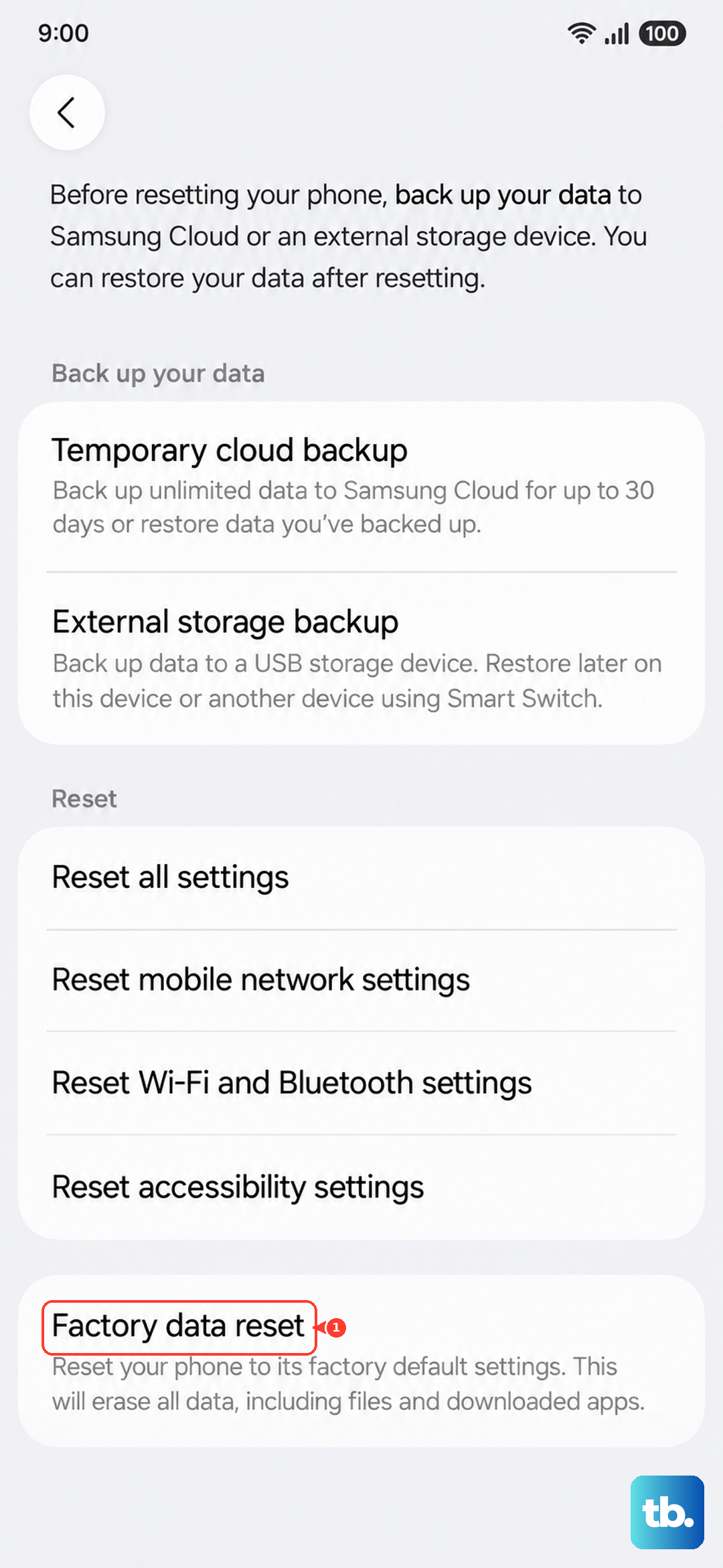
Back up your data first, since this step cannot be undone. Then follow the official procedure:
- 1.Go to Settings > General management > Reset > Factory data reset.
- 2.Review the information shown on screen.
- 3.Tap Reset, then tap Delete all.
- 4.Enter your security credentials or Samsung account password if you are prompted.
Be aware that a factory reset completely erases all data on the phone, including apps, settings, and personal files. As Samsung puts it, "Please save any information you need prior to the factory reset because your personal information may not be recovered." Make sure your backup is complete before you confirm.
Get Samsung to Check the Hardware
If the S26 Ultra still freezes even after a factory reset, the issue may be a hardware fault rather than software. At that point it is time to let a professional look at it.
Use the built-in Samsung Members app or the Samsung Support Center to request service, or visit a Samsung walk-in service center for repair. Keep in mind the box only includes a USB Type-C 3A charging cable and a SIM ejector tool, with the S Pen pre-installed in its slot, so if you are testing charging there is no travel adapter in the box to rule out.
Frequently Asked Questions
Will a force restart on the S26 Ultra delete my data?
No. Pressing and holding the Volume down and Power buttons (or Volume down and the Side button) for 7 to 10 seconds performs a forced reboot, which simply restarts the phone. It does not erase any apps, settings, or personal files.
Why does my S26 Ultra show a water-drop icon when it is not wet?
The phone's USB-C moisture detection can trigger the Moisture detected warning even in high humidity without real water exposure. Unplug it, shake it gently with the port facing down, and let it air-dry in a ventilated area for about 1 to 2 hours; you can use wireless charging once it is fully dry.
How do I know if a downloaded app is causing the freezing?
Boot into Safe mode by powering the phone off, turning it back on, and holding the Volume down button when the Samsung logo appears until "Safe mode" shows in the bottom-left corner. If the phone runs smoothly there, a third-party app is the cause, so uninstall recently added or updated apps one at a time.
Does a factory reset on the S26 Ultra erase everything?
Yes. A factory data reset completely erases all data on the phone, including apps, settings, and personal files, and your personal information may not be recoverable afterward. Back up everything you need before going to Settings > General management > Reset > Factory data reset.
What should I do if the phone keeps freezing after a reset?
If freezing continues even after a factory reset, it may be a hardware fault. Use the Samsung Members app or the Samsung Support Center to request service, or take the phone to a Samsung walk-in service center for repair.