Your Samsung Galaxy S26 Ultra is supposed to refill fast, climbing to 75% in around 30 minutes, yet the battery is creeping up at a frustrating trickle or refusing to show the "Super fast charging" message at all. With a 5,000 mAh cell and support for wired Super Fast Charging 3.0 up to 60W (plus Super Fast Wireless Charging up to 25W), this phone is built to gulp power quickly, so a slow fill almost always points to a setting, an accessory, or an environmental factor rather than a dead device. The single most common culprit is a hidden one. The S26 Ultra does not ship with a power adapter in the box, and the 60W speed only kicks in with a genuine 60W Super Fast Charger. Work through the fixes below in order, starting with the safest checks and ending with the official reset and support path.
Make sure fast charging is actually switched on
Before blaming hardware, confirm the feature is enabled, because fast and super fast charging can be toggled off in software. Open Settings > Battery and device care > Battery > More battery settings, then make sure 'Fast charging', 'Super fast charging', and (if you charge on a pad) 'Fast wireless charging' are turned on.
Samsung notes that the name of this menu may vary depending on the device model and software version, so if the wording looks slightly different, look for the closest match in the same screen. If any of these were off, turn them on, then disconnect and reconnect your charger to let the higher charging rate take effect.
The charger and cable are the most likely cause
This is the fix that catches the most people. The S26 Ultra needs a 60W Super Fast Charger to reach its full speed, and that charger is sold separately, not included in the box. Samsung's official guidance is to use only Samsung-approved chargers.
A regular or low-wattage adapter, a charge-only or damaged cable, or charging from a computer's USB port all deliver less power, which leaves you with slow charging or no fast charging at all. Check the following before anything else.
- 1.Use a genuine Samsung-approved 60W Super Fast Charger rather than a spare low-wattage adapter.
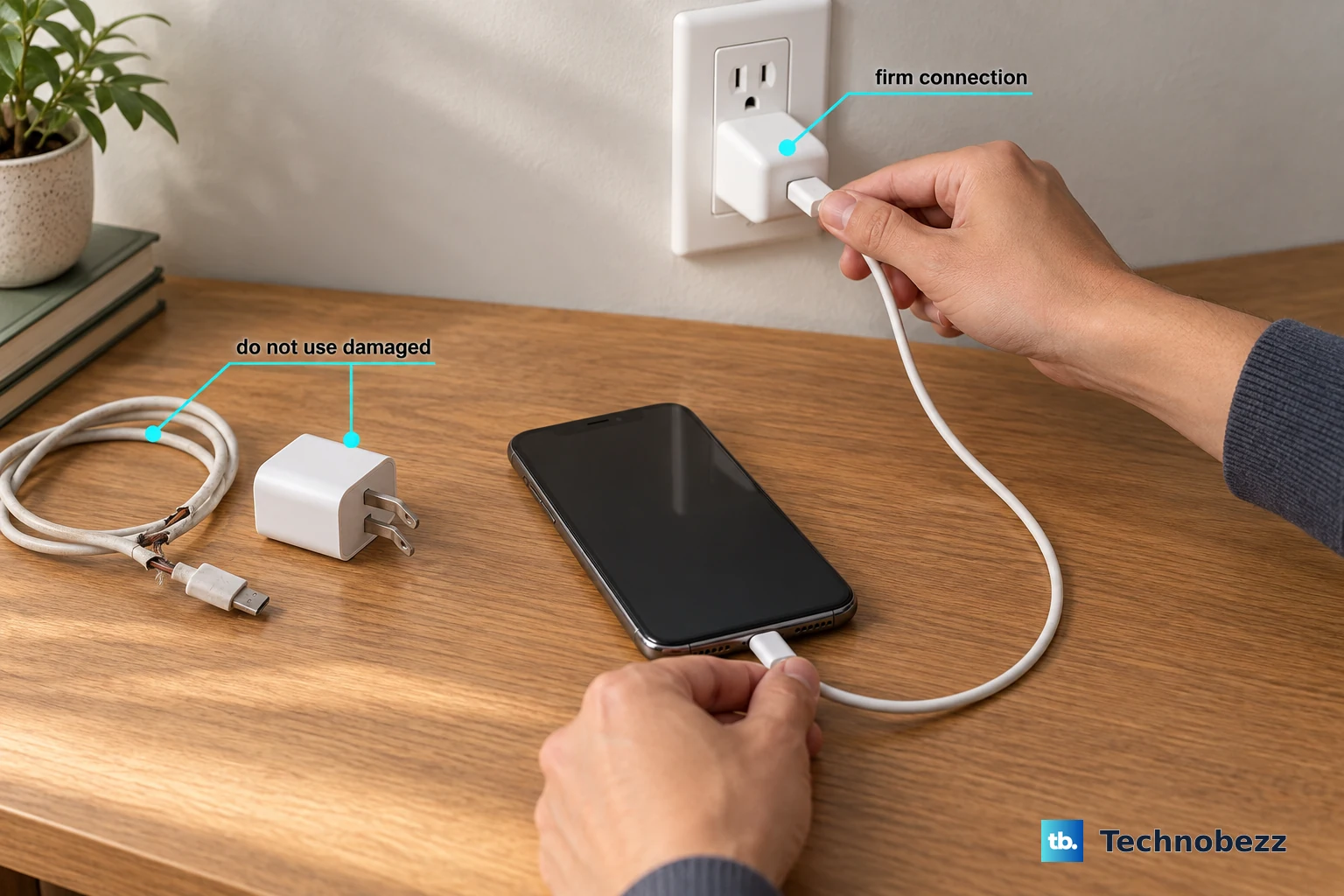
- 2.Swap in a known-good cable, since a charge-only or worn cable can quietly cap your speed.
- 3.Confirm the adapter is firmly seated in the wall socket, the cable is fully clicked into the adapter, and the other end is pushed all the way into the phone's port.
- 4.Avoid charging from a laptop or desktop USB port when you need speed, as those ports supply far less power.
Put the phone down while it powers up
Heavy use during charging can throttle your speed. Browsing the web, watching video, or playing games while charging raises the device's temperature, and the phone then lowers the charging rate to prevent overheating.
If you have been scrolling or gaming with the cable attached and noticed the fill slow to a crawl, that is the protection working as intended. Set the phone down, leave the screen off, and let it charge undisturbed to get the fastest results.
Temperature can quietly cap your charging speed
The S26 Ultra watches its own temperature and the environment around it. If the device or its surroundings are too hot or too cold, a built-in safeguard slows charging down or shuts it off entirely to protect the battery.
Samsung recommends charging at room temperature. Move the phone out of direct sunlight or a hot car, remove a thick case that traps heat, and let it cool to a comfortable temperature before plugging back in. A phone that has been sitting in the cold can also benefit from warming up to room temperature first.
Check the port and connector for debris
A USB-C port packed with pocket lint, dust, or grit can stop a cable from seating fully, and the phone may then refuse to charge at full speed for safety. Look into the port in good light and at the metal connector on your cable.
Gently remove any foreign object, and never force a tool into the port. If you can see that the connector pins are bent or altered, or the surface looks corroded, stop and seek service rather than trying to repair it yourself.
Clear a moisture or water-drop warning
If a water-drop icon appears and charging stops, your phone has detected moisture in the port and is blocking wired charging to protect itself.
To clear it, unplug the device from the charger, then wipe it with a dry cloth or gently shake it 5 to 10 times with the port facing downward to release any excess moisture. Place the phone on a cloth in a well-ventilated area, or dry it with a fan. Avoid excessive force or shaking, as that may cause damage to your phone.
Water naturally evaporates from the port in roughly 1 to 2 hours, so patience is part of the fix. As a temporary workaround while the port dries, you can charge the phone wirelessly on a compatible pad.
Force restart to clear a software glitch
A minor software hiccup can interfere with charging, and a hard reboot clears these without touching your data. Press and hold the Volume down button and the Side button (or Power button) simultaneously until the device turns off.
The screen will go black, and then the Samsung logo appears as the device reboots. Once it is back at the home screen, reconnect your charger and watch for the fast charging message to confirm normal behavior has returned.
Run the built-in battery diagnostics
Your S26 Ultra has a self-test tool that reports on battery and charging health, which is far more reliable than guesswork. Open the preinstalled Samsung Members app and go to the Support tab (the US version of the app also lists a Discover tab > Diagnostics).
Tap Phone diagnostics, then run Battery status or Test all. The result tells you whether the battery and charging are healthy and offers next steps. A weak or bad result is a strong signal that the issue is hardware and that you should move toward service.
Install any available software update
Charging-related software bugs are fixed through updates, so keeping the phone current is worth the few minutes it takes. Open Settings > Software update (labeled System updates on some phones) > Download and install, then follow the on-screen instructions.
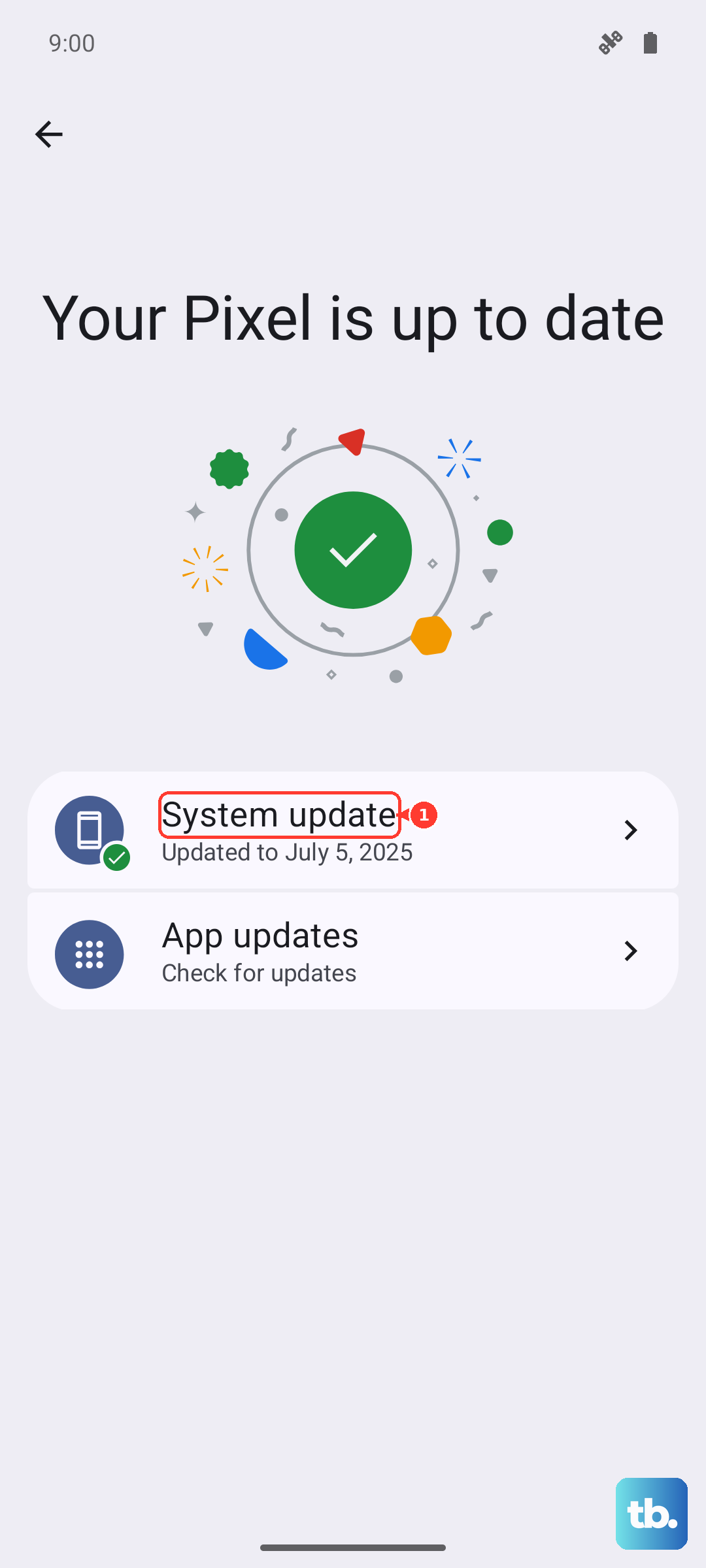
Keep the battery reasonably charged and use Wi-Fi during the download, or turn on the Wi-Fi auto-download switch so updates arrive automatically. To see what you are running now, check Settings > About phone > Software information.
Back up and factory reset as a last resort
If you have worked through every fix above and charging is still wrong, a factory data reset can clear a deeper software problem. This is a final step, not an early one, because of what it does to your data.
Warning. A factory data reset erases all data on the phone. Samsung's guidance is to back up first, for example to Samsung Cloud or a computer, because your personal information may not be recovered afterward.
Once your backup is complete, go to Settings > General management > Reset > Factory data reset > review the information > Reset > Delete all. Enter your lock credentials and Samsung account password if prompted.
If charging still fails after the reset, it points to a hardware fault. At that stage, contact Samsung support or book a repair through samsung.com/us/support.
Frequently Asked Questions
Why does my Galaxy S26 Ultra charge slowly even with a fast charger?
The most common reason is that the adapter is not a genuine 60W Super Fast Charger or the cable is charge-only or damaged. The phone needs a Samsung-approved 60W Super Fast Charger, which is sold separately, to reach its full speed. Using the phone while charging or charging in a hot environment will also slow the rate down to protect the battery.
Does the Galaxy S26 Ultra come with a charger in the box?
No. The power adapter is not included in the box. To get the rated wired speed you need to buy a 60W Super Fast Charger separately, and Samsung advises using only Samsung-approved chargers.
How fast should the S26 Ultra charge?
With a 60W Super Fast Charger, the Galaxy S26 Ultra can charge up to about 75% in around 30 minutes. It supports wired Super Fast Charging 3.0 up to 60W and Super Fast Wireless Charging up to 25W, with a 5,000 mAh battery.
What does the water-drop icon mean when I try to charge?
It means the phone has detected moisture in the charging port and has paused wired charging to protect itself. Unplug the device, wipe it dry or gently shake it with the port facing down, and let it air-dry. The port usually clears in about 1 to 2 hours, and you can charge wirelessly in the meantime.
How do I check whether my battery is healthy?
Use the Samsung Members app. Open it, go to the Support tab (or Discover tab > Diagnostics in the US version), tap Phone diagnostics, then run Battery status or Test all. The result shows whether the battery and charging are healthy and suggests next steps.