You raise your Galaxy S26 Ultra to capture a moment, tap the shutter, and the photo comes out soft, hazy, or just slightly off. For a phone built around a 200MP main camera and Space Zoom, blurry shots feel especially frustrating. The good news is that most focus and sharpness problems on the S26 Ultra come from something simple you can fix in seconds, and Samsung's own support guidance points to a clear order for working through them. Below are the fixes that actually solve blurry photos, starting with the easiest and safest and ending with the official reset and support path.
Start With the Lens and Anything Covering It
The single most common reason photos look blurry has nothing to do with software. Smudges, fingerprints, dust, or a case or lens protector that overhangs the rear cameras will soften every shot you take. Because you hold the phone constantly, the lens picks up oils from your fingers without you noticing.
According to the official guidance, you should clean the lens with a soft, dry, lint-free cloth, and make sure phone covers do not obstruct the camera lens edges. Remove any case or screen or lens protector that sits over the rear cameras, wipe the glass gently, and take another photo. If the haze clears, you are done.
Tell the Camera What to Focus On
The S26 Ultra focuses on a subject when you tap it on the screen, so a quick tap before you shoot is often all it takes to get a sharp result. Tap directly on the face, object, or detail you want crisp, then press the shutter.
It also helps to know what is normal. As the manufacturer notes, when the camera focuses on a single subject, the background area may appear out of focus normally. That softness behind your subject is expected behavior, not a fault, so a blurry background with a sharp subject means the camera is working correctly.
Switch Off Tracking Auto-Focus if It Keeps Locking On
The S26 Ultra includes Tracking auto-focus, which locks onto a moving subject and follows it. That is useful for action, but when the feature stays locked on the wrong thing, other shots can come out looking unfocused.
If your focus keeps drifting, turn the feature off.
- 1.Open the Camera app.
- 2.Tap the Settings icon.
- 3.Tap the switch next to Tracking auto-focus to turn it off.
With tracking disabled, the camera goes back to focusing on whatever you tap or whatever is centered in the frame.
Reset the Camera App to Its Defaults
If you have changed several camera options over time, a misconfigured setting could be hurting your results. Resetting the Camera app restores it to defaults and clears those changes in one step.
- 1.Open the Camera app.
- 2.Tap the Quick controls icon (the four dots).
- 3.Tap the Settings icon.
- 4.Under Additional settings, tap Reset settings to reset the Camera's settings.
This only affects the camera, so your photos, apps, and other phone settings stay exactly as they are.
Give the Phone a Normal Restart
A regular restart clears temporary glitches that can affect the camera, and it is a safe step that loses nothing. It is worth doing before any of the heavier fixes below.
To restart the S26 Ultra, press and hold the Volume down button and the Side button (or Power button) at the same time. After a few seconds, different power options will appear. Tap Restart, and then tap Restart again. Once the phone comes back up, open the Camera app and test a few shots.
Force a Reboot if the Camera App Freezes
Sometimes the camera app hangs, the preview locks up, or the whole phone stops responding. When a normal restart is not possible, a force restart cuts power and brings the phone back without touching your data.
Per the official instructions, press and hold the Volume down button and the Side button (or Power button) simultaneously until the device turns off and turns back on. The screen will turn black when the device turns off, and then the Samsung logo will appear. Let it boot fully, then try the camera again.
Rule Out a Downloaded App With Safe Mode
A misbehaving app you installed can interfere with the camera even when the built-in app looks fine. Safe mode temporarily loads the phone with only its original software, so you can tell whether a downloaded app is to blame.
- 1.Swipe down to open the Quick panel and tap the Power icon.
- 2.Touch and hold the Power off icon.
- 3.Tap Safe mode.
You will see Safe mode in the bottom-left corner when it is active. Open the camera and take a few photos. If they come out sharp in Safe mode, a downloaded app is the cause. Restart normally and remove apps you installed recently until the blur goes away.
Update the Software for Corner Sharpness at Zoom
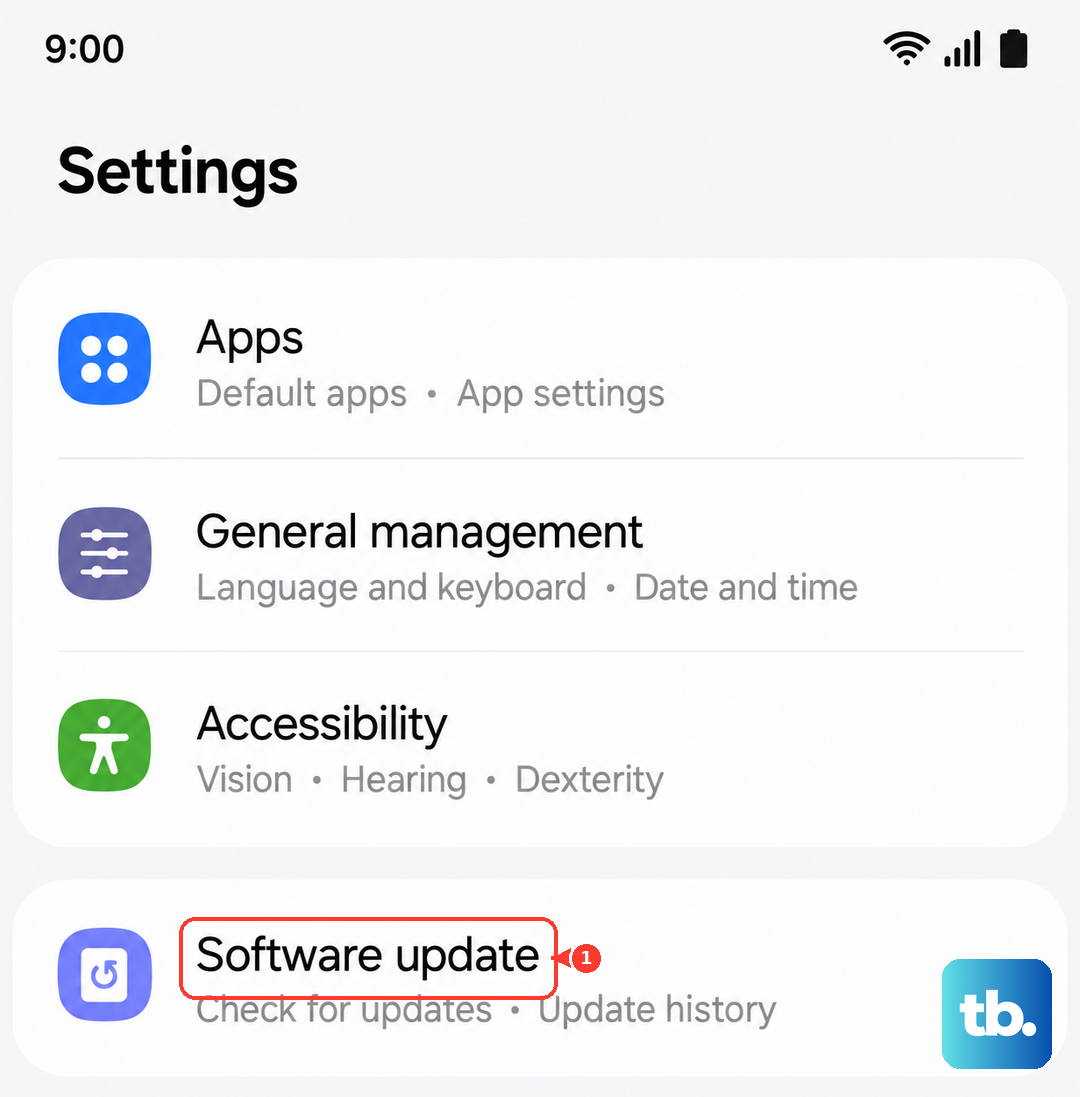
Samsung publishes an S26 Ultra-specific note that some users see slight corner blurriness when shooting at 3x zoom, and the official fix is a software update. So if you mainly notice softness at the corners while using 3x zoom, this is your step.
To check for an update, go to Settings, then Software update, then Download and install, then follow the on-screen instructions to install. Depending on your carrier, the button may instead read Check for software updates.
Clear a Moisture Warning Before You Rely on the Camera
If a water-drop or Moisture detected message has appeared on your phone, the device may not be operating normally, and humidity alone can trigger it even without obvious water contact. It is worth drying things out before you trust your shots again.
To clear it, unplug the device, gently wipe the USB port with a dry cloth, and shake the device gently with the port facing down to clear moisture. Let it air-dry in a ventilated spot, then restart. Once the warning is gone and the phone is dry, test the camera once more.
The Last Resort and When to Contact Samsung
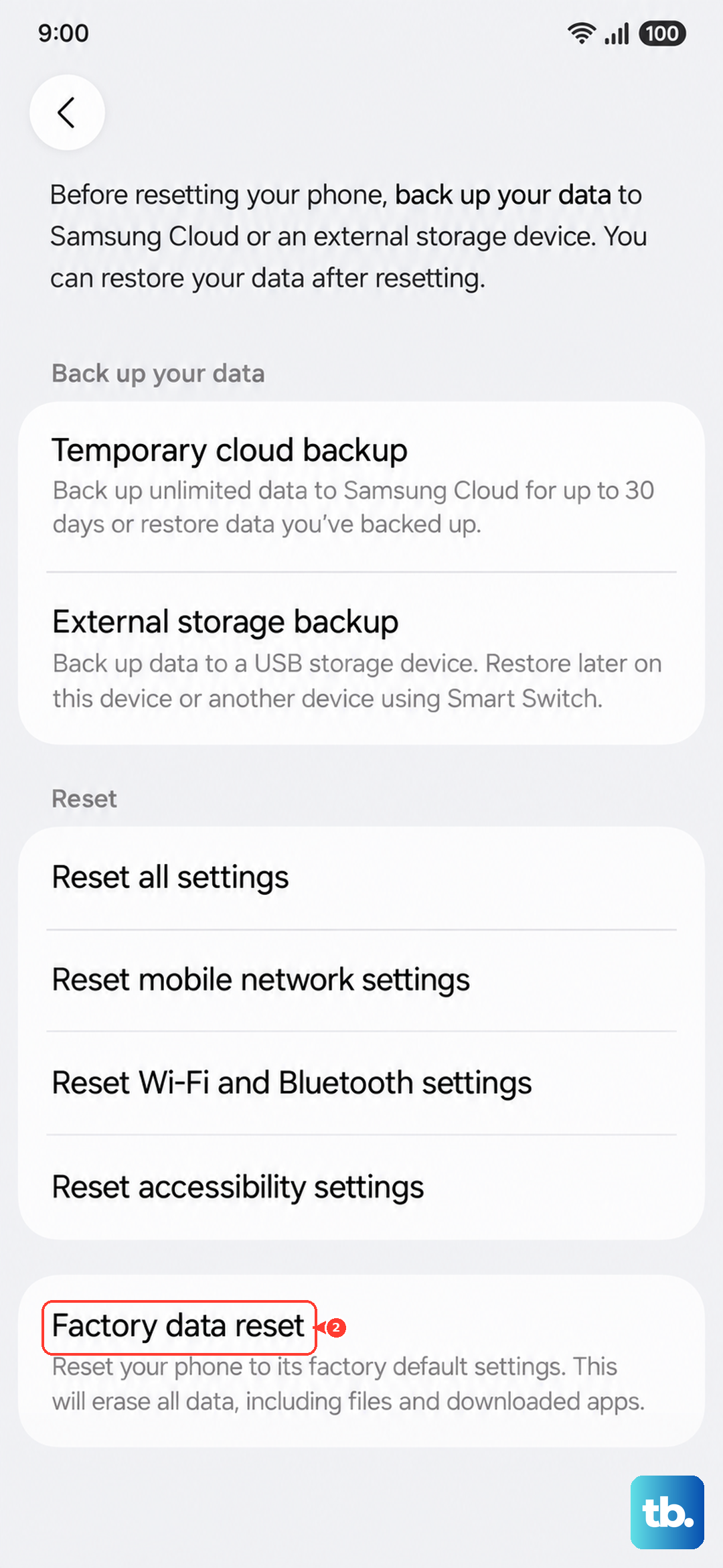
If photos are still blurry after everything above, a factory reset wipes the phone back to its original state and removes any deep software problem. This step erases your data, so treat it as a true last resort and back up first.
Before you begin, note Samsung's warning. Please save any information you need prior to the factory reset because your personal information may not be recovered. When you are ready, go to Settings, then General management, then Reset, then Factory data reset, review the information, tap Reset, then tap Delete all.
If the problem continues even after a reset, it may be a hardware issue rather than something you can fix at home. At that point, contact Samsung support, for example through Chat, so they can look at the device directly.
Frequently Asked Questions
Why are only the corners of my 3x zoom photos blurry?
Samsung has acknowledged this behavior on the Galaxy S26 Ultra. Some users see slight corner blurriness when shooting at 3x zoom, and the official fix is to keep the phone's software updated through Settings, then Software update.
Is it normal for my background to look out of focus?
Yes. When the camera focuses on a single subject, the background area may appear out of focus normally. A sharp subject with a soft background is expected behavior, not a defect, so it does not need a fix.
Will resetting the Camera app delete my photos?
No. Resetting settings under the Camera app's Additional settings only restores the camera options to their defaults. Your saved photos, apps, and other phone settings are not affected.
How do I know if a downloaded app is causing the blur?
Boot into Safe mode by opening the Quick panel, tapping the Power icon, touching and holding the Power off icon, then tapping Safe mode. If your photos look sharp in Safe mode, a downloaded app is the cause, so restart normally and remove recently installed apps.
What should I do if nothing fixes the blur?
Back up your data and perform a factory reset through Settings, then General management, then Reset, then Factory data reset, keeping in mind that personal information may not be recovered afterward. If photos are still blurry after the reset, contact Samsung support, since it may be a hardware issue.