
You pick up your Galaxy S26+ and realize you've missed a bunch of messages or alerts that never popped up. App notification settings and battery restrictions can cause missed alerts. The good news is, there are several fixes you can try yourself.
Restart Your Phone First
This is the universal first step for a reason. A simple restart clears out temporary system glitches that can stop notifications from coming through. Just hold the Side button and Volume down button together for a few seconds, then tap 'Restart'. If your phone is completely frozen, you'll need to force restart it instead.
Press and hold the Volume down button and the Side button together for more than 7 seconds until the phone restarts. Holding them only briefly opens the power menu instead. This forces a fresh boot and can help with temporary glitches.
Check Do Not Disturb and Focus Modes
Swipe down from the top right of your screen to open the Quick settings panel. Look for the 'Do Not Disturb' icon, it looks like a circle with a line through it, and make sure it's turned off. Also, check if any Modes or Routines are active by going to Settings > Modes and Routines.
An active 'Work' or 'Sleep' mode might be silencing notifications from specific apps without you realizing it. Tap on any active mode to review its notification settings and adjust them if needed.
Review App-Specific Notification Settings
This is where the problem usually lies. Android and One UI give you incredibly granular control, which sometimes means notifications get turned off accidentally. Open Settings > Notifications > App notifications.
Find the app that's not alerting you (like Messages, Gmail, or Instagram) and tap on it. Make sure 'Allow notifications' is turned on. To see individual categories, first go to Settings > Notifications > Advanced settings and turn on 'Manage notification categories for each app'. Return to App notifications, select the app, and tap 'Notification categories' if available. Open the category you need, turn on 'Allow notifications', and select 'Alert' if you want it to make a sound.
Allow Background Activity for the App
To save battery, Android can restrict what apps do in the background. If an app is put to sleep, some background functions may be unavailable and notifications may not arrive. Go to Settings > Apps, select the problematic app, and then tap Battery.
Make sure the background setting is not set to 'Restricted'. For most messaging and social apps, 'Optimized' is fine, but if you're missing critical alerts, you can set it to 'Unrestricted'. This allows the app to run more freely in the background.
Disable Adaptive Notifications
One UI has a feature called 'Adaptive notifications' that tries to learn which alerts are important to you and silence the rest. It doesn't always get it right. You can turn this off to see if it's the culprit.
Head to Settings > Notifications > Advanced settings and look for 'Adaptive notifications'. Toggle it off. While you're here, also check that 'Notification history' is turned on. This lets you see a log of recent alerts, which is useful for diagnosing what you missed.
Clear the App's Cache and Data
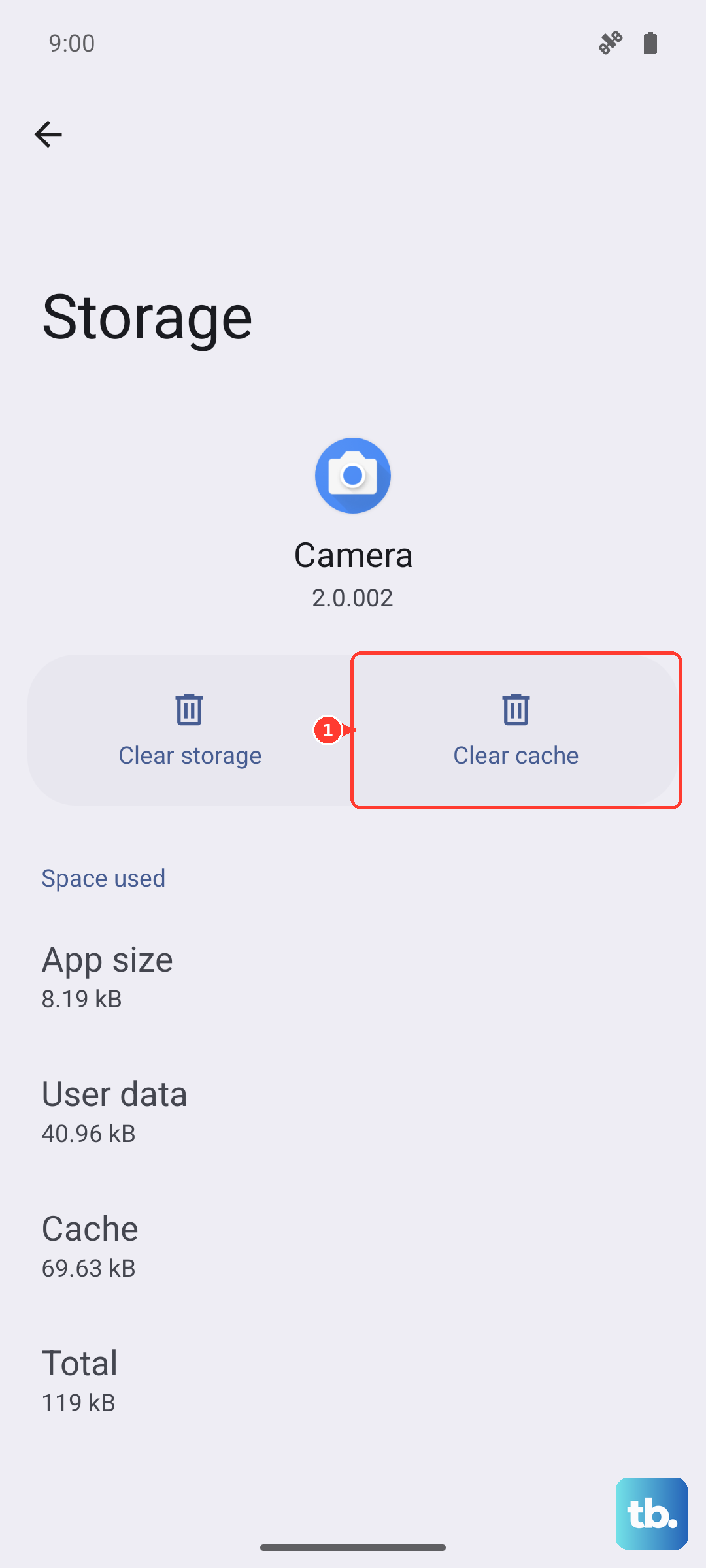
Corrupted temporary files can break an app's ability to fetch new alerts. Clearing the cache is safe and won't delete your personal info like login details or conversations. Go to Settings > Apps, select the app, then tap Storage.
Tap 'Clear cache' first. If that doesn't work, you can try 'Clear data', then tap 'Delete' to confirm. A warning: clearing data will reset the app to its default state, so you might lose in-app settings and need to log back in. It also removes data saved within the app.
Update the App and Your Phone's Software
An outdated app can have bugs that break notifications. Open the Galaxy Store or Google Play Store, go to your profile menu, and check for updates. Install any available updates for the app in question.
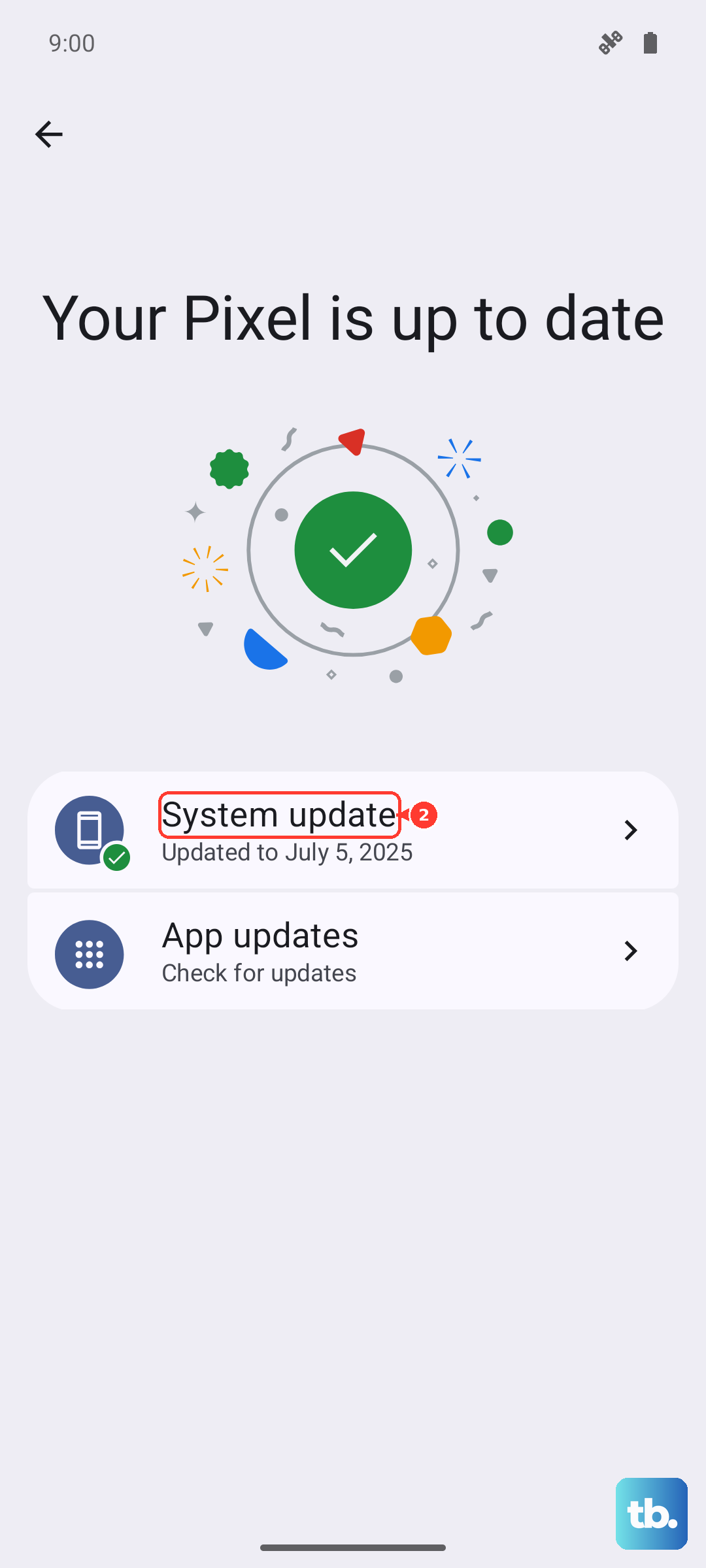
More importantly, check for a system update. Install any available update for your phone. Go to Settings > Software update > Check for updates. Depending on your carrier, the option may be called Download and install. I've seen a simple update resolve notification issues on several new Galaxy models.
Check for Power Saving Restrictions
When your battery gets low or you enable a power-saving mode, the system aggressively limits background activity. Go to Settings > Battery.
Tap 'Power saving' and turn it off to test whether notifications start arriving. The 'Limit apps and Home screen' option on this screen further restricts which apps you can use while Power saving is on. You can also swipe down from the top right to open the Quick settings panel and tap the illuminated 'Power saving' icon to turn it off.
Reset the App's Preferences
This is a broader fix than just clearing one app's data. It restores app preferences to their defaults, but it won't touch your personal files. It's a great troubleshooting step.
Navigate to Settings > Apps > Menu (three dots) > Reset app preferences. Tap 'Reset' on the confirmation pop-up. Afterward, check the affected app's notification settings again and test whether alerts arrive.
Verify the Notification Channel Isn't Muted
You can check a notification category even when the app isn't sending alerts. Open Settings > Notifications > App notifications, select the app, and tap 'Notification categories'. If categories are hidden, enable 'Manage notification categories for each app' under Notifications > Advanced settings first.
Open the category you want to hear, turn on 'Allow notifications', and select 'Alert'. Tap 'Sound' to choose a notification sound if the app offers that option. For banners, check Settings > Notifications > Notification pop-up style and choose 'Brief' or 'Detailed'.
Reset All System Settings
If you've tried everything else and notifications are still broken, this is your nuclear option before a factory reset. It restores settings to their defaults while keeping security and language settings, accounts, personal data, and settings for downloaded apps. Your photos, messages, and apps will remain untouched.
Go to Settings > General management > Reset > Reset all settings. Tap 'Reset settings', enter your PIN if prompted, and tap 'Reset'. After the phone reboots, review your preferences and test notifications again; this may help with settings-related problems.