That "Unfortunately, the keyboard has stopped" pop-up on your Galaxy S26+ can really kill your texting flow. It's a common hiccup, especially with new devices like the S26+ running the latest One UI 8.5. The good news is you can almost always fix it yourself without losing any data.
Force Stop and Restart the Keyboard
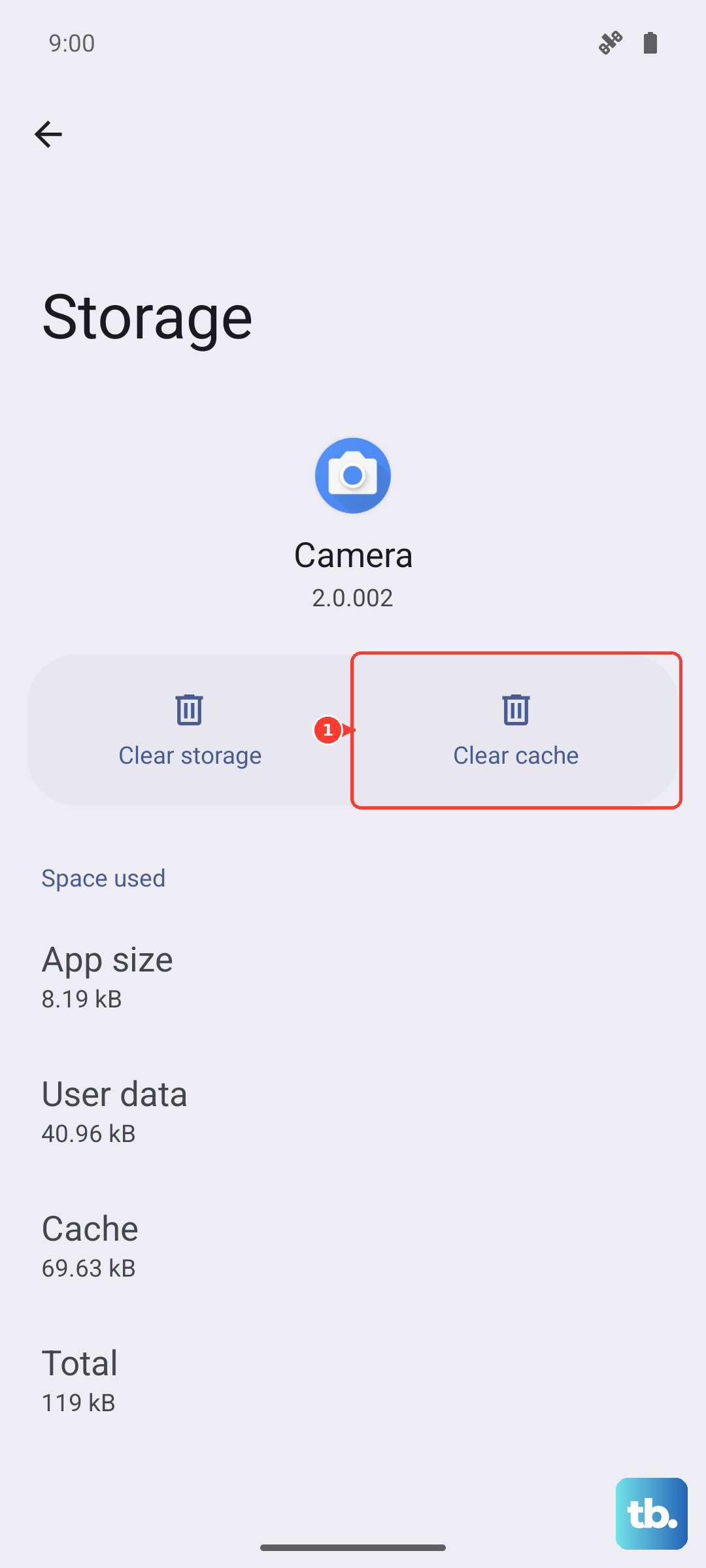
This is the quickest fix and often works immediately. It just clears the app from memory and starts it fresh. Head into your phone's Settings, then tap on Apps. You might need to tap "See all apps" or the three-dot menu to show system apps.
Find "Samsung Keyboard" in the list and tap on it. On the app info screen, tap the "Force stop" button. Confirm if prompted, then back out and try opening your keyboard in a message or search bar. If you're using Gboard or SwiftKey, look for that specific app instead.
Restart Your Galaxy S26+
If a simple app restart didn't do it, a full phone reboot is the next logical step. This clears out any temporary system glitches that might be interfering. Just press and hold the Side key and Volume Down button together for about ten seconds until you see the Samsung logo.
Wait for the phone to fully boot back up. This process takes less than a minute on the S26+. Once you're back at your home screen, try the keyboard again.
Clear the Keyboard's Cache and Data
Corrupted temporary files can cause the keyboard to crash. Clearing the cache is safe and won't delete your personal dictionaries or saved text. If that doesn't work, clearing the data resets the keyboard to its factory settings, which means you'll lose custom settings like your saved words.
Go back to Settings > Apps, find Samsung Keyboard, and tap "Storage." Tap "Clear cache" first and test the keyboard. If it's still broken, come back here and tap "Clear data." Confirm the action. You'll need to go through the keyboard's initial setup screen again when you next try to type.
Update Your Apps and Software
Since the S26+ is a new 2026 device, early software bugs are possible. Samsung and Google release updates to squash these bugs. First, check for a keyboard update in the Google Play Store by searching for "Samsung Keyboard."
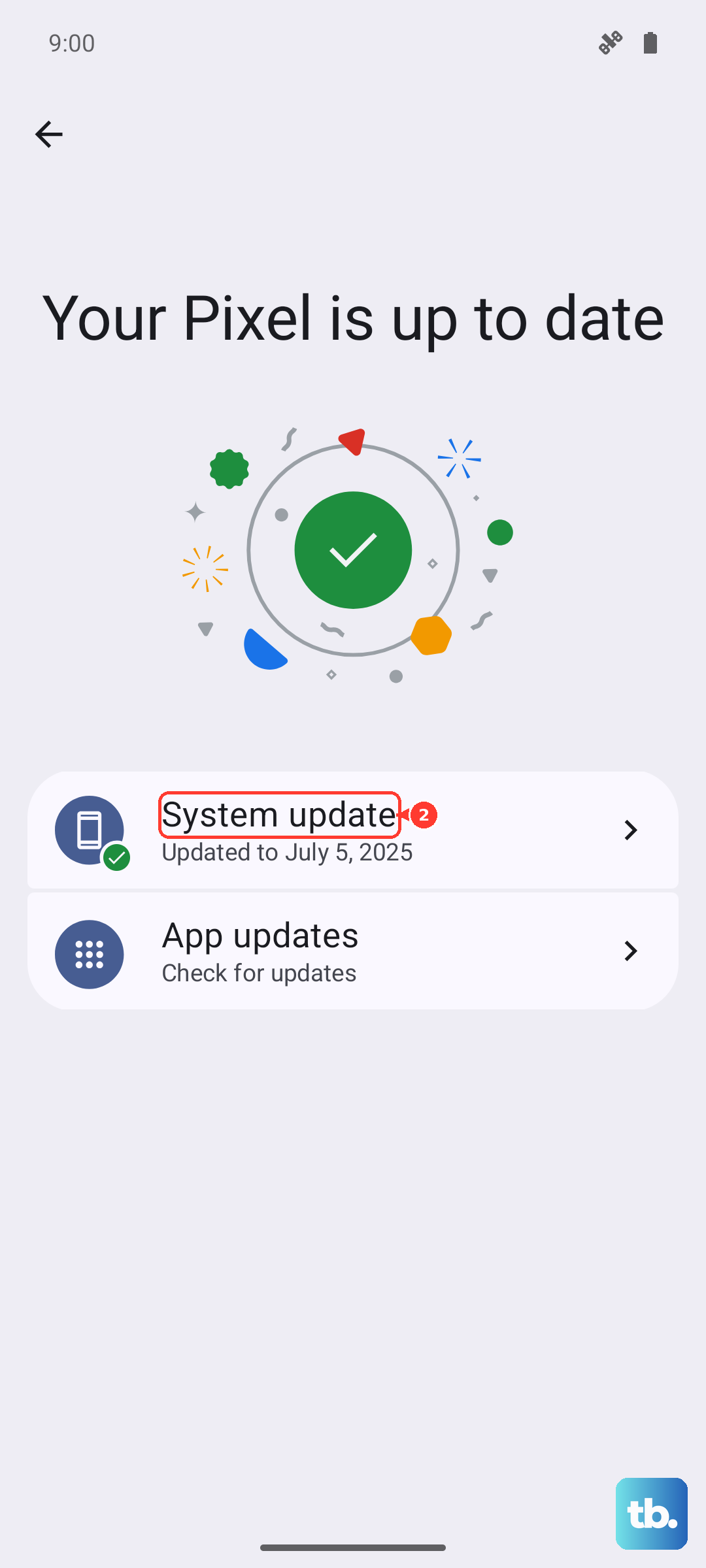
More importantly, check for a full system update. Go to Settings > Software update and tap "Download and install." Installing the latest One UI 8.5 patch can resolve a ton of minor issues, including keyboard crashes.
Boot Into Safe Mode
If the keyboard works fine in Safe Mode, you know a third-party app you installed is causing the conflict. To enter Safe Mode on the S26+, press and hold the Side/Power button until the power menu appears.
Tap and hold the "Power off" option on your screen. You'll get a prompt to reboot to Safe Mode; tap "OK." Your phone will restart with "Safe mode" in the bottom corner. Test the keyboard here. If it works, restart normally to exit Safe Mode and start uninstalling recently added apps one by one to find the culprit.
Reset All Settings
This is a more thorough step that resets all your system settings, like Wi-Fi passwords, Bluetooth connections, and display preferences, back to factory defaults. Your personal data, photos, and apps remain untouched. It can fix weird configuration conflicts that cause apps to misbehave.
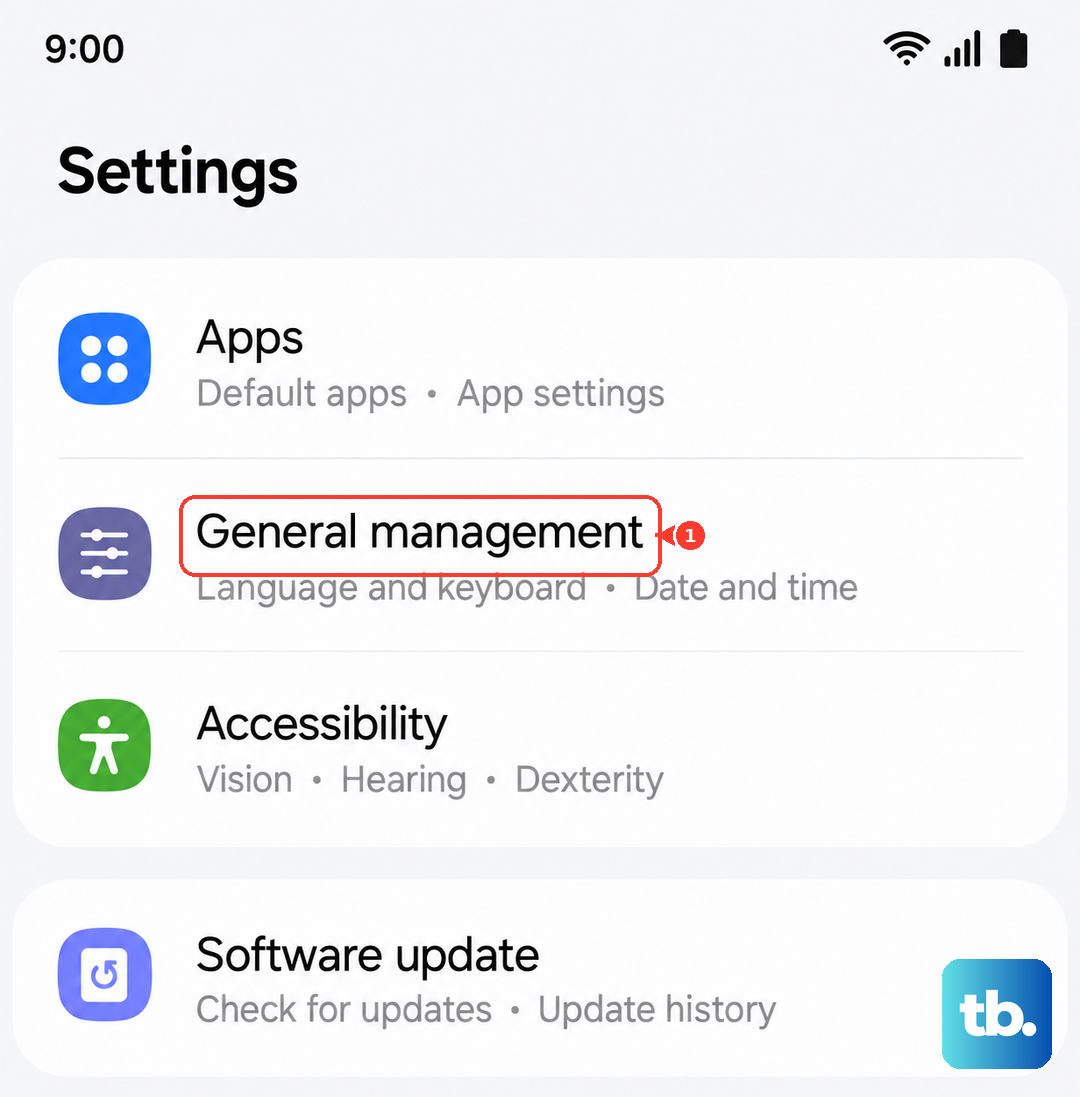
Go to Settings > General management > Reset. Tap "Reset all settings" and enter your PIN if asked. Confirm the reset. Your phone will reboot and you'll have to reconfigure your preferences, but it often clears up persistent software issues.
Try a Different Keyboard App
While you're troubleshooting the Samsung Keyboard, installing a different one gives you a working keyboard right away. Open the Play Store and install Gboard (Google's keyboard) or SwiftKey. Once installed, a prompt will ask which keyboard you want to use.
You can set the new keyboard as default and use it indefinitely, or just use it while you sort out the problem with your default one. To switch back later, go to Settings > General management > Keyboard list and default.
Check for Dictionary App Issues
The dictionary service that provides spell check and predictions can sometimes cause the main keyboard to crash. You can try clearing its data as well. Go to Settings > Apps, show system apps, and look for "Dictionary."
Tap on it, go to Storage, and hit "Clear data." This will reset your learned words and spelling corrections, but it can break a problematic link between the dictionary and the keyboard.
Perform a Factory Reset (Last Resort)
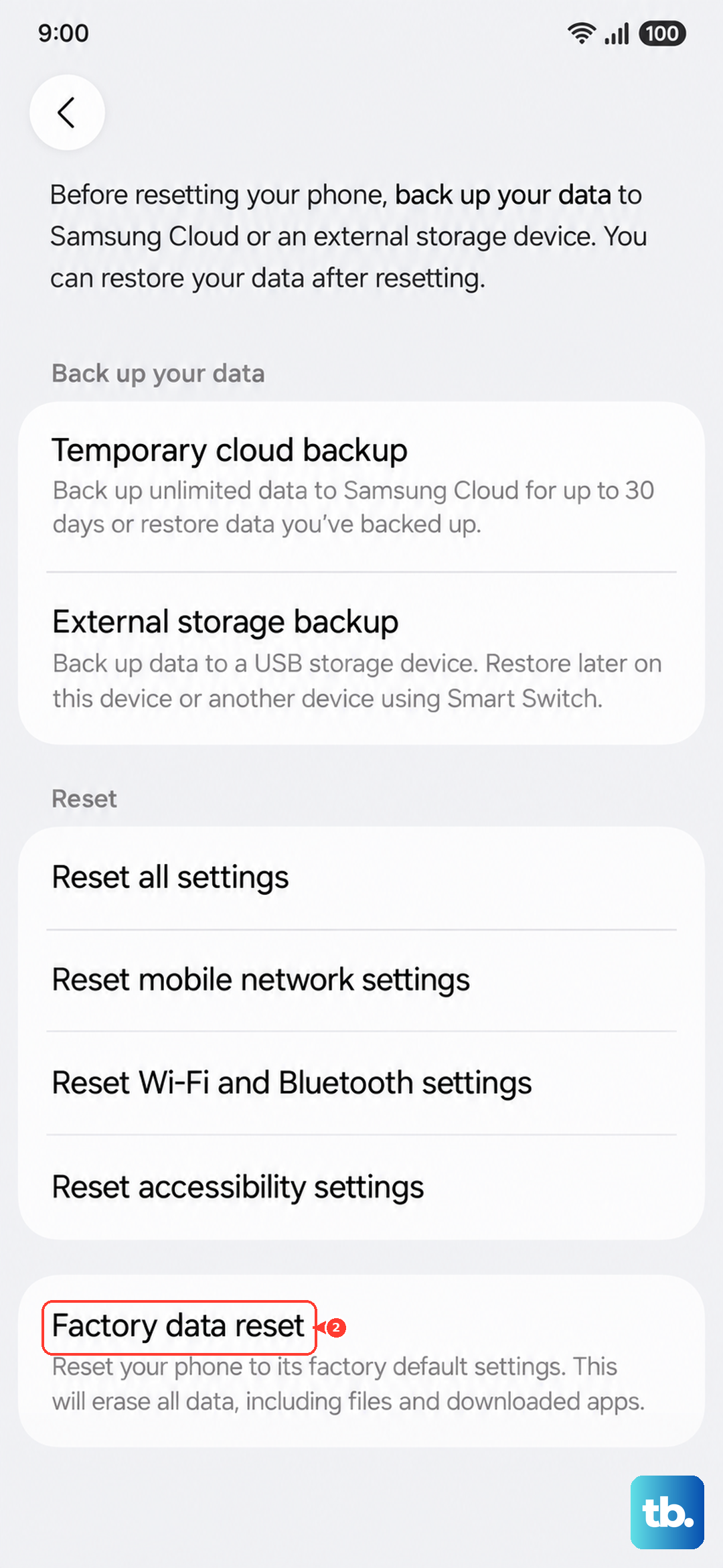
If absolutely nothing else has worked, a factory reset will wipe the phone back to its original out-of-the-box state. This will delete all your apps, data, and settings, so you must back up everything important to Samsung Cloud or a computer first.
With your data backed up, go to Settings > General management > Reset > Factory data reset. Tap "Reset" and confirm. After the phone erases itself and restarts, set it up as new and test the keyboard immediately before restoring your backup, to see if the problem is truly gone.