
When your Samsung Galaxy S26 starts restarting on its own, it can feel like you're stuck in a loop. A downloaded app or a software issue may be the cause. Before you worry about hardware, there are several straightforward fixes you can try right now.
I'd start with a force restart. It's the quickest way to clear out any temporary glitch that's causing the phone to reboot. Press and hold the Volume down button and the Side button together for more than 7 seconds until the phone restarts, then let go.
This doesn't erase any of your data, it just gives the system a clean boot. If the phone was stuck mid-crash, this often breaks the cycle.
Check for a Software Update
Software updates can improve stability and fix minor bugs. An update could directly address the restarting issue. Go to Settings > Software update and tap Check for updates. Depending on your software and carrier, the option may be Download and install, Check for system updates, or Check for software updates. Follow the on-screen instructions.
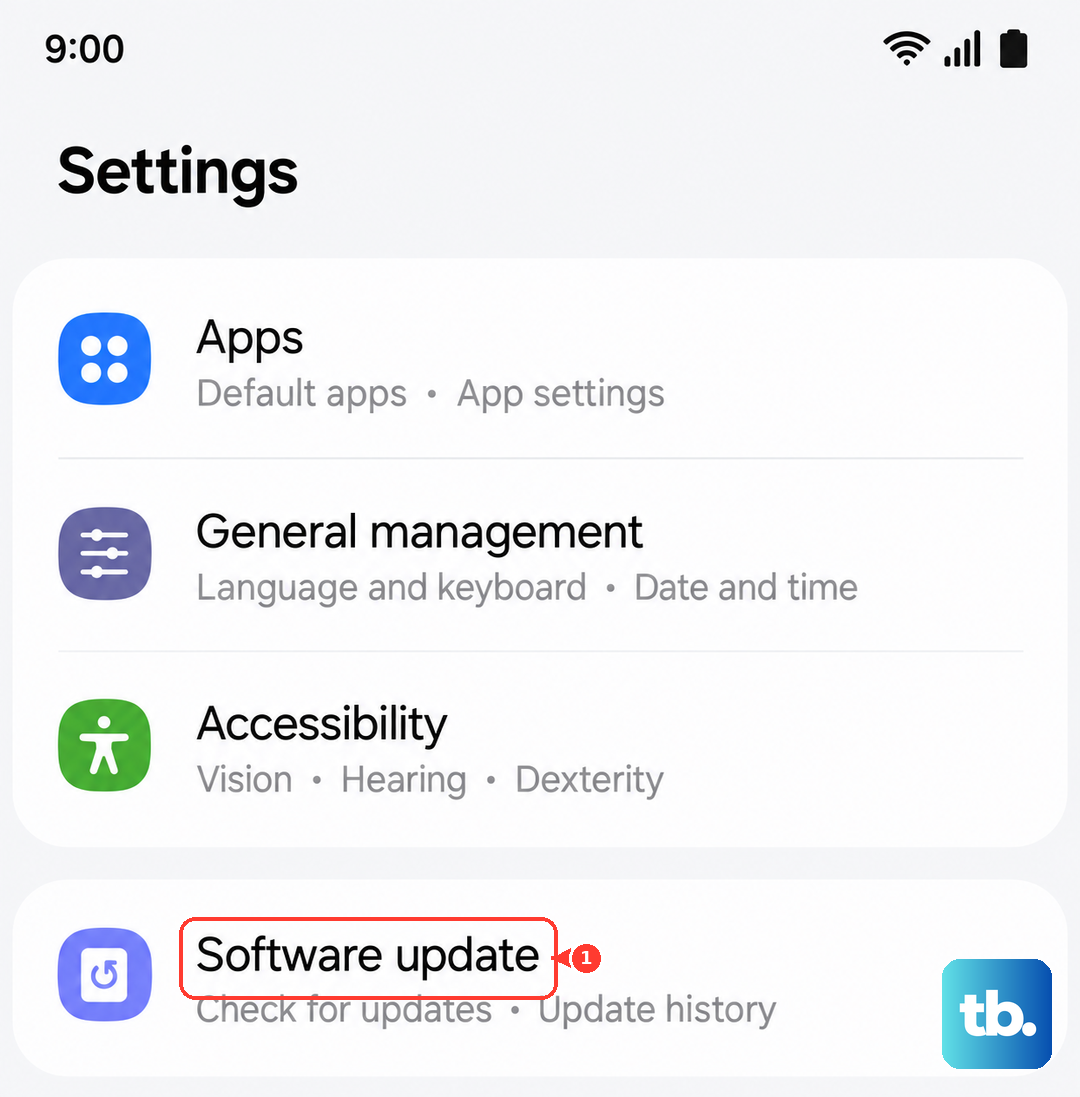
Make sure your phone is connected to Wi-Fi and has enough charge to complete the update. It's a good habit to check for updates weekly during the first few months of a new phone's life.
Boot Into Safe Mode
If the force restart didn't help, the next step is to see if a third-party app is the troublemaker. Booting into Safe Mode temporarily disables downloaded apps. On the Galaxy S26, open the power menu by pressing and holding the Side button and Volume down button together for a few seconds, or swipe down from the top right and tap the Power icon.
Then, tap and hold the "Power off" option on your screen. You'll see a prompt to reboot into Safe Mode. Tap it. If your phone runs smoothly in Safe Mode without any random restarts, you've confirmed an app is the cause.
You'll need to restart normally to exit Safe Mode. Then, the detective work begins to find the problematic app.
Identify and Remove Problematic Apps
Think about any apps you installed right before the restarting began. Uninstall the most recent ones first. Go to Settings > Apps, select the suspicious app, and tap Uninstall.
If you can't pinpoint it, you might need to uninstall apps in batches, testing the phone's stability after each batch. Pay special attention to apps that run in the background constantly, like certain social media, weather, or battery optimizer apps.
Clear App Cache and Memory
Corrupted temporary files can cause instability, and clearing them doesn't delete your personal data. To clear one app's cache, go to Settings > Apps, select the app, tap Storage, then tap Clear cache. Start with any app that freezes or crashes right before the phone restarts.
Next, open Settings > Device care. If Optimize now appears, tap it to close background apps and clear unneeded items from memory. You can also tap Memory, then Clean now.
The recovery menu's "Wipe cache partition" option may not appear on the Galaxy S26, so use the steps above instead.
Review Your Charging Setup
It might seem unrelated, but charging problems can make a reboot loop harder to diagnose. The regular Galaxy S26 supports wired charging up to 25W; 60W Super Fast Charging 3.0 applies to the Galaxy S26 Ultra. Use a charger and cable that match your model.
Try using a Samsung-approved charger and cable that match your model. The Galaxy S26 power adapter is sold separately, but a USB Type-C charging cable is included in the box. Also, check the USB-C port for any lint or debris. If a moisture warning appears, unplug the charger. Charging is blocked when moisture is detected in the charging port to help prevent corrosion.
Check Battery and Charging Settings
Head to Settings > Battery. Look for any unusual warnings here, then tap Battery protection if you want to review charging-limit behavior.
Review Battery protection rather than assuming a fixed 85% cap. The options are Basic, Maximum, and Adaptive: Basic stops at 100% and resumes at 95%, Maximum stops at the charging level you set, and Adaptive can stop at 80% and switch to Basic before you wake up.
Reset All Settings
If an app isn't the culprit, a misconfigured system setting might be. Resetting all settings restores settings to their defaults while keeping security and language settings, accounts, personal data, and settings for downloaded apps.
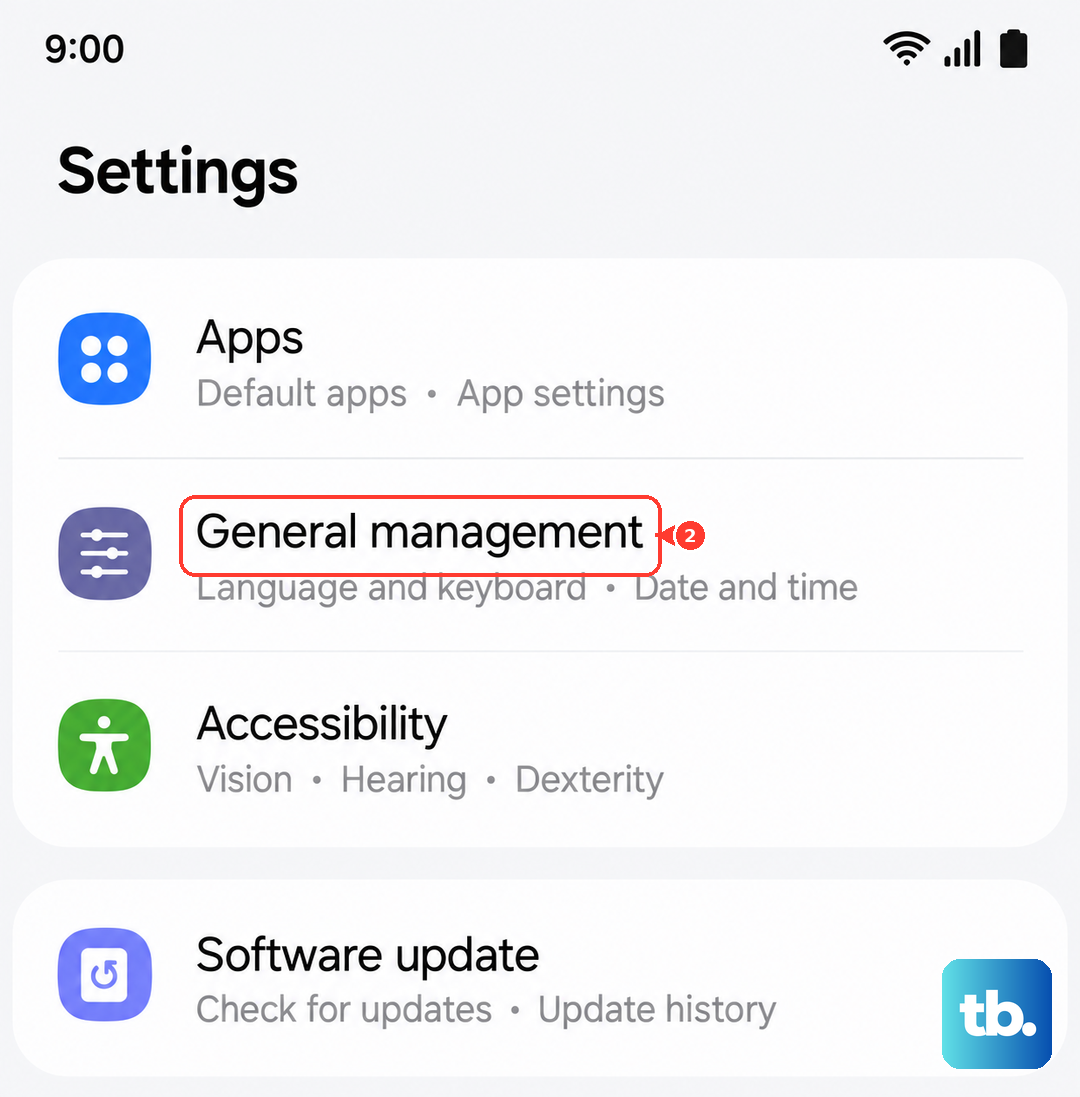
Go to Settings > General management > Reset > Reset all settings. Tap Reset settings, enter your PIN or password if asked, then tap Reset. After the phone reboots, check whether the restarting issue continues.
Perform a Factory Reset
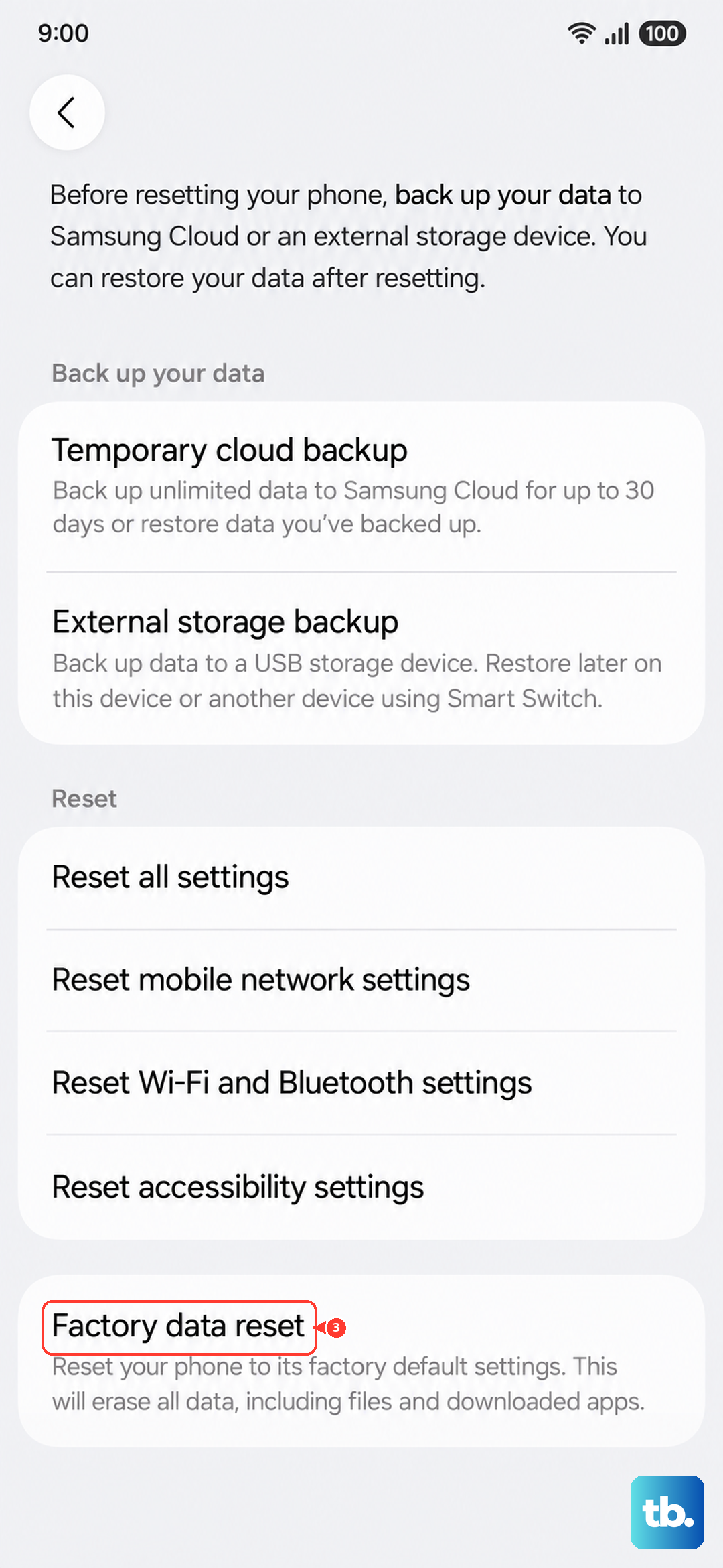
This is your last resort before considering a hardware issue. A factory reset will erase everything on your phone and return it to its out-of-the-box state. It's crucial to back up your data first using Samsung Cloud or by transferring files to a computer.
Once backed up, go to Settings > General management > Reset > Factory data reset. Review the information and tap "Reset," then enter your screen lock and Samsung account password if asked. Tap "Delete all." A network connection is needed to sign out of your Samsung account. The phone will erase itself and reboot. If the restarting problem persists on a completely clean phone, a hardware issue may be the cause.
At that point, check your warranty coverage and proof of purchase. You would need to contact Samsung Support for further diagnosis and potential repair or replacement. The issue could be related to the motherboard, memory, or another internal component that needs professional attention.