
Seeing "Call Failed" or having your calls drop unexpectedly on your new Samsung Galaxy S26 can be a real headache. This usually happens when your phone loses its proper connection to the cellular network. Since the S26 runs the brand new One UI 8.5, some early software bugs could also be at play, along with the usual suspects like weak signal or incorrect settings.
Let's run through the most effective fixes, starting with the quickest ones you can try right now.
Toggle Airplane Mode
The fastest way to reset your cellular connection is to use Airplane Mode. This clears out any temporary network glitches that might be preventing your calls from going through. Swipe down twice from the top of your screen to open the full Quick Settings panel.
Tap the Airplane Mode icon to turn it on. Wait about 10 seconds, then tap it again to turn it off. Your phone will reconnect to the network, and you can try your call again.
Check Your Signal Strength
Weak cellular signal is the single most common reason for call failures. Look at the signal bars in the top-right corner of your S26's screen. If you only have one or two bars, try moving to a different location.
Sometimes just going near a window or stepping outside can make a big difference. If you see an "X" or "No Service" icon, the network issue is definitely signal-related.
Perform a Force Restart
A simple force restart can clear out minor software hiccups that might be affecting the Phone app or network services. On the Galaxy S26, you force restart by pressing and holding the Volume Down button and the Side/Power button together.
Hold them for about 10 seconds until you see the Samsung logo appear on the screen, then let go. Your phone will reboot. This is different from a normal restart and often fixes transient issues.
Check for Do Not Disturb and Focus Modes
Your S26's Focus modes or Do Not Disturb could be silently blocking calls. Swipe down to check your Quick Settings for any active modes. You can also go into Settings > Notifications > Do Not Disturb to see the schedule and rules.
Make sure the person you're trying to call isn't being blocked. Go to the Phone app, tap the three-dot menu, select Settings > Block numbers, and check the list.
Update Your Phone's Software
This is a crucial step for the Galaxy S26. Since it's a new device with One UI 8.5, Samsung is likely releasing updates to fix early bugs, including those that might affect calling. Connect to Wi-Fi and make sure your battery is above 30%.
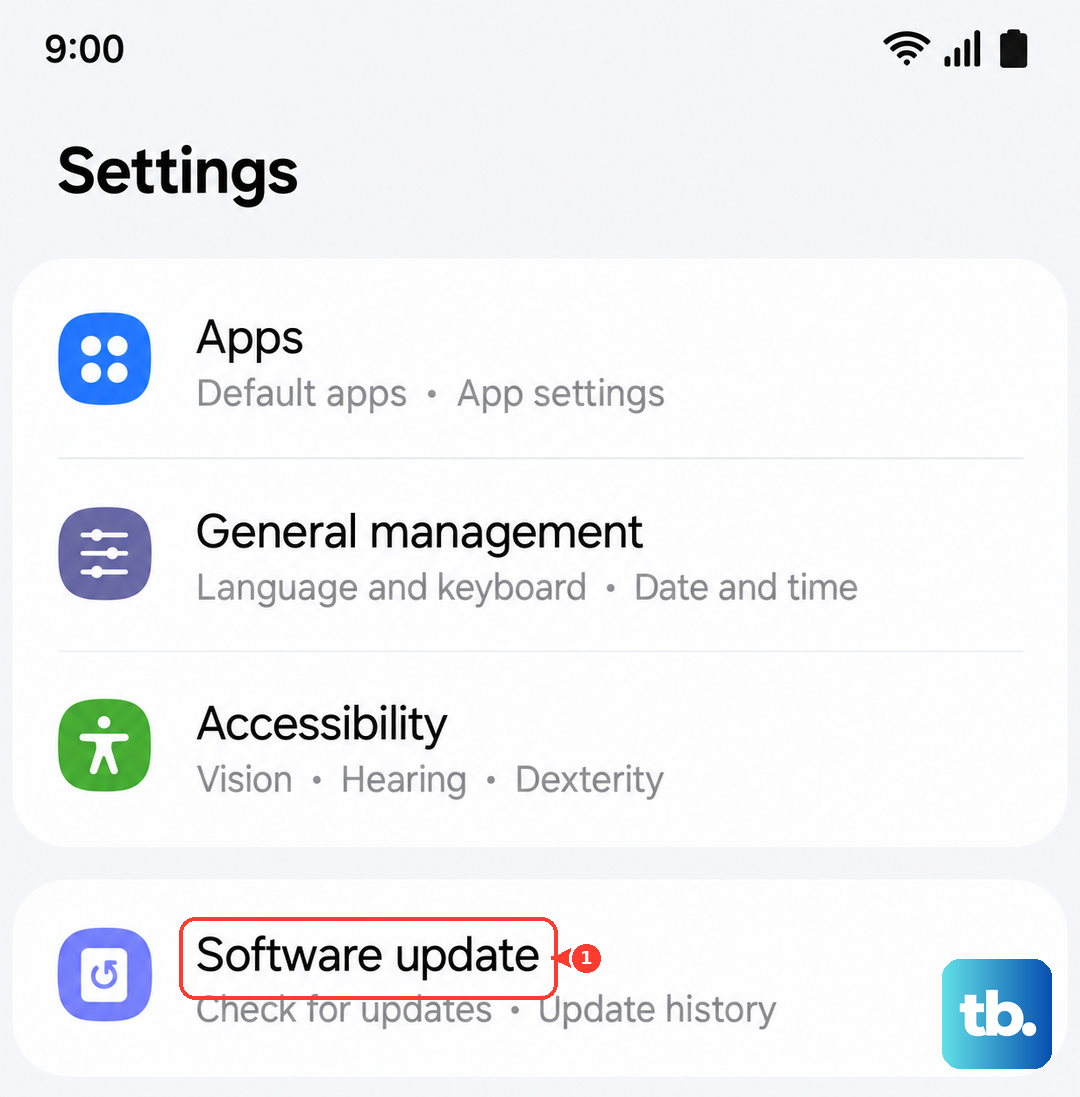
Then, go to Settings > Software update > Download and install. If an update is available, install it and restart your phone. I've seen day-one updates resolve all sorts of connectivity problems on new models.
Verify Your Mobile Data and Network Settings
Ensure your mobile data is turned on, even for voice calls. Go to Settings > Connections > Data usage and make sure the Mobile data switch is on. If you're traveling, you might need to enable data roaming.
You can find that in Settings > Connections > Mobile networks > Data roaming. Also, check your network mode. Go to Settings > Connections > Mobile networks > Network mode.
Try switching from "5G/LTE/3G/2G (auto connect)" to just "LTE/3G/2G (auto connect)" to see if the 5G connection in your area is causing instability.
Reset Your Network Settings
This will clear all your Wi-Fi passwords, Bluetooth pairings, and cellular network configurations back to default. It's a strong fix for persistent connection issues. Go to Settings > General management > Reset.
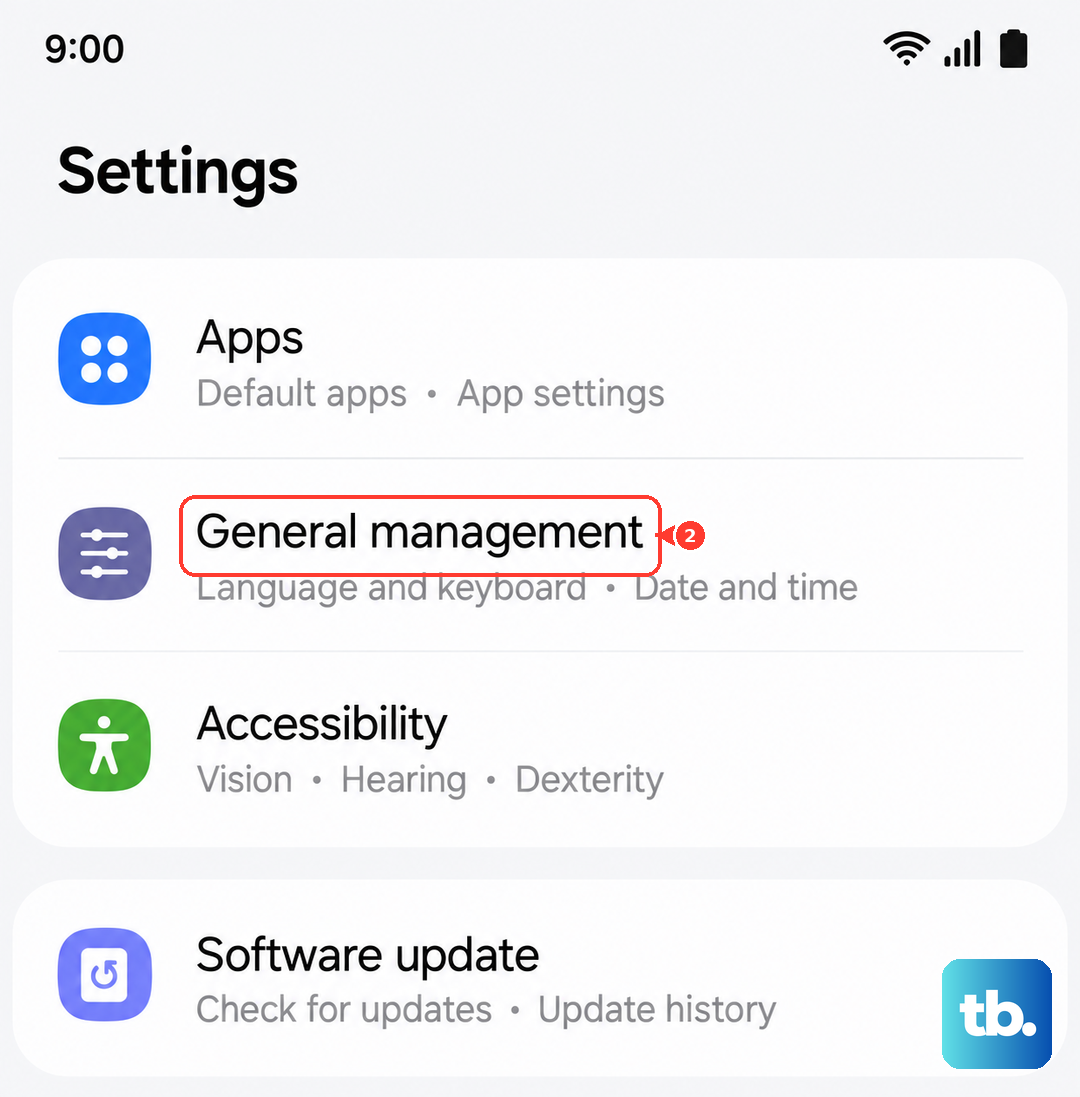
Tap on Reset network settings. You'll need to enter your PIN or password to confirm. After the reset, you'll have to reconnect to Wi-Fi networks and re-pair Bluetooth devices, but it often solves call problems.
Check and Reinsert Your SIM Card
A loose, dirty, or faulty SIM card is a classic culprit. Grab the SIM ejector tool that came with your S26 (or a small paperclip) and gently push it into the tiny hole on the SIM tray. Pull the tray out and carefully remove the SIM card.
Inspect the gold contacts for any dust or damage. Give it a gentle wipe with a soft, dry cloth and then reinsert it firmly. Make sure the tray clicks back into place completely. If you have another phone, you can test the SIM card in it to see if the problem follows the SIM.
Update Carrier Services
Sometimes your mobile carrier pushes configuration updates to improve service. These can happen automatically, but it's good to check. Make sure you're connected to Wi-Fi, then go to the Galaxy Store app.
Tap the menu icon and go to Updates. See if there are any updates available for apps like "Carrier Services" or your carrier's own app. Installing these can refresh your network profile.
Contact Your Mobile Carrier
If you've tried everything here and calls are still failing, the issue might be on your carrier's end. There could be a network outage in your area, a problem with your account, or your SIM card might need to be replaced.
Give their customer service a call from another phone or use their online support. They can check your line status, refresh your network connection from their side, and advise if you need a new SIM card for your Galaxy S26.