You went to install an app or shoot a few photos on your Galaxy S25 Ultra and got the dreaded "Storage full" warning instead. It is a frustrating message to see on a phone that ships with as much as 1TB of internal space, but it happens to plenty of S25 Ultra owners once photos, videos, downloads, and cached app data quietly pile up over months of use. The good news is that this is almost always a cleanup problem, not a hardware fault, and your phone has the built-in tools to fix it.
Before you start deleting anything, it helps to know one thing about this exact model: the Galaxy S25 Ultra (model SM-S938) does not have a microSD card slot or any expandable storage. Samsung states plainly that "the Galaxy S25 Ultra does not have a SD card slot for expandable storage," so the usual advice to "move it to an SD card" simply does not apply here. Freeing space on this phone means deleting and cleaning files or offloading them to the cloud, and the steps below walk you through both in the safest order.
Start with a restart before you delete a thing
A simple restart can clear out temporary files and resolve a storage reading that looks stuck or wrong, so it is worth doing before you start removing your own data. Power the phone off and back on the normal way first, then check whether the warning clears on its own.
If the phone is sluggish or completely frozen and will not respond, you can force restart it. Press and hold the Volume down button and the Side button at the same time until the device turns off and turns back on; the screen turns black, then the Samsung logo appears, and the phone restarts. This step deletes none of your data, so it is a safe first move.
See exactly what is eating your space
There is no point guessing where your storage went, and your S25 Ultra will tell you directly. Open Settings > Device care > Storage to see how much space is used and how it breaks down by category, including Images, Videos, Audio files, and Documents.
Reviewing this screen first is the smartest thing you can do, because it shows you where the space actually went. Most of the time one or two categories (usually videos and images) are responsible for the bulk of the problem, and targeting those gives you the fastest, biggest win with the least effort.
Delete large files by category and empty the Trash
Once you know which category is the heaviest, you can clear it out from the same place. Deleted items do not vanish immediately; they go to the Trash for a while, which means you have to empty the Trash to actually reclaim the space.
Go to Settings > Device care > Storage.
Tap a category such as Images, Videos, Audio files, or Documents.
Touch and hold an item to select it, or tap All to select everything.
Tap Delete or Delete all and confirm Move to Trash.
Go back to Settings > Device care > Storage > Trash and permanently delete those files to reclaim the space.
Photos and screenshots are often the worst offenders, and you can clear them in the Gallery app as well. Open Gallery > Albums, choose an album or Screenshots, select the photos or videos you want gone (or tap All), then tap Delete > Move to Trash. To free that space for real, go to Gallery > Menu > Trash > More options > Empty > Delete.
Clear out the downloads you forgot about
Installers, PDFs, email attachments, and other downloaded files accumulate without you noticing and can quietly consume gigabytes. Your S25 Ultra keeps them all in one place where they are easy to clean up.
Open the My Files app.
Tap Downloads (or go to Categories > Downloads).
Touch and hold the files you no longer need, or tap All.
Tap Delete or Delete all > Move to Trash.
Scan the list before you bulk-delete, since a few items may still be useful. Anything you are sure about, though, is safe to clear, and emptying old downloads often recovers more than you expect.
Remove apps you do not use and clear app cache
Apps you installed once and forgot can hold onto a surprising amount of space, and so can the temporary cache that apps build up over time. Your phone tracks which apps you have ignored so you do not have to remember.
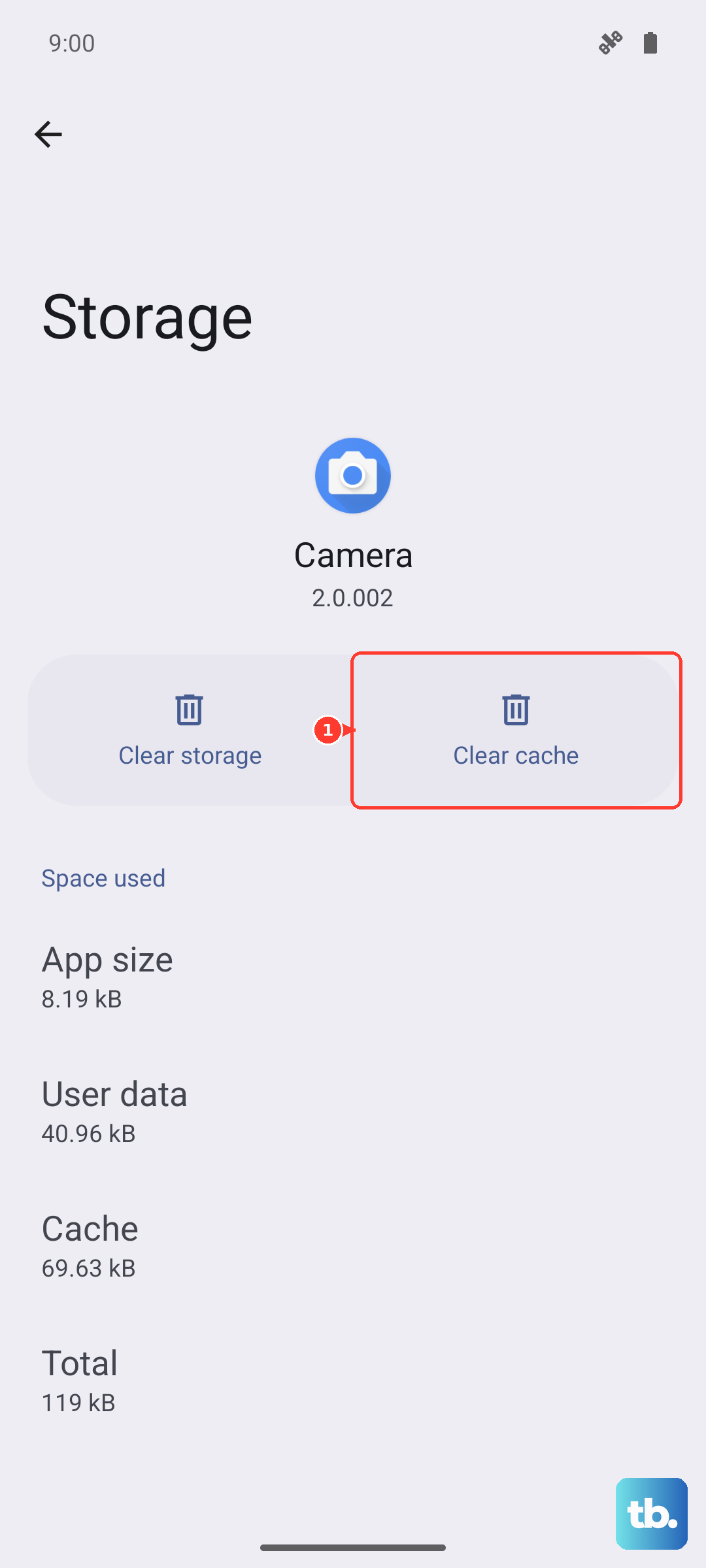
In Settings > Device care > Storage, tap Unused apps to review the apps you have not opened in the past 30 days, then uninstall the ones you no longer need. If you want to recover space without losing an app or its data, go to Settings > Apps, select the app, tap Storage, then tap Clear cache. Clearing the cache is non-destructive and is a good habit for storage-hungry apps like social media and streaming clients.
Because this model has no microSD slot, you cannot move apps or files onto a memory card to make room. Cleaning and offloading are the routes available to you, which is exactly what the next step covers.
Offload photos and files to the cloud
If you want to keep your photos and files but not the local copies clogging up the phone, back them up to the cloud and then delete the on-device versions. Your S25 Ultra supports several official options, so use whichever account you already rely on.
For Samsung Cloud, go to Settings > [your Samsung account name] > Samsung Cloud > Back up data > Back up now.
For Google, go to Settings > Google > Backup, turn on Backup by Google One, then tap Back up now.
You can also use the OneDrive app to store files in the cloud.
The order here matters for safety: confirm your items are safely backed up in the cloud first, and only then delete the local copies to reclaim storage. Verifying the backup before you delete protects you from losing anything irreplaceable.
Install any pending software update
Software updates sometimes include storage and performance fixes, so an outstanding update is worth applying when you are battling a full phone. Keeping the system current also helps the storage tools behave correctly.
Go to Settings > Software update > Download and install and apply any update that appears. If you prefer to update from a computer, you can connect the phone over USB and use the free Smart Switch app on a PC or Mac to update the device's software.
When nothing else works, the factory data reset
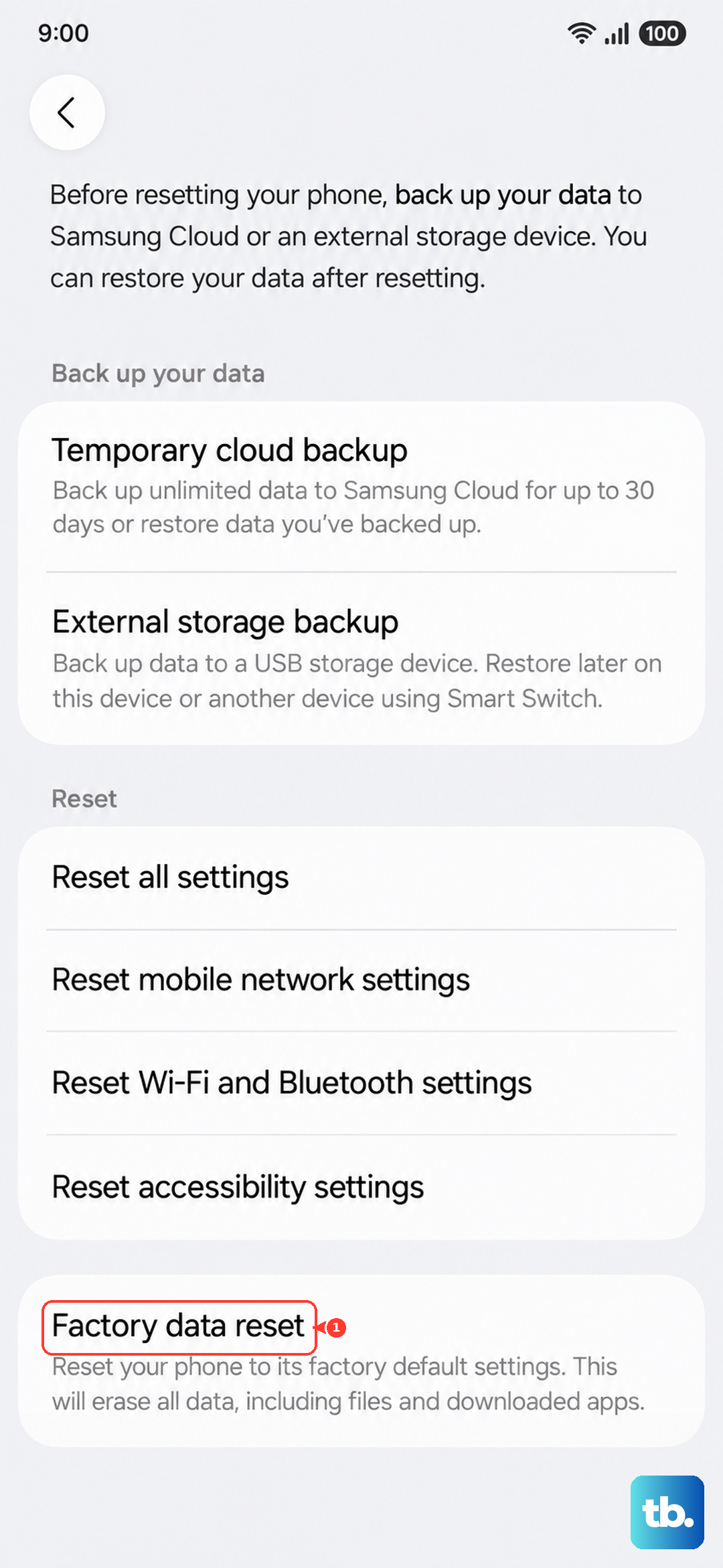
If storage problems persist after every other step, a factory data reset returns the phone to its initial state and clears out everything that may be causing the issue. This is a last resort because it erases all of your data and is not reversible, so back up everything first. Samsung warns: "Please save any information you need prior to the factory reset because your personal information may not be recovered."
- 1.Make a complete backup of your photos, files, and accounts.
- 2.Go to Settings > General management > Reset > Factory data reset.
- 3.Review the information shown on screen.
- 4.Tap Reset, then tap Delete all.
- 5.Enter your security credentials and Samsung account password if you are prompted.
The phone will erase itself and restart fresh. If your storage issues continue even after a factory reset, that points to something beyond ordinary file buildup, and the right move at that point is to contact Samsung Support for further help.
Frequently Asked Questions
Can I add a memory card to my Galaxy S25 Ultra to get more storage?
No. The Galaxy S25 Ultra does not have a microSD card slot or any expandable storage; Samsung confirms it "does not have a SD card slot for expandable storage." To make room, you have to delete or clean files or offload them to the cloud using Samsung Cloud, Google One, or OneDrive.
Why is my storage still full after I deleted files?
Deleted items are moved to the Trash first rather than removed immediately, so the space is not reclaimed until you empty it. Go to Settings > Device care > Storage > Trash to permanently delete those files, and in the Gallery app use Gallery > Menu > Trash > More options > Empty > Delete to clear deleted photos and videos for good.
Does clearing an app's cache delete my data or sign me out?
Clearing the cache only removes temporary files, so it does not delete your saved data within the app. Go to Settings > Apps, select the app, tap Storage, then tap Clear cache to recover space while keeping the app installed and your information intact.
How do I free up space without losing my photos?
Back the photos up to the cloud, then delete the local copies. Use Settings > [your Samsung account name] > Samsung Cloud > Back up data > Back up now, or Settings > Google > Backup with Backup by Google One turned on, and only delete the on-device versions after you have confirmed they are safely stored.
What is the safest first step when I see the storage full warning?
Restart the phone, since that can clear temporary files and fix a stuck storage reading without touching your data. If the phone is frozen, press and hold the Volume down button and the Side button until the screen turns black and the Samsung logo appears, then check your storage again before deleting anything.