
When your Samsung Galaxy S25+ won't send picture messages, it's usually a quick network or setting issue. The message might get stuck on "Sending" or fail with an error. Let's get your photos moving again.
I'd start by checking your mobile data connection first. A weak signal or a disabled data setting is the most common culprit for failed MMS messages on Android.
Check Your Mobile Data Connection
Swipe down from the top of your screen twice to open the full Quick Settings panel. Look for the mobile data icon, it should be highlighted. If it's grayed out, tap it to turn mobile data on.
You can also go into Settings > Connections > Data usage to make sure the mobile data switch is on. Picture messages (MMS) require a cellular data connection to send, even if you're on Wi-Fi.
Verify Your APN Settings
Incorrect Access Point Name (APN) settings from your carrier can block multimedia messages. To check them, open Settings > Connections > Mobile networks > Access Point Names.
Your carrier's APN should be selected. If you're not sure, you can often fix this by tapping the three-dot menu and selecting "Reset to default." Your phone will reboot to apply the correct settings from your SIM card.
Toggle Airplane Mode
This is a fast way to refresh your connection to the cellular network. Swipe down to open Quick Settings and tap the Airplane Mode icon to turn it on. Wait about 15 seconds, then tap it again to turn it off.
Your phone will reconnect to the network. Try sending the picture message again immediately after the signal bars reappear.
Force Restart Your Galaxy S25+
A simple reboot can clear out temporary software glitches that hang up the messaging app. Press and hold the Volume Down button and the Side button (power key) together for about 10 seconds.
Release the buttons when you see the Samsung logo appear. Once the phone finishes restarting, open your messages and try resending the photo.
Clear the Cache for the Messages App
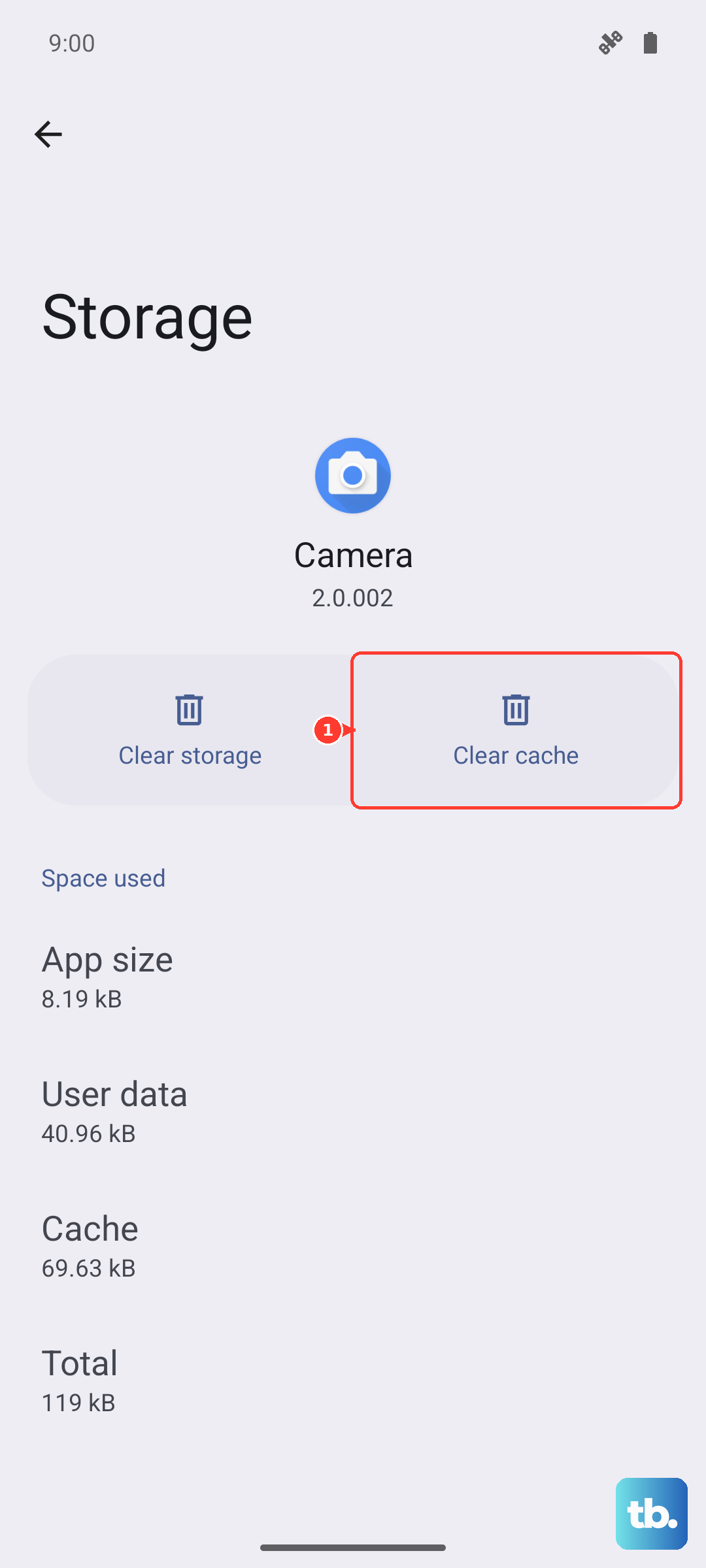
Corrupted temporary data in the app can cause sending failures. Go to Settings > Apps, then find and select "Messages" from the list.
Tap on Storage, then tap "Clear cache." This won't delete your conversations. After clearing, force close the app by swiping it away from the recent apps view and then reopen it.
Check the Message Size and Format
Most carriers have a size limit for MMS, usually between 1MB and 3MB. If your photo is too large, it will fail. Try sending a smaller, lower-resolution picture first to test.
You can also check the messaging app settings. In Samsung Messages, tap the three dots, go to Settings > More settings > Multimedia messages. Ensure "Auto-resize images" or a similar option is enabled.
Update Your Carrier Services and Messages App
Outdated app software can lead to bugs. Open the Google Play Store, tap your profile icon, and go to "Manage apps & device." Look for updates available for "Carrier Services" and "Samsung Messages" or "Google Messages," whichever you use.
Tap "Update" for each. Keeping these updated ensures compatibility with your network.
Switch Between Wi-Fi and Mobile Data
If you're connected to Wi-Fi, try turning it off to force the message to send over cellular. Some routers, especially newer Wi-Fi 7 models, can have compatibility issues that disrupt data services.
Swipe down and tap the Wi-Fi icon to disable it, then attempt to send the MMS using just your mobile data connection.
Reset Network Settings
This will wipe all your saved network information and start fresh. Go to Settings > General management > Reset > Reset network settings.
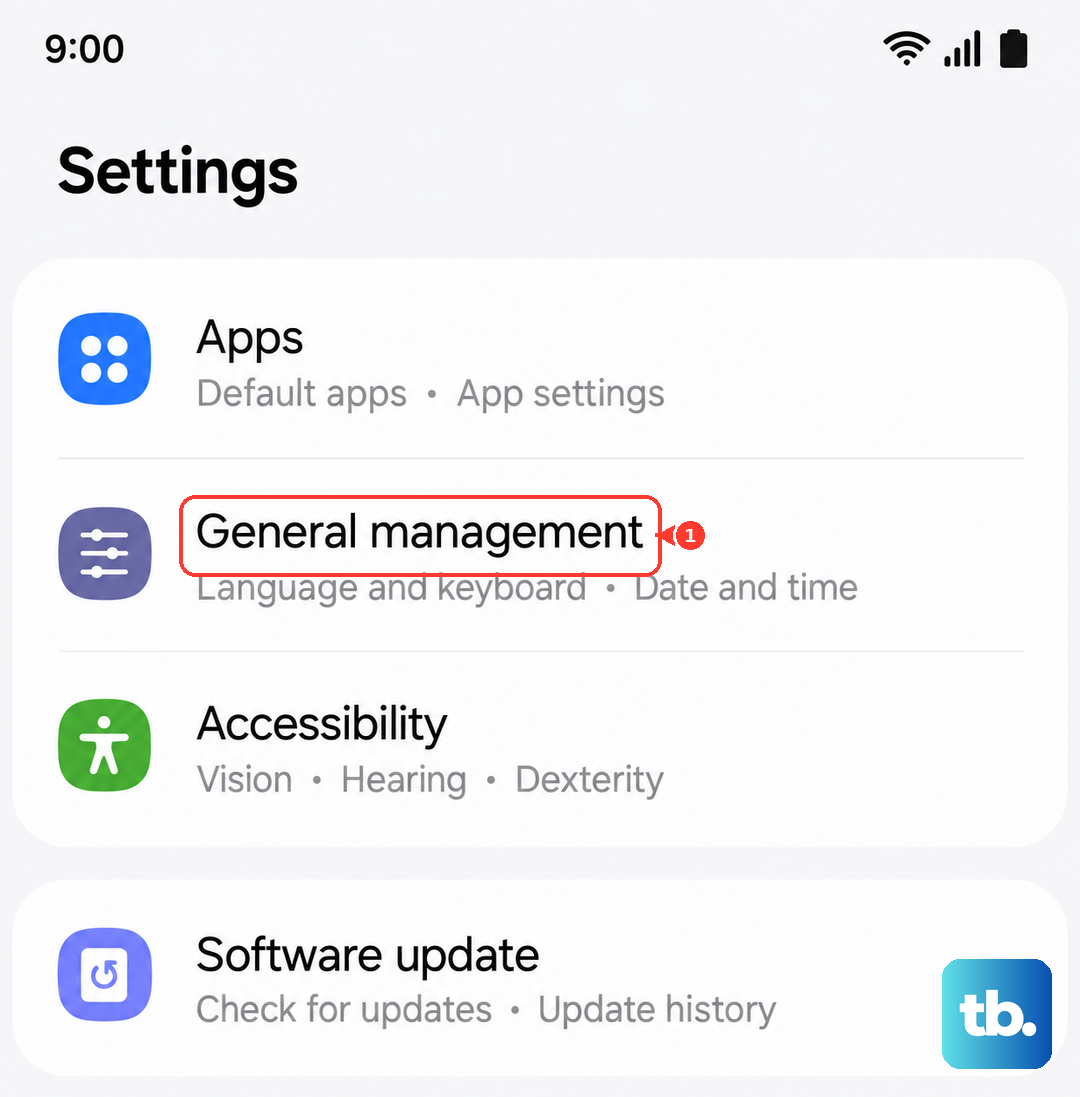
Tap to reset and confirm. Your phone will restart. Be aware this will erase all saved Wi-Fi passwords and paired Bluetooth devices, so you'll need to reconnect to them afterward.
Try a Different Messaging App
If the problem persists only in Samsung Messages, the app itself might be the issue. Download "Google Messages" from the Play Store as a test.
Set it as your default messaging app when prompted, then try sending your picture. If it works, you can keep using the new app or use this to confirm the problem is with the original app's data.