
If your Samsung Galaxy S25+ is loading web pages at a crawl or buffering videos endlessly, you're not stuck with it. I've found that a few specific settings tweaks on this phone can make a huge difference in your browsing and streaming speeds.
The Galaxy S25+ is a powerful device, but sometimes its network settings or background processes need a little fine-tuning to get the best performance. Let's jump straight into the most effective fix.
Toggle Airplane Mode On and Off
This is the quickest way to refresh your phone's connection to the cellular network. It forces the modem to reconnect, which can instantly clear up a slow data session. Swipe down from the top of your screen twice to open the Quick Settings panel and tap the Airplane icon.
Wait about 10 seconds, then tap it again to turn it off. Your phone will search for the strongest available signal, which often results in a faster, more stable connection right away.
Check and Reset Your Wi-Fi Connection
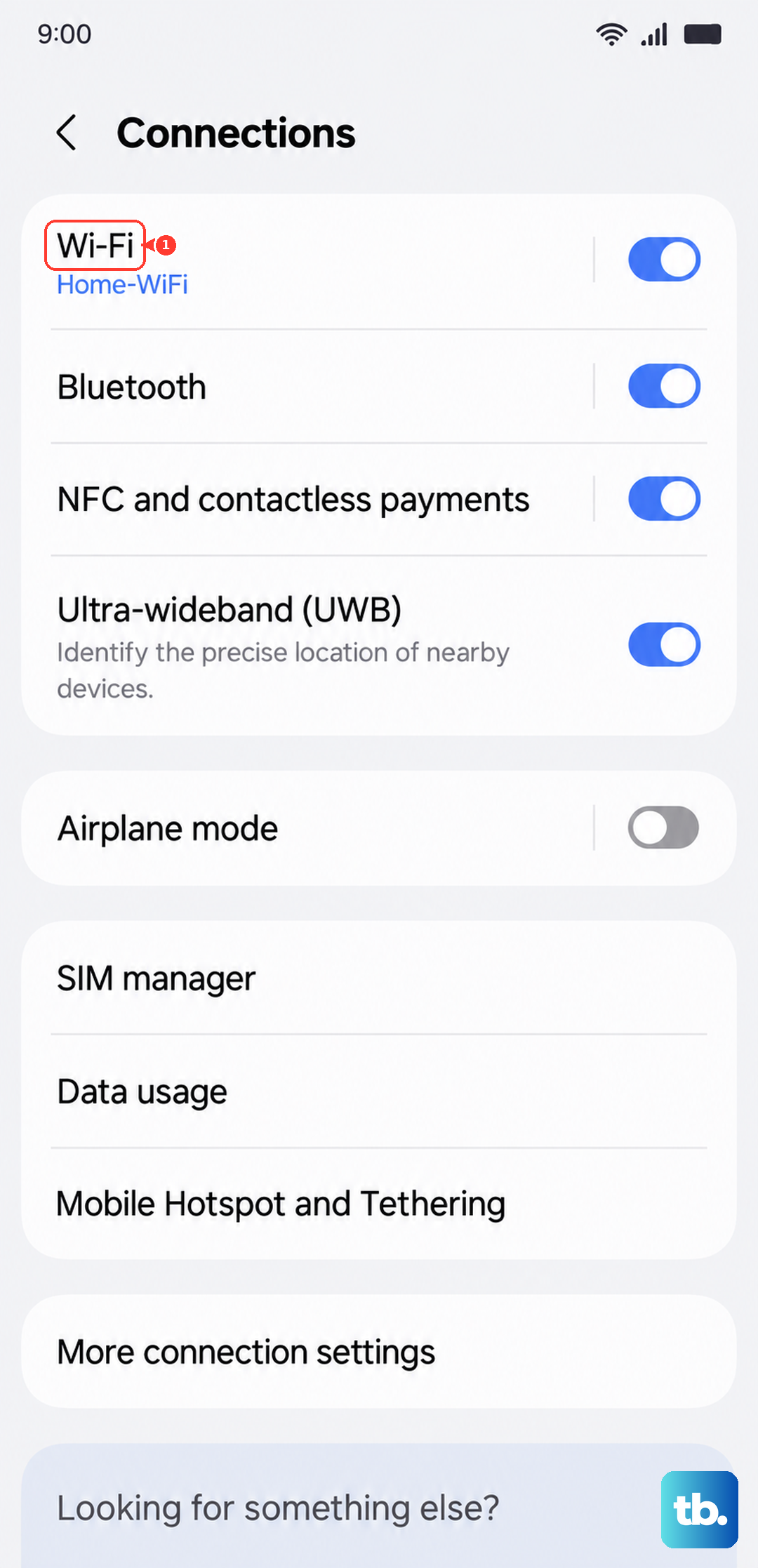
If you're on Wi-Fi and it's dragging, start by forgetting the problematic network. Go to Settings > Connections > Wi-Fi, tap on your network name, and select "Forget." Then, reconnect by selecting it again and entering the password.
For the S25+, there's a known occasional disconnection issue with some Wi-Fi 7 routers. If this keeps happening, try disabling Wi-Fi 7 features on your router temporarily or switch your phone's connection to the 5GHz band instead of 6GHz, if available, for better stability.
Enable Adaptive Wi-Fi and Switch to Mobile Data
Your S25+ has a smart feature that can save you from a bad Wi-Fi signal. Adaptive Wi-Fi monitors your connection and can automatically switch to your mobile data if the Wi-Fi becomes too slow or unstable.
You can find this by going to Settings > Connections > Wi-Fi. Tap the three-dot menu in the top right, go to Advanced, and look for "Intelligent Wi-Fi." Make sure "Switch to mobile data" is toggled on. This ensures you're always on the fastest available network.
Activate Data Saver Mode
Data Saver is incredibly effective on Android 15 and One UI 7. It restricts background data for all apps except the ones you whitelist, freeing up bandwidth for what you're actively using. This can make a noticeable difference in perceived speed, especially on mobile data.
Navigate to Settings > Connections > Data Usage > Data Saver and turn it on. You can then tap "Allow apps while Data Saver is on" to grant permission to essential apps like your messaging service.
Clear the Cache for Chrome and Google Play Services
Over time, cached data in your browser and system services can become corrupted and slow things down. For Chrome, open the app, tap the three-dot menu, go to History > Clear browsing data. Select "Cached images and files" and tap "Clear data."
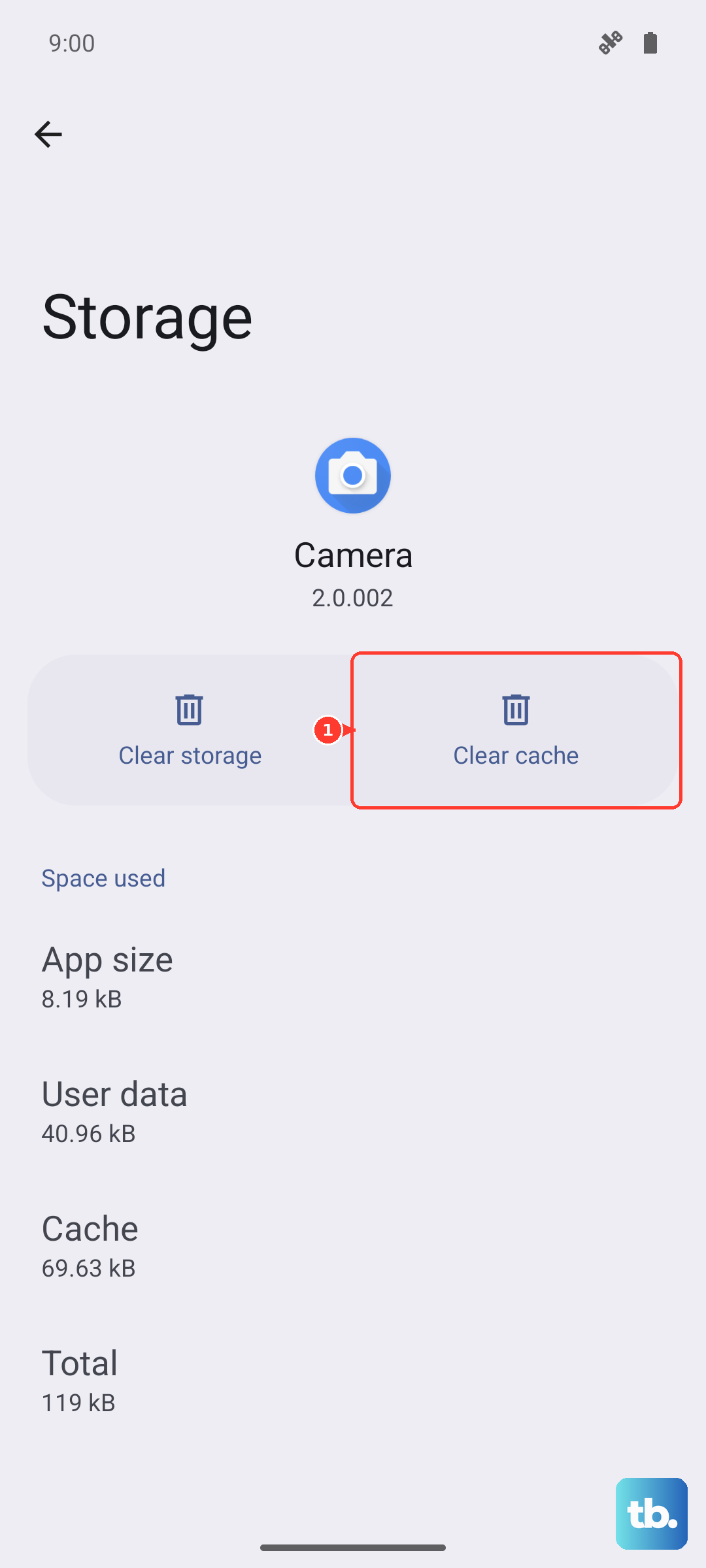
For a deeper system clean, go to Settings > Apps, find "Google Play Services" in the list, tap on it, then go to Storage > Clear Cache. This won't delete any personal data.
Manage Background Data for Specific Apps
Some apps constantly use data in the background for updates and syncing, which can throttle your overall speed. You can restrict them individually. Go to Settings > Apps, select a data-hungry app like a social media platform, and tap Mobile data.
Here, you can toggle off "Allow background data usage." This means the app will only use data when you have it open on your screen.
Update Your Network Preferences for 5G
Ensure your phone is set to use the fastest network technology available. Go to Settings > Connections > Mobile networks > Network mode. On the S25+, you should see an option like "5G/LTE/3G/2G (auto connect)." Select this to let your phone automatically use 5G where it's available for the best speeds.
If you're in an area with spotty 5G, switching to "LTE/3G/2G (auto connect)" can sometimes provide a more consistent and reliable connection than a weak, fluctuating 5G signal.
Perform a Network Settings Reset
This is a more comprehensive step that will erase all your saved Wi-Fi networks, Bluetooth pairings, and cellular preferences, setting them back to factory defaults. It's a proven fix for persistent, mysterious connection problems.
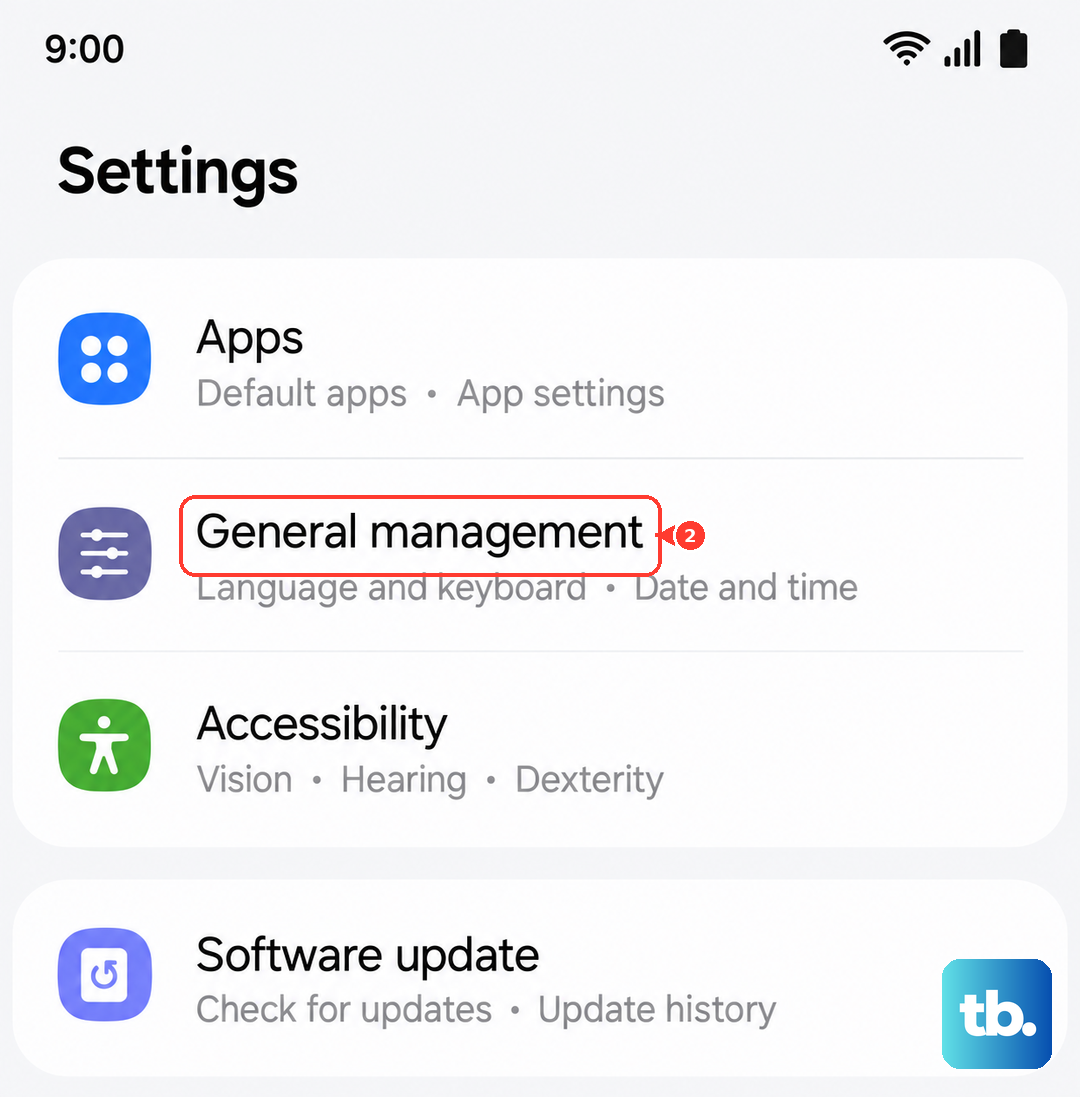
On your S25+, go to Settings > General Management > Reset > Reset network settings. Tap to confirm. After the phone reboots, you'll need to reconnect to your Wi-Fi and re-pair Bluetooth devices, but it often clears up deep-seated network glitches.
Disable Any Active VPN
While VPNs are great for privacy, they route your traffic through another server, which almost always adds latency and reduces your internet speed. If you're troubleshooting slow speeds, temporarily turn off any VPN app you have running.
Swipe down from the top to check your Quick Settings panel for a VPN icon, or open the VPN app itself to disconnect. Test your speed again without it to see if it was the bottleneck.
Force Restart Your Galaxy S25+
A simple restart clears the phone's memory and stops any rogue processes. For the S25+, press and hold the Volume Down button and the Side Key (power button) together for about 10 seconds until you see the Samsung logo appear, then release. This forces a full reboot.
It's a good habit to do this once a week or so. I'd also recommend keeping your phone's software updated, as Samsung frequently releases patches that can improve modem performance and network stability.