
When your Samsung Galaxy S25+ starts restarting on its own, it's a major disruption. This can happen for a few reasons, often tied to software updates, a misbehaving app, or even the phone settling in after a fresh setup. The good news is you can usually fix it yourself without a trip to a repair shop.
Before you start, it's a smart move to make sure your data is backed up. You can use Samsung Cloud or Google One to back up your photos, contacts, and settings. This protects your information just in case you need to take more serious steps later.
Perform a Force Restart
This is almost always the first thing I'd try. A force restart clears the phone's temporary memory and can stop a minor software glitch that's causing the loop. For the Galaxy S25+, press and hold the Volume Down button and the Side (power) button together for about 10 seconds.
Keep holding them until you see the Samsung logo appear on the screen, then let go. Your phone will boot up normally. This doesn't delete any of your personal data or settings.
Check for Overheating
Modern phones like the S25+ are powerful, but they can get warm. If the device overheats, it will often restart itself to prevent damage. Feel the back of the phone. Is it unusually hot to the touch?
If it is, remove the case immediately and let it cool down in a shaded spot. Avoid using it while charging, especially if you're using a fast 45W charger, as this generates more heat. I've seen this fix a lot of random restart issues that happen during heavy gaming or video calls.
Update Your Apps and Software
Outdated software is a common culprit. First, check for app updates in the Galaxy Store and Google Play Store. Open the Play Store, tap your profile icon, and go to Manage apps & device. Look for any pending updates, especially for apps you use frequently.
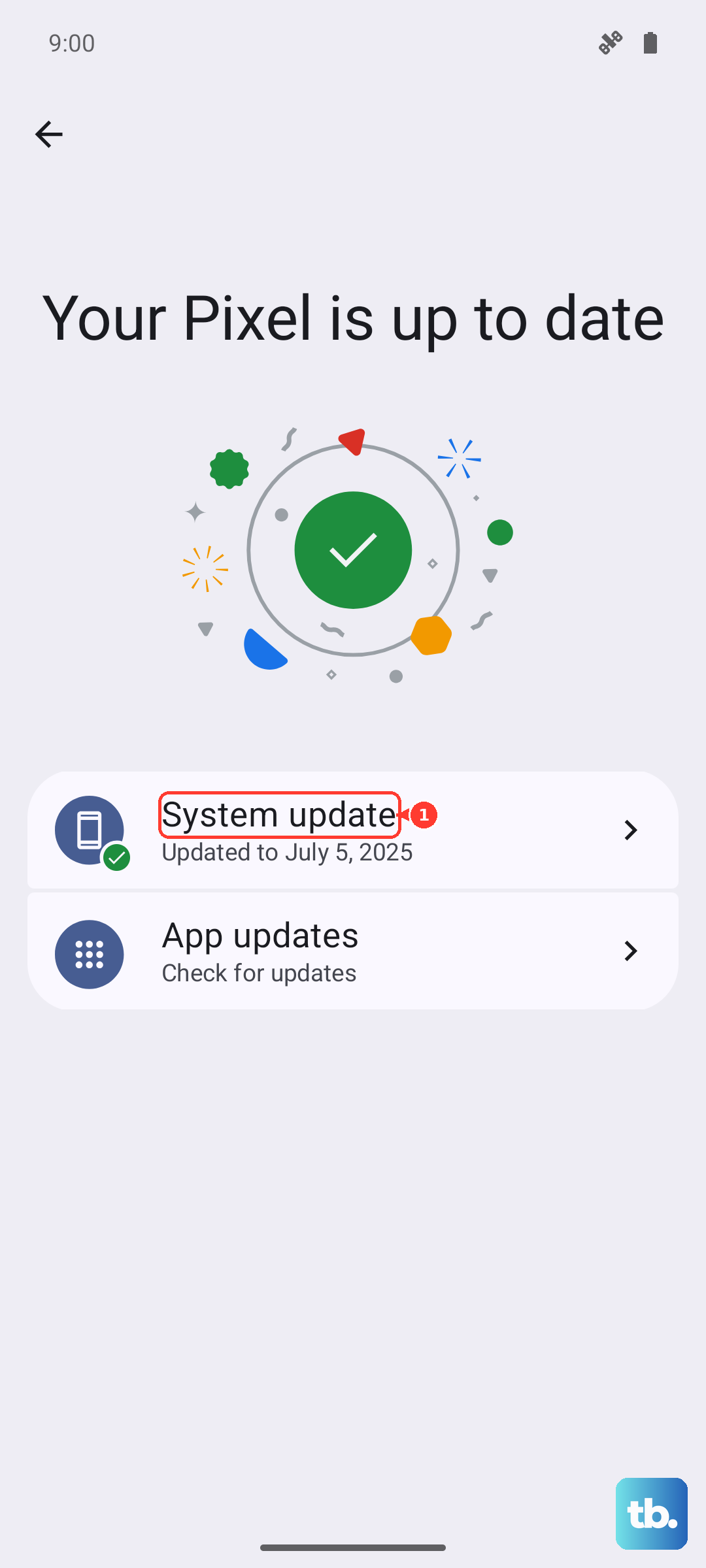
Next, check for a system update. Go to Settings > Software update > Download and install. Samsung frequently releases updates that fix bugs and improve stability. If your phone restarted a lot right after you got it, this is particularly important, as early software builds can have kinks.
Boot Into Safe Mode
Safe Mode starts your phone with all third-party apps disabled. If the restarting stops in Safe Mode, you know a downloaded app is causing the problem. To enter Safe Mode on the S25+, press and hold the Side button and Volume down button until the power menu appears.
Then, tap and hold the "Power off" option on your screen. A prompt will ask if you want to reboot to Safe Mode. Tap it. Your phone will restart with "Safe Mode" in the bottom corner. Use the phone normally for a while to see if it stays stable.
Identify and Remove Problematic Apps
If Safe Mode fixed the issue, you need to find the bad app. Think about any apps you installed or updated right before the problems began. The most likely suspects are apps that run in the background a lot, like social media, weather widgets, or custom launchers.
You can start by uninstalling the most recent apps one by one, testing after each removal. Alternatively, go to Settings > Battery to see which apps are using the most power in the background, as a misbehaving app often shows up there.
Clear the System Cache
Corrupted system cache files can cause all sorts of instability. Clearing them is a safe and effective fix that doesn't touch your personal data. First, turn off your phone. Then, press and hold the Volume Up button and the Side button together.
When you feel a vibration, let go of the Side button but keep holding Volume Up until you see the Android recovery menu. Use the volume buttons to navigate to "Wipe cache partition" and press the Side button to select it. Confirm the action, then select "Reboot system now."
Review Your Battery and Charger
Since the S25+ doesn't come with a charger in the box, you might be using an old or incompatible one. While the phone supports up to 45W wired charging, using a damaged cable or a low-quality charger can cause power fluctuations that lead to restarts.
Try using a different USB-C cable and a known-good charger, preferably a Samsung 45W charger if you have one. Also, check the phone's charging port for any lint or debris. A can of compressed air can gently clean it out.
Reset All Settings
If the problem persists, you can reset all your system settings to their defaults. This won't delete your photos, apps, or personal files, but it will erase things like your Wi-Fi passwords, Bluetooth pairings, and home screen layout. Go to Settings > General management > Reset > Reset all settings.
Enter your PIN or password if prompted and confirm. Your phone will restart. Afterward, you'll need to reconnect to Wi-Fi and re-pair Bluetooth devices, but it often resolves deep-seated configuration conflicts.
Perform a Factory Reset
This is the last resort software fix. A factory reset will erase everything on your phone and return it to its original out-of-the-box state. You must have a backup before doing this. Go to Settings > General management > Reset > Factory data reset.
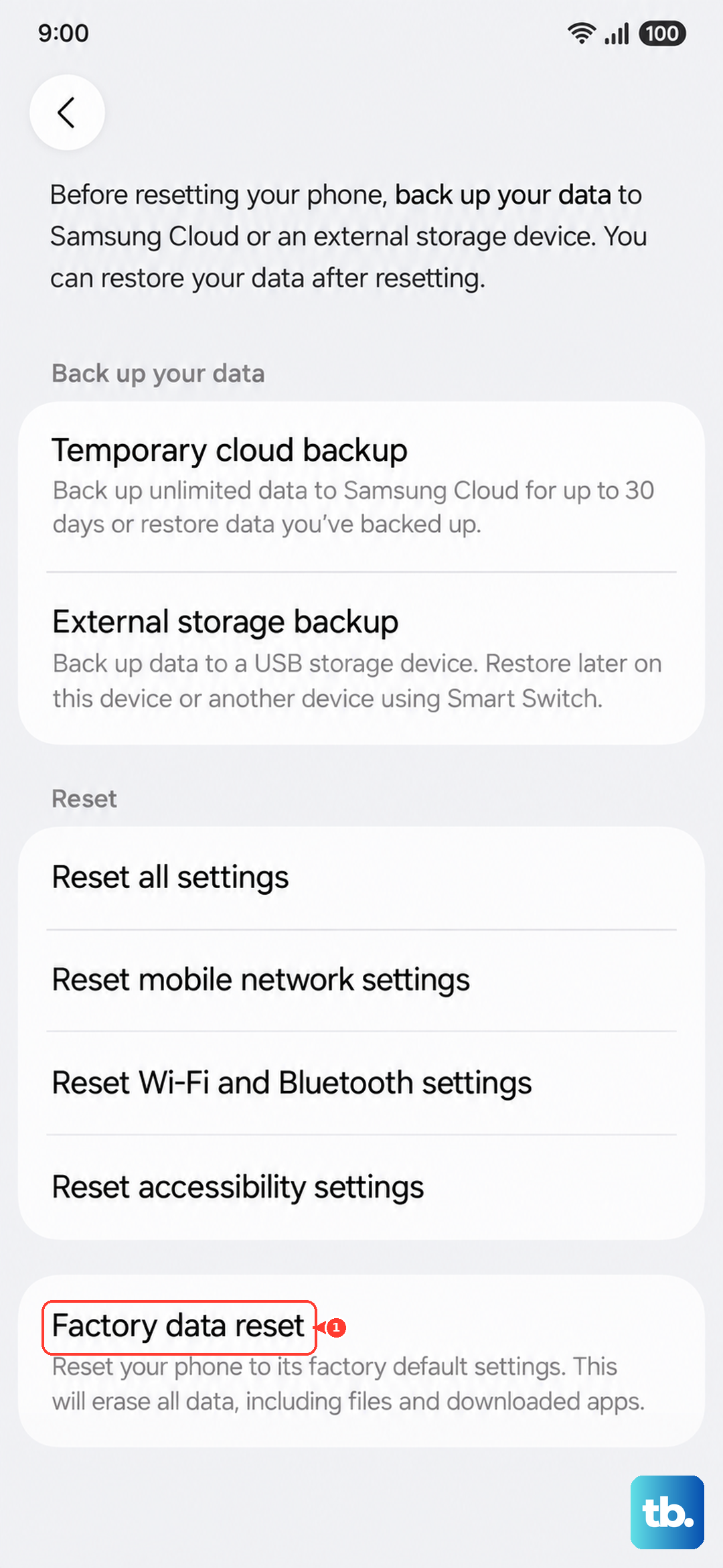
Tap "Reset" and then "Delete all." The phone will erase itself and reboot. After setup, restore your data from your Samsung or Google backup. If the restarting continues even after a fresh factory reset, the issue is likely hardware-related.