
When your Samsung Galaxy S25 FE won't send a picture message, it's usually a quick setting or connection issue. The message might just sit there with a "Sending" status or fail with an error. Let's get your MMS working again.
Check Your Mobile Data Connection First
MMS requires a mobile data connection, even if you're on Wi-Fi. Pull down the Quick Settings panel from the top of your screen and make sure the Mobile Data icon is turned on. If you see a "!" or an "x" next to your signal bars, you might have no data service at all.
Try turning Airplane Mode on for about 10 seconds, then turn it off. This forces your phone to reconnect to the cellular network. If you're indoors, stepping near a window can sometimes improve your signal strength enough for the message to go through.
Verify Your APN Settings
Incorrect Access Point Name (APN) settings are a common culprit for MMS failures on Android. These settings tell your phone how to connect to your carrier's multimedia messaging service. Go to Settings > Connections > Mobile networks > Access Point Names.
Tap the APN that's currently selected (it will have a filled-in circle next to it). Scroll down and look for fields labeled "MMSC," "MMS proxy," and "MMS port." If any of these are blank or look wrong, you'll need the correct values from your carrier. A quick web search for "[Your Carrier] APN settings 2026" should bring them up.
Toggle the MMS Setting in Samsung Messages
Open the Samsung Messages app and tap the three-dot menu in the top right. Go to Settings > More settings > Multimedia messages. Ensure the switch for "Auto-download MMS" is turned on. While you're here, also make sure "Group conversation" is enabled if you're trying to send to multiple people.
Sometimes, just toggling the "Auto-download MMS" setting off and back on can refresh the connection. After you change it, close the app completely and try sending your picture again.
Clear the Cache for Your Messaging App
A corrupted cache in the messaging app can cause send failures. Go to Settings > Apps. Find and tap on "Messages" (or your preferred messaging app). Select Storage and then tap Clear cache.
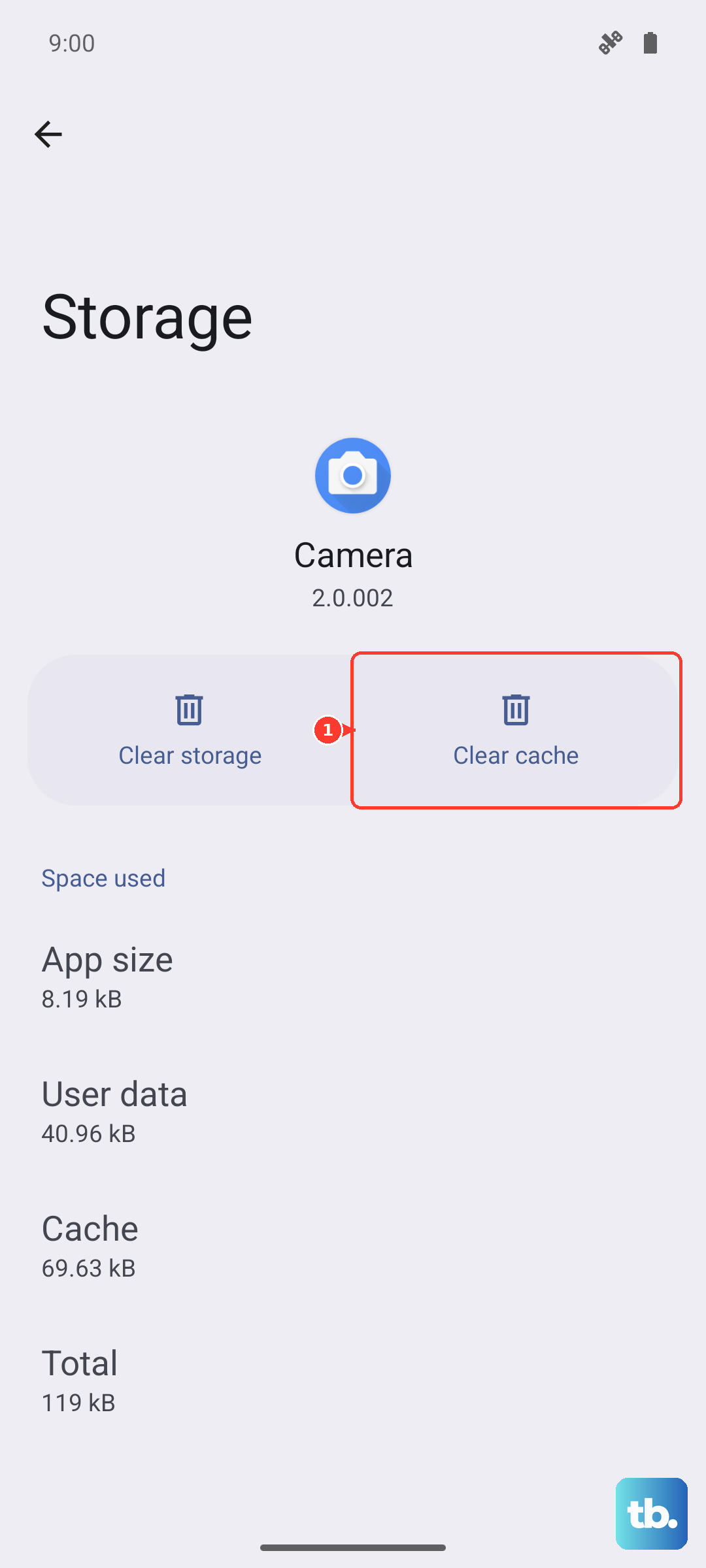
This won't delete your actual messages or conversations. It just removes temporary files that might be causing a glitch. I'd do this before moving on to more involved steps, as it often resolves the issue without any downside.
Switch Between Wi-Fi and Mobile Data
Some phone networks have issues sending MMS when Wi-Fi is active, even though mobile data is on. Try turning Wi-Fi off completely so your phone is forced to use only the cellular network for the message. Send the picture, then you can turn Wi-Fi back on.
Conversely, if your cellular signal is very weak, try connecting to a strong Wi-Fi network and ensure Wi-Fi Calling is enabled in your settings. For some carriers, MMS can route over Wi-Fi Calling when the cellular signal is poor.
Check for a Software Update
Software bugs can affect messaging. Samsung and your carrier regularly release updates that fix these kinds of issues. Go to Settings > Software update > Download and install.
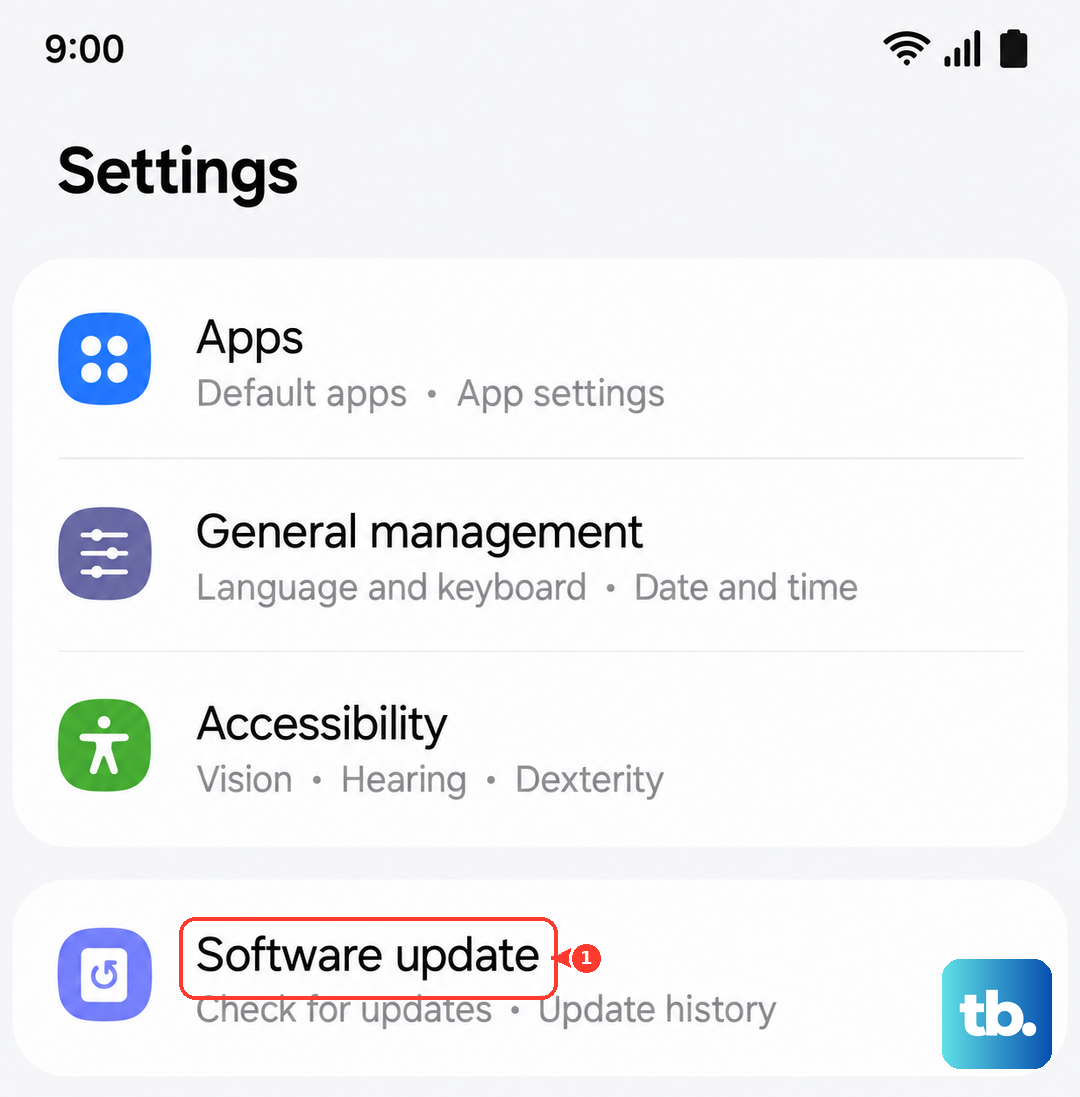
Let it check for updates. If one is available, it's a good idea to install it. The Exynos 2400 chip in the S25 FE has had software updates to optimize performance and connectivity, so staying current is important.
Reset Your Network Settings
This will wipe all your network-related data and start fresh. It clears Wi-Fi passwords, paired Bluetooth devices, and cellular network settings. Go to Settings > General management > Reset > Reset network settings.
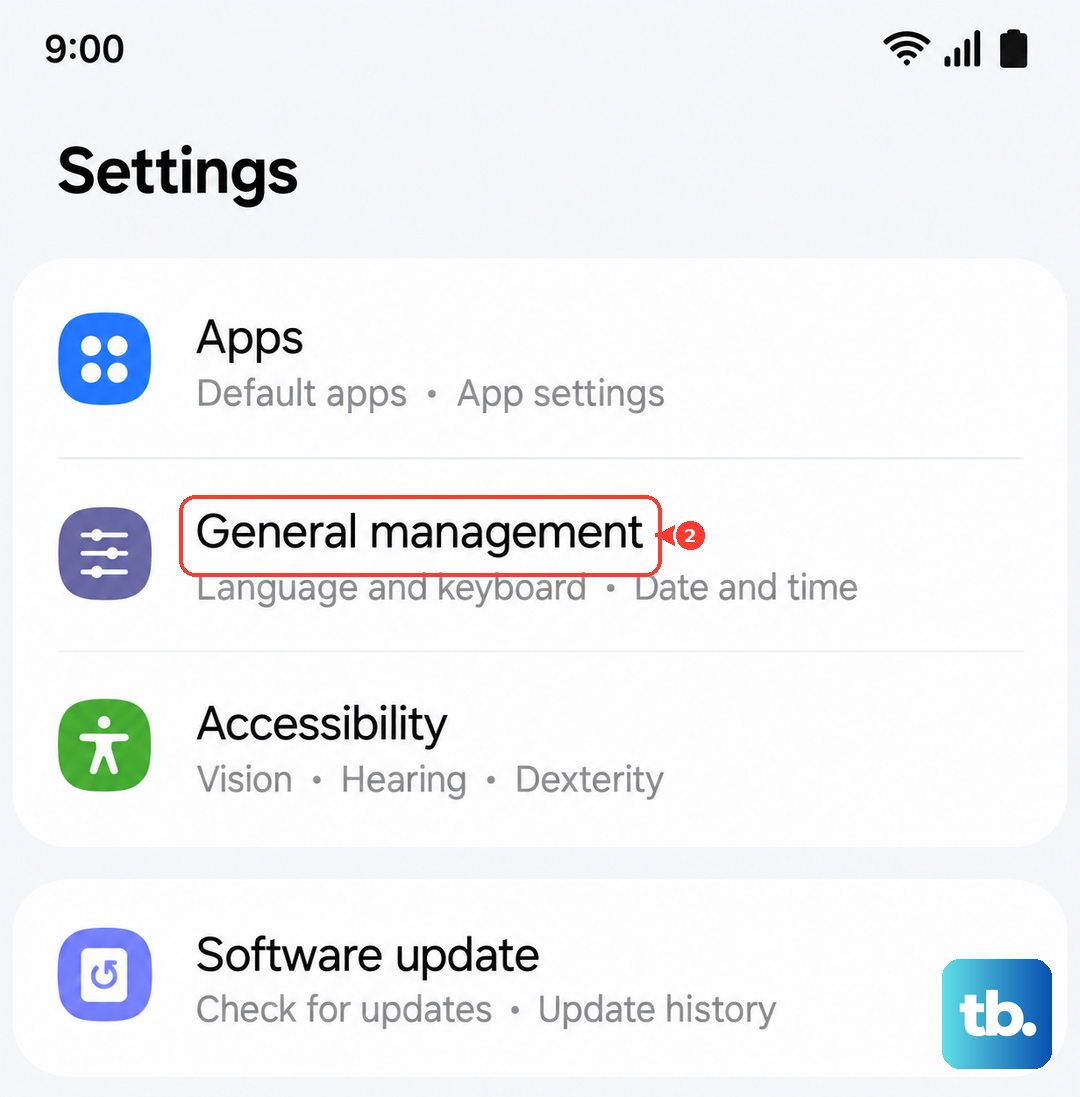
Tap to confirm and enter your PIN if prompted. Your phone will reboot. After it comes back on, you'll need to reconnect to Wi-Fi networks and re-pair Bluetooth devices, but this often clears up persistent MMS problems.
Try a Different Messaging App
To rule out a problem with the Samsung Messages app itself, temporarily try a different app like Google Messages. Download it from the Play Store, set it as your default, and see if you can send the picture.
If it works in another app, the problem is likely with the Samsung app's configuration or data. You can either stick with the new app or use this as a sign to clear the data for the Samsung app (which will erase your message history, so be cautious).
Ensure the File Size Isn't Too Large
Carriers impose strict size limits on MMS, often around 1MB. If your photo or video is too large, it will fail to send. The Samsung Messages app usually compresses images automatically, but it's worth checking.
Before hitting send, you can manually reduce the size. When attaching a picture, look for an option that says "Resize image" or "File size." Choose a smaller size like "Standard" or "Small" and try sending that version.
Contact Your Mobile Carrier
If you've tried everything and MMS still won't send, the issue might be on your carrier's end. There could be a service outage in your area, or there might be a problem with your specific account provisioning for multimedia messaging.
Give them a call or use their online support chat. You can tell them the steps you've already tried. They can check your account status, reprovision your MMS service, or confirm if there are any known issues affecting your location.