Your Galaxy S25 FE just flashed a "Storage full" warning while you were trying to shoot a video or update an app, and now the camera won't save and downloads stall. With 128GB of internal storage (roughly 104.7GB usable on the 128GB model) and no microSD slot to fall back on, this phone gives you a fixed pool of space that fills faster than you'd expect once photos, videos, and app data stack up.
The good news is that One UI 8 on the S25 FE includes proper, built-in storage tools, so you can clear the warning and reclaim gigabytes without any extra downloads. Work through the fixes below in order.
The first few are the safest and reclaim the most space with the least risk, and the destructive last-resort steps come at the end with their official warnings. Every path here is taken from Samsung's official guidance for One UI 8 on the Galaxy S25 FE.
Start With Device Care and a One-Tap Optimize
Before deleting anything, let the phone do the easy cleanup for you. The built-in Device care tool can close background apps, clear memory, remove unnecessary files, and scan for malware in a single pass, and it costs you nothing in terms of personal data.
Open Settings > Device care. Tap "Optimize now." Tap Done when it finishes. From there, tap Storage to see exactly what is using your space, broken down by category.
That Storage breakdown is your map for the rest of this guide. It shows you whether photos, videos, audio, documents, or apps are the real culprits, so you can target the biggest offenders first instead of guessing.
Clear Out the Big Files Eating Your Space
On a phone with a fixed 128GB and no expandable storage, large media is almost always the main problem. Video files in particular can swallow gigabytes, so this is usually where you reclaim the most.
Go to Settings > Device care > Storage. Choose a category such as Images, Videos, Audio files, or Documents. Touch and hold the items you want to remove. Tap "Delete" or "Delete all," then "Move to Trash."
One important detail is that moving items to Trash does not instantly free the space. Empty the Trash afterward to fully reclaim it, otherwise those files keep occupying storage until the recycle bin is cleared.
Clear App Cache to Recover Space Safely
Apps quietly build up cache files, which are temporary leftovers that accumulate over weeks of use. Clearing them is one of the safest moves you can make because it does not touch your personal data or sign you out.
Open Settings > Apps. Select the app you want to clean. Tap Storage. Next, tap "Clear cache."
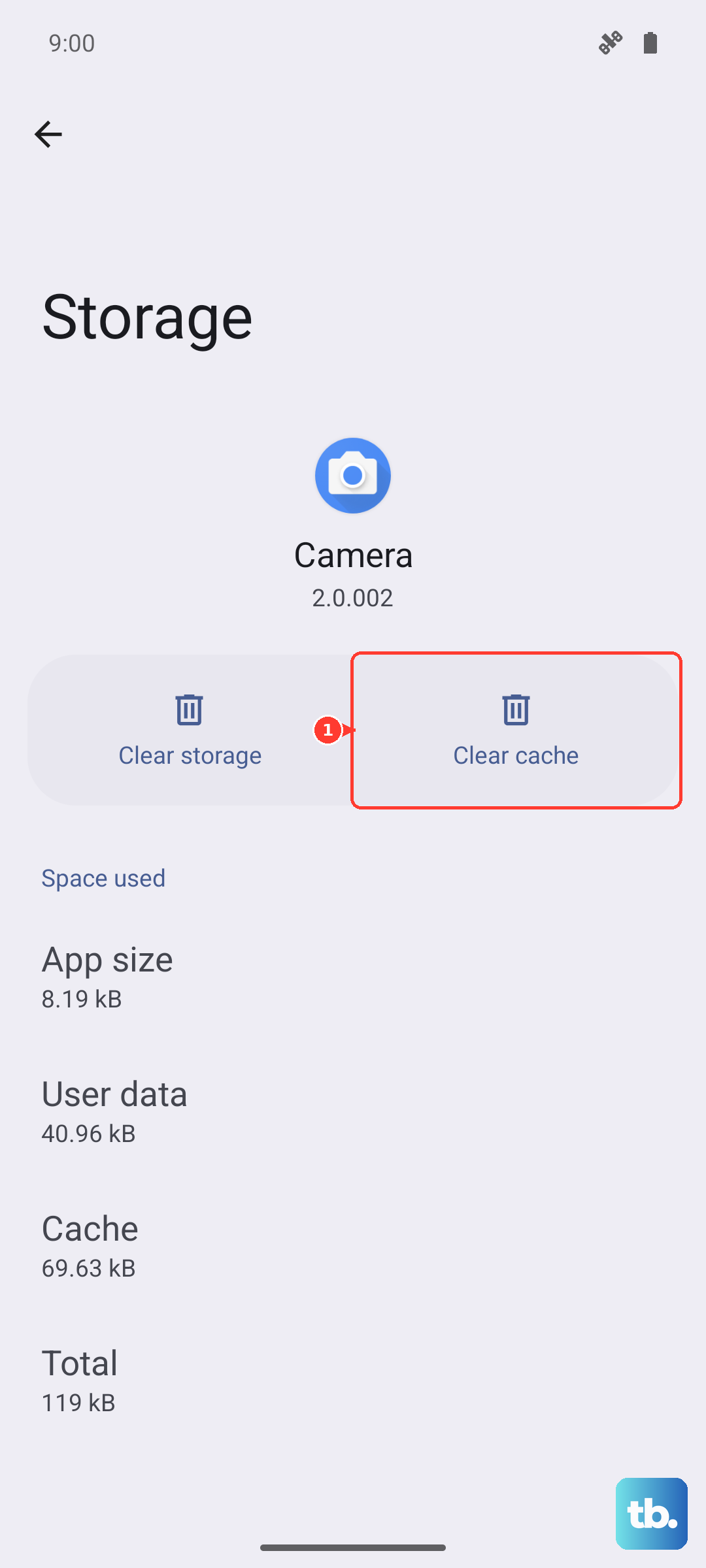
Focus on the apps you use most heavily, such as your browser, social apps, and streaming apps, since those tend to hoard the most cache. Because this only removes residual files, you can repeat it freely whenever space gets tight again.
Clear App Data Only When Cache Isn't Enough
If clearing the cache barely moves the needle for a particular app, the next step is clearing its data. This is more aggressive, so treat it as a second resort rather than a routine cleanup.
Go to Settings > Apps > [select the app] > Storage. Tap "Clear data." Then tap Delete to confirm.
Take the official warning seriously here: "Clearing the data will reset the app to factory default settings. Any personal settings or data saved on the app will be removed." In plain terms, the app behaves as if freshly installed, so save any logins, in-app downloads, or settings you care about before you do this.
Uninstall the Apps You Never Open
Unused apps take up space twice over, once for the app itself and again for the data it stores. Removing them is a quick win, and on the S25 FE you can do it straight from the Home or Apps screen.
Touch and hold the app on the Home or Apps screen. Tap "Uninstall." Then confirm with "OK."
This removes both the app and its associated data. Scroll through your full app list with a critical eye, because the games you finished and the apps you installed for a single task are often the easiest gigabytes to recover.
Move Files to the Cloud Since There's No microSD Slot
The Galaxy S25 FE does not support a microSD card, so you cannot offload files to external storage the way some older Galaxy phones allowed. Instead, the official route is to move your data to the cloud and then delete the local copies, which keeps your photos and documents safe while freeing the on-device space.
For a Google Drive backup, go to Settings > Accounts and backup > Back up data. For OneDrive, go to Settings > Accounts and backup > Manage accounts, then tap "Sync account."
You can also use the My Files app to move individual files. Select the files, then choose "Copy" or "Move" to a cloud location such as Google Drive or OneDrive, and once the upload is confirmed, delete the local copies to actually free the space.
While you're in My Files, it's worth enabling its recycle bin so deleted files can be recovered if you make a mistake. Open My Files, go to More options > Settings, then toggle the switch next to Trash. Just remember that, as with Device care, files in Trash continue to use space until the bin is emptied.
Free Up Memory When the Phone Feels Sluggish
Storage and memory are different things, but a phone that is both full and slow benefits from clearing active memory too. If the S25 FE feels laggy under storage pressure, the Memory tool can stop background apps and free up RAM on demand.
Go to Settings > Device care > Memory. Tap "Clean now" to free up memory and stop background apps.
Keep in mind that this clears active memory rather than stored files, so it helps responsiveness more than it reclaims long-term storage. Run it whenever the phone feels bogged down, then go back to the deletion and cloud steps above to recover actual space.
Install the Latest Software Update
Software updates sometimes include storage handling and performance improvements, so keeping the S25 FE current is a low-effort fix worth doing. It also rules out the possibility that a known bug is contributing to your storage trouble. Open Settings > "Software update."
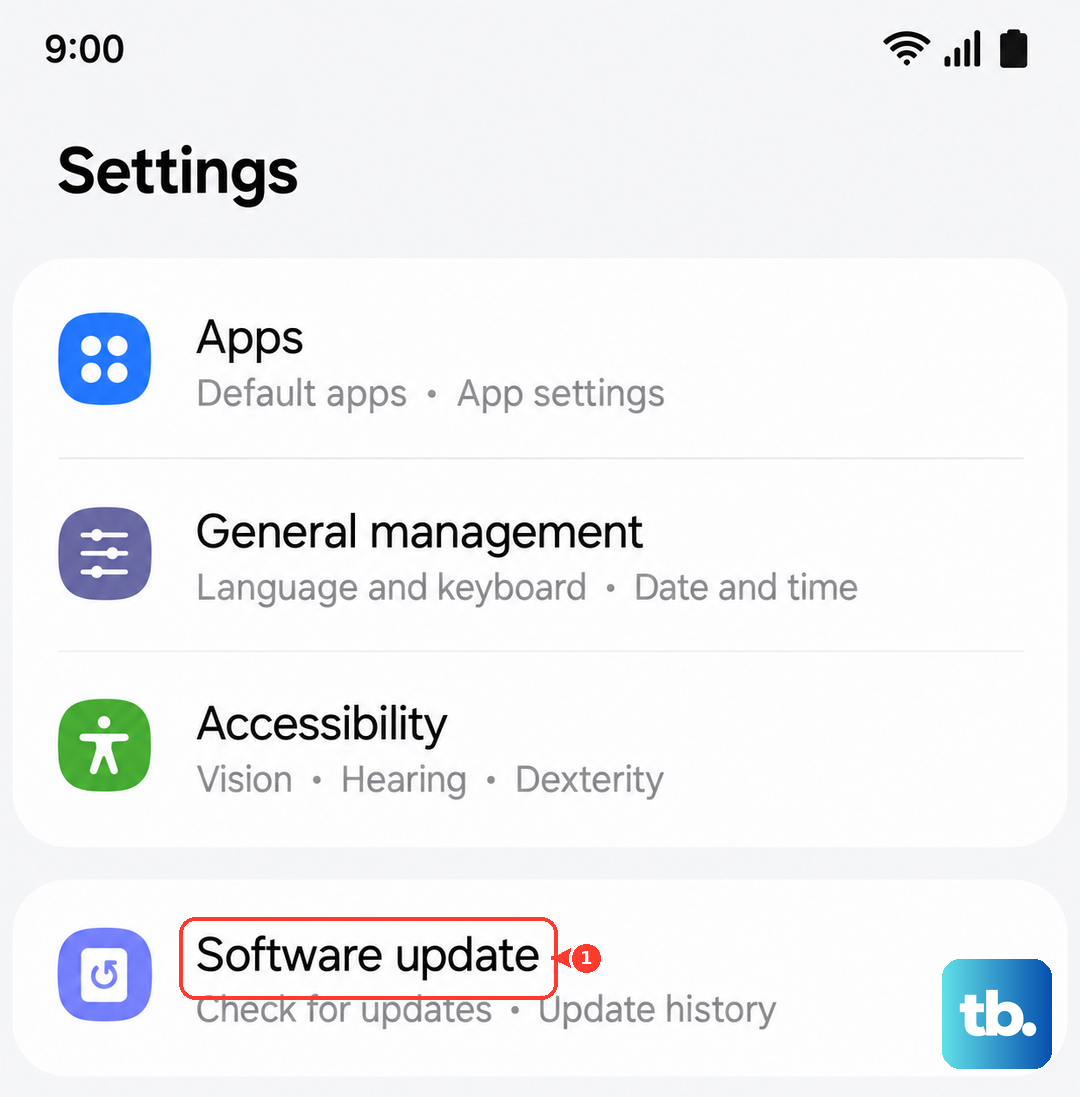
Tap "Download and install." Tap "Check for software updates." Tap "Download now" if you are prompted. Follow the on-screen instructions to install.
Make sure the phone has enough charge before you start, since the install will restart the device. If an update is available, let it finish completely before you judge whether your storage situation has improved.
Force Restart if a Storage Warning Freezes the Phone
Sometimes a full-storage warning leaves the phone unresponsive, with the screen frozen and taps doing nothing. A force restart safely reboots the device without erasing any of your data, which makes it the right move when the S25 FE simply will not respond.
Press and hold the Volume down button and the Side button (also called the Power button) simultaneously until the device turns off and turns back on. Release once the screen goes dark and the phone begins to restart.
Because this does not delete anything, you can use it whenever the interface locks up. Once the phone is back, return to the earlier fixes to actually clear the space that triggered the freeze.
The Last Resort When Nothing Else Works
If you have worked through every option above and the storage problem persists, a factory data reset wipes the phone back to its original state and clears everything stored on it. This is genuinely a last resort, because it erases all your data, so only do it after a full backup.
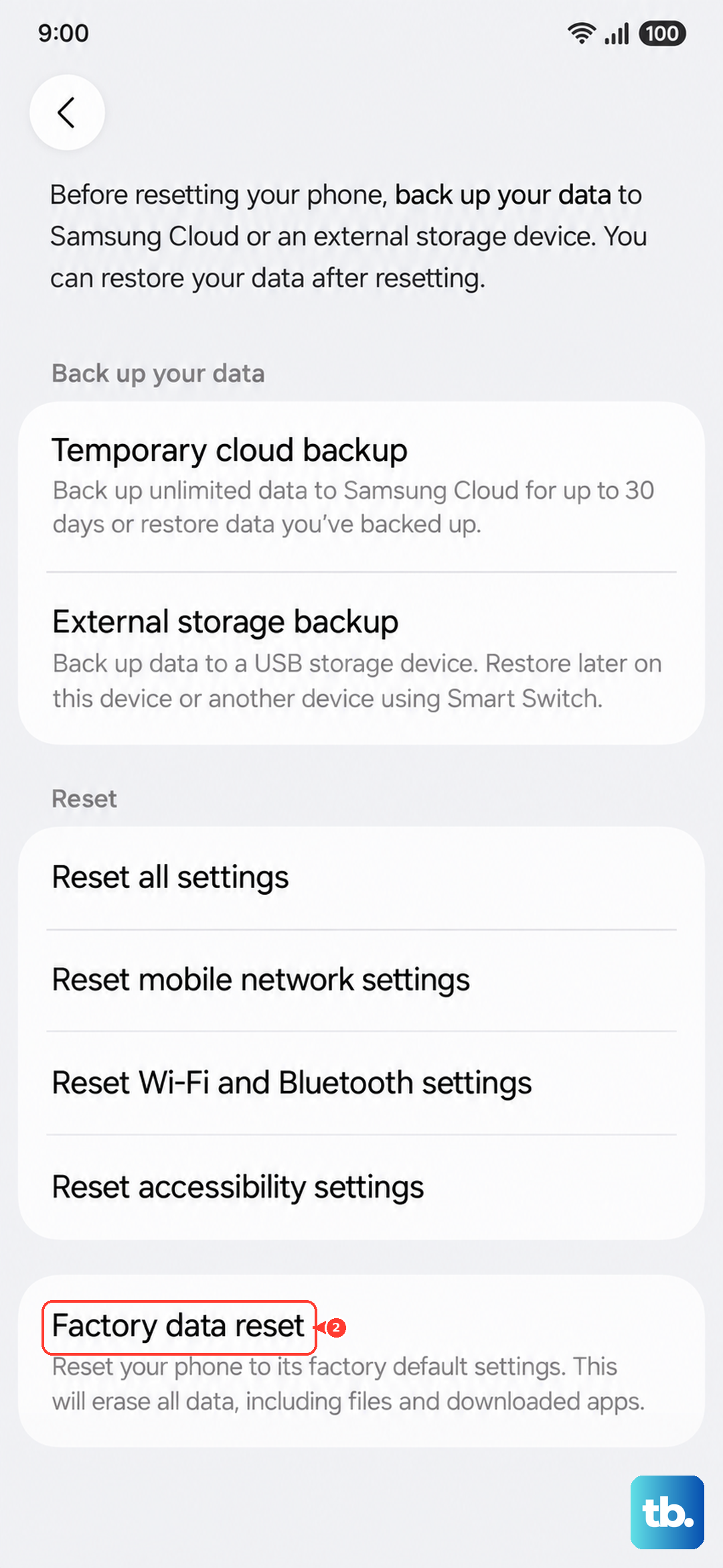
- 1.Back up your data first using the cloud steps above.
- 2.Go to Settings > General management > Reset.
- 3.Tap Factory data reset.
- 4.Tap Reset.
- 5.Tap Delete all.
Heed the official warning before you proceed: "Please save any information you need prior to the factory reset because your personal information may not be recovered." Once the reset begins, there is no undoing it, so confirm your backups are complete and verified first.
Frequently Asked Questions
Can I add a microSD card to my Galaxy S25 FE to get more space?
No. The Galaxy S25 FE does not have a microSD or external memory slot, so you cannot expand its storage with a card. To free up room, rely on cloud backup through Google Drive, OneDrive, or Dropbox, delete large files, clear app caches, and uninstall apps you no longer use.
Does clearing app cache delete my photos or sign me out?
No. Clearing the cache through Settings > Apps > [app] > Storage > "Clear cache" only removes residual temporary files and does not delete your personal data or sign-ins. Clearing data is the more aggressive option that resets the app to factory default settings and removes saved settings and logins.
Why didn't deleting files free up the space right away?
Deleted files are first moved to Trash, and they keep using storage until the recycle bin is emptied. After deleting items in Device care > Storage or in My Files, empty the Trash to fully reclaim the space.
How much storage does the 128GB Galaxy S25 FE actually have available?
The 128GB model has roughly 104.7GB available to you, because the operating system and pre-installed software occupy part of the total. That is why proactively clearing caches and moving media to the cloud makes a real difference on this model.
Will a force restart erase my data?
No. Holding the Volume down button and the Side (Power) button together until the phone turns off and back on reboots a frozen phone without deleting any data. A factory data reset is the only step here that erases everything, and it should only be used as a last resort after backing up.