
Seeing "No Service" or a missing signal bar on your Samsung Galaxy S25 FE can stop you from making calls, sending texts, or using mobile data right when you need it. This is usually a temporary glitch, and I'd start with the simplest fix first: a quick restart. Just press and hold the Volume Down and Side button together for about 10 seconds until you see the Samsung logo.
If that doesn't bring your signal back, don't worry. There are several other things to check, from your physical SIM card to specific settings in One UI 7. The process is straightforward, and you can often solve it yourself in a few minutes.
Check Your Physical SIM Card First
It's worth taking a moment to check the SIM card itself. Power off your S25 FE completely, then use the SIM ejector tool that came in the box to pop out the tray. Gently remove the SIM card, give the gold contacts a quick wipe with a soft, dry cloth, and carefully reseat it.
Make sure the card is facing the right way and clicks firmly into place. A loose or dirty SIM is a surprisingly common culprit for sudden signal loss. While you have the tray out, also check for any debris in the port.
Toggle Airplane Mode and Mobile Data
Your next move should be toggling Airplane Mode. Swipe down twice from the top of your screen to open the full Quick Settings panel and tap the Airplane icon to turn it on. Wait about 10 seconds, then tap it again to turn it off.
This forces your phone's radio to disconnect from and then search for all networks again, which can clear up a minor software hang. You can also do this in Settings > Connections > Airplane Mode.
Right after that, go to Settings > Connections > Data Usage and make sure the "Mobile Data" switch is turned on. If it's already on, try turning it off for a few seconds and then back on.
Manually Select Your Network Operator
Sometimes your phone gets stuck trying to connect to a weak or unavailable tower. You can manually tell it to reconnect to your proper carrier. Head to Settings > Connections > Mobile Networks > Network Operators.
Your S25 FE will search for a moment. When the list pops up, simply tap the name of your carrier (like T-Mobile, Verizon, or AT&T). If you don't see it listed, or you're not sure, choose Select Automatically instead. This resets the connection handshake.
Review and Reset Your APN Settings
The Access Point Name (APN) is like the address your phone uses to find your carrier's data network. If these settings are wrong or got corrupted, you'll lose data and sometimes voice service too. Go to Settings > Connections > Mobile Networks > Access Point Names.
You should see a list with at least one APN for your carrier. If it looks empty or wrong, the safest move is to tap the three-dot menu in the top right and select Reset to default. Your phone will load the standard settings from your SIM card.
If that doesn't work, you may need to enter them manually. You'll have to get the exact APN details from your carrier's website or customer support, as they vary.
Reset Your Phone's Network Settings
This is a more thorough step that wipes all your network-related configurations and starts fresh. It will erase saved Wi-Fi passwords, Bluetooth pairings, and any custom APN settings, but it won't touch your photos, apps, or personal files.
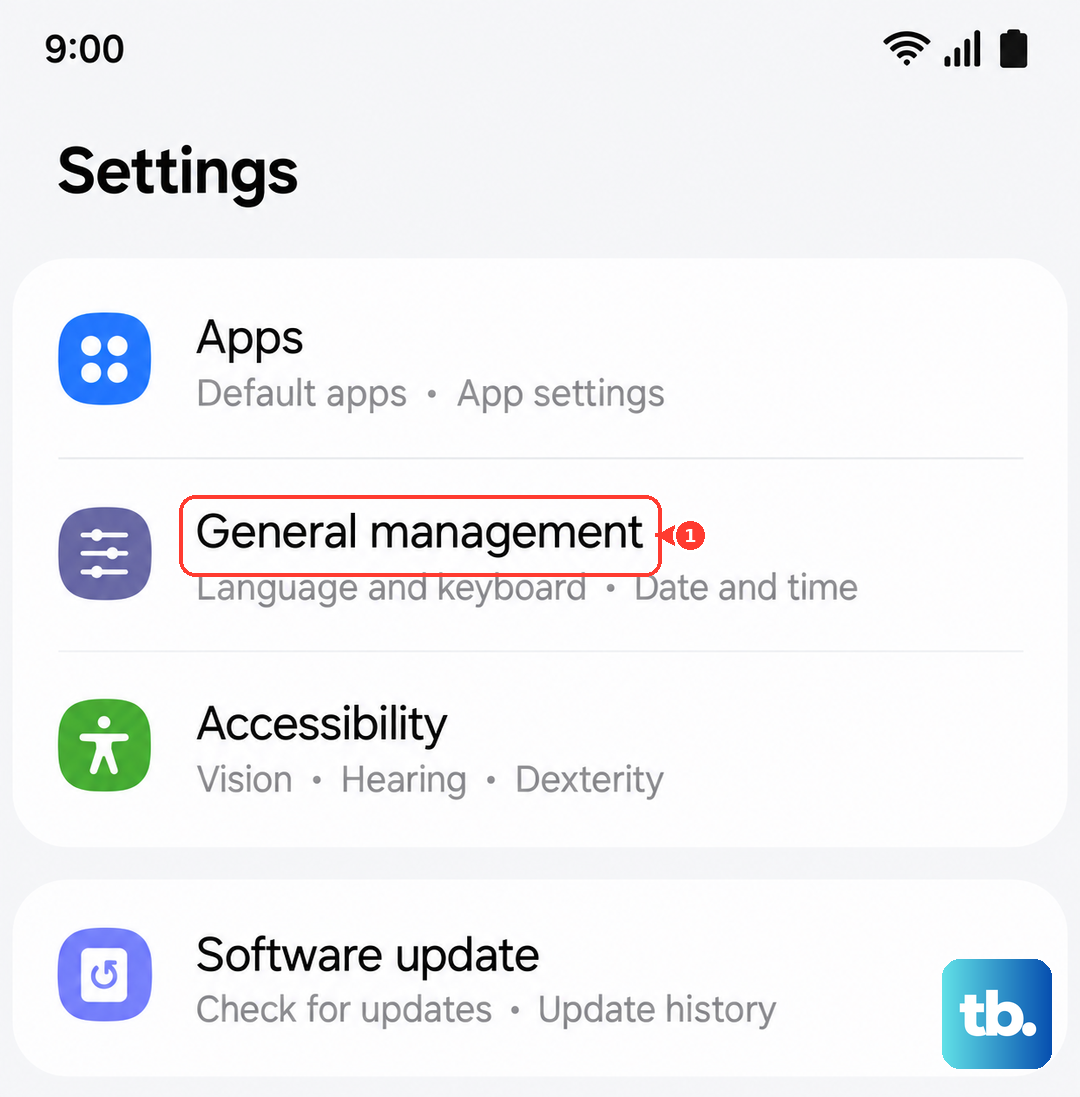
To do it, open Settings > General Management > Reset > Reset Network Settings. Tap the reset button at the bottom and confirm. Your phone will reboot, and you'll need to reconnect to Wi-Fi and Bluetooth devices afterward, but it often resolves persistent cellular issues.
Use the Phone Information Menu for Diagnostics
Android has a hidden testing menu that lets you see the raw status of your radio. Open your Phone app and dial *#*#4636#*#*. This should open the "Testing" menu. Tap on Phone information.
Here, you can see your signal strength in dBm (anything better than -100 dBm is okay) and your network type. You can also try tapping the three-dot menu and selecting Run Ping Test to check data connectivity. Don't change other settings here unless you know what you're doing.
Check for a Software Update
Since the S25 FE runs Android 15 with One UI 7, Samsung and your carrier periodically release updates that can fix bugs affecting network connectivity. It's a good idea to make sure you're on the latest version.
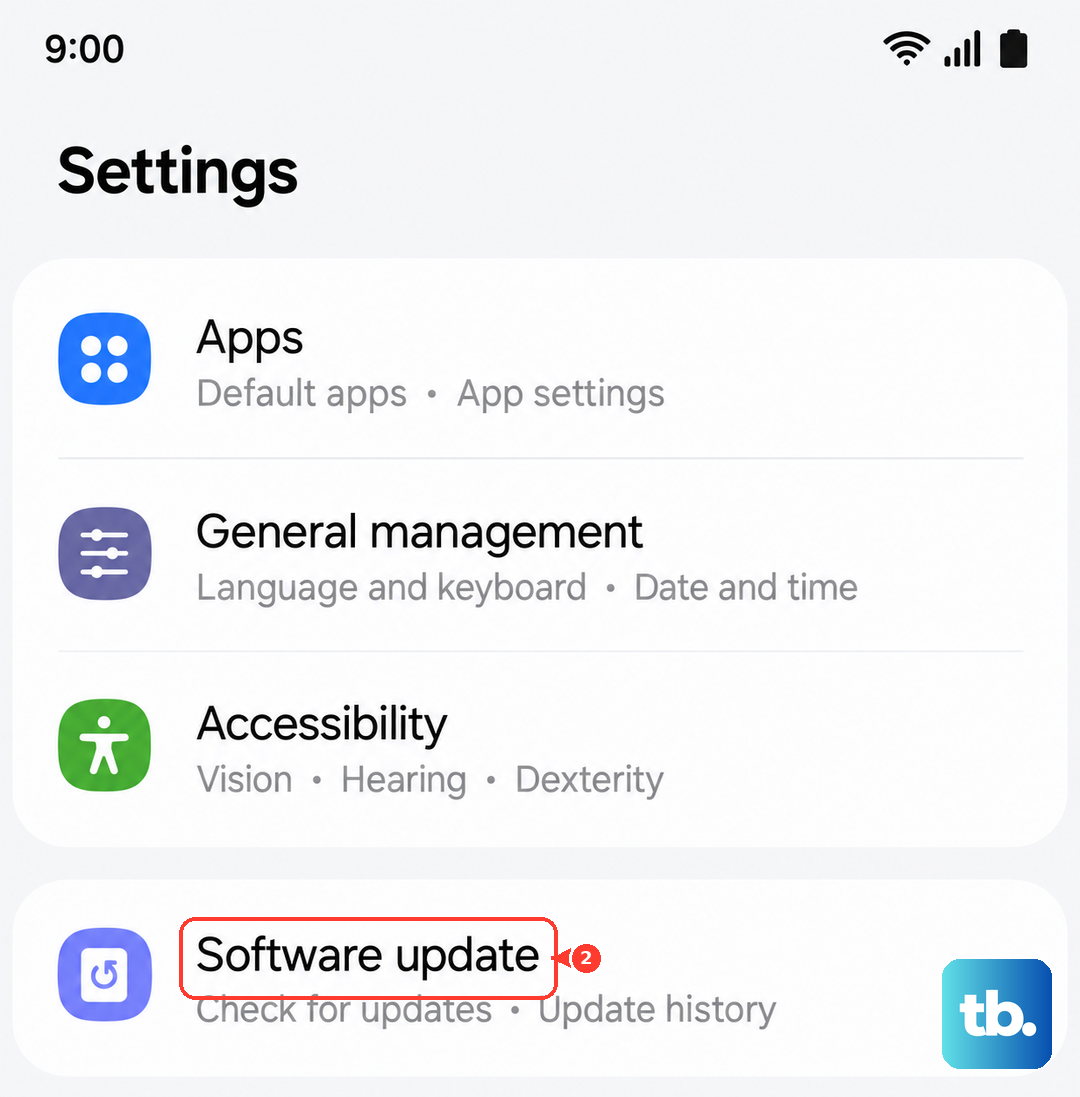
Go to Settings > Software Update > Download and install. If an update is available, connect to Wi-Fi and let it install. I've seen updates specifically target signal stability and modem performance, especially after a new phone launch.
Look for App or VPN Interference
If you recently installed a new app, especially a VPN, firewall, or network tool, it might be interfering. Try booting your phone into Safe Mode, which temporarily disables all third-party apps.
Press and hold the power button until the power menu appears, then tap and hold the "Power off" option. Tap "Safe Mode" when prompted. If your signal returns in Safe Mode, a downloaded app is likely the problem. You'll need to uninstall apps one by one to find the culprit.
Also, check Settings > Connections > More connection settings > VPN. If there's a VPN profile active, disconnect from it or remove the profile entirely to see if your service comes back.
Consider Your Location and Carrier Status
Think about where you are. Are you in a basement, a large concrete building, or a very rural area? Physical barriers can block signals. Try moving near a window or going outside.
It's also possible the issue is with your carrier, not your phone. Check if friends or family on the same network have service. You can also visit your carrier's website or social media to see if they've reported an outage in your area. A quick call to customer service can confirm if there's a problem with your account.
When All Else Fails: The SIM and Factory Reset
If you've tried everything and still have no service, the problem might be with the SIM card itself. The easiest test is to put your SIM into another unlocked phone. If that phone also gets no service, you know the issue is with the SIM or your carrier account, and you should request a replacement SIM.
As a very last resort before seeking repair, you can perform a factory reset. This will erase everything on your phone, so you must back up your data first. Go to Settings > General Management > Reset > Factory data reset. After the reset, set the phone up as new (without restoring a backup initially) to see if the signal returns on a clean system.