You snapped a photo to send to a group chat, but your Samsung Galaxy S25 FE just spins on "Sending" or drops a red exclamation mark next to the message. Plain texts go through fine, yet anything with a picture, a video, or more than a couple of recipients refuses to leave the phone. That gap is the clue. Multimedia messages travel a different path than plain SMS, and on the S25 FE that path runs over mobile data and your carrier's provisioning, not the basic text channel.
The good news is that MMS failures almost always trace back to a handful of settings rather than a hardware fault. The S25 FE is a standard 5G cellular smartphone (Exynos 2400, IP68, with 5G and 4G LTE), so it fully supports SMS and MMS through its messaging app once mobile data and the carrier connection are working. Work through the fixes below in order; they start with the quickest, safest toggles and move toward the bigger resets, leaving the factory reset and your carrier for last.
Make sure mobile data is actually switched on
This is the single most common reason an MMS stalls. Picture messages, group messages, and any text long enough to exceed the SMS character limit are sent over mobile data, not over SMS alone. If mobile data is off, those messages have no way to leave the phone even when calls and basic texts work.
Swipe down from the top of the screen to open the Quick settings panel and make sure Mobile data is turned on. Once it is active, reopen your stuck message and try sending it again before moving on.
Switch Flight mode off, then try toggling it
If Flight mode (also shown as Airplane mode) is on, every cellular connection is blocked, MMS included. It is easy to leave it enabled by accident after a flight or while saving battery overnight.
Swipe down from the top of the screen to open the Quick settings panel and tap the Flight mode icon to turn it off. If it was already off but messages still will not send, try the opposite and tap it on for a few seconds and then off again. That quick on-off cycle forces the phone to re-establish its network connection, which can shake loose a stalled MMS.
Force restart a frozen messaging or network state
Sometimes the messaging app or the network stack gets wedged, and no amount of toggling fixes it until the phone reboots cleanly. A force restart clears that temporary state without touching your data.
Press and hold the Volume down button and the Side button simultaneously for about 10 seconds, until the screen goes black and the Samsung logo reappears as the phone restarts. Use this method when the phone feels unresponsive or the messaging app is stuck. Once it is back up, give the message another try.
Turn on automatic MMS download in your messaging app
Multimedia messages rely on an automatic download setting to send and receive cleanly. If that setting is off, your outgoing and incoming MMS can get stuck instead of completing. The exact path depends on which messaging app you use.
In Samsung Messages, open the app and tap More options (the three dots), then go to Settings > More settings > Multimedia messages and turn on "Download automatically." In Google Messages, tap your profile icon, then go to Messages settings > Advanced and turn on "Auto-download MMS." Either toggle lets multimedia messages move instead of hanging.
Check that Auto Blocker isn't holding back attachments
Samsung's Auto Blocker is a security feature, and when its "Maximum restrictions" setting is turned on it disables automatic attachment downloads in messages. That can quietly break picture messaging even though everything else looks normal.
Go to Settings > Security and privacy > Auto Blocker, tap "Maximum restrictions," and turn it off. With that restriction lifted, picture messages can be sent and received normally again.
Clear the Messages app cache, and its data if needed
Over time the messaging app builds up temporary files that can interfere with sending. Clearing the cache removes those residual files without deleting any of your conversations, so it is a safe early step.
- 1.Open Settings > Apps.
- 2.Select your Messages app from the list.
- 3.Tap Storage.
- 4.Tap Clear cache.
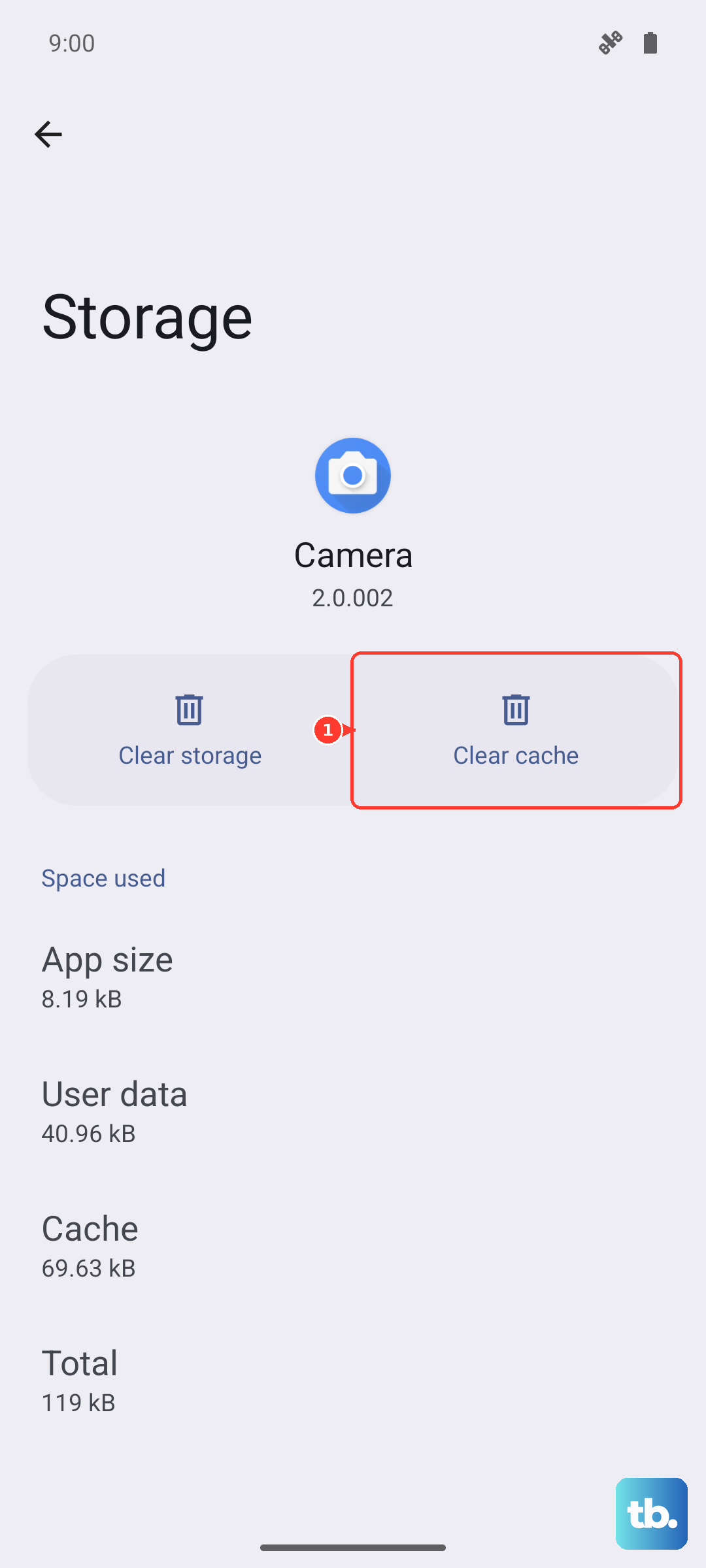
Try sending the MMS again after clearing the cache. If the problem continues, you can go a step further in the same Storage screen and tap Clear data > Delete. Be aware that this resets the app to its factory default settings and removes any personal settings saved in the app, so have your account information handy before you do it.
Install any pending software update
Out-of-date firmware can introduce messaging and network bugs, and Samsung pushes fixes for these through regular updates. The S25 FE ships with Android 16 and One UI 8 and continues to receive ongoing updates over its lifetime.
Go to Settings > Software update > Download and install, then follow the on-screen instructions to install whatever update is available. Keeping the phone current resolves a surprising number of intermittent messaging issues.
Check your carrier's APN settings
MMS depends on the correct Access Point Names (APN) for your carrier. If the APN is wrong or has been altered, picture messages can fail even when mobile data is on and everything else is configured correctly.
Go to Settings > Connections > Mobile networks > Access Point Names and tap your carrier's access point to check it. If it looks wrong, the most reliable way to restore the correct values is the network reset in the next step, which returns your APN and related connection settings to their carrier defaults for you.
Reset the mobile network or network settings
If messaging and data are still unstable after the steps above, resetting your network settings returns them to defaults without erasing your personal data, apps, or messages. It is a powerful step that often clears stubborn provisioning glitches.
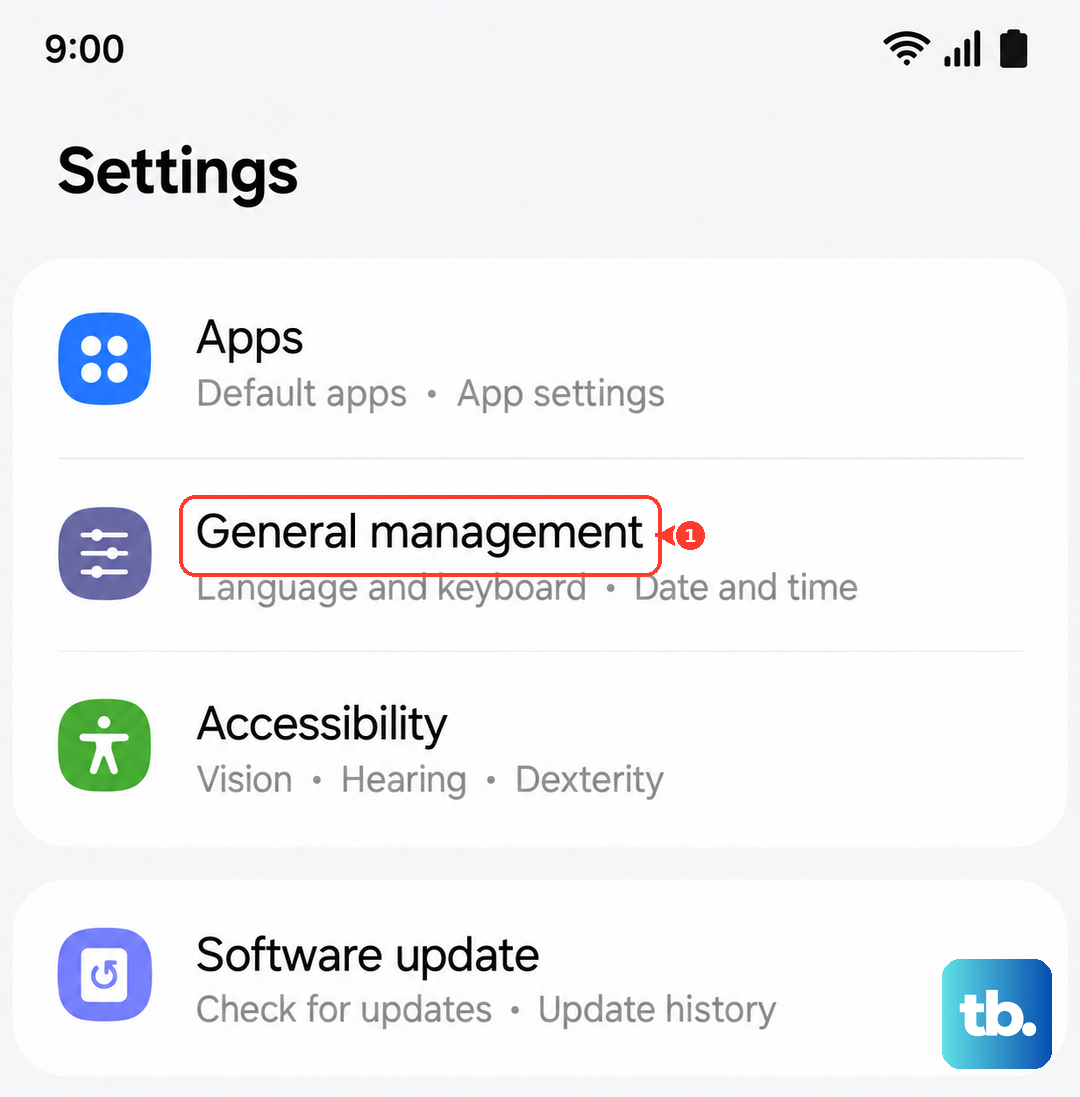
Go to Settings > General management > Reset > Reset mobile network settings (or Reset network settings for a wider reset that also covers Wi-Fi and Bluetooth), review the information shown, then tap Reset settings. Afterward you will need to reconnect Wi-Fi and Bluetooth, and you may need to re-enter any custom APN settings you had configured.
Perform a factory data reset as a last resort
If none of the previous fixes work, a factory reset wipes the phone back to its original state and clears any deep software problem causing the MMS failure. This is destructive, so treat it as a genuine last resort and back up everything first.
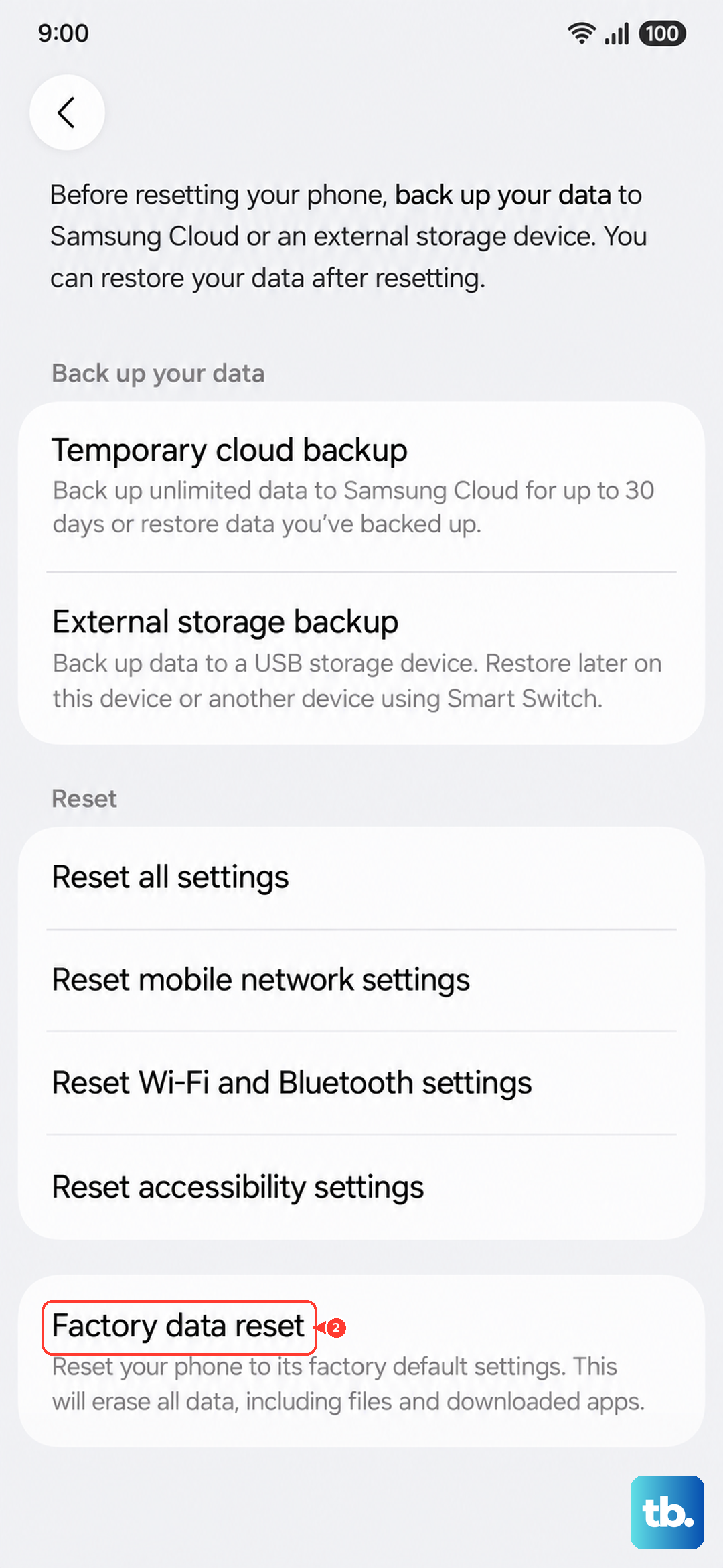
Samsung's own warning is direct. "Please save any information you need prior to the factory reset because your personal data may not be recovered." Once you have a full backup, go to Settings > General management > Reset > Factory data reset > Reset > Delete all, entering your security credentials or Samsung account password if you are prompted. After the reset, set the phone up again and test an MMS before restoring everything.
When to contact your carrier
Text and MMS messaging is a service that your carrier provides and provisions, so some causes sit entirely on their side rather than on your phone. If MMS still will not send after working through every fix above, the problem may be carrier provisioning, your specific plan, or a network or coverage issue on their end.
Reach out to your service provider and explain that plain SMS works but MMS fails after a full round of on-device troubleshooting. They can re-provision your line, confirm your plan includes multimedia messaging, and check for outages in your area.
Frequently Asked Questions
Why do my plain texts work but picture messages fail on the Galaxy S25 FE?
Plain SMS and MMS travel different routes. Standard texts go over the basic messaging channel, but picture messages, group messages, and longer texts that exceed the SMS character limit are sent over mobile data. If mobile data is off or your carrier's MMS provisioning is incomplete, basic texts still go through while anything with an attachment fails.
Does resetting network settings delete my messages or apps?
No. Reset mobile network settings and Reset network settings only return your connection settings to their defaults; they do not erase your personal data, apps, or messages. You will, however, need to reconnect Wi-Fi and Bluetooth afterward and may have to re-enter any custom APN settings you had set up.
How do I force restart the Galaxy S25 FE if it freezes while sending?
Press and hold the Volume down button and the Side button at the same time for about 10 seconds, until the screen goes black and the Samsung logo reappears as the phone restarts. This clears a frozen messaging or network state without deleting any of your data.
Will a factory reset definitely fix MMS that won't send?
Not always. A factory reset clears deep software problems on the phone, but if the cause is carrier provisioning, your plan, or a network issue, the reset alone will not solve it. Because it erases the phone, back up your data first and only use it as a last resort before contacting your carrier.
Could a security setting be blocking my picture messages?
Yes. Samsung's Auto Blocker, when set to "Maximum restrictions," disables automatic attachment downloads in messages. Go to Settings > Security and privacy > Auto Blocker, tap "Maximum restrictions," and turn it off so picture messages can be sent and received normally.