You pull your Samsung Galaxy S25 FE out of your pocket, tap the screen, and nothing happens. The display stays completely black even though the phone may have been working fine an hour ago. A black or blank screen on the S25 FE usually points to a drained battery or a temporary software lockup rather than a broken phone, and Samsung publishes an official troubleshooting flow for exactly this problem.
The fixes below are ordered from the safest and easiest to the more involved, with the official reset and repair paths saved for last. Work through them in order and stop as soon as your screen comes back to life. None of the early steps touch your data, so there is no risk in trying them first.
Give the battery an hour on the charger before anything else
A dead battery is the single most common reason a Galaxy S25 FE shows a black screen, and it is easy to overlook because the phone gives no warning when the screen is already off. Before you assume the display has failed, get the phone charging and give it real time to recover.
Plug in with a known-good Samsung cable and adapter. Use an authentic Samsung charger, since incompatible chargers can damage the device. Before connecting, look over the cable, adapter, and charging port for any obvious damage or debris.
Connect the phone to power using the appropriate Samsung cable and adapter.
Charge for at least 1 hour. The charging indicator can take up to 10 minutes to appear, so do not panic if the screen stays dark at first.
After charging, press and hold the Power button for 15 to 20 seconds until the Samsung Galaxy logo appears.
If the port looks blocked or the cable feels loose, the S25 FE also supports 15W wireless charging, which is useful when the wired connection is the problem. Set the phone on a compatible wireless charger and give it the same full hour before trying to power on.
Force a restart to clear a frozen display
Sometimes the phone is actually powered on but the screen is locked up and refusing to respond. A forced restart acts like pulling the battery on an older phone and clears most temporary software lockups without erasing anything.
The button combination is the Power button (also called the Side button) plus the Volume down button, held together. Samsung's published hold times vary by support page, so the safest approach is to keep holding until the phone reacts.
Press and hold the Power button (or Side button) and the Volume down button at the same time.
Keep holding. Samsung's blank-display guidance says hold for 20 seconds, while its frozen-phone guidance says more than 7 seconds.
Continue holding until the phone vibrates and the Samsung logo appears. This can take up to 60 seconds.
When the phone resets, you will feel it vibrate, which is your signal that the restart took. If the screen still will not respond, do not keep holding the buttons; move on to inspecting the hardware.
Check the phone, charger, cable, and port for damage
Before going any deeper into software, rule out a physical problem you can see or feel. Examine the phone, charger, and USB cable for physical or liquid damage, corrosion, or bent pins, and remove any case that might be pressing on the buttons or the port.
Liquid is a common hidden culprit. If the phone got wet or showed a moisture alarm, wait 1 to 2 hours for the charging port to dry before charging it. While you wait, you can fall back on the S25 FE's wireless charging, which is not affected by port moisture.
You can also check the Liquid Damage Indicator in the SIM tray. It should be white. If it is solid pink, purple, or red, the phone has been exposed to liquid, and that may explain the black screen.
Boot into Safe mode to test for a problem app
If the screen comes back but keeps going black or misbehaving at random, a downloaded app may be triggering the issue. Safe mode loads the phone with only the built-in software so you can confirm whether a third-party app is to blame.
With the device off, you can enter Safe mode during start-up.
Power the phone off, then turn it back on.
When the Samsung logo appears, press and hold the Volume down button.
Keep holding until "Safe mode" shows in the bottom-left corner of the screen.
If your screen is responsive, you can instead use the power menu. Press and hold the Side button and Volume down button, touch and hold the Power off icon, then tap the Safe mode icon. In Safe mode your device will not run any third-party apps.
If the black-screen behavior stops while in Safe mode, a downloaded app is the cause. Uninstall the apps you added most recently, then restart the phone normally to exit Safe mode.
Install any pending One UI software update
A One UI or Android update can fix display and stability bugs that cause a screen to blank out. The S25 FE ships with One UI 8 (Android 16) and is eligible for the One UI 8.5 update, so it is worth confirming you are on the latest build.
Connect to Wi-Fi and keep the phone well charged before you start, then follow this path.
Open Settings > Software update > Download and install.
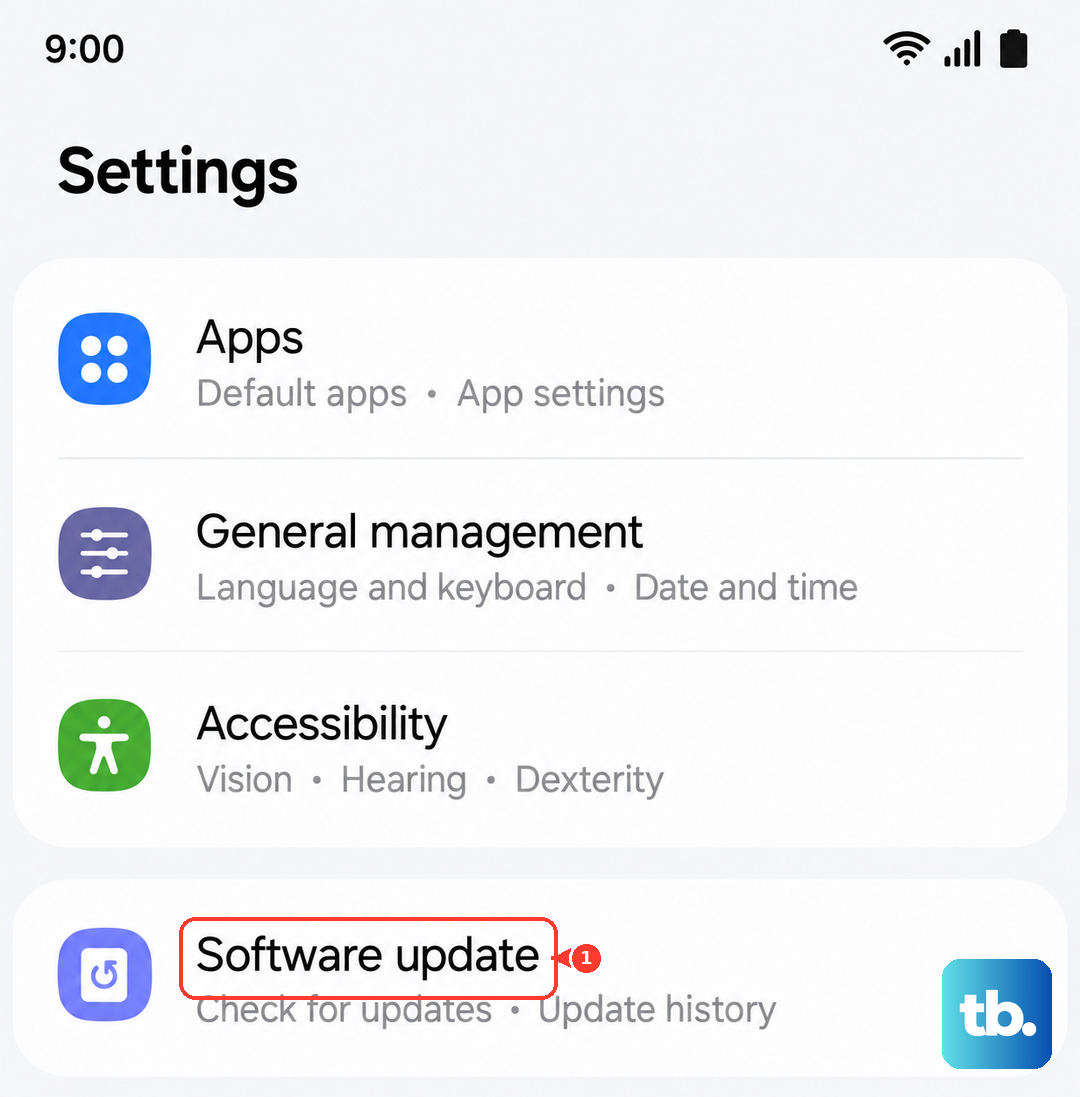
Tap Install now if an update is available.
You can also enable Auto download over Wi-Fi from the same menu so future updates arrive without you having to check manually. Let the update finish and the phone restart on its own.
Reset all settings without losing your data
If the display still acts up after updating, a bad system configuration could be behind it. You can return the phone's settings to their defaults without erasing your photos, apps, or accounts.
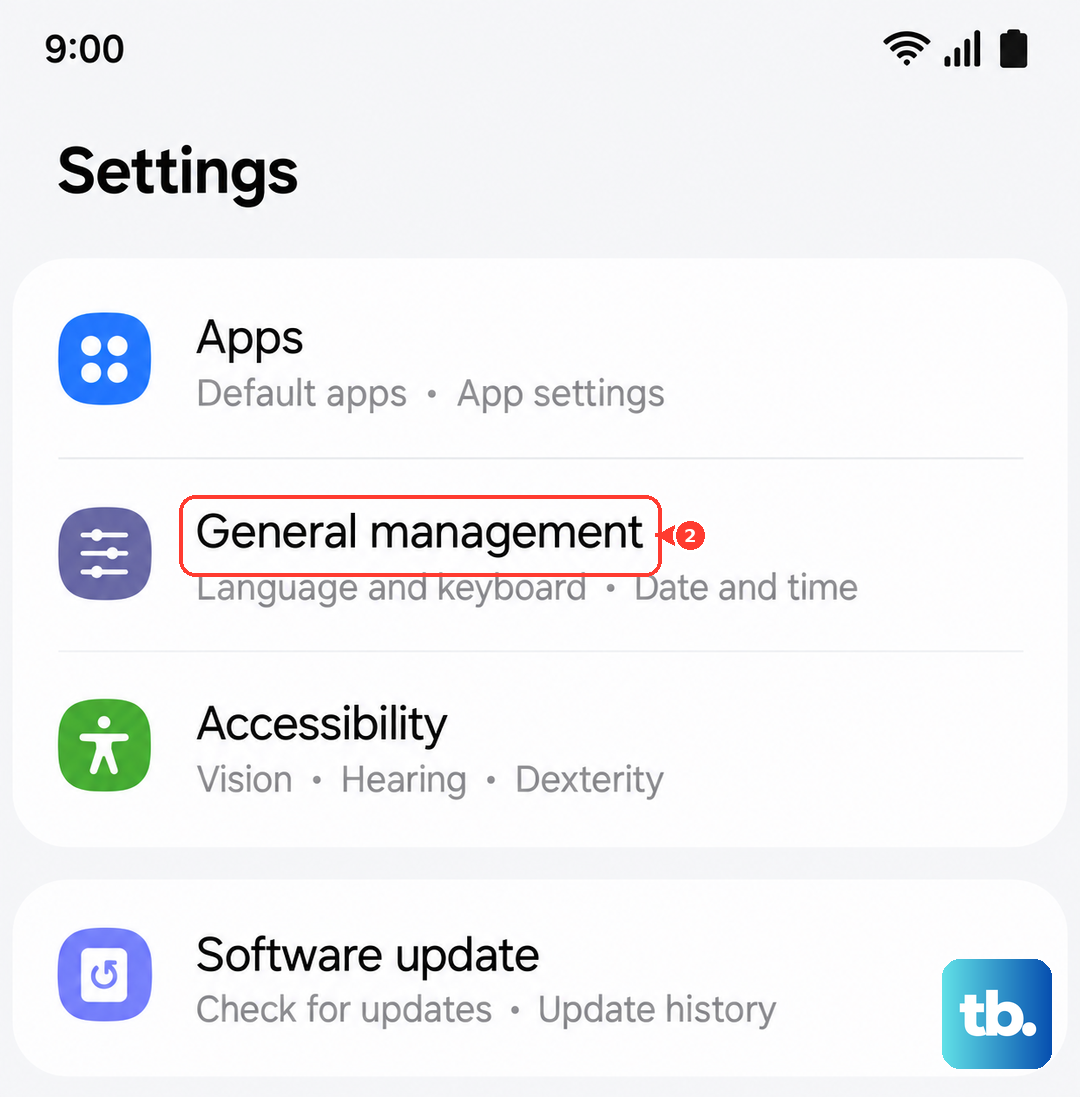
Go to Settings > General management > Reset > Reset all settings. This restores your settings to default while keeping all of your personal data intact, which makes it a low-risk step to try before the more drastic options.
Back up first, then factory reset as a last software step
When nothing else has worked, a factory data reset is the final software fix. This step erases everything on the phone, so back up your data before you begin. Save anything you need to Samsung Cloud or use Smart Switch to move your data somewhere safe.
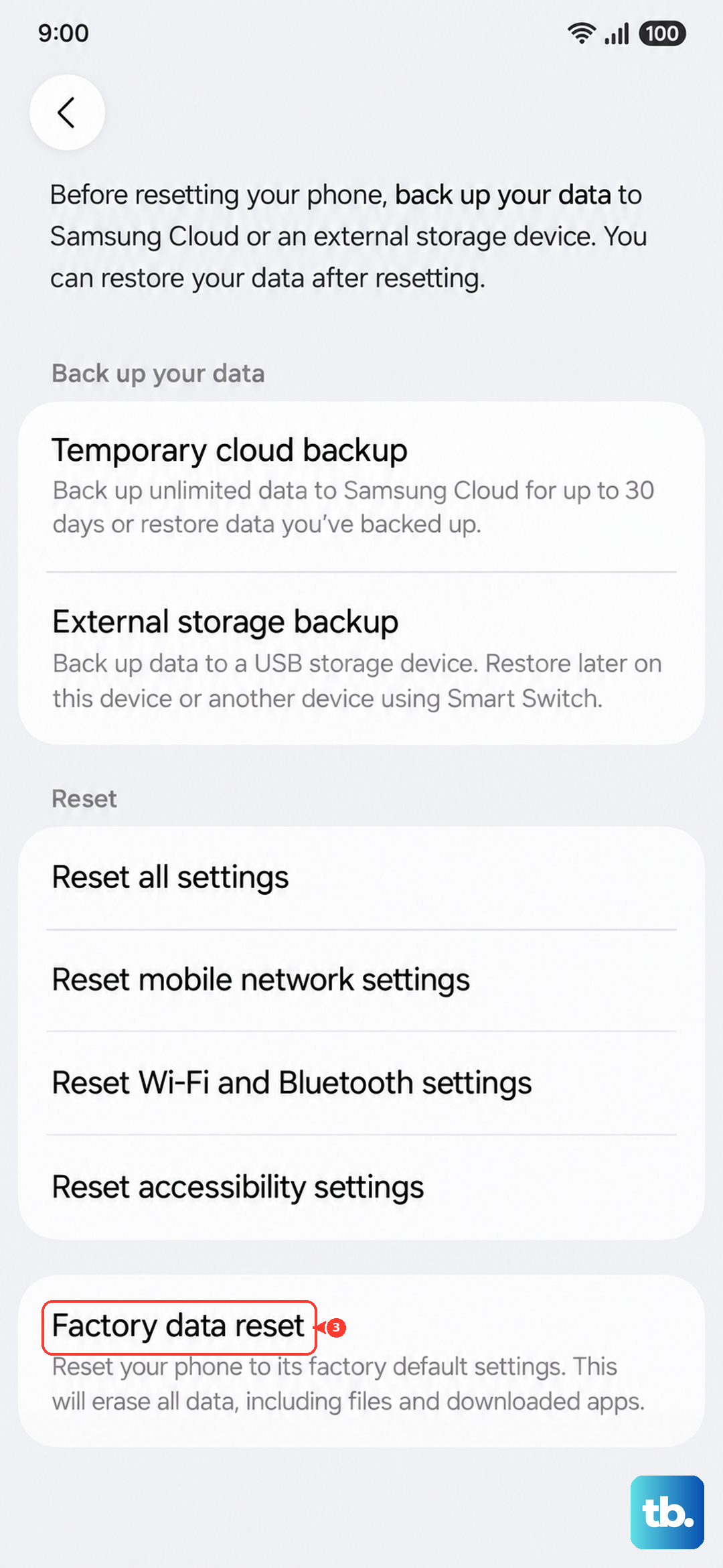
Samsung's warning is clear. Please save any information you need prior to the factory reset, because your personal information may not be recovered and the reset is not reversible. Once you have a backup, follow the official procedure.
- 1.Open Settings > General management > Reset > Factory data reset.
- 2.Review the information on screen.
- 3.Tap Reset, then tap Delete all.
- 4.Enter your lock credentials and Samsung account password if prompted.
After the reset completes, you can restore your files and apps from the backup you just made. If the black screen returns even on a freshly reset phone, the problem is almost certainly hardware.
Request service from Samsung if the screen stays black
Samsung states that if the screen fails to turn on after the previous steps, the device needs service. A black display that persists through charging, a force restart, and a factory reset usually indicates a hardware or display fault that cannot be fixed at home.
To get it repaired, request service through Samsung's official support site, or use the Samsung Members app to book service at an authorized center. The Samsung Members app also includes self-diagnostics that can help confirm what is wrong before you hand the phone over.
Frequently Asked Questions
Why is my Galaxy S25 FE screen black but the phone still makes sounds?
That usually means the phone is powered on but the display is locked up rather than off. Try a force restart by pressing and holding the Power (Side) button and the Volume down button together until the phone vibrates and the Samsung logo appears, which can take up to 60 seconds.
How long should I charge my S25 FE if the screen is completely dark?
Charge it for at least 1 hour with an authentic Samsung cable and adapter. The charging indicator can take up to 10 minutes to appear, so a dark screen early on does not mean charging has failed. Afterward, hold the Power button for 15 to 20 seconds until the Samsung Galaxy logo appears.
Will any of these fixes erase my photos and apps?
Charging, force restarting, Safe mode, installing updates, and Reset all settings all keep your personal data. Only the factory data reset erases everything, which is why it comes last and why you should back up to Samsung Cloud or Smart Switch first.
How do I know if a downloaded app is causing the black screen?
Boot into Safe mode, which runs the phone without any third-party apps. If the black-screen behavior stops in Safe mode, a recently installed app is the likely cause, so uninstall your newest apps and restart normally to exit.
What does it mean if the Liquid Damage Indicator is pink or red?
The indicator in the SIM tray should be white. If it is solid pink, purple, or red, the phone has been exposed to liquid, which can cause a black screen. Wait 1 to 2 hours for the port to dry, use wireless charging in the meantime, and consider requesting service if the display does not recover.