It's annoying when you tap send on a photo and it just sits there. The "Sending" bar hangs at the bottom of the screen, or you get a failure notice a few seconds later. Let's walk through the most common reasons your Samsung Galaxy S25 Edge won't send pictures and get them moving again.
Is your mobile data or Wi-Fi working properly?
This is the first thing to check. Swipe down twice from the top of the screen to pull down the full Quick Settings panel. Make sure the Mobile Data icon is lit up if you're on cellular, or that you're connected to a strong Wi-Fi network.
If you're on Wi-Fi but the picture won't send, try turning Wi-Fi off and sending over mobile data instead. If it goes through, your router or internet connection might be the issue.
Restart your Galaxy S25 Edge
A quick restart clears up a surprising number of temporary glitches. Press and hold Volume Down and Side (power) buttons simultaneously for about 10 seconds until the Samsung logo appears. This isn't the same as a factory reset, it just forces the phone to reboot cleanly.
Once it powers back on, try sending the picture again. You'd be surprised how often this is all it takes.
Make sure MMS is turned on
Pictures are sent as MMS messages on Android. If MMS is disabled in your messaging settings, your phone won't be able to attach a photo to a text. Open the Samsung Messages app, tap the three dots in the corner, and go to Settings. Look for the MMS toggle and make sure it's switched on.
If you're using Google Messages instead of Samsung Messages, the setting is in the app's settings under Chat features or Advanced.
Check your APN settings
This is a deeper dive, but it's a common culprit on Android. Your Access Point Name (APN) contains the server addresses your phone uses to send MMS. If the MMSC, MMS proxy, or port fields are wrong, your pictures won't go through.
Head to Settings > Connections > Mobile networks > Access Point Names. Compare what's listed there to your carrier's official APN settings. A single incorrect character can block picture messaging completely.
Turn off Data Saver
Data Saver is a great feature for cutting down on background data, but it can interfere with sending pictures. When it's active, the Messages app might not have permission to use data freely in the background.
You can check this under Settings > Connections > Data Usage > Data Saver. If it's on, toggle it off and see if your photos start sending.
Clear the cache for the Messages app
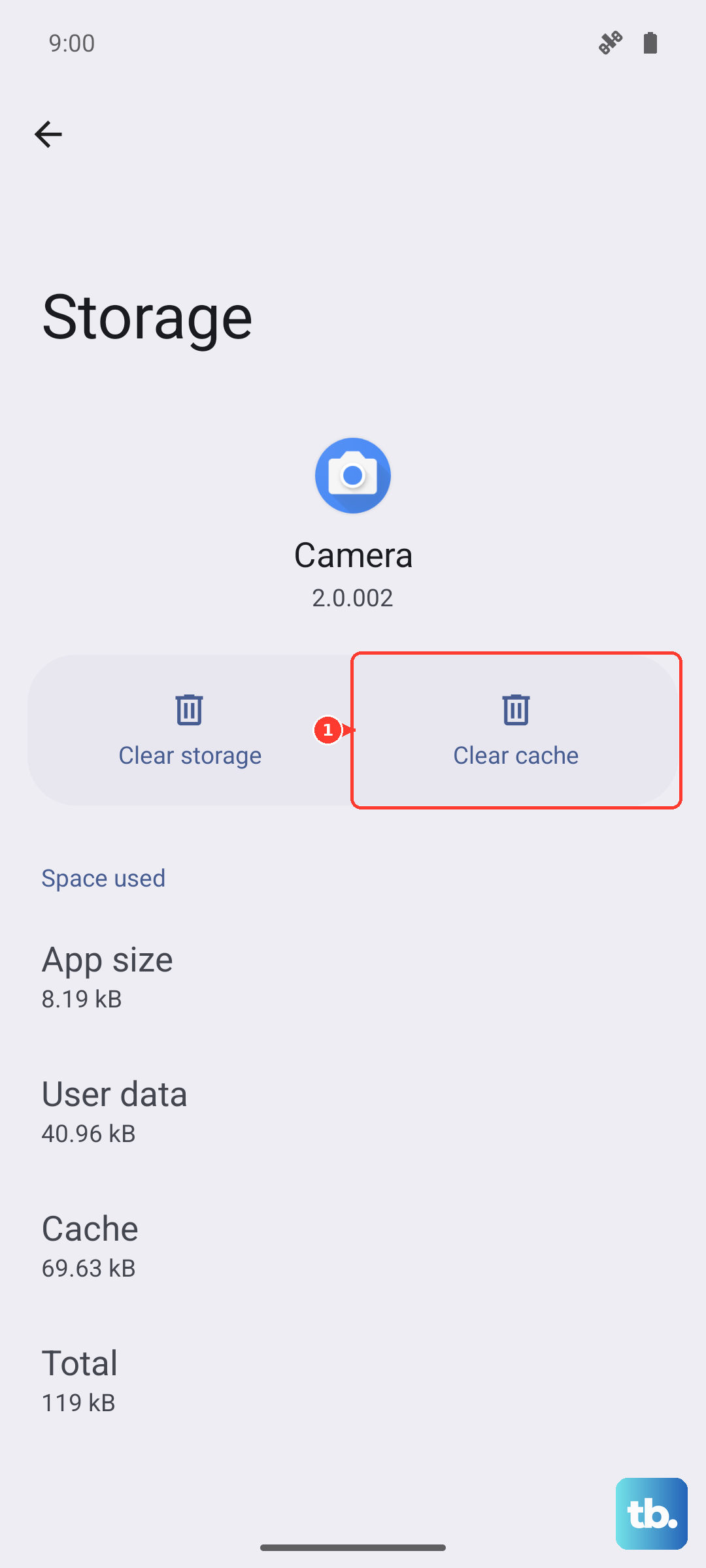
Over time, cached data in the Messages app can get corrupted and cause odd behavior like failing to send photos. Clearing the cache won't delete your conversations, it just gets rid of temporary junk files.
Go to Settings > Apps > Messages > Storage. Tap Clear Cache. Don't tap "Clear Data" unless you're okay with starting fresh, as that will wipe your message history.
Set the date and time to automatic
This one matters more than you'd think. If your date and time are incorrect, the encrypted connection for RCS messages can fail to establish. That forces your phone to fall back to basic SMS, which often can't handle picture attachments.
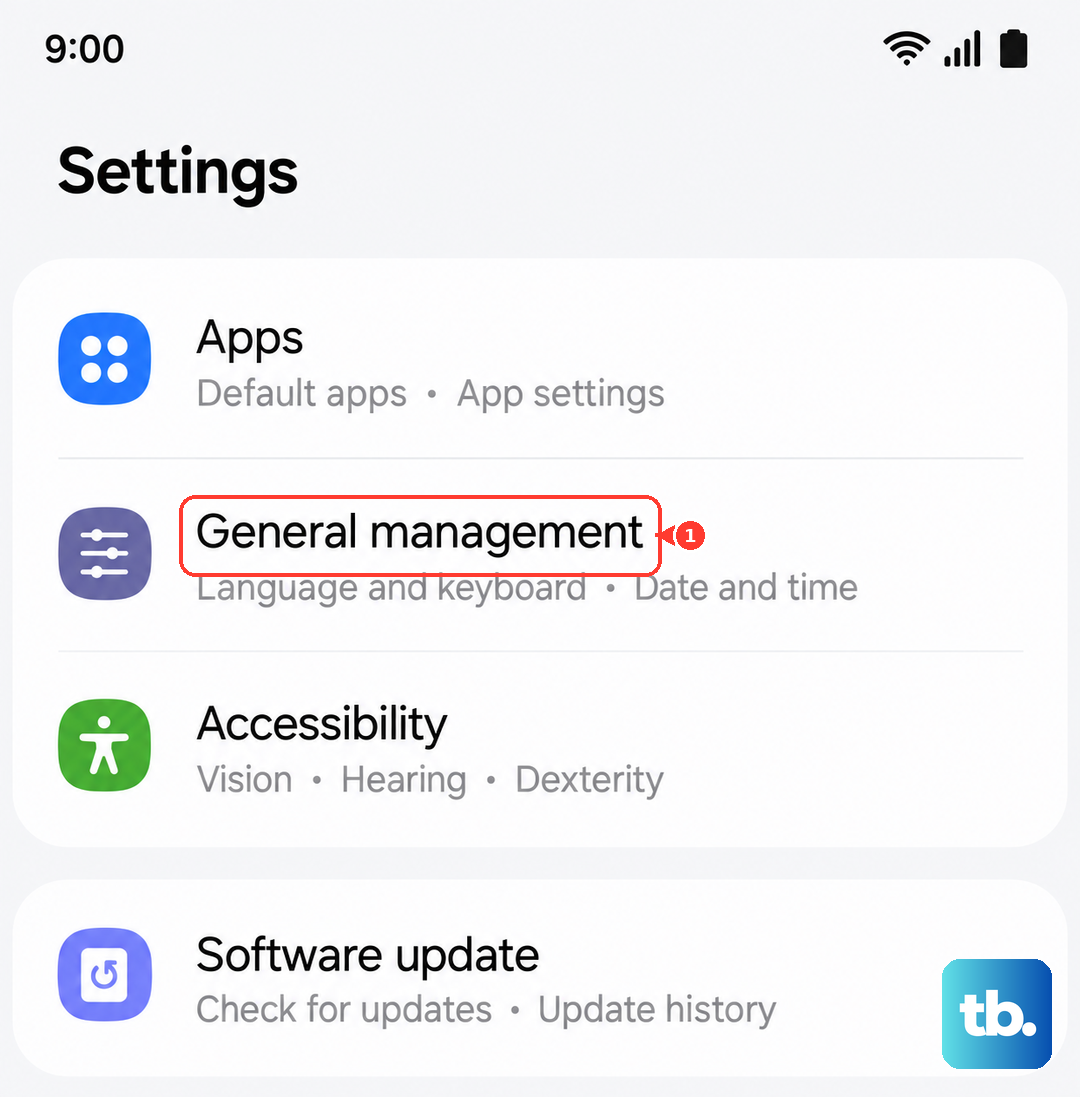
Open Settings > General Management > Date and Time. Make sure Automatic date and time is toggled on. Give it a moment to sync, then try again.
Reset your network settings
If nothing else has worked so far, a network settings reset is the next logical step. This will erase saved Wi-Fi passwords and Bluetooth pairings, so you'll need to reconnect to your router afterward.
Navigate to Settings > General Management > Reset > Reset network settings. Enter your PIN or password and confirm. Once the phone restarts, reconnect to your network and test a picture message.
Install the latest software update
Samsung regularly releases software updates that fix bugs related to messaging and connectivity. If your phone is behind on updates, you might be hitting a known issue that's already been patched.
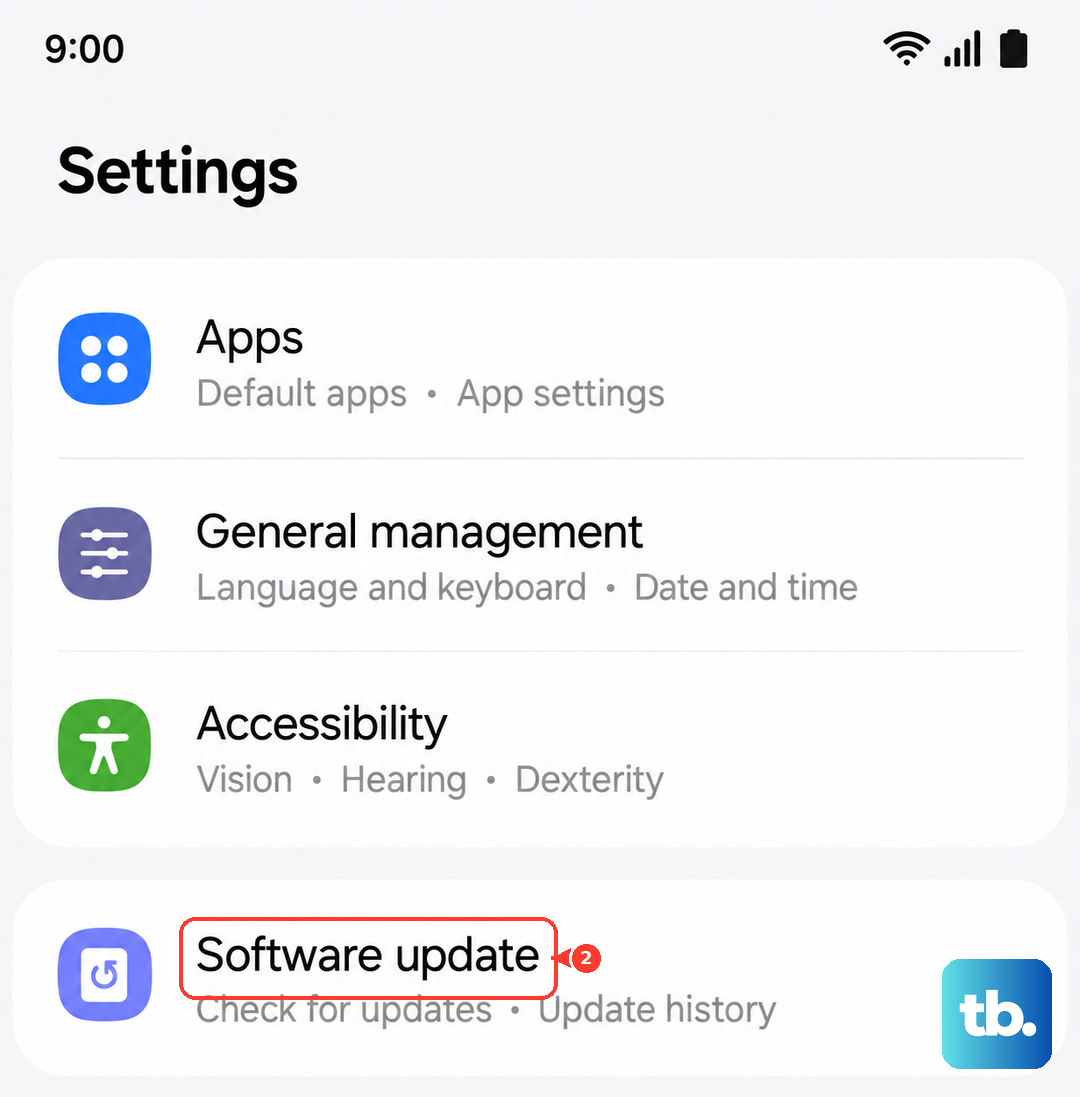
Check for updates by going to Settings > Software update > Download and install. If an update is available, install it and restart your phone. It's often the solution that quietly fixes everything.