
Your Samsung Galaxy S25 Edge keeps dropping Wi-Fi or refuses to connect at all. I know how annoying that spinning icon can be when you're in the middle of something important. The good news is that most Wi-Fi problems on this phone are quick to fix, and you usually don't need to dig into advanced settings.
Let me walk you through the fixes that actually work on the Galaxy S25 Edge, starting with the fastest ones.
Toggle Wi-Fi and Restart
Pull down the notification shade and tap the Wi-Fi icon to turn it off. Wait about five seconds, then tap it back on. This forces the phone to re-scan for networks, and it solves the problem surprisingly often.
If that doesn't cut it, restart your phone. Press and hold Volume Down and the Side (power) button together for about 10 seconds until the Samsung logo appears. That's a force restart on the S25 Edge, and it clears temporary glitches that mess with your wireless connection.
Turn Airplane Mode On and Off
Airplane mode kills all wireless radios, Wi-Fi, Bluetooth, cellular, and turning it back on forces them to reconnect fresh. Swipe down and tap the Airplane mode icon, leave it on for about 15 seconds, then tap it off again. Your Wi-Fi should kick back in immediately.
Forget the Network and Reconnect
Your phone might be holding onto old or corrupted network credentials. Go to Settings > Connections > Wi-Fi, tap the gear icon next to your network name, and select Forget. Then tap the network again and re-enter the password.
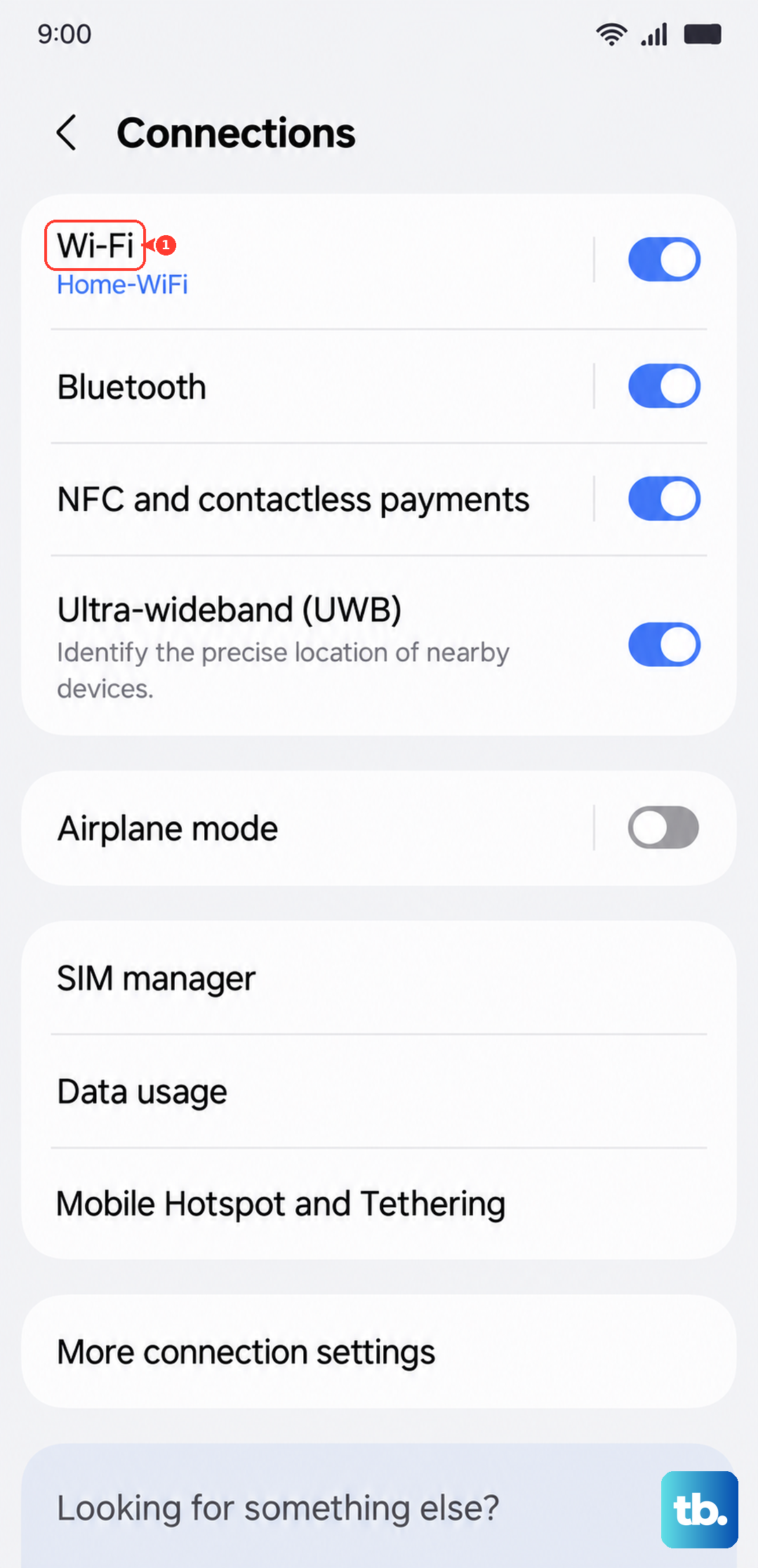
This is especially helpful if you recently changed your Wi-Fi password or swapped routers. The S25 Edge will try connecting with the old info and fail every time until you forget and re-save.
Check the Network Name and Password
It sounds basic, but make sure you're joining the right network. If your neighbor has a similar SSID, your phone might automatically try theirs instead. Also, Wi-Fi passwords are case-sensitive, so double-check that Caps Lock isn't on.
Turn Off Bluetooth Temporarily
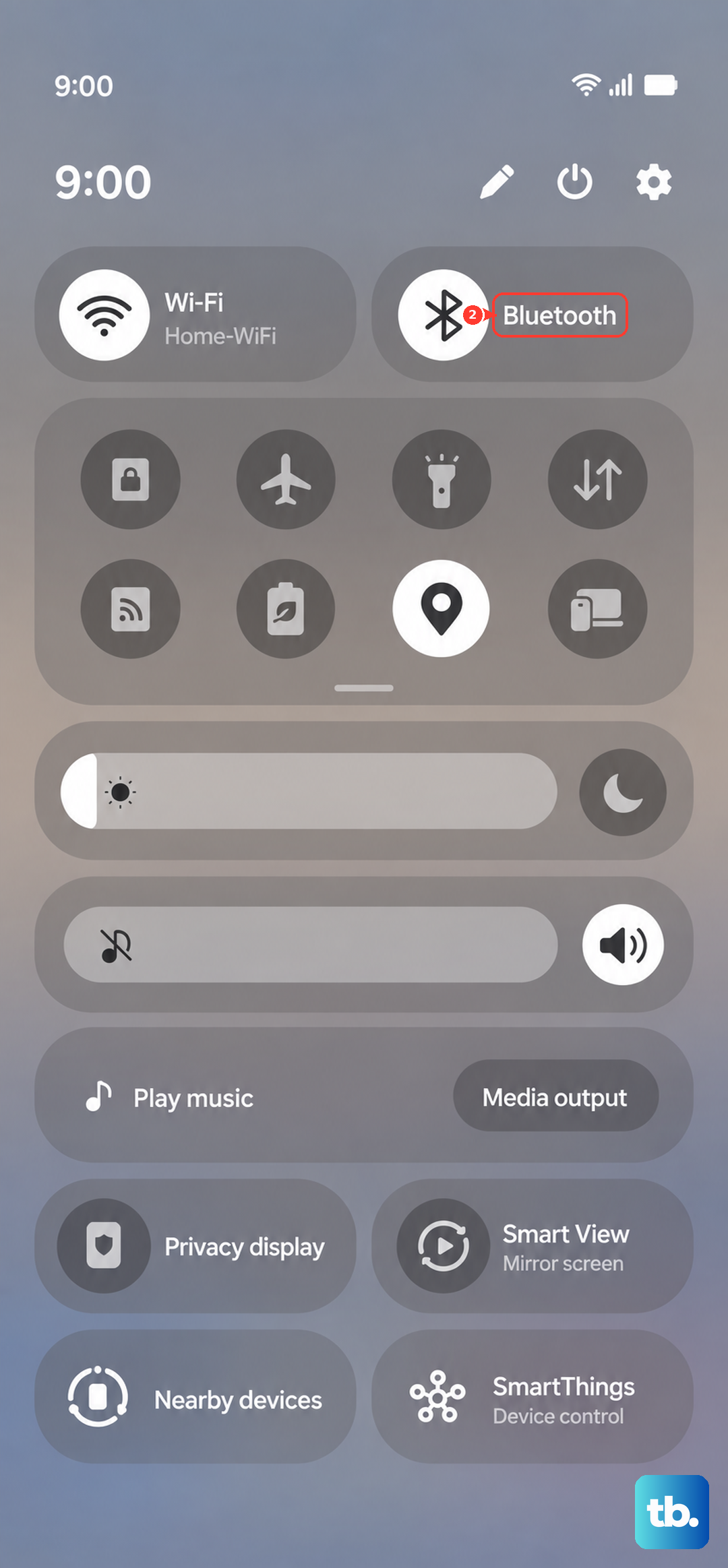
Bluetooth and Wi-Fi both use the 2.4GHz band, and they can interfere on some devices. Swipe down and tap the Bluetooth icon to turn it off, then try connecting to Wi-Fi again. If it works, you've found the culprit. You can turn Bluetooth back on after you connect.
Disable Smart Network Switch
One UI's Smart Network Switch automatically moves you to mobile data when Wi-Fi is weak. That sounds helpful, but it can actually prevent your phone from connecting to Wi-Fi altogether. Head to Settings > Connections > Wi-Fi > tap the three-dot menu (or Advanced) and toggle off Smart Network Switch.
Turn Off Power Saving Mode
Power saving mode on the S25 Edge can throttle background Wi-Fi activity. Go to Settings > Battery > Power saving and switch it off. Your Wi-Fi should reconnect almost instantly after that.
Update Your Software
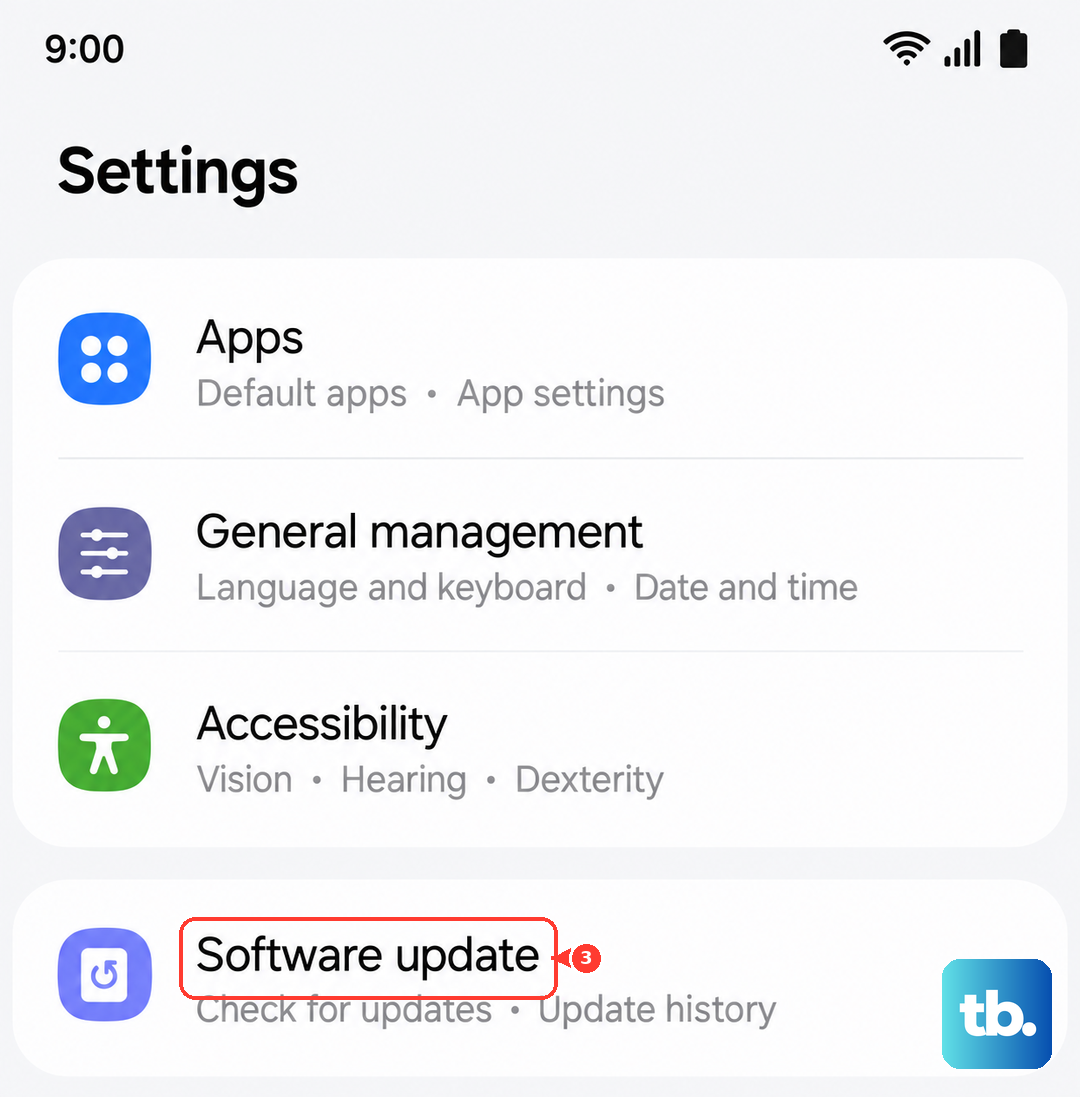
Samsung regularly pushes updates through One UI that fix Wi-Fi stability issues. Go to Settings > Software update > Download and install. If there's an update waiting, grab it. Running the latest firmware often resolves connectivity bugs that older builds had.
Check Date and Time Settings
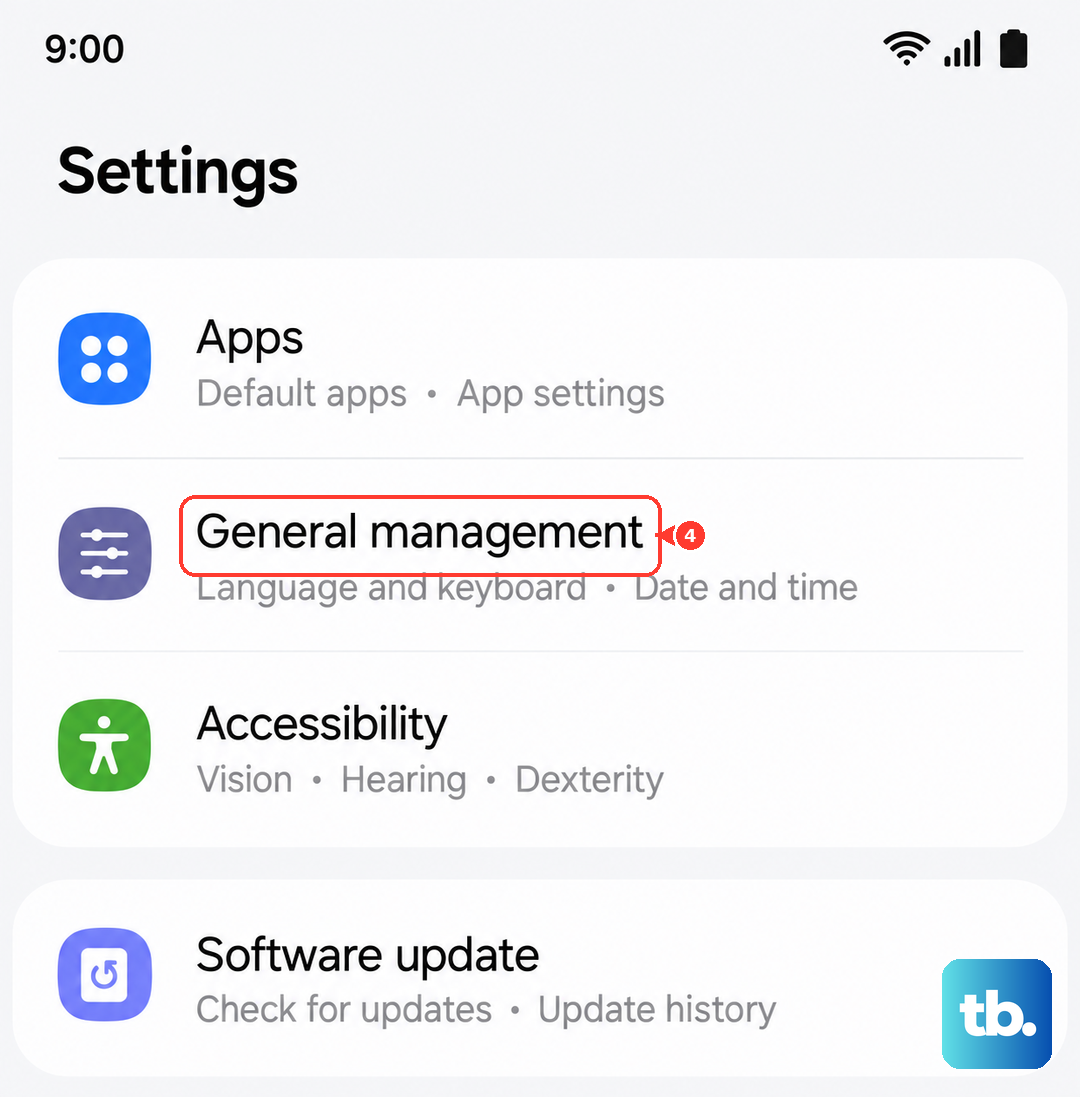
This one trips up a lot of people. If your phone's date or time is wrong, Wi-Fi security certificates won't validate, and the connection fails silently. Open Settings > General management > Date and time and make sure Automatic date and time is turned on.
Reset Network Settings
If you've tried everything above and Wi-Fi still won't work, a network settings reset is your next step. Go to Settings > General management > Reset > Reset network settings. This clears all saved Wi-Fi networks, Bluetooth pairings, and mobile data settings. You'll have to reconnect to Wi-Fi afterward, but it clears out corrupted configurations that cause stubborn issues.
Restart Your Router
The problem might not be your S25 Edge at all. Unplug your router from power, count to 60, then plug it back in. If other devices in the house are also having Wi-Fi trouble, your router is almost certainly the culprit. While you're at it, check if the router's firmware needs an update, older firmware can have compatibility problems with Android 15.
Boot Into Safe Mode
Third-party apps, especially VPNs, ad blockers, and battery managers, can interfere with Wi-Fi. To test this, press and hold the Side and Volume Down buttons, tap Power off and hold that option until the safe mode prompt appears, then tap Safe mode. If Wi-Fi works fine in safe mode, an app you installed is causing the trouble. Uninstall suspicious apps one by one to find the offender.
Factory Reset (Last Resort)
If none of the above worked, a factory reset returns your S25 Edge to its out-of-the-box state. Back up your data first because this wipes everything. Go to Settings > General management > Reset > Factory data reset. Only do this after you've exhausted every other fix on this list. In most cases, one of the simpler steps here will solve your Wi-Fi issue.