If your Samsung Galaxy S25 Edge videos are stuttering, freezing, or buffering, it's usually something simple that's causing it. The S25 Edge runs Android 15 with a powerful processor, so hardware isn't the issue. Here's what to check.
Free up storage space
Low storage is a common culprit for video playback problems. When your phone is nearly full, apps can't write data quickly enough, and that shows up as dropped frames or lag.
Go to Settings > Device care > Storage to see how much free space you have. If it's below a few gigabytes, clear out old downloads, unused apps, or move photos to the cloud. The S25 Edge supports Samsung Cloud and Google Photos, so you have options.
Check your network connection
Streaming videos over a weak Wi-Fi or mobile data signal is a surefire way to get buffering. Even local videos saved in cloud storage can stutter if the app needs to re-download parts.
Try switching between Wi-Fi and 5G to see if the problem follows the network. If you're on Wi-Fi, move closer to the router or reboot it. For cellular data, make sure you have a strong signal and enough data in your plan.
Keep the software up to date
Samsung and Google regularly push updates that fix video codec compatibility and app stability. Running an older version of Android 15 or Samsung One UI can cause playback issues that are already patched in newer builds.
Open Settings > Software update > Download and install. Also update your video apps from the Galaxy Store or Google Play Store.
Restart your Galaxy S25 Edge
This clears temporary glitches and refreshes system processes that might be interfering with video playback. It's the quickest fix to try.
If your phone is unresponsive during a video, perform a force restart: press and hold Volume Down and Side (power) buttons simultaneously for about 10 seconds until the Samsung logo appears.
Watch out for overheating
The S25 Edge can get warm during fast charging or heavy gaming, and when it does, the system may throttle performance to protect the hardware. That throttling can make videos stutter or drop frames.
If your phone feels hot to the touch, stop charging and let it cool down in a shaded area. Remove any thick cases that trap heat. After it's cooled, try playing the video again.
Clear app cache for problematic apps
Sometimes the issue is limited to a specific video app like YouTube, Netflix, or your gallery app. Corrupted cache data can cause lag only in that app.
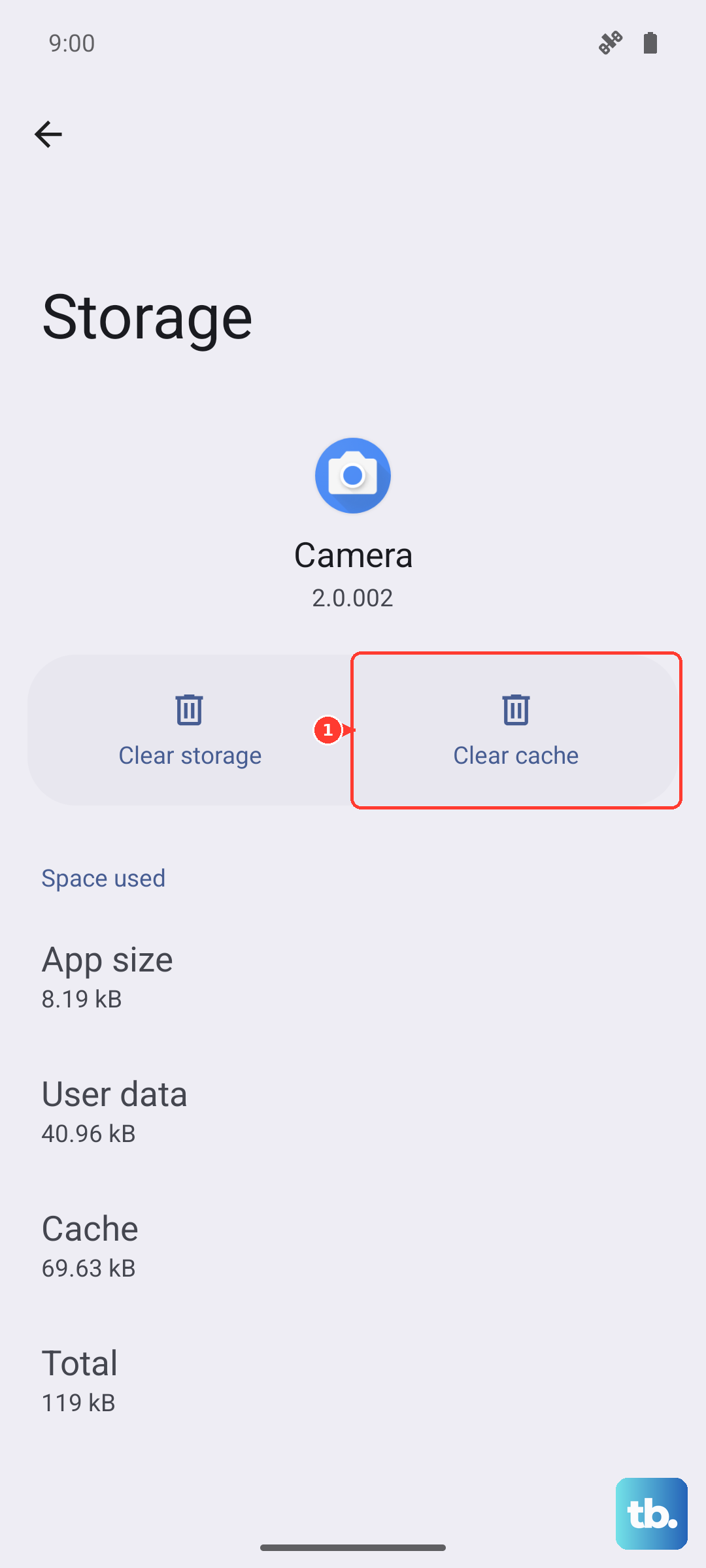
Go to Settings > Apps, tap the app that's having trouble, then tap Storage > Clear cache. This won't delete your account or downloads, just temporary files.
Disable video enhancement features
Samsung's One UI includes video enhancement settings like Video Brightness and Motion Smoothness. While these are meant to improve the experience, they can sometimes cause stutter on certain content.
Try turning them off: go to Settings > Advanced features > Video enhancement and toggle it off. Also check the individual video app's settings for any hardware acceleration options and disable them if present.
Reset app preferences as a middle step
If you've changed default apps for video playback or disabled system services, it might throw things off. Resetting app preferences puts everything back to default without erasing your data.
Go to Settings > Apps, tap the three-dot menu, and select Reset app preferences. Confirm and then test your video playback again.
Factory reset if nothing else works
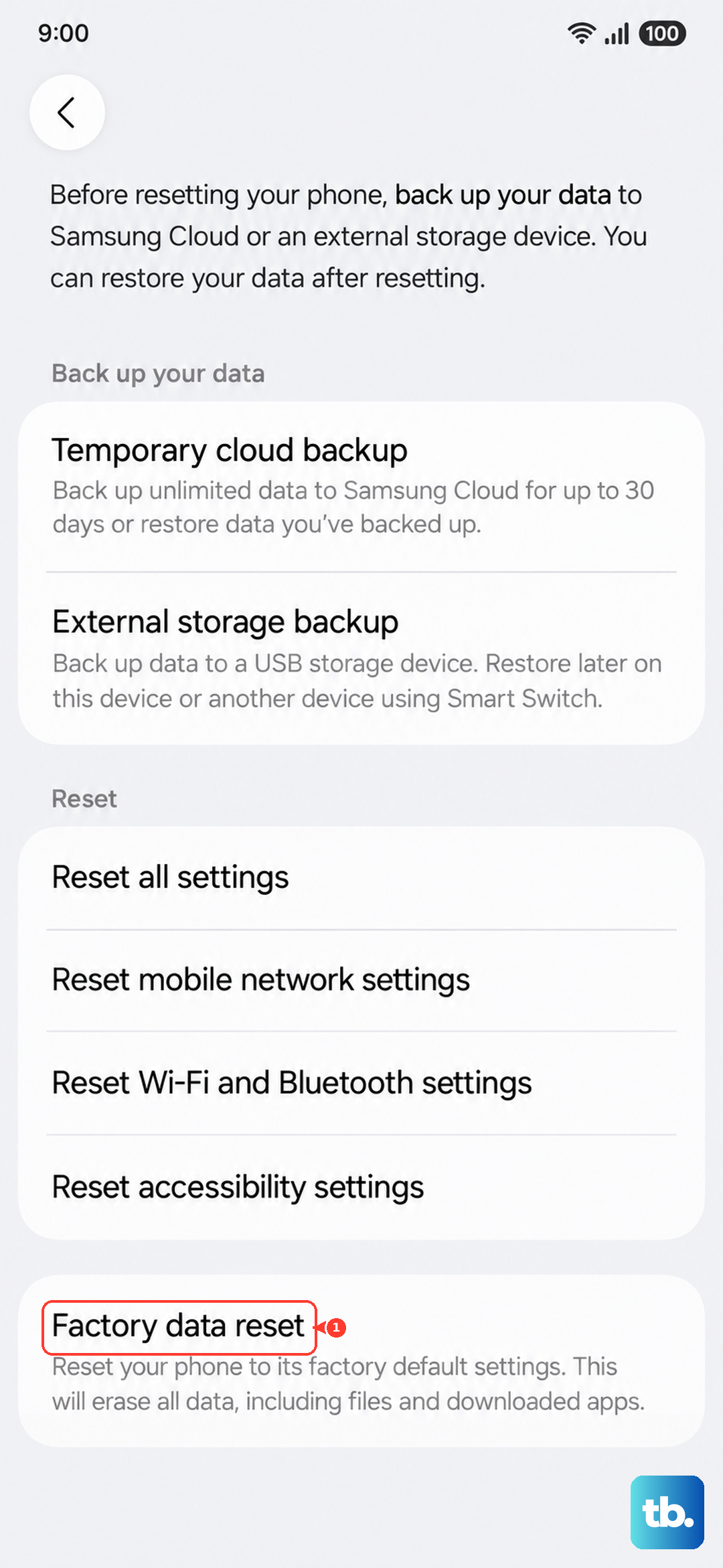
This is the nuclear option. A factory reset wipes everything, so back up your photos, contacts, and files to Samsung Cloud or a computer first. After that, go to Settings > General management > Reset > Factory data reset. You'll need to set up your phone again, but it can fix deep software corruption that causes video lag.