
Press and hold Volume Down and the Side button together for about 10 seconds. Don't let go until the Samsung logo pops up on screen. This force restart is the fastest way to snap the S25 Edge out of a frozen state when the touchscreen isn't responding at all.
Before trying the fixes, map the problem with a online touch test in your browser. Dragging a finger across the grid reveals exactly which areas of the screen respond and which do not.
The phone will reboot fresh, and most temporary glitches clear up after this. It works because it cuts power to the display controller and forces the system to reload everything from scratch.
I've seen this fix handle everything from a single app freeze to a completely unresponsive screen. Give it a solid 10-second hold before you try anything else.
Give the Screen a Good Look
Take a close look at your S25 Edge display. Are there any cracks, chips, or visible damage along the edges? Even a hairline crack can mess with the touch digitizer and cause dead zones or total unresponsiveness.
If you've dropped the phone recently, the damage might not be obvious at first glance. Run your finger over the glass slowly and see if the response changes in certain areas.
Physical damage usually means a screen replacement is the actual fix. For software-related freezes, keep working through the rest of these steps first.
Is the Phone Overheating?
The S25 Edge is known to get warm during fast charging or heavy gaming. When the internal temperature climbs too high, the phone will intentionally limit or stop touch input to protect the hardware.
Set the phone down on a cool, flat surface for 10 to 15 minutes. Remove any case and keep it out of direct sunlight. If the screen starts working again after it cools down, overheating was your culprit.
This is an easy one to overlook when you're frustrated with a frozen display. A little patience is all it needs.
Boot Into Safe Mode
Safe mode loads the phone with only the preinstalled Samsung software. If the touchscreen works fine in safe mode, a third-party app you installed recently is causing the freeze.
To get there, press and hold the Side button until the power menu appears. Tap and hold the Power off icon on screen until the Safe mode prompt shows up. If the screen is too frozen to even do that, force restart first and try again right after the reboot.
Once you're in safe mode, test the screen thoroughly. If it's responsive, start uninstalling apps you added around the time the problem started. Restart normally after each removal and check if the freeze is gone.
Clear the System Cache
Corrupted temporary files in the system cache can interfere with touch input. Clearing them doesn't touch your personal data, so it's a safe step to try.
Power the phone off completely. Press and hold Volume Up and the Side button together until the Samsung logo appears, then release. You'll land in Android System Recovery mode.
Use the volume buttons to navigate to Wipe cache partition and press the Side button to select it. Once it finishes, choose Reboot system now. The phone will restart with a clean cache, which often resolves odd touchscreen behavior.
Check for Software Updates
Samsung frequently pushes updates to address touchscreen quirks and system stability. A pending update might include a fix for exactly the freeze you're dealing with.
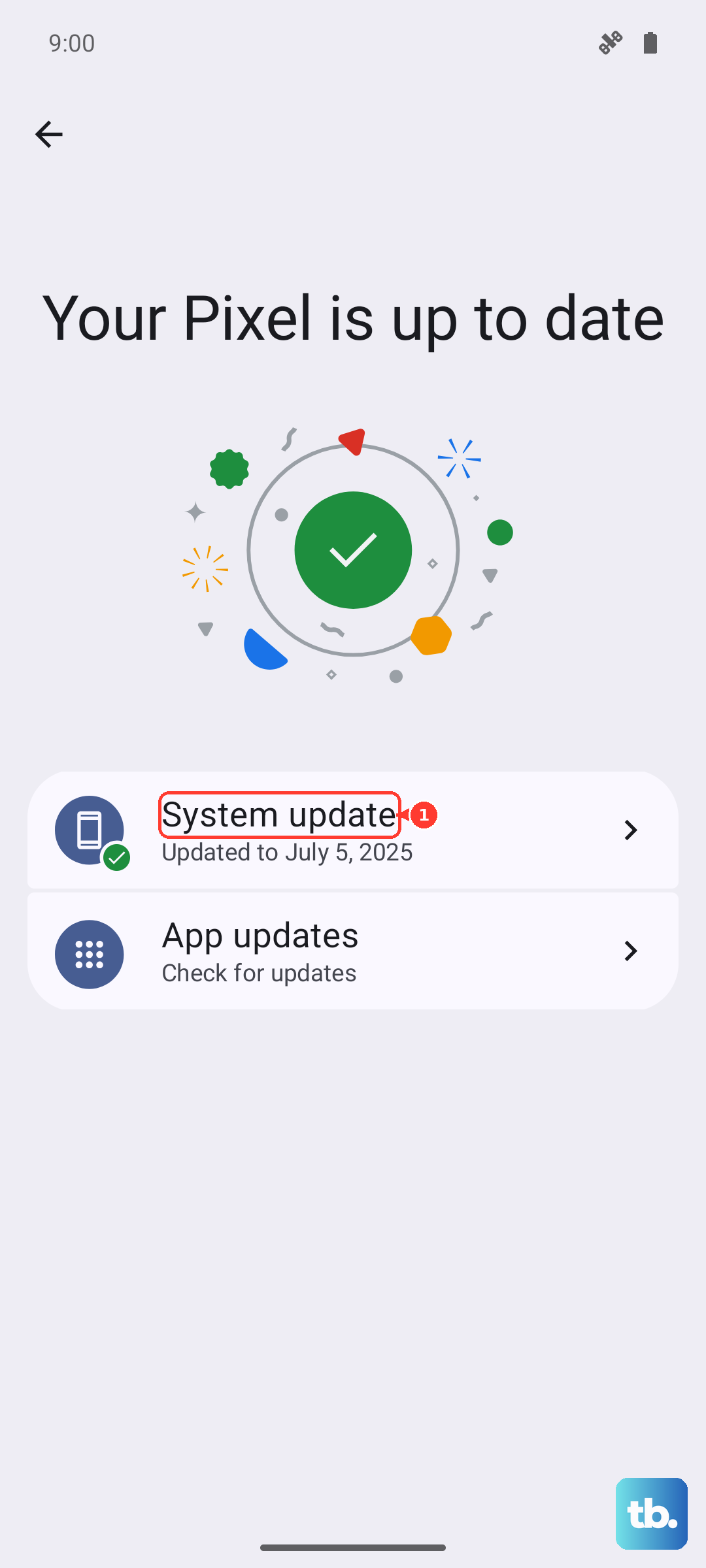
Go to Settings > Software update > Download and install. If an update is available, let it download over Wi-Fi and install it. The phone will restart during the process, so make sure your battery has at least 50% charge first.
This is especially worth checking if the freeze started after a recent app installation or system update went wrong.
Remove Your Screen Protector
Some screen protectors, especially thick tempered glass ones, can interfere with the S25 Edge's touch sensitivity. If the screen froze shortly after you put a new protector on, that's likely the cause.
Peel it off carefully and test the screen again. If everything works without the protector, you'll need a thinner, case-friendly replacement that's compatible with the phone's display.
The S25 Edge has a slightly curved display, which makes it more prone to protector-related touch issues than flat screens are.
Factory Reset as a Last Resort
If none of the above fixes work, a factory reset clears out deeper software corruption that might be causing the freeze. This wipes everything: photos, contacts, apps, settings. Back up anything you want to keep before you start.
If your screen is still unresponsive and you can't navigate to the backup menu, connect the phone to a computer. You should be able to drag files off the internal storage from there.
To factory reset, boot into Recovery mode using the Volume Up and Side button combo. Navigate to Wipe data/factory reset, confirm with Yes, and let it run. When it finishes, select Reboot system now. The phone will start fresh, and a software-related freeze should be gone.