You pick up your Samsung Galaxy S25 Edge and it feels uncomfortably warm. Maybe you noticed the screen dimming, apps stuttering, or a temperature warning popping up. Overheating can be alarming, but it's usually fixable without a trip to the shop. Here's what to do.
Restart the Phone First
Before diving into any deeper fixes, give your S25 Edge a quick restart. This clears out any stuck background processes that might be pushing the processor harder than necessary.
If the screen is still responsive, hold the Side and Volume Down buttons together for about 10 seconds until you see the Samsung logo. That force restart works even if the phone is frozen. It takes seconds and often drops the temperature noticeably.
Check What's Running in the Background
Android 15 does a decent job managing apps, but sometimes a rogue app keeps the CPU pegged. Open Settings > Device care > Battery and tap App power management. Enable Put unused apps to sleep. While you're there, tap Processor or CPU usage to see which apps are hogging resources.
If you spot a game or streaming app that won't calm down, force stop it by going to Settings > Apps, selecting the app, and tapping Force stop. I've seen a single misbehaving app raise the phone's temperature by 10-15 degrees.
Keep the Phone Out of Direct Sunlight
This one sounds obvious, but it's the most common cause. The S25 Edge has a bright, power-hungry display, and direct sunlight forces the screen brightness to max while also heating the device from the outside. If you're navigating outside or streaming video in the car, park the phone in a shaded cup holder or mount it near the AC vent.
Reduce Screen Brightness and Refresh Rate
The 120Hz display is gorgeous, but it generates extra heat during heavy use. Drop it to 60Hz temporarily when you're gaming or navigating outdoors. Go to Settings > Display > Motion smoothness and switch to Standard.
Also turn down the brightness manually instead of relying on auto-brightness, which often goes higher than you need. A darker screen means less power draw and less heat.
Enable Power Saving Mode
Samsung's built-in power saving mode limits background activity and reduces CPU speed. It's a quick fix when you're away from a charger and the phone is cooking. Swipe down twice to open the quick settings panel and tap Power saving. It won't cripple performance for basic tasks like messaging or web browsing.
Clean the USB-C Port
A dirty charging port can cause charging to be intermittent, which in turn can make the phone heat up. The S25 Edge charges at up to 25W, but if the connection is poor, the phone may draw power in an inefficient way that creates extra heat.
Shut the phone off and use a can of compressed air or a soft, dry brush (like a clean toothbrush) to gently clean the USB-C port. Look for lint or pocket debris. Don't jam anything metal in there. After cleaning, try charging again and see if the phone stays cooler.
Use the Original Charger and Cable
The S25 Edge supports 25W wired charging, but not all USB-C chargers are created equal. Off-brand chargers or cables that can't deliver consistent power can cause the phone to heat up more than normal. Stick with Samsung's original 25W charger and a cable rated for at least 3A.
If you're using wireless charging, keep in mind the S25 Edge tops out at 15W. Wireless charging inherently generates more heat than wired, so if you're already seeing high temperatures, switch to a cable for a while.
Remove the Case While Gaming or Streaming
Most cases insulate heat, especially thick rubber or plastic ones. If you're playing a demanding game or watching a long video, pop the case off. The S25 Edge's aluminum frame and back act as a heatsink, and they need airflow to work. Five minutes without the case can drop the temperature by a few degrees.
Update the Software
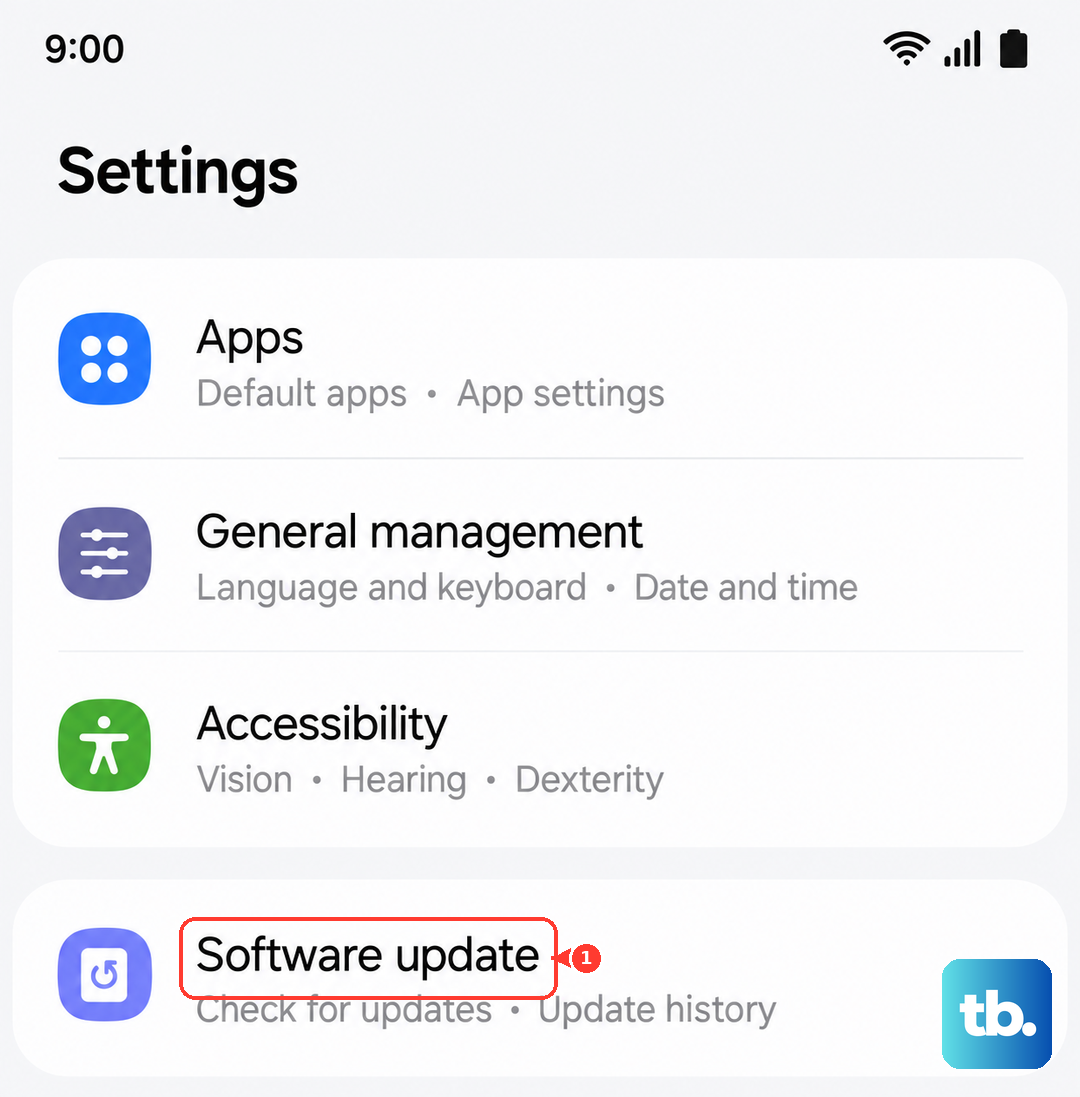
Samsung regularly releases software updates that include thermal management improvements. Go to Settings > Software update and check for any pending updates. If there's an update, install it. A patch might directly address the overheating you're experiencing.
Factory Reset as a Last Resort
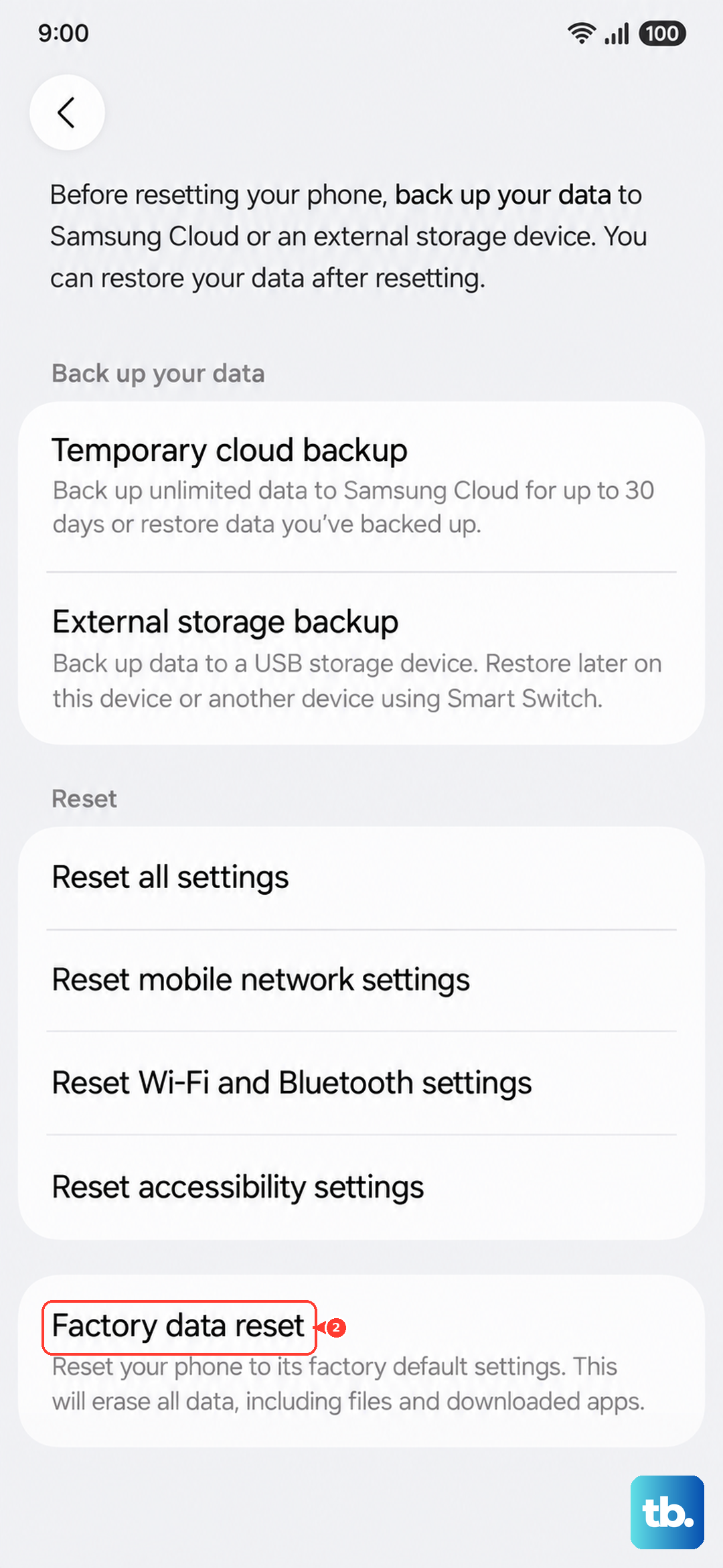
If none of the above helps and the phone still gets hot under normal use, a software glitch might be baked into your settings. Back up your data first, then go to Settings > General management > Reset > Factory data reset. This wipes everything and gives you a clean slate. Only do this after trying the easier fixes, because it's a hassle to set everything back up.