When your Samsung Galaxy S25 Edge doesn't buzz for new texts or keeps showing phantom notification badges, it ruins the whole experience. This is a common hiccup on Android 15, but it usually comes down to a misbehaving setting or a stuck system app. Let's jump straight into the fixes that work for this specific device.
Force Restart Your Galaxy S25 Edge
Before digging into settings, try a force restart. This clears out temporary glitches without deleting anything.
Press and hold the Volume Down button and the Side (power) button together for about 10 seconds. When the Samsung logo pops up, release the buttons. Check if your notifications are working properly again.
Clear the Badge Provider App
Samsung phones use a system app called BadgeProvider to handle those little numbers on your app icons. If it gets corrupted, you might see unread counts that are way off.
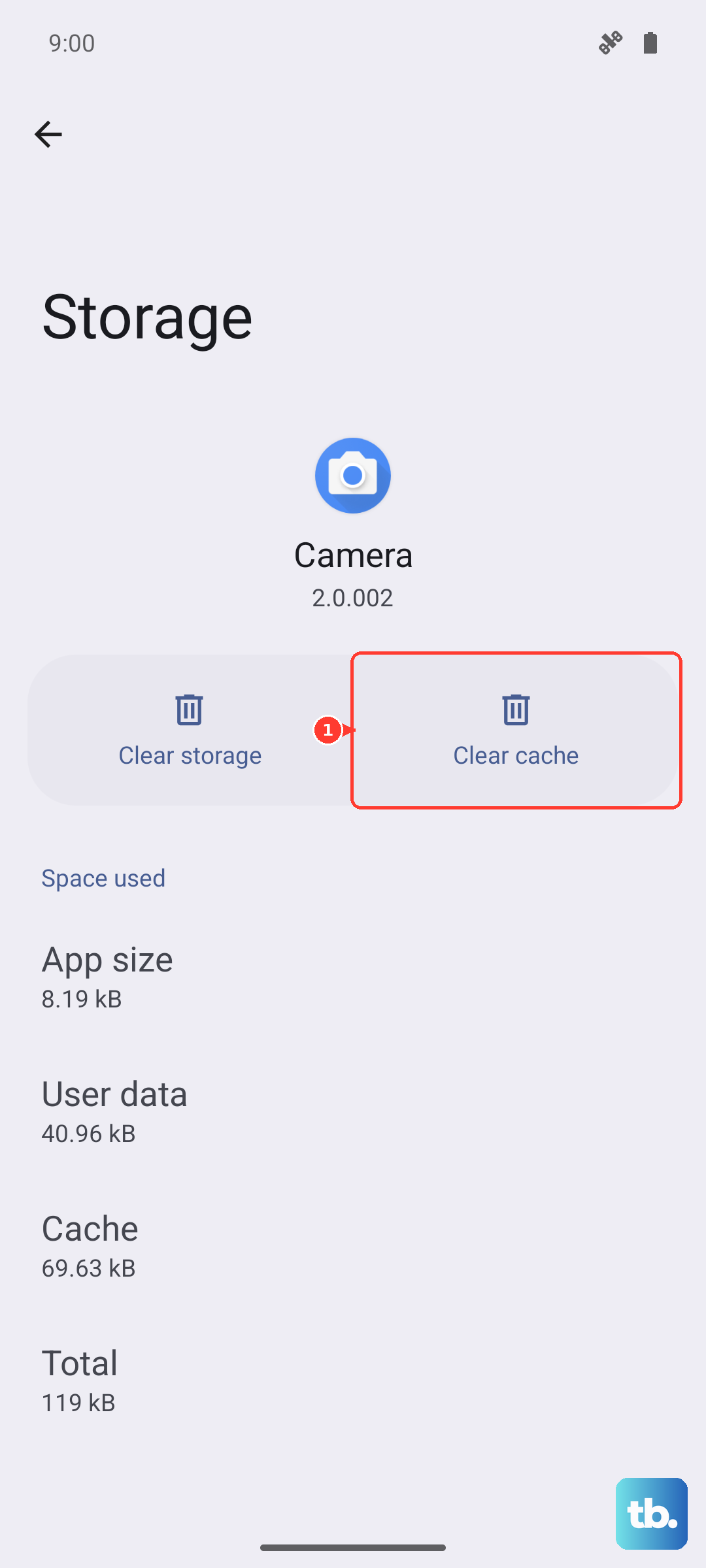
Go to Settings > Apps. Tap the three dots in the corner and select Show system apps. Scroll down to BadgeProvider and tap it. Hit Storage and then Clear data and cache. Restart your phone afterward. You won't lose any messages.
Clear the Messages App Cache
The main Messages app can also hold onto bad data that throws off notifications.
Open Settings > Apps and find Messages. Tap Storage and select Clear cache. If that doesn't work, tap Clear data too. Don't worry, your actual text threads are safe. You'll just need to re-setup any custom notification tones.
Review Notification Permissions for Each App
Android 15 gives you granular control over notifications. An app might have been accidentally silenced.
Long-press on the app icon that isn't notifying you. Tap the App info button (the little 'i' in a circle). Select Notifications and make sure all the categories you want are toggled on. Pay special attention to Critical alerts if you're expecting time-sensitive messages.
Turn Off Do Not Disturb and Power Saving
Do Not Disturb is the most common reason notifications suddenly stop. It's worth checking even if you don't remember turning it on.
Swipe down from the top of the screen to open the quick settings panel. Look for the Do Not Disturb tile and make sure it's grayed out. While you're there, check that Power saving mode is off too, since it can delay app updates and notifications.
Install Any Pending Software Updates
Samsung frequently pushes updates to fix bugs, including notification glitches on the S25 Edge.
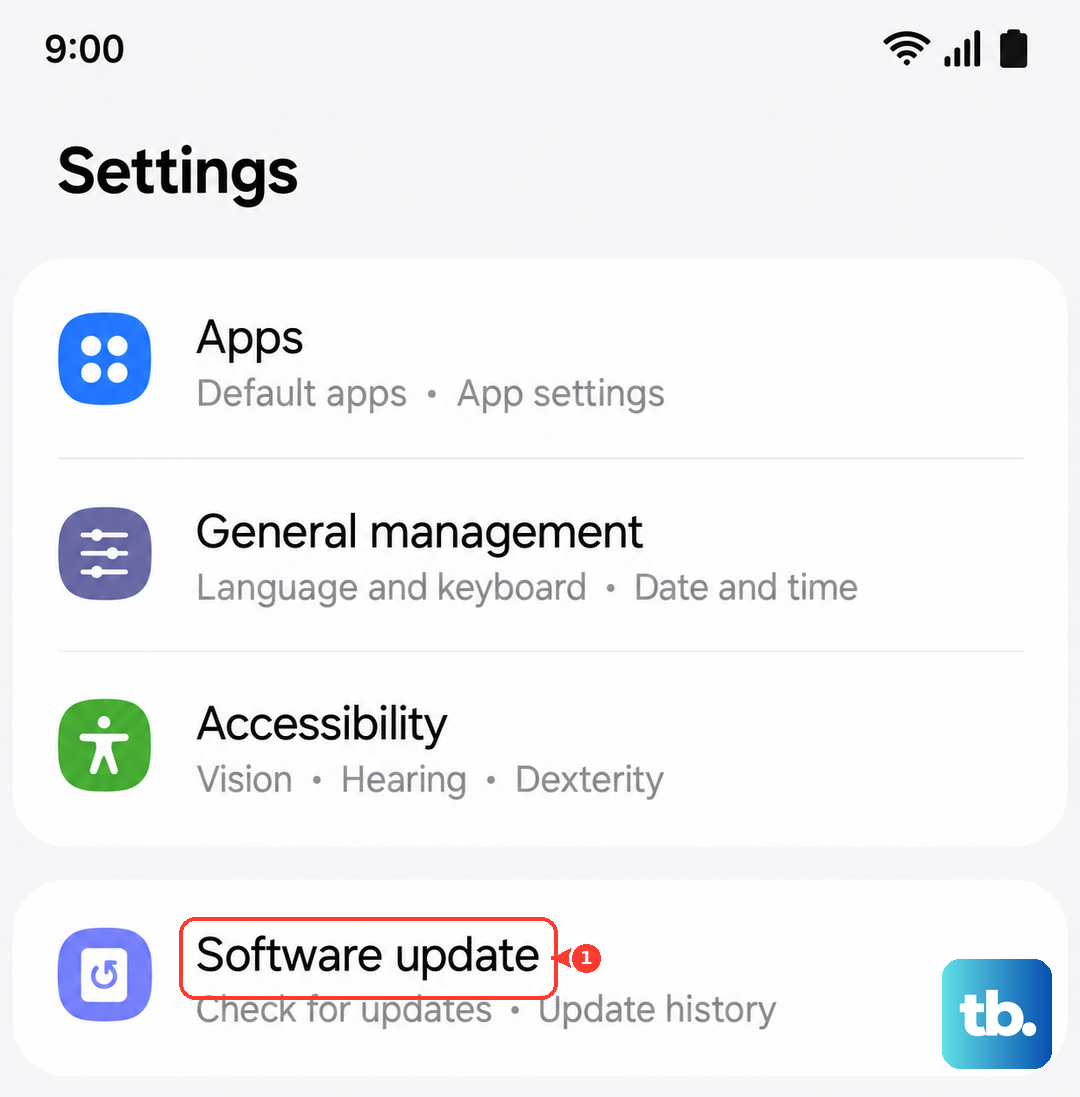
Open Settings > Software update and tap Download and install. If an update is available, install it and give your phone a few minutes to reboot. Sometimes a firmware patch is all it takes.
Clear the Notification System Cache
Android has its own notification manager system service that can get bogged down.
Go to Settings > Apps, tap the three dots, and choose Show system apps. Find Notification in the list. Tap Storage and hit Clear data and cache. This resets the system's notification engine without affecting your personal data.
Allow Background Activity for Notifications
If the Notification service is being put to sleep by the battery optimizer, it won't work correctly.
Navigate to Settings > Apps > Show system apps > Notification. Tap Battery and select Unrestricted or make sure Allow background activity is enabled. This prevents Android from shutting it down to save power.
Force Stop and Restart the Notification Service
A quick force stop can jolt a stuck system app back to life.
Go to Settings > Apps > Show system apps > Notification. Tap Force stop. A warning will pop up, but it's safe to confirm. After that, restart your phone and let the service reload fresh.
Enable 'Don't Keep Activities' in Developer Options
This is an advanced trick that clears app activities as soon as you leave them. It can shake loose a stuck notification state.
First, enable Developer Options by going to Settings > About phone and tapping Software information. Tap Build number seven times. Go back to Settings > Developer Options and toggle on Don't keep activities. Restart your phone. Turn it back off once you see improvements, as it can make multitasking feel snappier but less fluid.
Wipe the Cache Partition from Recovery Mode
If system-level cache is corrupted, wiping the whole partition is the way to go. This doesn't delete your photos or accounts.
Turn off your Galaxy S25 Edge. Connect it to a PC with a USB cable. Press and hold the Volume Up and Side buttons until the Android recovery logo appears. Use the volume keys to navigate to Wipe cache partition and press the Side button to select it. Confirm the action, then select Reboot system now.
Reset All Settings
When nothing else works, a full settings reset can clear out the cobwebs without wiping your data.
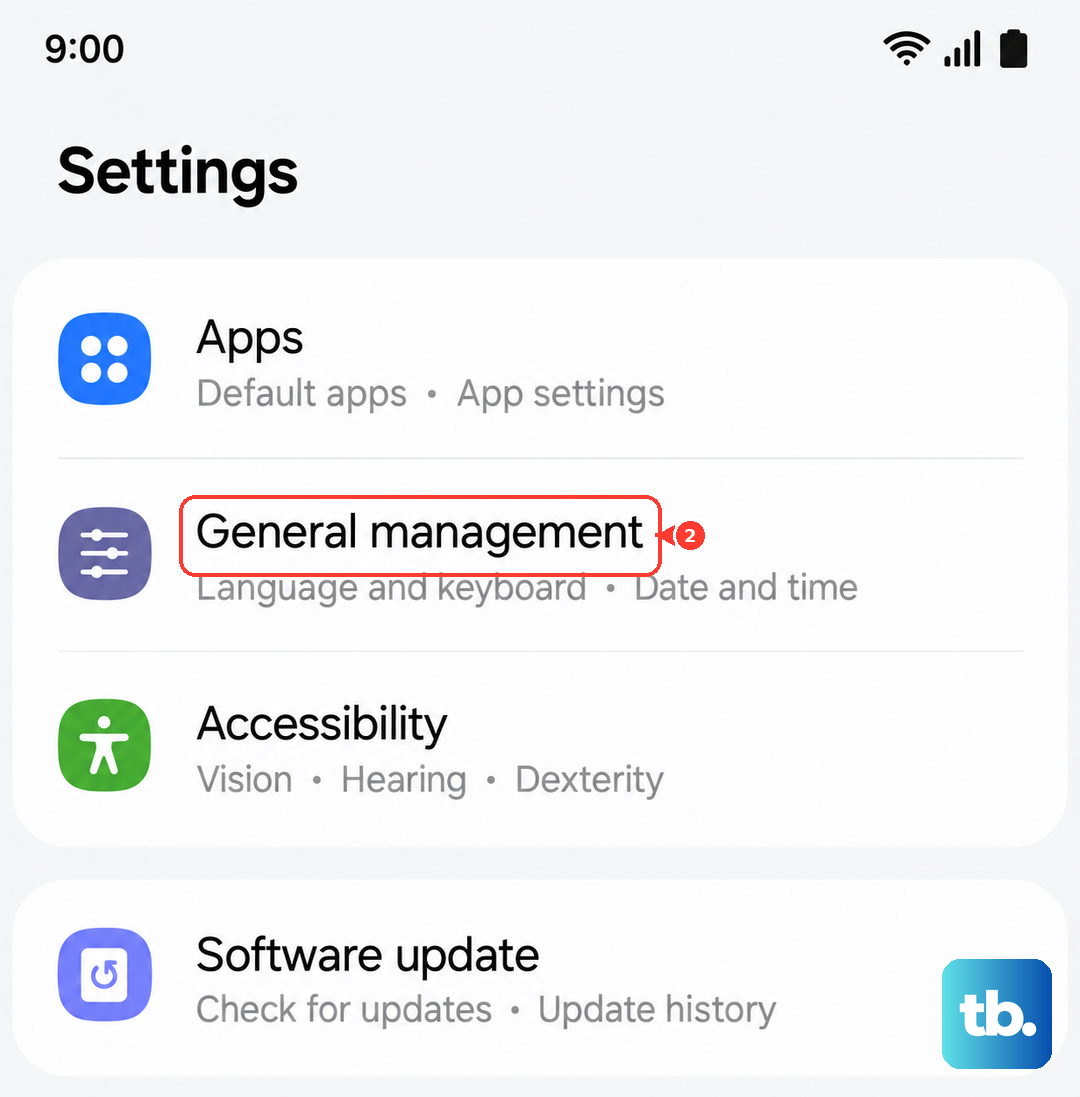
Open Settings > General management > Reset > Reset all settings. You'll have to re-enter Wi-Fi passwords and re-enable a few customizations, but it almost always fixes persistent notification problems on Android 15.