
When your Samsung Galaxy S25 Edge won't send text messages, it's more than an inconvenience, you're cut off from friends, family, and important notifications. Messages might hang on "Sending," show a red error, or fail silently. Here's a straightforward rundown of what to try.
Check Your Signal and Data Connection
Text messaging requires a cellular signal for SMS, and MMS or RCS messages need a working mobile data connection. Look at the signal bars in the status bar. If you see no bars or an "SOS" icon, move to an area with better reception.
Toggle Airplane Mode on and off from the quick settings panel, this forces your phone to re-register with the network. You can also swipe down twice, tap the Airplane Mode icon, wait a few seconds, then tap it again to turn it off.
Force Restart the Phone
If your messaging app is stuck in a temporary glitch, a force restart often clears it out. Press and hold the Volume Down and Side (power) buttons simultaneously for about 10 seconds until the Samsung logo appears. Let go, and the phone will reboot.
This is a safe reset, none of your data or settings will be lost. It's the first thing I try when messages won't send on any Samsung phone.
Make Sure SMS and RCS Are Enabled
Open the Google Messages app (Samsung's default on the S25 Edge). Tap your profile picture in the top right, then go to Messages settings > RCS chats and confirm that RCS is turned on. If it's off, toggle it on and wait a moment for it to connect.
If you prefer standard SMS/MMS without RCS, go to Settings > Connections > SIM card manager and make sure you have cellular data enabled for the line you're using. Without a data connection, MMS (photos and group texts) won't send.
Switch Network Mode
Sometimes the phone pins itself to a network band that's too weak for messaging. Go to Settings > Connections > Mobile networks > Network mode. If it's set to 5G, try switching to LTE/4G. This often stabilizes the data connection needed for RCS and MMS.
After switching, wait about 30 seconds and try sending a test message. You can change it back to 5G later if messaging works fine on LTE.
Clear the Messages App Cache
A bloated or corrupted cache can cause all sorts of sending failures. Go to Settings > Apps > Messages > Storage. Tap Clear cache, that's safe and won't delete your conversations. Then try sending again.
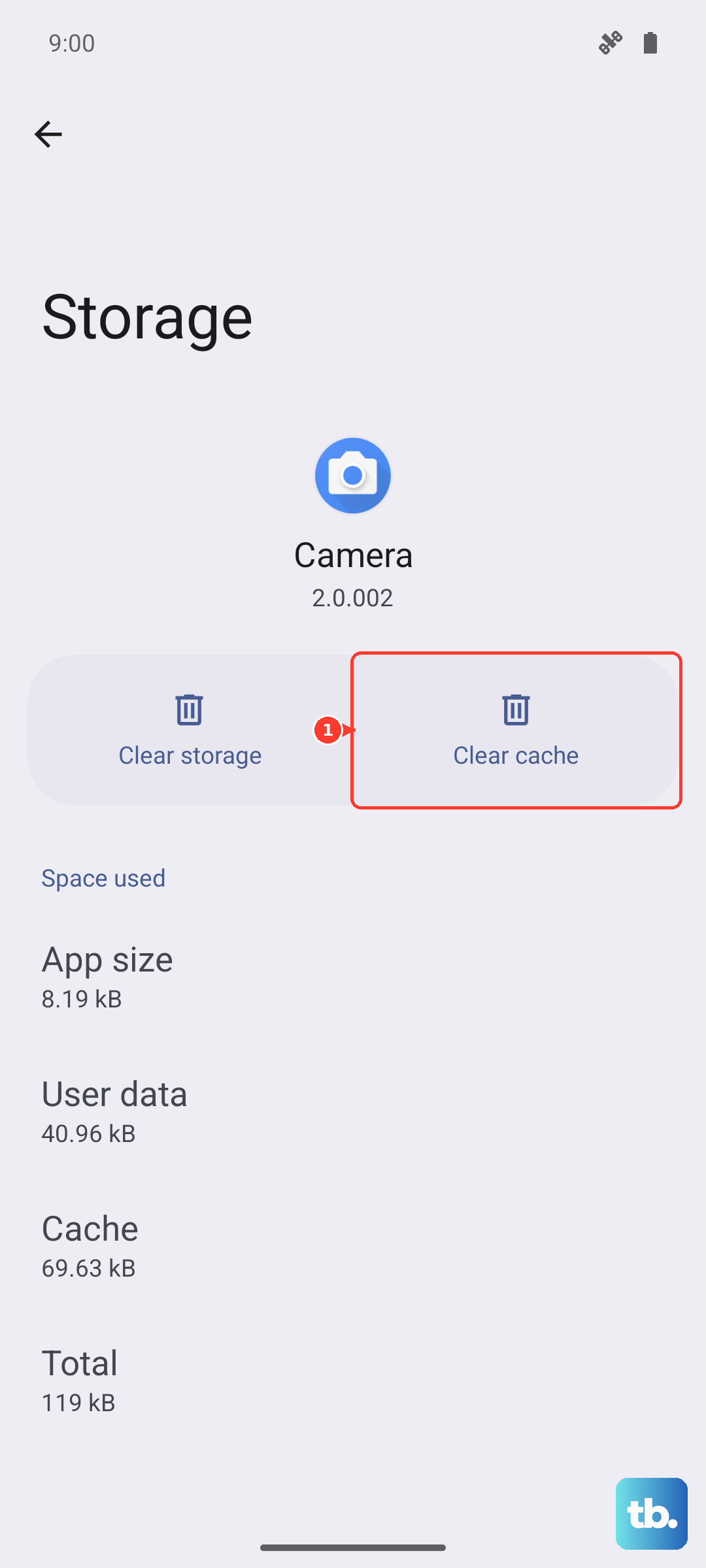
If clearing cache doesn't help, tap Clear data next. Be warned: this erases all your message history (make sure you have a backup if needed). It resets the app to factory defaults, which fixes persistent glitches.
Verify Your APN Settings
If you can't send MMS or group texts, the Access Point Name (APN) might be misconfigured. Go to Settings > Connections > Mobile networks > Access Point Names. You should see your carrier's APN listed. Tap it and check the fields for MMSC, MMS proxy, and MMS port, these must match your carrier's exact values.
Most carriers list their APN settings online. If anything looks off, tap the three-dot menu and choose Reset to default. Then restart your phone.
Remove and Reinsert the SIM Card
A loose or slightly misaligned SIM card can break the connection to your carrier's messaging network. Power off the phone completely. Use the SIM eject tool (or a paperclip) to pop out the tray. Take out the SIM, wait 30 seconds, reinsert it firmly, and power the phone back on.
If you're using an eSIM, go to Settings > Connections > SIM card manager and toggle the eSIM off, wait a few seconds, then toggle it back on. This re-registers the line with the network.
Check for Carrier Settings Updates
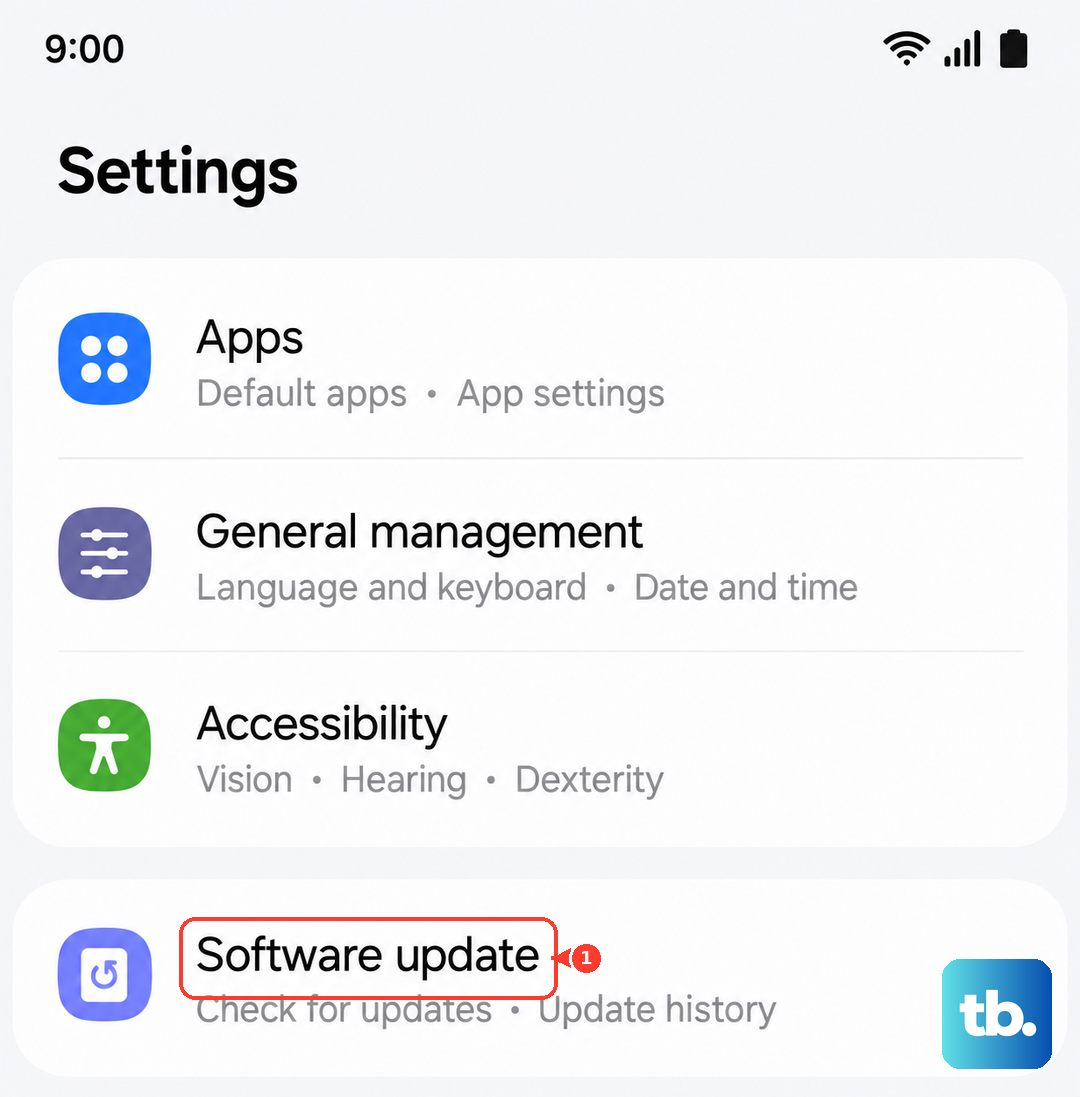
Carriers push out small configuration updates that fix messaging bugs. Go to Settings > Software update > Download and install. If there's a carrier update available, it will either appear here or prompt you automatically. Install it and restart the phone.
You can also manually check by dialing *#*#8737#*#* or opening the Samsung Members app and looking for service provider updates.
Reset Network Settings
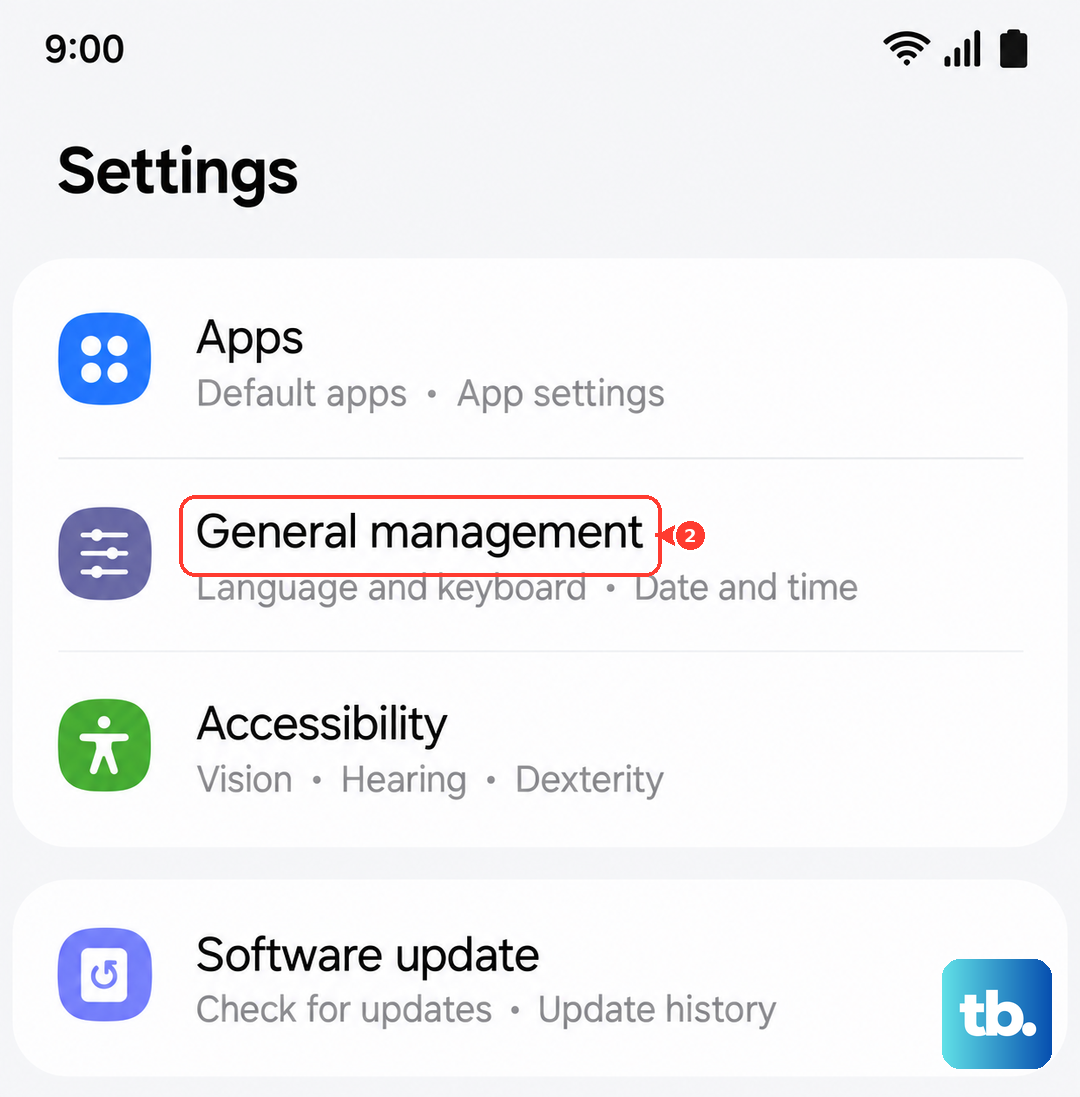
If nothing else has worked, a network settings reset clears out all saved Wi-Fi networks, Bluetooth pairings, and mobile network configurations. Go to Settings > General management > Reset > Reset network settings. Tap Reset settings and enter your PIN if prompted.
After the phone restarts, you'll need to reconnect to Wi-Fi and re-pair Bluetooth devices. But this often fixes stubborn messaging issues that trace back to a corrupted network stack.