
Your Samsung Galaxy S25 Edge keyboard freezing mid-sentence or lagging behind your typing can bring your workflow to a halt. Whether it's the stock Samsung Keyboard or a third-party option, this usually points to a software hiccup rather than a hardware problem. Let's work through the fixes that are most likely to get your keyboard back up and speed.
Force stop the Samsung Keyboard
Temporary glitches are the most common cause of a frozen or laggy keyboard. Force stopping the app gives it a clean restart without affecting your saved words or settings.
Open Settings and go to Apps. Tap the three-dot menu in the upper right and select Show system apps. Scroll to Samsung Keyboard, tap it, then hit Force stop.
Close Settings and try typing in any text field. If the keyboard works again, the problem was a temporary software burp that's now cleared.
Restart your Galaxy S25 Edge
A full reboot clears out system-level memory issues that can cause keyboard lag. The S25 Edge runs Android 15 with One UI 7, and a simple restart often resolves app conflicts that Force Stop alone can't touch.
If the keyboard is so frozen you can't navigate to the power menu, use the hardware force restart: press and hold Volume Down and the Side (power) buttons simultaneously for about 10 seconds. Release both when the Samsung logo appears.
Clear the keyboard cache and data
Corrupted cache files are a frequent cause of keyboard lag on Samsung devices. Clearing them removes temporary files that might be conflicting with the keyboard's operation.
Head to Settings > Apps > Samsung Keyboard > Storage. Tap Clear cache first, then tap Clear data. You'll lose any custom keyboard settings and learned words, but your personal data stays safe.
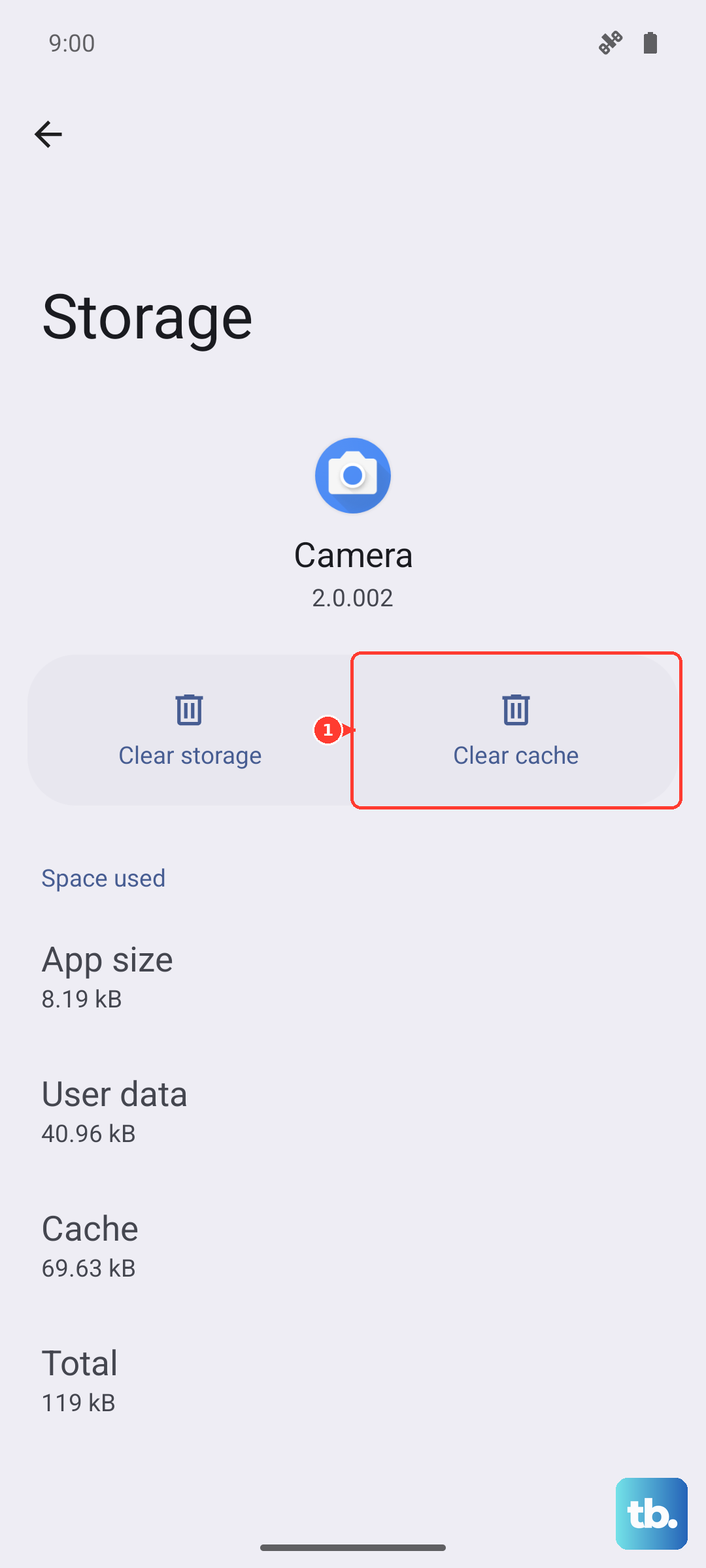
Reboot the phone after doing this, then test the keyboard. This fix resolves a solid chunk of lag and freeze issues on the S25 Edge.
Clear the Dictionary app cache
The Samsung Keyboard relies on a separate Dictionary app for autocorrect and predictive text. If that app's cache is corrupted, the keyboard can slow to a crawl or stop responding entirely.
Go to Settings > Apps and show system apps again. Find Dictionary in the list, tap Storage, then hit Clear cache. Tap Clear data as well and confirm the prompt.
Test the keyboard after a quick restart. I've seen this step alone fix lag that wiping the keyboard cache didn't touch.
Update the Samsung Keyboard through the Play Store
Samsung pushes keyboard updates through the Galaxy Store and Google Play Store. An outdated version can develop compatibility issues with Android 15 on your S25 Edge.
Open the Play Store, tap your profile picture, and select Manage apps & device. Under Updates available, check if Samsung Keyboard is listed. Update it if necessary, then restart your phone and test typing.
Reset Samsung Keyboard settings
If you've customized the keyboard extensively, a setting conflict might be causing the lag. Resetting the keyboard to its factory defaults undoes any configuration changes without deleting your app data.
Navigate to Settings > General management > Language and input > On-screen keyboard > Samsung Keyboard. Tap Reset to default settings and confirm.
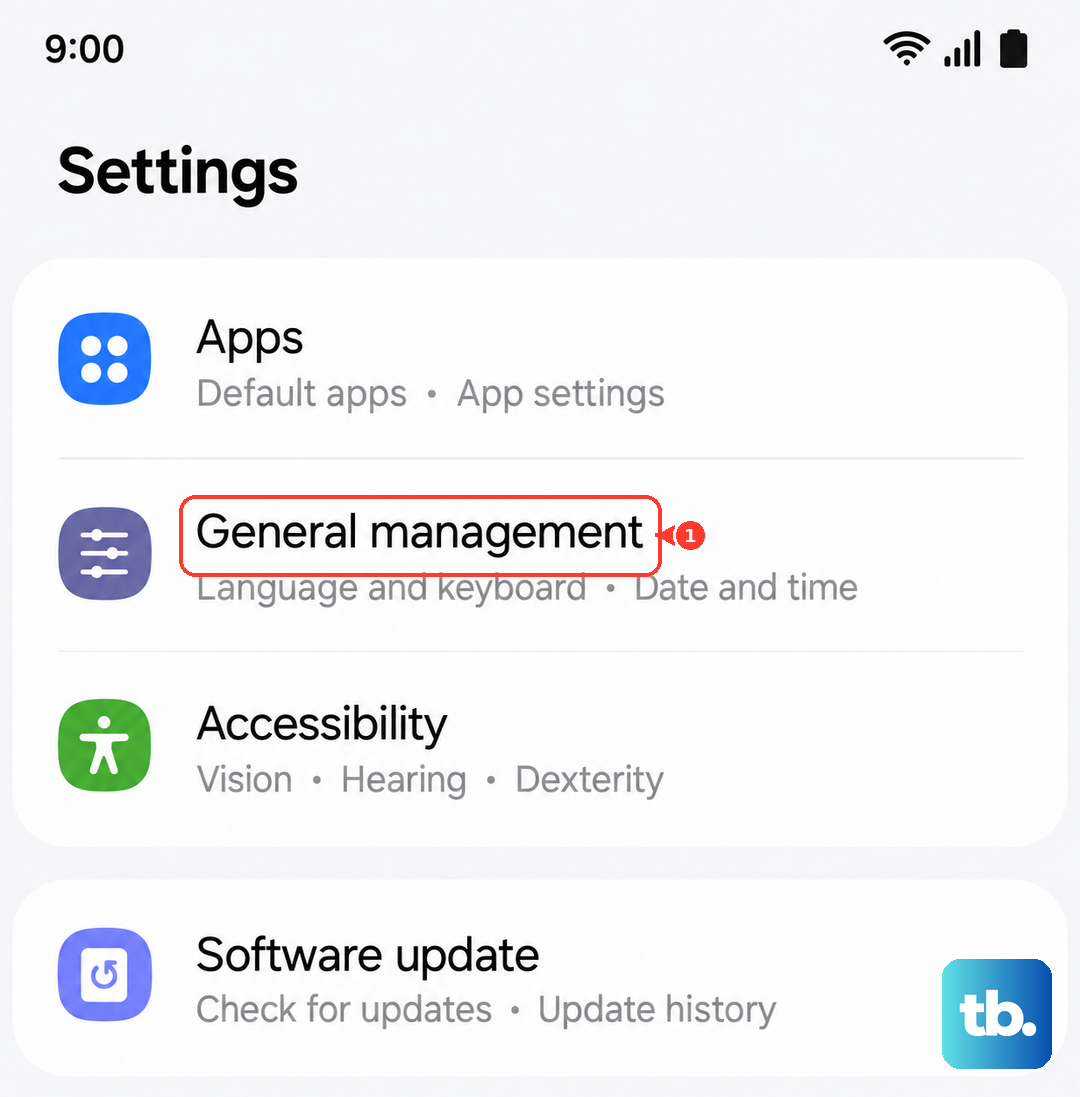
This returns everything to how it was when you first set up the phone, which often clears up lag that's developed over months of use.
Try a different keyboard app
Switching to a third-party keyboard is a quick way to determine whether the problem is with the Samsung Keyboard app or something deeper in the system. Gboard and SwiftKey are solid alternatives available in the Play Store.
Download one, open Settings > General management > Language and input > On-screen keyboard, and select your new keyboard. If it runs smoothly, you've confirmed the issue is isolated to the Samsung Keyboard app.
Update your phone's software
Android 15 and One UI 7 receive periodic patches that fix known bugs, including keyboard performance issues. Running outdated system software can leave your S25 Edge vulnerable to problems that have already been solved in newer builds.
Open Settings > Software update and tap Download and install. If an update is available, install it and restart your phone. Check for any available updates in the Galaxy Store too, since Samsung occasionally pushes system-level keyboard fixes there.
Boot into Safe Mode
Safe Mode temporarily disables all third-party apps, which helps identify if a downloaded app is interfering with the keyboard. If the keyboard works fine in Safe Mode, you know a third-party app is the culprit.
Press and hold the Side button and the Volume Down button together from a powered-off state. Release the Side button when you see the Samsung logo, but keep holding Volume Down until the home screen loads with "Safe Mode" in the bottom-left corner.
Test the keyboard in any app. If it's smooth, start uninstalling recently added apps one by one until the problem stops. The last app you removed is likely the one causing the conflict.
Most keyboard lag and freeze issues on the Galaxy S25 Edge can be resolved with these steps, usually starting from the quickest fixes forward. You rarely need to resort to a factory reset for this kind of problem, and your data should stay intact throughout the process.